
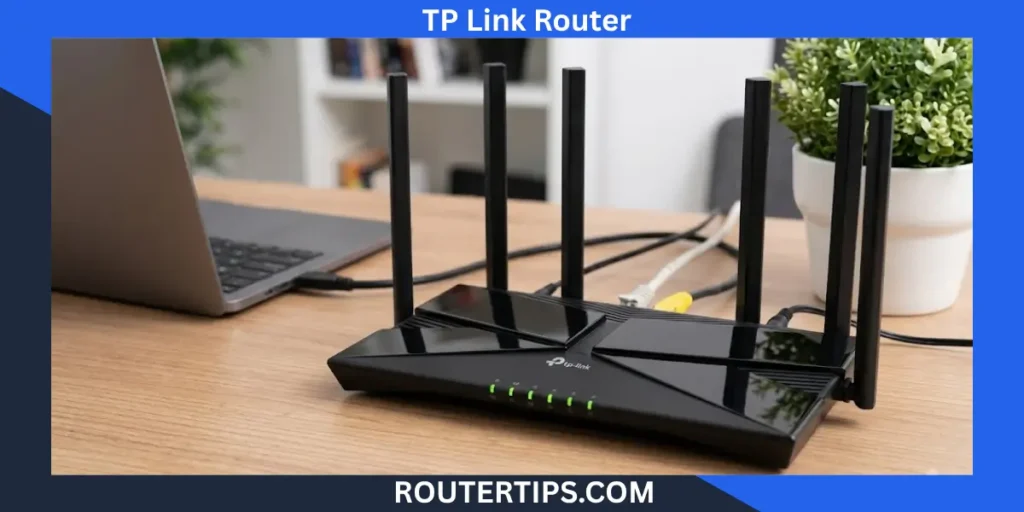
A TP-Link router login gives you access to your router’s web management page. From there, you can change your Wi-Fi name, update the Wi-Fi password, manage connected devices, adjust security settings, and change other network options.
For many TP-Link routers, you can open the login page by visiting tplinkwifi.net or 192.168.0.1 in a web browser. Your device must be connected to the TP-Link router, either through Wi-Fi or an Ethernet cable.
One important point is that your router admin password is not always the same as your Wi-Fi password. Newer TP-Link models commonly ask you to create an admin password during setup. Some older models use admin as the default username and password. The exact login method depends on your router model and firmware.
TP Link Router Login at a Glance
If you only need the basic steps, follow these:
- Connect your phone, computer, or tablet to the TP-Link router.
- Open a web browser.
- Type tplinkwifi.net into the address bar.
- If that does not work, try 192.168.0.1.
- Enter your TP-Link administrator password.
- Select Log In.
You do not need an active internet connection just to open the router’s local management page. You do need a connection between your device and the router.
📶 Need to find your Xfinity router login address? Explore our What Is My Router IP Xfinity Tutorial to locate the default gateway, access the admin panel, and manage your Xfinity network settings.
How to Log In to a TP Link Router
Connect Your Device to the TP Link Router
Before opening the TP-Link login page, make sure your device is connected to the correct router.
You have two common choices.
Connect Through Wi-Fi
On your phone, laptop, or tablet, open the Wi-Fi settings and connect to your TP-Link network.
If the router has just been installed, check the label on the router for the default network name, also called the SSID, and the default Wi-Fi password.
Connect With an Ethernet Cable
For a computer, you can connect an Ethernet cable from the computer to a LAN port on the router.
An Ethernet connection can be helpful if the wireless network is not working or if you are changing important router settings.
TP-Link confirms that either Wi-Fi or Ethernet can be used to reach the router’s web management page.
Open the TP Link Login Page
Open Chrome, Firefox, Edge, Safari, or another modern web browser.
Type this directly into the address bar:
tplinkwifi.net
Then press Enter.
If the page does not open, try:
192.168.0.1
Make sure you type the address into the browser’s address bar, not into Google or another search engine.
The address tplinkwifi.net is used to reach the TP-Link router’s local management interface. 192.168.0.1 is a common LAN IP address for TP-Link routers.
TP-LINK Default Login – Username, Password and IP Address
Enter Your TP Link Login Password
The login screen depends on your router model.
Many newer TP-Link routers ask you to create an administrator password when you first set up the router.
Some older TP-Link models use:
Username:admin
Password:admin
Both are lowercase.
However, admin/admin should not be treated as the universal TP-Link router password. TP-Link’s current support information shows that login systems vary between models.
If you changed the administrator password in the past, use your current password.
Open the Router Admin Panel
After you sign in, the TP-Link web management page will appear.
Depending on your model, you may see options for:
- Internet settings
- Wireless settings
- Wi-Fi name and password
- Guest network
- Connected devices
- Parental controls
- Security
- Firmware updates
- LAN settings
- DHCP settings
- Administrator settings
The names and location of these options can differ between TP-Link models and firmware versions.
🌐 Need to find your router’s gateway address? Explore our What Is My Router Gateway IP Tutorial to locate the default gateway, access your router’s admin panel, and manage your network settings.
What Is the TP Link Router Login Address?
The most common TP-Link router login addresses are:
| Address | Common use |
| tplinkwifi.net | TP-Link local router management |
| 192.168.0.1 | Common TP-Link LAN address |
| 192.168.1.1 | Used by some router configurations |
If tplinkwifi.net works, there is usually no reason to change to an IP address.
If it does not work, try 192.168.0.1.
If neither address works, your router may use a different LAN IP address. The current LAN address can be different if the network configuration was changed. TP-Link notes that 192.168.0.1 is the LAN IP for many devices, but a changed configuration can require the current LAN address instead.
📶 Need to access your Linksys router? Explore our What Is My Linksys Router IP Tutorial to find the default IP, open the admin panel, and manage your router settings.
What Is the 192.168.0.1 Password for TP Link?
There is no single 192.168.0.1 password that works for every TP-Link router.
The IP address is only the local address of the router. Your router’s authentication method determines which credentials you need.
For many newer TP-Link routers, you create an administrator password during the first setup.
For some older TP-Link models, the default login may be:
Username:admin
Password:admin
For example, TP-Link’s documentation for the TL-WR841N V14 lists admin as the default username and password. That does not mean every TP-Link router uses the same credentials.
If someone changed the router’s admin password, the old default password will no longer work.
📶 Need help accessing your AT&T router settings? Explore our What Is My AT&T Router IP Address Tutorial to find the default gateway, access the admin panel, and manage your network settings.
TP Link Admin Password vs Wi-Fi Password
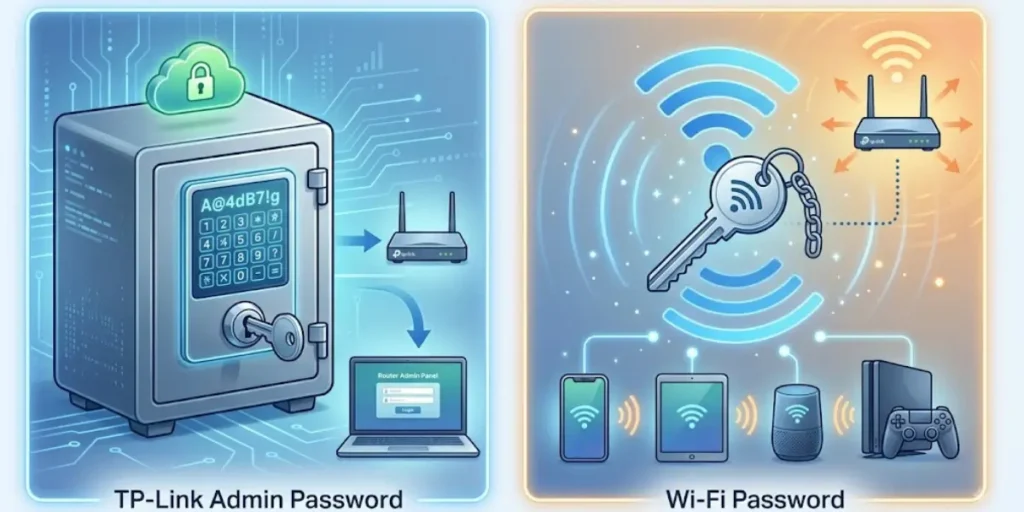
These two passwords are easy to confuse.
Router admin password: Used to enter the router’s settings.
Wi-Fi password: Used by phones, computers, TVs, and other devices to connect to the wireless network.
Changing one does not automatically mean you have changed the other. TP-Link specifically identifies the administrator password and Wi-Fi password as separate credentials.
How to Check Your TP Link Wi-Fi Password
If you are looking for the wireless password rather than the router login password, try these methods.
Check the Router Label
Look at the bottom, back, or side of your TP-Link router.
Depending on the model, the label may show:
- Default Wi-Fi name
- SSID
- Wireless password
- Default login information
- Model number
- Hardware version
TP-Link states that the default Wi-Fi information can be printed on the router label.
Keep in mind that the password on the label may no longer be correct if you changed the Wi-Fi password after setting up the router.
📶 Need to access your ARRIS router settings? Explore our What Is My Arris Router IP Address Tutorial to find the default login address, open the admin panel, and manage your network settings.
Check the Wi-Fi Settings in the Router
If you can log in to the TP-Link admin panel, you may be able to view or change the wireless password.
Depending on the model, look for a section such as:
Wireless > Wireless Settings
or:
Basic > Wireless
Older models may place wireless security settings under a different menu.
TP-Link confirms that the exact menu can vary according to the router model and firmware.
Use the TP Link Tether App
Compatible TP-Link routers can also be managed through the TP-Link Tether app.
The available features depend on the model. TP-Link also provides options for changing the device admin password through Tether on supported products.
🌐 Need quick access to your router’s IP information? Explore our Router IP Resources to find common router addresses, access the admin panel, and manage your network settings.
How to Access the TP Link Router Website
The TP-Link router website is different from an ordinary public website.
When you type tplinkwifi.net into your browser, you are trying to reach the router’s local web management page.
To access it:
- Connect to your TP-Link network.
- Open your browser.
- Type tplinkwifi.net.
- Press Enter.
- Enter your router administrator password.
- Continue to the router settings.
If the address does not work, try 192.168.0.1.
A common mistake is to search for tplinkwifi.net in Google. Instead, type it directly into the browser address bar.
TP Link Archer Router Login
TP-Link Archer is a family of TP-Link routers, so the exact login screen can vary between Archer models.
For a typical Archer router:
- Connect your device to the Archer network.
- Open a browser.
- Enter tplinkwifi.net.
- Try 192.168.0.1 if needed.
- Enter the administrator password.
- Open the router management page.
Do not assume that every Archer model uses admin/admin. The login process depends on the model and firmware.
If you need model-specific instructions, use the exact model number printed on the router and check its TP-Link support documentation.
TP Link Router Login Not Working
If the TP-Link admin page does not open, work through these checks in order.
Check Your Wi-Fi Connection
Make sure your phone or computer is connected to the TP-Link router you are trying to manage.
If your device is connected to another Wi-Fi network, the local TP-Link address may not take you to the correct router.
Try 192.168.0.1
If tplinkwifi.net does not load, type:
192.168.0.1
directly into the address bar.
TP-Link recommends trying the IP address when the web management domain does not work.
Try Another Browser
A browser extension, cached page, or browser-specific problem can sometimes affect access.
Try another browser or another device.
TP-Link lists using a different browser or end device as a troubleshooting step for web-interface access problems.
Try an Ethernet Connection
If you are connected over Wi-Fi and the router page will not open, connect a computer directly to the router with an Ethernet cable.
Then try tplinkwifi.net again.
Check Your Router’s Current IP Address
If 192.168.0.1 does not work, the router may have a different local IP address.
This can happen when the LAN configuration has been changed. TP-Link notes that the current LAN IP should be used if the original address has been changed.
Temporarily Check VPN or Proxy Settings
A VPN or proxy can affect access to local network addresses.
If you are using one, temporarily disconnect it and try the TP-Link login page again.
Restart the Router
Turn the router off, wait briefly, and turn it back on.
Wait until the router has finished starting, reconnect your device, and try the login page again.
Forgot Your TP Link Router Login Password?
Forgetting the administrator password is different from forgetting the Wi-Fi password.
If you can still access the router and know the current password, you can change it from the administration settings.
On supported TP-Link devices, the current path can be:
Advanced > System > Administration
TP-Link says the exact menu can vary by device.
Use Password Recovery When Available
Some TP-Link routers support a password recovery feature.
Depending on the model, recovery may use a previously linked TP-Link ID or another recovery method that was configured before the password was forgotten.
If your router supports password recovery, use that option before performing a reset.
Factory Reset as a Last Option
If you cannot recover the administrator password, a factory reset may be required.
A reset removes your custom router settings. That can include:
- Internet configuration
- Wi-Fi name
- Wi-Fi password
- Administrator password
- Other customized network settings
TP-Link advises that the router must be set up again after a factory reset.
How to Reset a TP Link Router
The reset process varies by model, so check the instructions for your exact router.
On many TP-Link routers, the process involves:
- Keep the router powered on.
- Locate the Reset or WPS/Reset button.
- Press and hold the button for the required amount of time.
- Release it when the router indicates that the reset has started.
- Wait for the router to restart.
- Connect to the default network.
- Open tplinkwifi.net.
- Complete the router setup again.
TP-Link’s general reset guide says some models require holding the Reset or WPS/Reset button for more than 10 seconds. The exact procedure should be checked against your model.
Do not reset the router simply because tplinkwifi.net is not opening. First check the network connection, login address, browser, and router IP.
TP Link Login and TP Link ID What Is the Difference?
A TP-Link ID is an account used for supported TP-Link services and devices.
A local router login is the authentication used to access the router’s web management interface.
These can be related on supported devices, but they should not automatically be treated as the same password.
If your router login page offers a TP-Link ID option, follow the login method shown for your model.
How to Change Your TP Link Admin Password
Once you are logged in, changing the administrator password is a good security step, especially if your router still uses an old default password.
On supported TP-Link devices, the web interface may use:
Advanced > System > Administration
You normally need to enter the existing password before creating a new one.
Choose a password that is:
- Long enough to resist guessing
- Unique to your router
- Different from your Wi-Fi password
- Not based on your name or address
Store the new password in a password manager or another secure place.
TP Link Router Login Security Tips
Your router controls the network used by your connected devices, so its administrator account should be protected.
Follow these basic steps:
Use a Strong Admin Password
Avoid simple passwords such as your name, phone number, or a short word.
Keep the Admin Password Separate
Do not assume the Wi-Fi password and router administrator password need to be identical.
Update Router Firmware
Check TP-Link’s support page for your exact model and hardware version when looking for firmware updates.
Avoid Sharing Admin Credentials
Anyone with administrator access can change important network settings.
Save Your Configuration
If your router supports configuration backups, consider saving one before making major changes.
This can make recovery easier if you later need to reset or replace settings.
Final Thoughts About TP-Link Router Login
The normal TP-Link router login process is simple. Connect your device to the router, open tplinkwifi.net, and enter your administrator password. If the address does not work, 192.168.0.1 is another common address to try on many TP-Link routers.
The most important thing is knowing which password you need. Your router administrator password controls access to the router settings, while your Wi-Fi password allows devices to connect to your wireless network. Keeping these credentials separate can make it easier to manage your router and troubleshoot login problems.
If you forget your administrator password, check whether your TP-Link router supports a password recovery option before performing a factory reset. A factory reset erases your custom settings, so you will need to configure the router again after the reset.
For model-specific instructions, check the official TP-Link documentation for your exact router model and hardware version. This helps ensure that you follow the correct login steps and use settings that match your TP-Link device.
Frequently Asked Questions About TP-Link Router Login
Q1 How do I access my TP-Link router?
Connect your device to the TP-Link network and enter tplinkwifi.net in a browser. If that does not work, try 192.168.0.1. Then enter your router’s administrator password.
Q2. What is the 192.168.0.1 password for TP-Link?
There is no universal password for every TP-Link router. Some older models use admin as both username and password, while many newer models require an administrator password created during setup.
Q3. How do I check my TP-Link Wi-Fi password?
Check the router label for the original Wi-Fi password, or log in to the router’s web management page and open the wireless settings. The menu differs by model.
Q4. How do I access the router website?
Connect your device to the router, open a browser, and enter tplinkwifi.net. You can also try 192.168.0.1.
Q5. What is the TP-Link username and password?
It depends on the model. Some older TP-Link routers use admin for both fields. Newer models may ask you to create an administrator password during setup.
Q6. Why is tplinkwifi.net not working?
First check that your device is connected to the TP-Link router. Then try 192.168.0.1, another browser, another device, or an Ethernet connection. If the router’s LAN IP has been changed, you may need to use its current IP address.
Q7. Can I log in to my TP-Link router from my phone?
Yes. Connect your phone to the TP-Link Wi-Fi network and open tplinkwifi.net in a browser. Compatible TP-Link devices can also be managed through the Tether app.
Q8. Is the TP-Link Wi-Fi password the same as the router login password?
Not necessarily. The Wi-Fi password lets devices join the wireless network. The administrator password lets you access the router’s settings. TP-Link treats them as separate credentials.
Q9. What should I do if I forgot my TP-Link admin password?
Check whether your router supports Password Recovery or TP-Link ID-based recovery. If no recovery method is available, a factory reset may be necessary. A reset removes your custom configuration, so it should be a last option.