
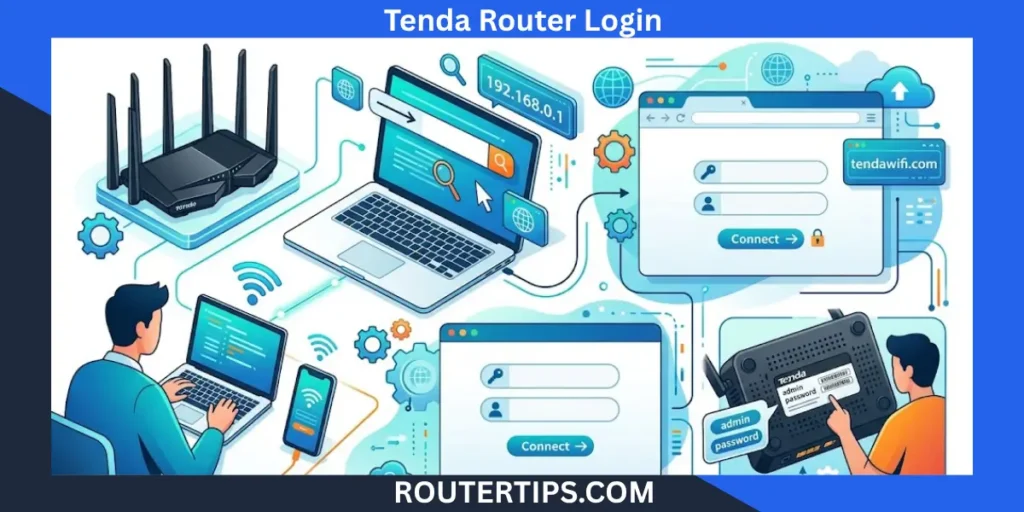
A Tenda router login gives you access to the settings used to manage your home or office network. From the router’s admin page, you can change your WiFi name and password, adjust security settings, check connected devices, update firmware, and change other network options.
For many Tenda routers, 192.168.0.1 is the local address used to open the login page. Some models may use a different address or tendawifi.com, so it is important to check the actual gateway address if the usual login page does not open.
This guide explains how to log in to a Tenda router, find the correct IP address, change passwords, reset the router, and fix common login problems.
Tenda Router Login at a Glance
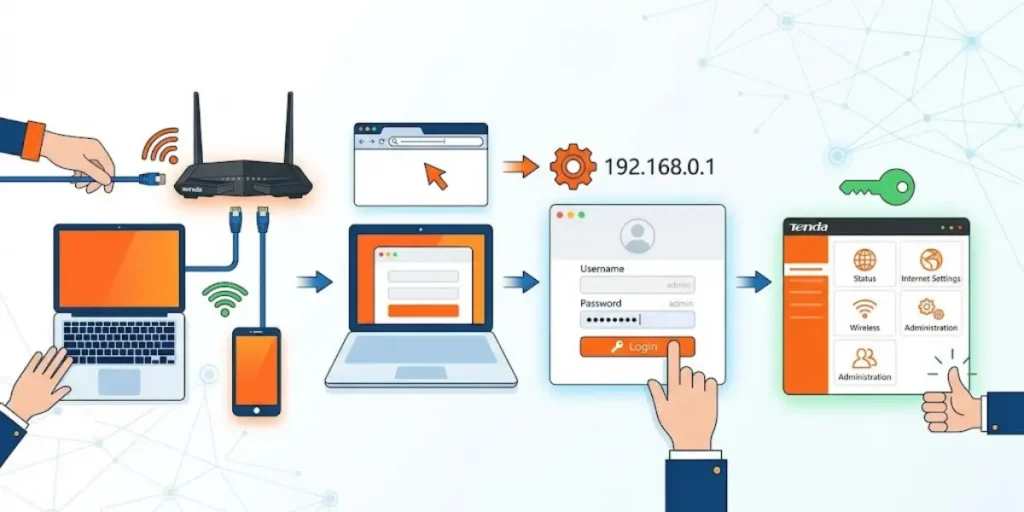
If your Tenda router uses the common default address, the basic login process is:
- Connect your phone or computer to the Tenda router.
- Open a web browser.
- Enter 192.168.0.1 in the address bar.
- Press Enter.
- Enter your Tenda administrator password when requested.
- Open the router settings page.
If 192.168.0.1 does not work, do not keep trying random IP addresses. Check your device’s Default Gateway or Router address first.
📶 Need help signing in to your TP-Link router? Explore our TP-Link Router Login Tutorial to access the login page, enter your credentials, and manage your router settings.
What Is Tenda Router Login?
Tenda router login is the process of accessing the router’s web-based administration page. This page lets you manage the network from a connected phone, tablet, laptop, or desktop computer.
The login page is different from your normal WiFi connection. Your WiFi password allows a device to join the wireless network, while the router administrator password controls access to the router’s settings.
After signing in, the available options depend on your Tenda model and firmware. Common settings include:
- WiFi name or SSID
- WiFi password
- Internet connection settings
- Guest WiFi
- LAN settings
- DHCP settings
- Connected devices
- Wireless security
- Firmware updates
- Administrator settings
Tenda Default Login – Username, Password and IP Address
Default logins for Tenda
Tenda Router Default IP Address
The IP address is one of the most important details when accessing a router.
192.168.0.1
192.168.0.1 is commonly used as a Tenda router login address. It is a private IPv4 address used inside a local network.
To try it, connect your device to the Tenda router and type:
192.168.0.1
into the browser’s address bar.
Do not enter it into Google or another search engine. The address should be entered directly into the browser.
tendawifi.com
Some Tenda devices can also be accessed through tendawifi.com. Whether this works depends on the router model and its firmware.
If one method does not work, check the router’s model information and current gateway address before making changes.
📶 Need to find your Xfinity router’s IP address? Explore our What Is My Router IP Xfinity Tutorial to locate the default gateway, access the router login page, and manage your network settings.
Can a Tenda Router Use 192.168.1.1?
It can, depending on the model or network configuration. 192.168.1.1 is not automatically the correct Tenda login address.
The safest approach is to check the router’s actual gateway address from the device connected to it.
Tenda Router Default Username and Password
Tenda login credentials can vary between models and firmware versions. Because of this, you should not assume that one username and password combination works on every Tenda router.
🌐 Need to locate your router’s gateway address? Explore our What Is My Router Gateway IP Tutorial to find the default gateway, access the router admin page, and manage your network settings.
What Is the Username and Password of Tenda Routers?
The correct administrator credentials may be:
- Printed on the router label
- Provided in the model’s setup information
- Created during the initial setup
- Already changed by the network administrator
Some older routers may have simple default credentials, but newer Tenda models may use different login methods.
If the password was changed during setup, the original default password may no longer work.
Where Can I Find My Tenda Router Password?
Start by checking the label on the router. Look for information such as:
- Model number
- Default WiFi name
- WiFi password
- Login information
- Default IP address
Keep in mind that the WiFi password and administrator password may not be the same.
If someone previously configured the router, ask that person for the current administrator password rather than assuming the factory credentials are still active.
Requirements to Access a Tenda Router
Before starting the login process, make sure you have:
- A Tenda router that is powered on
- A phone, computer, or tablet
- A connection to the router
- A web browser
- The router’s correct local IP address
- The current administrator password
An internet connection is usually not required to open the router’s local administration page. Your device mainly needs to communicate with the router over the local network.
⚙️ Want to make a specific service reachable through your router? See our Port Forwarding Explanation to understand how port rules work and how they can be configured for gaming, remote access, cameras, and other network services.
How to Log Into a Tenda Router
The following steps work as a general guide. Menu names can differ between Tenda models.
Connect to the Tenda Network
Connect your computer or mobile device to the Tenda router.
You can use WiFi or an Ethernet cable. A wired connection can be helpful if the wireless connection is unstable.
Make sure you are connected to the router you want to manage.
Open a Web Browser
Open Chrome, Microsoft Edge, Firefox, Safari, or another current browser.
You do not need to search for the Tenda login page.
Enter the Tenda Router IP Address
Type 192.168.0.1 into the browser’s address bar and press Enter.
If your router supports the local Tenda web address, you can also try tendawifi.com.
If the page does not appear, check your device’s gateway address instead of guessing.
Enter Your Tenda Login Credentials
When the router displays the login screen, enter the requested administrator credentials.
If you created a custom password during setup, use that password.
If you have forgotten it, see the password recovery and reset section below.
Open the Router Settings
After successful authentication, you should see the Tenda administration interface.
The design can look different depending on your router model and firmware version.
From here, you can manage supported network settings.
🔐 Forgot your router login details? See our Recovering Router User and Password Information to learn how to regain access and manage your router credentials safely.
How to Change Your Tenda WiFi Name and Password
Changing the WiFi password is one of the most common reasons people access the Tenda router login page.
Change the Tenda WiFi Name
The WiFi name is also called the SSID.
In the Tenda settings:
- Open the wireless or WiFi settings.
- Find the WiFi name or SSID field.
- Enter your new network name.
- Review the wireless settings.
- Save the changes.
Your connected devices may disconnect after the SSID changes. Reconnect them using the new WiFi name.
Change the Tenda WiFi Password
To change the wireless password:
- Sign in to the Tenda router.
- Open the WiFi or wireless settings.
- Find the wireless password field.
- Enter a strong new password.
- Save the settings.
- Reconnect your devices.
Use a password that is difficult for other people to guess. Avoid using simple information such as your name, phone number, or house number.
How to Change the Tenda Router Admin Password
The administrator password protects access to the router’s settings. It is not necessarily the same as your WiFi password.
After logging in, look for an option related to:
- Administration
- System settings
- Login password
- Account
- Management
The exact menu name depends on your Tenda model.
Create a unique administrator password and keep it in a secure password manager if possible.
🌐 Need to locate the IP used to access your router? Check our Find Router IP Address Reference to identify the correct address and reach your router’s settings page.
How to Find Your Tenda Router IP Address
If 192.168.0.1 does not open, finding the actual gateway address is often the quickest solution.
Find the Router IP on Windows

Connect the computer to your Tenda network and open Command Prompt.
Run:
ipconfig
Look for the network connection you are currently using. The address listed beside Default Gateway is normally the local router address.
Enter that address into your browser.
Find the Router IP on Android
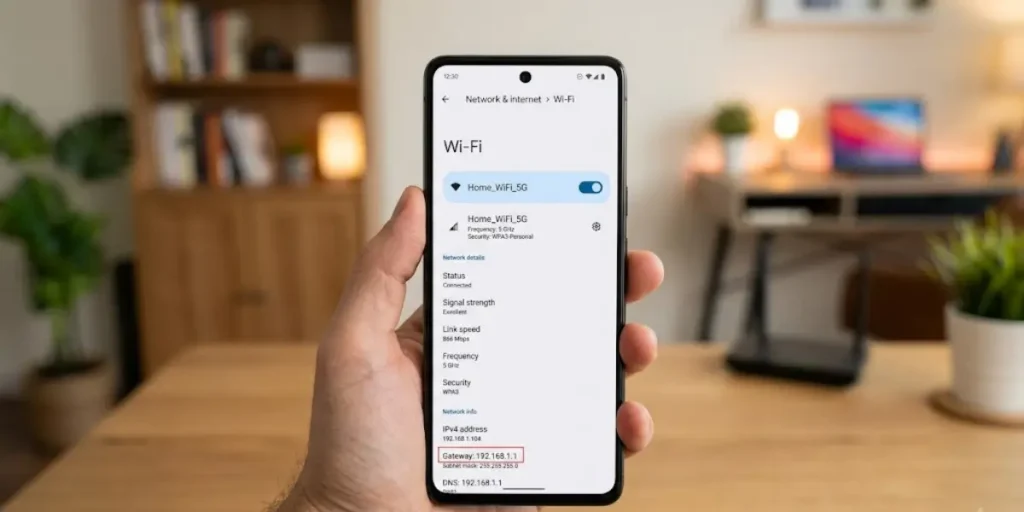
Open the WiFi settings and select the network you are currently connected to.
Depending on the Android version and phone manufacturer, the router or gateway information may appear under network details.
Find the Router IP on iPhone
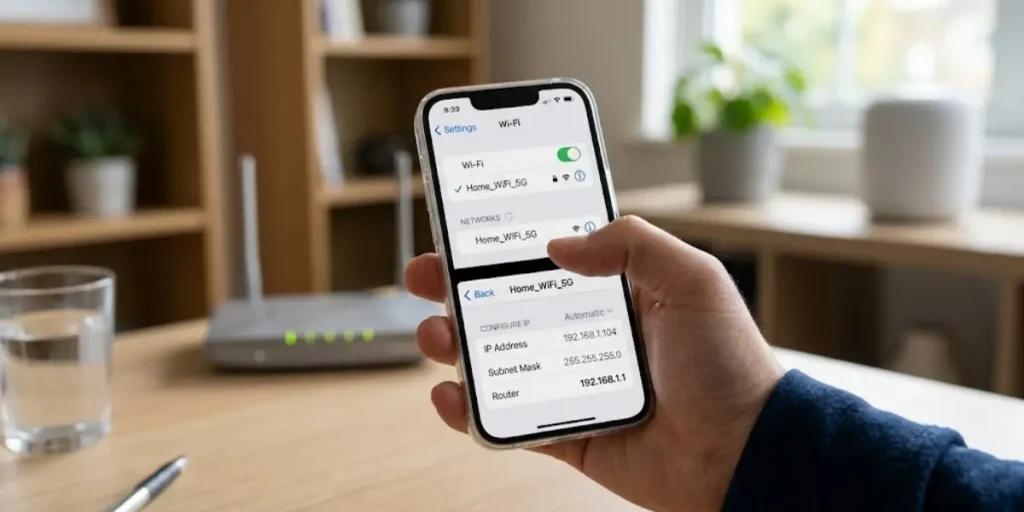
Open Settings > WiFi, then select the connected network.
Look for the Router field. The address shown there is the local router address.
Find the Router IP on macOS
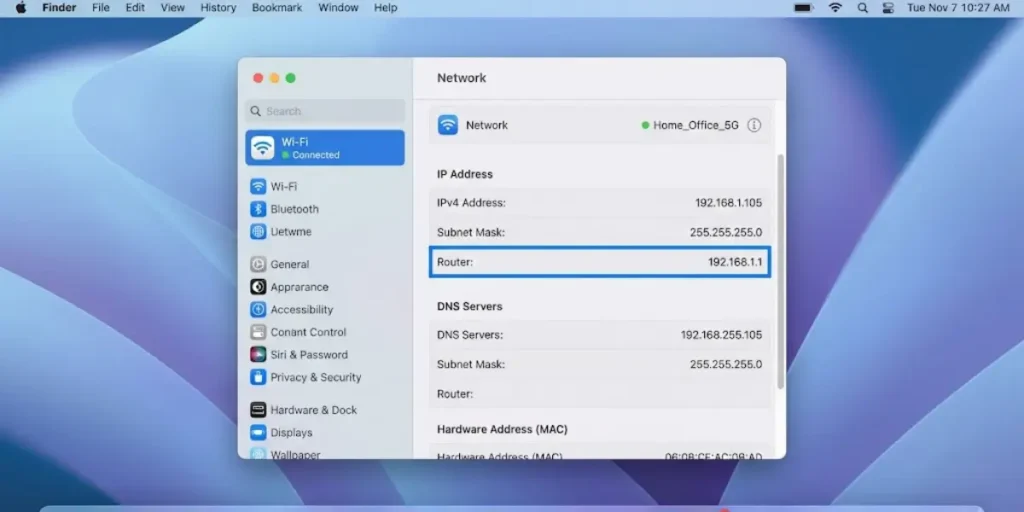
Open the Mac’s network settings and view the details for the active connection.
Look for the router or gateway address associated with that network.
Is 192.168.100.1 a Tenda Router Login Address?
192.168.100.1 is not a universal Tenda router login address.
If you saw this address in a search result, do not assume it belongs to your Tenda router.
First check your device’s Default Gateway or Router field. That tells you which local address your device is using to reach the network gateway.
The same rule applies to other private addresses. A search result does not prove that an IP address is the correct administration address for your particular router.
What Is 192.168.0.102 on a Tenda Network?
An address such as 192.168.0.102 can be assigned to a device connected to the router.
For example, a laptop, phone, printer, or smart device might receive an address in the local network range.
This is different from the router’s gateway address.
A simple example is:
- Router: 192.168.0.1
- Laptop: 192.168.0.102
- Phone: another address in the same local network
The exact addresses depend on the router’s DHCP configuration.
Therefore, 192.168.0.102 should not automatically be treated as the Tenda login address.
Tenda Router Login Not Working? Try These Fixes
A Tenda login problem does not always mean the router is faulty. Start with the simplest checks.
Check Your Network Connection
Make sure your phone or computer is connected to the Tenda router.
If your device is connected to a different WiFi network, the Tenda administration page may not be reachable.
Check the Default Gateway
If 192.168.0.1 does not work, find the gateway address from your device.
This is more reliable than trying different IP addresses from search results.
Enter the Address Correctly
Enter the router IP into the browser’s address bar.
For example:
192.168.0.1
Do not search for the address on Google.
Try tendawifi.com
If your model supports it, try the local Tenda web address.
If neither option works, check the router’s actual network gateway.
Restart the Router
Turn the router off, wait briefly, and power it back on.
Give it enough time to complete startup before trying the login page again.
Try Another Browser
A browser extension, cached page, or temporary browser issue can sometimes prevent the login interface from loading correctly.
Try another browser or a private browsing window.
Temporarily Check VPN or Proxy Settings
A VPN or proxy can affect access to local network addresses.
If you use one, temporarily disable it and test the router page again.
Try an Ethernet Cable
If WiFi is unstable, connect a computer directly to the router with an Ethernet cable and try the login page again.
Forgot Your Tenda Router Login Password?
If the login page opens but your password is rejected, first make sure you are using the administrator password, not simply the WiFi password.
Check the Router Label
Look at the information printed on the router. Some models include default login details or setup information.
Check Your Saved Passwords
If you previously saved the router password in a browser or password manager, check there.
Ask the Person Who Set Up the Router
If another person configured the network, they may have changed the administrator password.
Reset the Router as a Last Resort
If you cannot recover the administrator password, a factory reset may be required.
A reset removes customized router settings, so you will need to configure the network again.
How to Reset a Tenda Router
The reset procedure can vary between Tenda models, so use the instructions for your specific device.
In general:
- Keep the router powered on.
- Find the Reset or WPS/Reset button.
- Press and hold the reset control as specified for your model.
- Wait for the router to restart.
- Allow the router to complete its startup process.
- Connect to it again.
- Complete the initial configuration.
Do not reset the router simply because 192.168.0.1 did not open. First check your network connection and gateway address.
Tenda Router Setup After Login
Once you have access to the administration page, review the important settings.
Configure the Internet Connection
Depending on your service provider, the router may require a particular WAN or Internet connection type.
Follow the settings supplied by your ISP.
Set Your WiFi Name
Choose a name that makes your network easy to identify without revealing unnecessary personal information.
Set a Strong WiFi Password
Use a long, unique password and avoid common words or easily guessed details.
Review Wireless Security
Use the strongest security option supported by your router and connected devices.
Check Connected Devices
Review the devices connected to your network. If you see an unfamiliar device, investigate before allowing continued access.
Update Router Firmware
Firmware updates can provide security improvements, bug fixes, and compatibility changes.
Only use firmware intended for your exact Tenda model and hardware version.
How to Improve Tenda WiFi Performance
Router login can also help you manage wireless performance.
Place the Router in a Good Location
Keep the router in an open, central location where possible.
Avoid placing it behind large objects, inside closed cabinets, or close to sources of heavy wireless interference.
Check the WiFi Band
If your router supports both 2.4 GHz and 5 GHz networks, choose the band that best suits the device and distance.
The 2.4 GHz band generally travels farther, while 5 GHz can provide higher speeds at shorter distances.
Reduce Wireless Interference
Nearby networks and electronic devices can affect wireless performance.
Changing the wireless channel may help in crowded environments if your Tenda model provides that option.
Use Ethernet for Fixed Devices
Gaming consoles, desktop computers, televisions, and other stationary devices may benefit from a wired Ethernet connection when practical.
Tenda Router Security Tips
After completing your Tenda router login, take a few minutes to review security.
Change Default Administrator Credentials
Do not continue using easily guessed administrator credentials if the router allows you to create a custom password.
Use a Strong WiFi Password
Avoid short or predictable passwords.
Keep Firmware Updated
Check for firmware updates intended for your exact model.
Review Connected Devices
Remove or block unknown devices when your router provides that option.
Avoid Unnecessary Remote Administration
If you do not need remote management, keeping administration limited to the local network can reduce unnecessary exposure.
Tenda Router Login vs Tenda App Login
Tenda provides both web-based management and app-based management for supported products.
Web-Based Tenda Router Login
The browser method lets you access the router’s local administration interface from a connected device.
It is useful when you need access to settings that are available through the router’s web interface.
Tenda WiFi App Login
The Tenda WiFi app is available for supported Tenda products and can provide mobile-based network management.
The features available through the app depend on your router or networking device.
Final Thoughts On Tenda Router Login
The easiest way to access a Tenda router is to connect directly to its network and use the router’s actual gateway address. 192.168.0.1 is common, but it should not be treated as the correct address for every Tenda model.
Once you reach the Tenda administration page, you can manage important settings such as the WiFi name, WiFi password, administrator password, wireless security, connected devices, and firmware.
If the login page does not open, start with the basics: check your connection, find the Default Gateway, try the correct local address, and avoid resetting the router unless you have exhausted the simpler options.
For the safest setup, use a strong administrator password, protect your WiFi network, keep compatible firmware updated, and use settings that match your specific Tenda model.
Frequently Asked Questions About Tenda Router Login
Q1. How do I log into my Tenda router?
Connect your device to the Tenda network, open a browser, and enter the router’s actual local IP address. 192.168.0.1 is commonly used by Tenda routers. If it does not work, check the device’s Default Gateway or Router address.
Q2. How do I change my Tenda 192.168.0.1 password?
First log in to the router at 192.168.0.1 if that is your router’s gateway address. Then open the administration or system settings and change the administrator password. The exact menu depends on the Tenda model and firmware.
Q3. How do I find my 192.168.100.1 username and password?
First confirm that 192.168.100.1 is actually the router’s gateway address. The username and password depend on the router model and whether the original credentials have been changed.
Q4. How do I access my 192.168.1.1 router login page?
Type 192.168.1.1 directly into your browser’s address bar. It will open the router login page only when that address is configured as the router’s local gateway.
Q5. What is the default IP address for a Tenda router?
192.168.0.1 is commonly used by Tenda routers, but the correct address can vary by model or configuration. Checking the Default Gateway is the best way to confirm it.
Q6. What is the default password for a Tenda router?
There is no single administrator password that applies to every Tenda router. Check the device label, setup information, or model-specific documentation. If the password was changed, you need the current administrator password.
Q7. Why can’t I access my Tenda router login page?
The most common reasons include being connected to the wrong network, using an incorrect IP address, browser problems, VPN or proxy settings, or changes to the router configuration.
Q8. Can I change my Tenda WiFi password from the router login page?
Yes. After signing in, open the wireless or WiFi settings and look for the password or security option. The exact location depends on the model.
Q9. How do I reset my Tenda router login password?
If you cannot recover the current administrator password, a factory reset may be necessary. Resetting the router removes customized settings, so use it only when other recovery options are not available.
Q10. Is 192.168.0.102 the Tenda router login IP?
Usually, no. 192.168.0.102 may be an IP address assigned to a device on the network. The router’s login address is normally the network gateway, such as 192.168.0.1 on many Tenda configurations.