
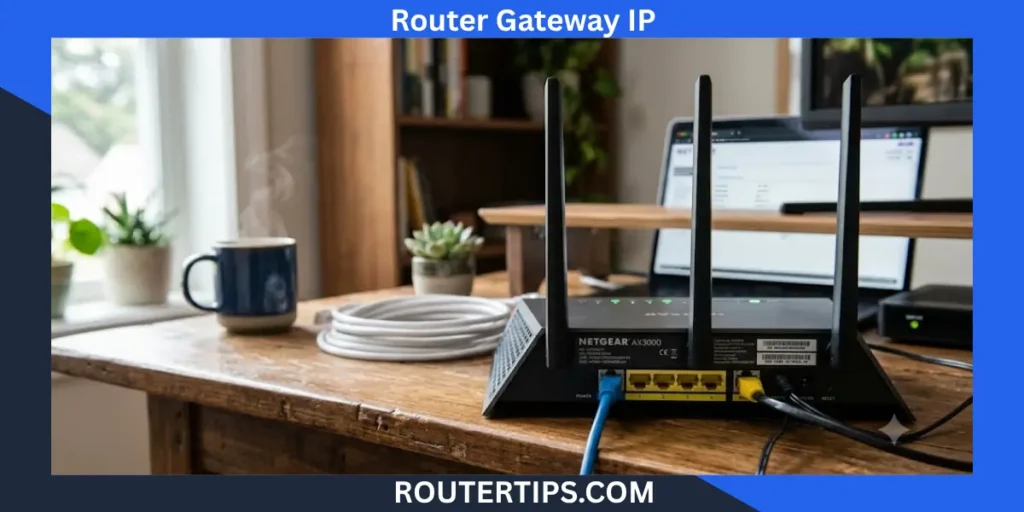
If you want to change your WiFi password, update your router settings, fix a network problem, or improve your home network security, the first thing you usually need is your router gateway IP.
Many people search for “what is my router gateway IP” because they need to access their router’s admin page but are unsure which IP address to use. The good news is that finding your router gateway IP is simple, and you can do it on Windows, Mac, Linux, Android, iPhone, or Chromebook in just a few minutes.
A router gateway IP, also called the default gateway IP address, is the private IP address your devices use to communicate with your router. In most home networks, this address also opens the router’s login page, where you can manage your WiFi, connected devices, security settings, parental controls, and firmware updates.
Some of the most common router gateway IP addresses include:
- 192.168.1.1
- 192.168.0.1
- 10.0.0.1
- 192.168.100.1
- 192.168.50.1
The correct address depends on your router brand and how your network is configured. If your router has been customized, the gateway IP may be different from the factory default.
In this guide, you’ll learn:
- What a router gateway IP is
- How it differs from other IP addresses
- How to find your gateway IP on any device
- How to log in to your router
- What to do if your gateway IP is not working
- Common questions about default gateway addresses
Whether you’re using a desktop computer, laptop, tablet, or smartphone, this guide will help you quickly locate your router’s gateway IP and understand why it matters for managing your home network.
What Is a Router Gateway IP?
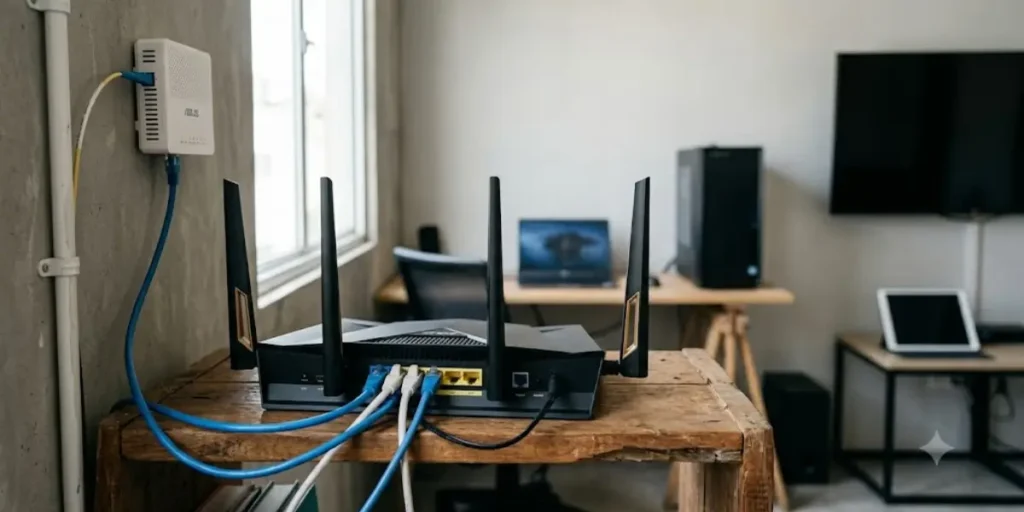
A router gateway IP is the private IP address assigned to your router on your local network. It acts as the main connection point between your devices and the internet.
Every device connected to your home WiFi, including computers, phones, gaming consoles, smart TVs, and printers, sends internet traffic through this gateway before it reaches websites or online services.
In most home networks, the router gateway IP is also the address you enter into a web browser to access the router’s admin panel. From there, you can manage your network settings and control how your internet connection works.
For example, if your router uses 192.168.1.1 as its gateway IP, typing that address into your browser will usually open the router login page.
📶 Need help finding your Linksys router login address? Explore our What Is My Linksys Router IP Tutorial to locate the default IP, access the admin panel, and manage your Wi-Fi settings easily.
A Router Gateway IP Is a Private IP Address
Your router gateway IP belongs to a range of private IP addresses that are reserved for local networks. These addresses are not visible on the public internet and are used only within your home or office network.
Common private gateway IP addresses include:
| Router Gateway IP | Common Use |
| 192.168.1.1 | Many home routers |
| 192.168.0.1 | Popular with several router brands |
| 10.0.0.1 | Often used by ISP gateways |
| 192.168.100.1 | Some cable modems and routers |
| 192.168.50.1 | Used by certain ASUS routers |
Your router may use a different private IP address if someone has changed its network settings.
What Does the Gateway Do?
The gateway serves as the traffic manager for your network. Every request to visit a website, stream a video, send an email, or play an online game passes through the router gateway before reaching the internet.
It also receives incoming data and sends it to the correct device on your local network.
Without a properly working gateway, your devices may still connect to WiFi but won’t be able to access the internet.
📶 Need help accessing your Linksys router? Explore our What Is My IP Address for My Router Linksys Tutorial to find the default login IP, open the router admin page, and manage your network settings.
Router Gateway IP vs Public IP Address
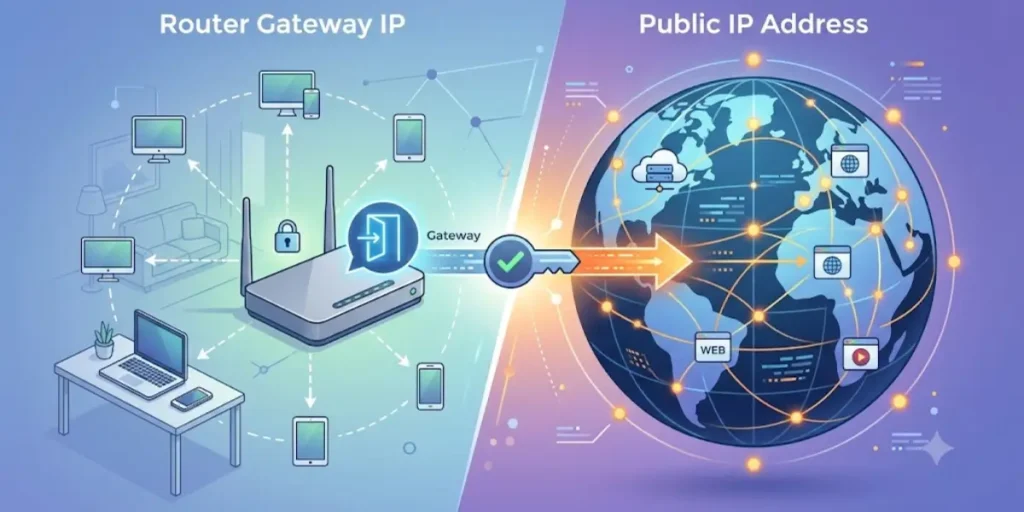
Many people confuse a router gateway IP with a public IP address, but they serve different purposes.
A router gateway IP is used only inside your local network to communicate with your router.
A public IP address is assigned by your internet service provider (ISP) and identifies your entire home network on the internet.
Here’s a quick comparison:
| Router Gateway IP | Public IP Address |
| Used inside your home network | Visible on the internet |
| Private IP address | Public IP address |
| Opens router settings | Identifies your internet connection |
| Usually starts with 192.168.x.x or 10.x.x.x | Assigned by your ISP |
| Shared by local devices for routing | Used by websites to communicate with your network |
Knowing the difference helps prevent confusion when you’re troubleshooting network issues or signing in to your router.
Why Is Your Router Gateway IP Important?
Your router gateway IP gives you access to the settings that control your home network.
You may need it to:
- Change your WiFi network name (SSID)
- Update your WiFi password
- Improve wireless security
- Install router firmware updates
- Configure parental controls
- Set up guest WiFi
- Enable port forwarding
- View connected devices
- Troubleshoot internet connection problems
- Change DNS settings
- Configure DHCP options
🏠 Need to find your router’s default login address? Explore our What Is My Home Router IP Address Resources to locate your gateway address, access router settings, and manage your home network.
What Is a Default Gateway?
A default gateway is the device that connects your local network to other networks, including the internet. In most homes and small offices, your router acts as the default gateway.
Whenever your phone, laptop, smart TV, or another device needs to reach a website or an online service, it sends the request to the default gateway first. The router then forwards that request to your internet service provider (ISP), which connects you to the wider internet.
Without a default gateway, your devices can communicate with other devices on the same local network, but they cannot reach websites, online games, cloud services, or other internet resources.
How the Default Gateway Works
Think of your home network as a neighborhood and the internet as the rest of the world. Your router is the main exit from the neighborhood.
Here’s a simple example:
- You open a website on your laptop.
- Your laptop sends the request to the default gateway.
- The router forwards the request to your ISP.
- The website sends the information back through the router.
- The router delivers the data to your laptop.
This process happens in seconds every time you browse the web, stream videos, or use online apps.
🌐 Need to locate your router’s login address? Explore our Find Router IP Address Tutorial to quickly identify your router’s default gateway and access the admin settings.
Is the Default Gateway Always the Router?
For most home users, yes.
Your WiFi router usually serves as the default gateway because it manages traffic between your local network (LAN) and the internet (WAN).
However, in larger business networks, the default gateway may be another networking device, such as:
- A firewall
- A Layer 3 switch
- A dedicated gateway appliance
- An enterprise router
For home networks, you can safely assume that the router and the default gateway are the same device.
What Is a Default Gateway Address?
A default gateway address is the private IP address assigned to the router on your local network.
Your devices automatically learn this address through DHCP (Dynamic Host Configuration Protocol) when they connect to the network. This means you usually do not have to enter the gateway address manually.
Some of the most common default gateway addresses are:
| Default Gateway Address | Common Use |
| 192.168.1.1 | Used by many home routers |
| 192.168.0.1 | Common on several router brands |
| 10.0.0.1 | Often used by ISP-provided gateways |
| 192.168.100.1 | Found on some modem-router combinations |
| 192.168.50.1 | Default for certain ASUS routers |
Your router may use a different address if the default settings have been changed.
🛡️ Want to stay protected from online threats? Learn more with our Online Scams Awareness to identify fake websites, phishing attempts, and common internet fraud methods.
Why the Default Gateway Matters
Knowing your default gateway helps you manage and troubleshoot your network more effectively.
You may need it when you want to:
- Sign in to your router’s admin panel
- Change your WiFi name or password
- Update router firmware
- Set up a guest network
- Configure port forwarding
- Change DNS settings
- Check connected devices
- Improve your network security
- Diagnose internet connection issues
Because so many network tasks start with the router’s login page, the default gateway is one of the most useful pieces of network information to know.
How Is the Default Gateway Different From DNS?
People often confuse the default gateway with a DNS server, but they have different jobs.
- The default gateway directs network traffic between your local network and the internet.
- The DNS server translates website names, such as google.com, into IP addresses that computers can understand.
Both are important, but they perform separate functions to keep your internet connection working smoothly.
Can a Default Gateway Change?
Yes. Although most routers keep the same default gateway for years, it can change if:
- You manually change the router’s local IP address.
- You replace your router with a new model.
- Your ISP installs a different gateway device.
- Your network administrator changes the network configuration.
If your usual router login address suddenly stops working, checking your device’s current default gateway is the quickest way to find the correct router IP.
Is the Router Gateway IP the Same as the Default Gateway?
In most home networks, yes. The router gateway IP and the default gateway are the same IP address.
When your computer, phone, or tablet connects to your WiFi network, it receives the router’s local IP address as its default gateway. This is the address your device uses to send traffic outside your local network, and it’s also the address you typically enter in a web browser to access your router’s settings.
In other words, the router gateway IP has two important roles:
- It acts as the path your devices use to reach the internet.
- It serves as the login address for your router’s admin interface.
Router Gateway IP vs. Default Gateway
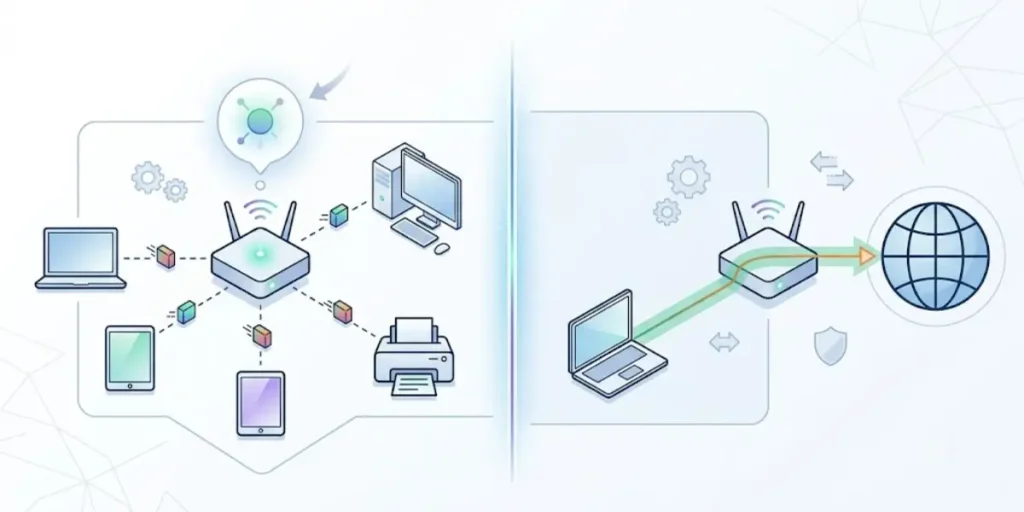
| Router Gateway IP | Default Gateway |
| Usually the router’s local IP address | Usually the same local IP address |
| Used to access the router’s admin page | Used by devices to route internet traffic |
| Private IP address | Private IP address |
| Common examples: 192.168.1.1, 192.168.0.1 | Usually identical to the router’s IP |
For nearly all home users, these terms can be used interchangeably. Understanding this makes it easier to follow router setup guides and troubleshoot network issues.
Common Router Gateway IP Addresses
Most home routers come with a default gateway IP address already set by the manufacturer. This is the address you enter into a web browser to open your router’s login page and manage your network settings.
Although many routers use the same private IP addresses, the default gateway can vary depending on the brand, model, or your internet service provider (ISP). If someone has changed the router’s settings in the past, the gateway IP may also be different from the factory default.
The table below lists some of the most common router gateway IP addresses used by popular brands.
| Router Brand | Common Default Gateway IP |
| TP-Link | 192.168.0.1 or 192.168.1.1 |
| Linksys | 192.168.1.1 |
| Netgear | 192.168.1.1 |
| ASUS | 192.168.50.1 or 192.168.1.1 |
| D-Link | 192.168.0.1 |
| Cisco | 192.168.1.1 |
| Belkin | 192.168.2.1 |
| Arris | 192.168.0.1 |
| Huawei | 192.168.3.1 |
| ZTE | 192.168.1.1 |
| MikroTik | 192.168.88.1 |
| Xfinity Gateway | 10.0.0.1 |
Note: These are common default values. Your router may use a different gateway IP if its settings have been changed.
The Most Common Gateway IP Addresses
While there are many possible private IP addresses, a few are used much more often than others.
192.168.1.1
This is one of the most widely used router gateway IP addresses. You’ll commonly find it on routers from brands such as Linksys, Netgear, Cisco, and some TP-Link models.
192.168.0.1
Another popular default gateway, especially for TP-Link, D-Link, Arris, and several cable modem-router combinations.
10.0.0.1
Many ISP-provided gateways, including some Xfinity devices, use this address as the default gateway.
192.168.50.1
Several ASUS routers use this private IP address by default, particularly newer models.
192.168.88.1
This address is commonly assigned to MikroTik routers.
Why Your Gateway IP May Be Different
If the addresses above don’t work, don’t worry. There are several reasons why your router may use another gateway IP.
Your router’s gateway address may be different because:
- The router’s local IP address was changed during setup.
- Your ISP configured the router with custom settings.
- You replaced your old router with a newer model.
- Your network administrator assigned a different private IP.
- You’re connected to a business or school network instead of a home network.
Instead of guessing, it’s always best to check the default gateway shown in your device’s network settings. This will tell you the exact router gateway IP currently being used on your network.
How to Open Your Router Using the Gateway IP
Once you’ve found the correct gateway address, follow these simple steps:
- Connect your device to your router using WiFi or an Ethernet cable.
- Open any web browser.
- Type the router gateway IP into the address bar. For example:
- http://192.168.1.1
- http://192.168.0.1
- http://10.0.0.1
- Press Enter.
- Enter your router’s username and password.
- You’ll be taken to the router’s admin panel, where you can manage your network settings.
If the login page doesn’t appear, double-check that you’re connected to the correct network and verify the gateway IP from your device.
Don’t Guess Your Router Gateway IP
Many users try several common IP addresses before finding the right one. While this sometimes works, it’s faster and more accurate to check your device’s network settings.
How to Find Your Router Gateway IP on Windows
Windows makes it easy to find your router gateway IP. Whether you’re using Windows 11 or Windows 10, you can locate the default gateway in your network settings or by using Command Prompt.
Both methods display the current gateway IP assigned to your device. This is the address you can use to sign in to your router and manage your network.
Find the Router Gateway IP Using Windows Settings
This is the easiest method for most users.
Windows 11
- Click the Start button and open Settings.
- Select Network & Internet.
- Choose Wi-Fi if you’re connected wirelessly, or Ethernet if you’re using a wired connection.
- Click your active network.
- Scroll down to view the network details.
- Look for Default Gateway.
The number shown next to Default Gateway is your router gateway IP address.
Windows 10
- Open Settings.
- Select Network & Internet.
- Click Status.
- Select Properties for your active connection.
- Scroll until you see Default Gateway.
Write down the IP address if you plan to log in to your router.
Find the Router Gateway IP Using Command Prompt
Command Prompt provides detailed network information and is one of the quickest ways to find your gateway address.
Open Command Prompt
- Press Windows + R.
- Type cmd.
- Press Enter.
Run the Command
Type the following command and press Enter:
ipconfig
Find the Default Gateway
Scroll through the results until you find your active network adapter.
Look for the line labeled Default Gateway.
It will display an IP address similar to:
- 192.168.1.1
- 192.168.0.1
- 10.0.0.1
That is your router gateway IP.
Which Network Adapter Should You Check?
If your computer has more than one network adapter, make sure you check the one you’re currently using.
For example:
- If you’re connected through Wi-Fi, check the Wireless LAN adapter Wi-Fi section.
- If you’re using a network cable, check the Ethernet adapter section.
Ignoring inactive adapters helps you avoid using the wrong gateway address.
What If the Default Gateway Is Blank?
If Windows doesn’t display a default gateway, your computer may not be connected to the router correctly.
Try these steps:
- Make sure your Wi-Fi is connected.
- Check that the Ethernet cable is securely plugged in.
- Restart your router.
- Restart your computer.
- Disconnect and reconnect to the network.
- Run ipconfig again after reconnecting.
If the gateway still doesn’t appear, there may be a network configuration issue that needs further troubleshooting.
Use the Gateway IP to Access Your Router
Once you’ve found your router gateway IP, you can open your router’s admin page in a web browser.
- Open your preferred browser.
- Type the gateway IP into the address bar.
- Press Enter.
- Sign in using your router’s administrator username and password.
From the admin panel, you can:
- Change your Wi-Fi name (SSID)
- Update your Wi-Fi password
- View connected devices
- Configure parental controls
- Update router firmware
- Manage DNS and DHCP settings
- Improve your network security
Finding your gateway IP on Windows only takes a minute and gives you access to the settings that keep your home network running smoothly.
How to Find Your Router Gateway IP on macOS
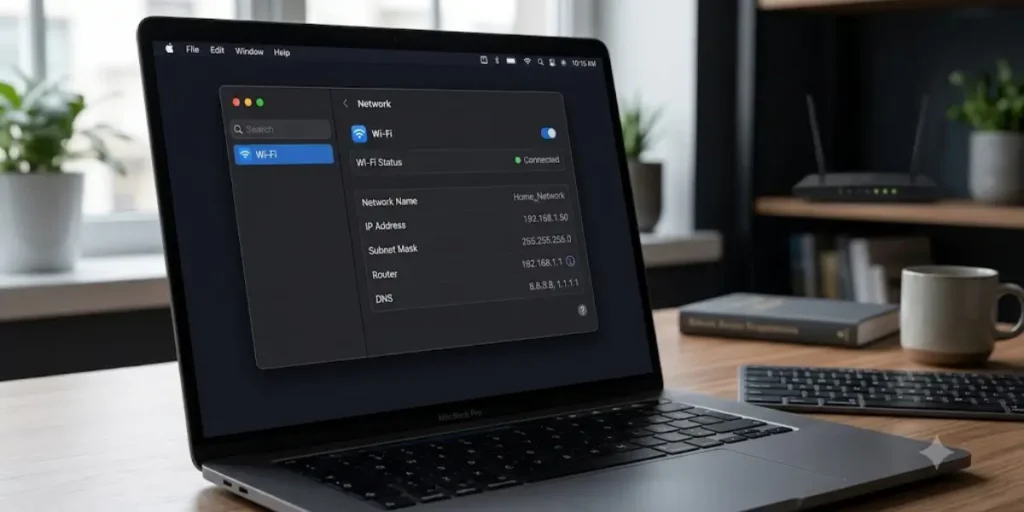
If you’re using a Mac, you can quickly find your router gateway IP through System Settings or by using the Terminal app. Both methods are built into macOS and provide accurate network information.
Whether you’re using a MacBook, iMac, or Mac mini, the steps are straightforward.
Find the Gateway IP Using System Settings
This is the easiest option for most Mac users.
Steps
- Click the Apple menu.
- Open System Settings.
- Select Wi-Fi or Network, depending on your macOS version.
- Click your active network connection.
- Open the Details section.
- Select TCP/IP.
You’ll see a field labeled Router.
The IP address listed next to Router is your router gateway IP.
Find the Gateway IP Using Terminal
If you prefer using commands, Terminal provides another quick way to locate the default gateway.
Open Terminal
- Open Applications.
- Select Utilities.
- Launch Terminal.
Enter the Command
Type:
route get default
Press Enter.
You’ll see several lines of information. Look for:
gateway:
The IP address beside gateway is your router gateway IP.
Another Terminal Command
You can also use:
netstat -nr
Look under the Destination column for default.
The corresponding Gateway value is your router’s gateway IP address.
Why Mac Shows “Router” Instead of “Default Gateway”
Unlike Windows, macOS often labels the default gateway as Router in the network settings.
Although the names are different, they refer to the same thing:
- Router
- Gateway
- Default Gateway
- Router Gateway IP
All describe the IP address your Mac uses to communicate with your router.
Access Your Router After Finding the Gateway
Once you’ve located the gateway IP:
- Open Safari, Chrome, or another web browser.
- Type the gateway IP into the address bar.
- Press Enter.
- Log in using your router’s administrator credentials.
You can then manage your Wi-Fi network, update security settings, install firmware updates, monitor connected devices, and customize other router features.
How to Find Your Router Gateway IP on Linux
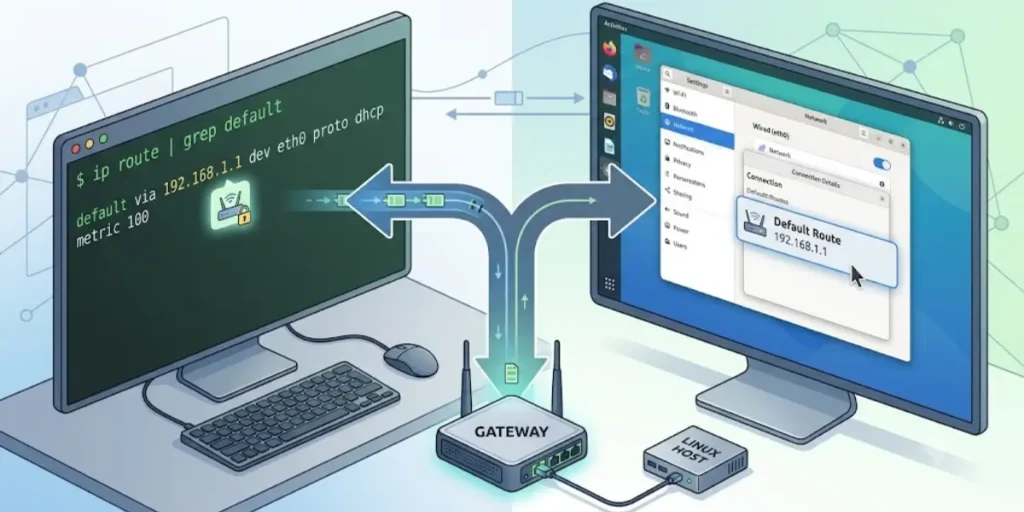
Linux provides several simple ways to find your router gateway IP. Most Linux distributions include built-in networking tools that display your default gateway in just a few seconds.
Whether you’re using Ubuntu, Debian, Fedora, Linux Mint, Arch Linux, CentOS, or another distribution, the process is very similar.
The easiest methods use the Terminal, and you don’t need to install any additional software.
Use the ip route Command
The ip command is the modern and recommended way to view network information on Linux.
Open Terminal
Open the Terminal application from your applications menu or use your preferred keyboard shortcut.
Run the Command
Type the following command and press Enter:
ip route
Find the Default Gateway
You’ll see output similar to this:
default via 192.168.1.1 dev wlan0
or
default via 192.168.0.1 dev eth0
The IP address after default via is your router gateway IP.
Use the route -n Command
Some Linux systems still include the older route command.
Run:
route -n
Look for the row beginning with 0.0.0.0 in the Destination column.
The value under the Gateway column is your router’s gateway IP address.
Use the nmcli Command
If your system uses NetworkManager, you can also check the gateway with the following command:
nmcli device show
Scroll through the output until you find the line containing IP4.GATEWAY.
The IP address displayed there is your current default gateway.
Which Network Interface Should You Check?
Linux systems may have multiple network interfaces.
Some common interface names include:
- wlan0 or wlp… for Wi-Fi
- eth0 or enp… for Ethernet
- tun0 for VPN connections
- docker0 for Docker networking
If you’re connected through Wi-Fi, check the wireless interface. If you’re using a network cable, look at the Ethernet interface.
Using the active network interface ensures you find the correct gateway IP.
What If No Gateway Is Displayed?
If none of the commands show a default gateway, your computer may not be connected to a network.
Try these steps:
- Confirm that your Wi-Fi is connected.
- Check your Ethernet cable if you’re using a wired connection.
- Restart your router.
- Reconnect to your network.
- Run the command again after reconnecting.
If you’re using a VPN, disconnect it temporarily and check whether your local gateway appears.
Access Your Router Using the Gateway IP
Once you’ve found the gateway address:
- Open your preferred web browser.
- Type the gateway IP into the address bar.
- Press Enter.
- Sign in with your router’s administrator username and password.
After logging in, you can:
- Change your Wi-Fi name and password
- Update router firmware
- Configure DHCP and DNS settings
- Set up port forwarding
- Create a guest network
- Review connected devices
- Improve your network security
Finding your router gateway IP on Linux only takes a minute and gives you quick access to the settings that control your home network.
How to Find Your Router Gateway IP on Android
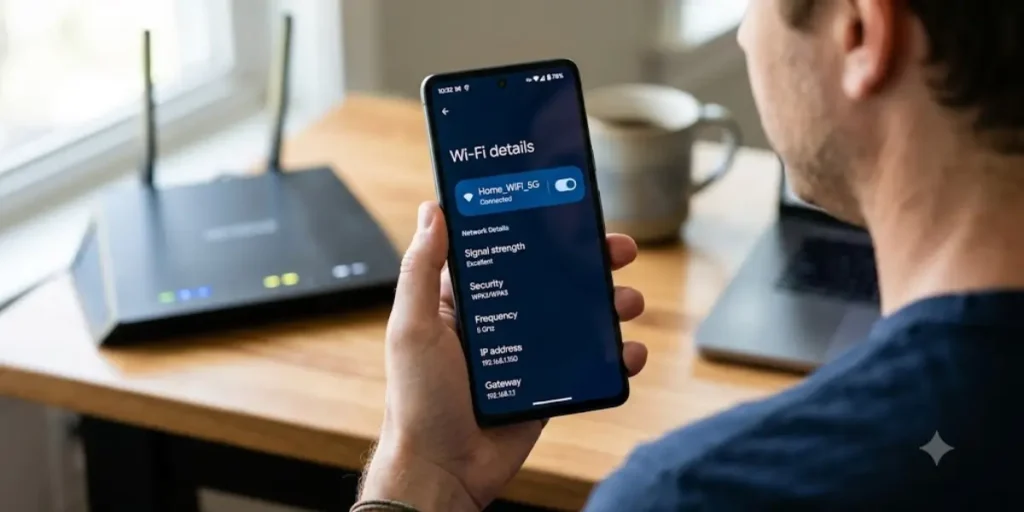
If you’re using an Android phone or tablet, you can find your router gateway IP directly from the Wi-Fi settings. The exact steps may vary slightly depending on your device manufacturer and Android version, but the process is generally the same.
Whether you have a Samsung Galaxy, Google Pixel, OnePlus, Xiaomi, Motorola, OPPO, vivo, or another Android device, you can locate the gateway without installing a third-party app.
Check the Gateway in Wi-Fi Settings
This is the easiest and most reliable method.
Steps
- Open the Settings app.
- Tap Network & Internet or Connections.
- Select Wi-Fi.
- Tap the Wi-Fi network you’re currently connected to.
- Open Network Details, Advanced, or a similar option if available.
- Look for Gateway or Router.
The number shown next to Gateway is your router gateway IP.
It may look like:
- 192.168.1.1
- 192.168.0.1
- 10.0.0.1
If You Don’t See the Gateway Option
Some Android manufacturers organize network information differently.
If the gateway isn’t immediately visible:
- Tap Advanced settings.
- Check IP settings.
- Look under Network details.
- Make sure you’re connected to the Wi-Fi network.
If you’re using mobile data instead of Wi-Fi, the router gateway won’t be displayed because you’re not connected to your home router.
Why Android May Show Different Menus
Android is used by many manufacturers, so menu names can vary.
For example:
- Samsung may display Gateway under View More.
- Google Pixel often lists it under Network Details.
- Xiaomi may include it in Advanced Settings.
- OnePlus and Motorola have similar options but may use different labels.
Although the layout changes, the gateway IP is the same type of information across all Android devices.
Use the Gateway IP to Log In to Your Router
After finding the gateway IP:
- Open Chrome or another web browser.
- Enter the gateway IP into the address bar.
- Press Go.
- Sign in using your router’s administrator username and password.
How to Find Your Router Gateway IP on iPhone and iPad
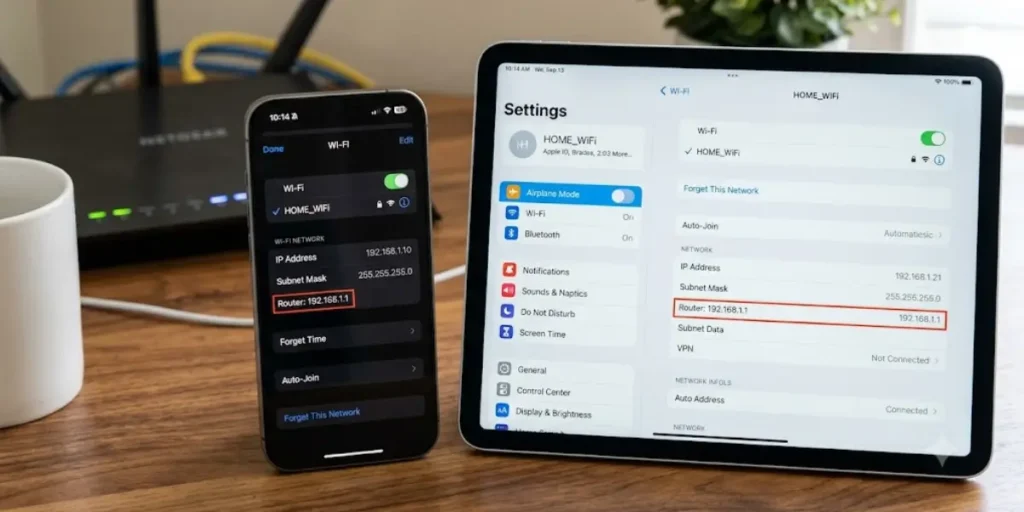
If you use an iPhone or iPad, you can quickly find your router gateway IP through the built-in Wi-Fi settings. Apple labels the default gateway as Router, making it easy to identify.
The process is similar across recent versions of iOS and iPadOS.
Find the Gateway IP in Wi-Fi Settings
Follow these simple steps:
- Open the Settings app.
- Tap Wi-Fi.
- Make sure you’re connected to your home Wi-Fi network.
- Tap the ⓘ (Info) button next to the connected network.
- Scroll to the IPv4 Address section.
- Find the field labeled Router.
The IP address shown next to Router is your router gateway IP.
It will usually look something like:
- 192.168.1.1
- 192.168.0.1
- 10.0.0.1
- 192.168.50.1
This is the address you can use to access your router’s settings.
Why Does iPhone Show “Router” Instead of “Gateway”?
Apple uses the term Router instead of Default Gateway, but both refer to the same IP address.
Whether a guide says gateway, default gateway, or router IP, it means the address your iPhone uses to communicate with your router and reach the internet.
What If You Can’t See the Router Address?
If the Router field is missing or blank, try these steps:
- Confirm you’re connected to your Wi-Fi network and not using cellular data.
- Turn Wi-Fi off and back on.
- Restart your iPhone or iPad.
- Restart your router.
- Reconnect to the Wi-Fi network.
Once your device reconnects successfully, the router address should appear in the network details.
Log In to Your Router from an iPhone or iPad
After finding your gateway IP:
- Open Safari or another web browser.
- Type the gateway IP into the address bar.
- Tap Go.
- Enter your router’s administrator username and password.
You’ll then be able to manage your router, including:
- Change the Wi-Fi network name (SSID)
- Update the Wi-Fi password
- View connected devices
- Configure guest Wi-Fi
- Adjust parental controls
- Update router firmware
- Change DNS or DHCP settings
Managing your router from an iPhone or iPad is just as easy as using a computer, provided you’re connected to the same network.
How to Find Your Router Gateway IP on a Chromebook

Chromebooks also make it easy to find your router gateway IP through the network settings. You don’t need to install any apps or use advanced commands.
If your Chromebook is connected to your home Wi-Fi network, you can locate the gateway address in less than a minute.
Find the Gateway IP Using ChromeOS Settings
Follow these steps:
- Click the time in the bottom-right corner of the screen.
- Select the Settings icon.
- Click Network.
- Choose Wi-Fi.
- Select the Wi-Fi network you’re connected to.
- Open the Network or Advanced section.
- Look for Gateway.
The IP address shown next to Gateway is your router gateway IP.
Common examples include:
- 192.168.1.1
- 192.168.0.1
- 10.0.0.1
If the Gateway Isn’t Displayed
If you don’t see a gateway address:
- Verify that your Chromebook is connected to Wi-Fi.
- Disconnect and reconnect to the network.
- Restart your Chromebook.
- Restart your router if necessary.
These steps usually refresh the network information and display the correct gateway IP.
Use the Gateway IP to Access Your Router
Once you’ve found the gateway address:
- Open Google Chrome.
- Enter the gateway IP in the address bar.
- Press Enter.
- Sign in with your router’s administrator credentials.
From the router’s admin page, you can:
- Change your Wi-Fi password
- Rename your wireless network
- Review connected devices
- Update firmware
- Configure security settings
- Set up guest Wi-Fi
- Manage parental controls
Finding your router gateway IP on ChromeOS is quick and gives you access to the settings that keep your network secure and running efficiently.
How to Log Into Your Router Using the Gateway IP
After you’ve found your router gateway IP, the next step is to sign in to your router’s admin panel. This is where you can manage your home network, adjust Wi-Fi settings, improve security, and perform other administrative tasks.
The login process is similar for most router brands.
Connect to Your Router
Make sure your device is connected to the router.
You can connect using:
- Wi-Fi
- An Ethernet cable
If you’re connected to a different network, the router’s login page may not open.
Open a Web Browser
Launch any modern web browser, such as:
- Google Chrome
- Microsoft Edge
- Mozilla Firefox
- Safari
Enter the Router Gateway IP
Type your router gateway IP into the browser’s address bar.
For example:
- http://192.168.1.1
- http://192.168.0.1
- http://10.0.0.1
- http://192.168.50.1
Then press Enter.
If the gateway IP is correct, you’ll see your router’s login page.
Enter Your Login Credentials
Enter your router’s administrator username and password.
If you’ve never changed them, the default login details may still be printed:
- On a label attached to the router
- In the router’s user manual
- On the manufacturer’s support website
For security reasons, it’s a good idea to change the default administrator password after your first login.
Manage Your Router Settings
Once you’re signed in, you can perform many common tasks, including:
- Change your Wi-Fi network name (SSID)
- Update your Wi-Fi password
- Check connected devices
- Configure guest Wi-Fi
- Enable parental controls
- Set up port forwarding
- Update router firmware
- Change DNS settings
- Configure DHCP options
- Improve wireless security
What If the Router Gateway IP Does Not Work?
Sometimes you enter your router gateway IP into a web browser, but the login page doesn’t appear. This is a common issue and is usually caused by a simple network or configuration problem.
Before assuming your router is faulty, try the troubleshooting steps below.
Make Sure You’re Connected to the Correct Network
Your device must be connected to the same router you want to access.
Check that:
- You’re connected to your home Wi-Fi network.
- You’re not using mobile data.
- You’re not connected to a different Wi-Fi network.
- If using Ethernet, the cable is securely connected.
If you’re connected to another network, the router’s login page won’t open.
Verify the Router Gateway IP
Many people try common addresses like 192.168.1.1 or 192.168.0.1 without checking their actual gateway IP.
Instead of guessing, find the default gateway from your device’s network settings using the steps covered earlier in this guide.
If your router’s local IP address has been changed, the default address printed on the router may no longer work.
Check for Typing Errors
A small typing mistake can prevent the login page from loading.
For example:
- Type 192.168.1.1, not 192.168.l.l (letter “l” instead of the number “1”).
- Avoid adding extra spaces.
- Enter only the IP address in the browser’s address bar.
Double-check the numbers before pressing Enter.
Restart Your Router
Temporary software issues can sometimes stop the router’s web interface from responding.
To restart your router:
- Turn the router off.
- Wait about 30 seconds.
- Turn it back on.
- Wait until all status lights return to normal.
- Try opening the gateway IP again.
A simple restart often resolves temporary connection problems.
Restart Your Device
Your computer or phone may have outdated network information.
Restart your device, reconnect to the Wi-Fi network, and try accessing the router again.
This refreshes the network connection and may resolve the issue.
Try a Different Web Browser
Sometimes the problem is related to the browser rather than the router.
If the login page doesn’t load in one browser, try another.
For example, switch from:
- Google Chrome to Microsoft Edge
- Firefox to Chrome
- Safari to Chrome
You can also clear your browser’s cache if pages are loading incorrectly.
Disable VPN or Proxy Services
If you’re connected to a VPN or using a proxy server, your browser traffic may be routed differently.
Temporarily disconnect the VPN or disable the proxy, then try accessing the router again.
After you’re finished managing your router, you can reconnect the VPN if needed.
Check Whether the Router’s IP Address Was Changed
Some users change their router’s local IP address to improve network organization or avoid conflicts with another router.
For example, the router might use:
- 192.168.10.1
- 192.168.2.1
- 192.168.100.1
instead of the factory default.
Checking the Default Gateway on your device will always show the current router gateway IP.
Temporarily Disable Software That May Block Access
Some firewall or security software can interfere with access to local network devices.
If you suspect this is happening:
- Pause the security software temporarily.
- Try accessing the router.
- Turn the protection back on after testing.
Only disable security software if you understand its purpose and re-enable it immediately after checking.
Reset the Router as a Last Resort
If you’ve forgotten the router’s login details or can’t access it after trying every solution, you may need to perform a factory reset.
Most routers have a small Reset button.
To reset the router:
- Keep the router powered on.
- Press and hold the Reset button for about 10 to 15 seconds.
- Release the button.
- Wait for the router to restart.
A factory reset restores the router’s original settings, including the default gateway IP, administrator username, and password.
Important: A factory reset also removes your custom settings, such as your Wi-Fi name, Wi-Fi password, guest network, port forwarding rules, and other configuration changes. Use this option only if other troubleshooting steps don’t solve the problem.
Default Gateway Not Available Error
The “Default Gateway Not Available” error is a common message on Windows. It usually means your computer has lost communication with the router, so it cannot reach the internet.
Even if your device still shows that it’s connected to Wi-Fi, websites and online services may not load until the connection is restored.
What Causes This Error?
Several issues can trigger this message, including:
- Temporary router problems
- Outdated or corrupted network adapter drivers
- Incorrect network settings
- Faulty Wi-Fi connections
- Power-saving settings affecting the network adapter
- Software conflicts
- Router firmware issues
In most cases, the problem can be fixed without replacing your router.
How to Fix the “Default Gateway Not Available” Error
Try the following solutions one at a time.
Restart Your Computer
Restarting your computer refreshes the network connection and clears temporary issues.
This simple step often restores access to the gateway.
Restart Your Router
Turn the router off for about 30 seconds before turning it back on.
Wait until all indicator lights return to normal, then reconnect your device.
Forget and Reconnect to the Wi-Fi Network
Removing and reconnecting to your Wi-Fi network creates a fresh network profile.
Reconnect using your Wi-Fi password and test the connection again.
Update Your Network Adapter Drivers
If you’re using Windows, outdated network drivers can cause gateway-related errors.
Open Device Manager, locate your network adapter, and install the latest driver available from your computer or adapter manufacturer.
Run the Network Troubleshooter
Windows includes a built-in troubleshooting tool that can detect and repair many common network problems automatically.
If available, run the troubleshooter and follow the on-screen instructions.
Check Power Management Settings
Some computers allow Windows to turn off the network adapter to save power.
Disabling this option can improve connection stability, especially on laptops.
Restart Your Modem and Router Together
If you use separate modem and router devices:
- Turn off both devices.
- Wait about 30 seconds.
- Turn on the modem first.
- Wait until it fully reconnects.
- Turn on the router.
This refreshes the connection between your home network and your ISP.
Contact Your Internet Service Provider
If none of the above solutions work and all devices on your network have the same problem, the issue may be with your ISP or the gateway device they provided.
Contact their support team to check for outages or configuration issues.
With the gateway connection restored, you’ll be able to access both the internet and your router’s management page again.
Why Your Router Gateway IP Is Important
Your router gateway IP may look like a simple set of numbers, but it plays an important role in how your home network works. It is the main address your devices use to communicate with your router and access the internet.
Knowing your gateway IP helps you manage your network, solve connection problems, and make important changes to your router settings.
Whether you want to update your Wi-Fi password, check connected devices, or improve network security, the gateway IP is usually the first thing you need.
Network Troubleshooting
One of the most common reasons people look for their router gateway IP is to troubleshoot internet problems.
When your internet connection stops working, checking the default gateway can help identify where the problem is happening.
For example:
- If your device has no gateway address, it may not be connected correctly to the router.
- If the gateway is available but websites do not load, the issue may be related to your ISP connection or DNS settings.
- If you cannot access the router login page, you may be using the wrong IP address.
The gateway IP helps you understand whether the issue is between your device and router or between your router and the internet.
Router Configuration
Your router gateway IP gives you access to the router’s admin panel, where you can configure important network settings.
After logging in, you can usually manage options such as:
- Wi-Fi network name (SSID)
- Wi-Fi password
- Wireless security settings
- Guest network settings
- DHCP configuration
- DNS settings
- Firmware updates
- Connected device controls
Router configuration is useful when setting up a new router, improving network performance, or adjusting settings for your household needs.
Monitoring Network Security
Your router gateway IP also helps you review and improve your network security.
By accessing your router dashboard, you can check:
- Devices currently connected to your network
- Unknown users or devices
- Security settings
- Wireless encryption type
- Router firmware version
Regularly checking your router settings can help you notice unusual activity and keep your home network protected.
For better security, consider:
- Changing the default router administrator password
- Using WPA2 or WPA3 Wi-Fi security
- Updating router firmware regularly
- Removing unknown connected devices
- Disabling unused features
Advanced Network Management
For users who want more control over their network, the router gateway IP provides access to advanced settings.
These options may include:
Port Forwarding
Port forwarding allows specific internet traffic to reach a device inside your local network. It is commonly used for gaming servers, remote access, security cameras, and other applications.
DNS Configuration
You can change the DNS servers used by your router to improve reliability, privacy, or browsing performance.
DHCP Settings
DHCP automatically assigns IP addresses to devices on your network. Advanced users can adjust DHCP settings to control how addresses are distributed.
Parental Controls
Many modern routers allow you to manage internet access, set schedules, and limit certain content for connected devices.
Quality of Service (QoS)
QoS settings help prioritize certain types of traffic, such as video calls, gaming, or streaming, when multiple devices are using the network.
Router Gateway IP vs Public IP Address
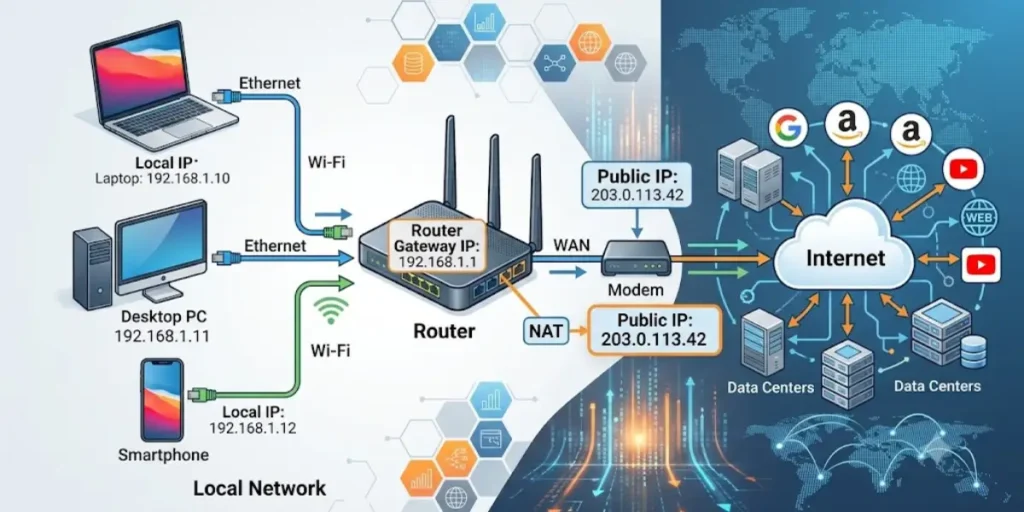
Although both are related to your internet connection, your router gateway IP and public IP address have different purposes.
Understanding the difference helps you avoid confusion when checking your network information.
| Feature | Router Gateway IP | Public IP Address |
| Purpose | Connects devices to your router | Identifies your network on the internet |
| Location | Used inside your local network | Used outside your network |
| Assigned by | Router manufacturer or network settings | Internet Service Provider (ISP) |
| Visibility | Private and not accessible from the internet | Visible to websites and online services |
| Example | 192.168.1.1 | 203.0.113.25 |
Your router gateway IP helps your devices communicate with the router, while your public IP allows your network to communicate with the internet.
Example of How They Work Together
Imagine you visit a website from your laptop:
- Your laptop sends the request to your router gateway IP.
- Your router receives the request.
- The router sends it through your public IP address to the internet.
- The website sends the response back to your public IP.
- Your router sends the information back to your laptop.
Both addresses work together, but they have completely different jobs.
Router Gateway IP vs DNS Server
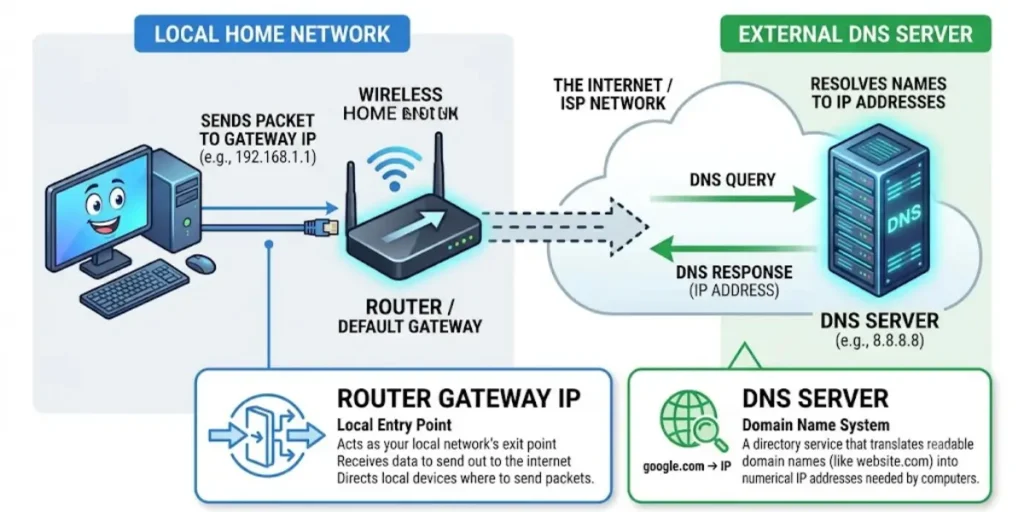
The router gateway IP and DNS server are both important parts of your network, but they handle different tasks.
| Router Gateway IP | DNS Server |
| Directs traffic between your device and router | Converts website names into IP addresses |
| Handles network communication | Helps browsers find websites |
| Usually your router’s IP address | May be provided by ISP or a third-party service |
| Example: 192.168.1.1 | Example: 8.8.8.8 |
Simple Example
When you type a website address into your browser:
- The DNS server finds the IP address of that website.
- Your device sends the request through the router gateway.
- The router connects you to the internet.
Without DNS, you would need to remember numerical IP addresses for websites. Without the gateway, your device could not communicate outside your local network.
Can You Change Your Router Gateway IP?
Yes, you can usually change your router’s gateway IP address, but most home users do not need to.
Routers allow this option because advanced users and network administrators may need to organize larger networks or avoid IP conflicts.
For example, a router using:
192.168.1.1
can sometimes be changed to:
192.168.10.1
or another private IP address range.
Reasons to Change Your Router Gateway IP
People may change the gateway IP to:
- Avoid conflicts with another router
- Match an existing network setup
- Organize multiple routers
- Configure advanced home networks
- Work with specific devices
How to Change the Router Gateway IP
The exact steps depend on your router brand, but the general process is:
- Open your router login page.
- Sign in to the admin panel.
- Go to LAN Settings, Network Settings, or similar options.
- Find the router IP address setting.
- Enter the new private IP address.
- Save the changes.
- Reconnect your devices.
After changing the gateway IP, you may need to use the new address to access your router in the future.
Things to Consider Before Changing It
Changing your router gateway IP can affect your network.
Before making changes:
- Write down your current settings.
- Make sure the new IP does not conflict with another device.
- Understand that connected devices may reconnect automatically.
- Update any custom network settings if needed.
For most users, keeping the default gateway IP is the best option unless there is a specific reason to change it.
Security Tips Before Logging Into Your Router
Your router gateway IP gives you access to important network settings, so it is important to protect your router admin account. Anyone who gains access to your router settings could potentially change your Wi-Fi configuration, monitor connected devices, or weaken your network security.
Following a few simple security practices can help keep your home network safer.
Change the Default Router Username and Password
Many routers come with a default administrator username and password printed on a label or included in the user manual.
Leaving these default login details unchanged can make your router easier to access by unauthorized users.
After setting up your router:
- Create a strong administrator password.
- Avoid using easy passwords like your name, phone number, or “admin123”.
- Use a unique password that you do not use on other accounts.
Remember, your Wi-Fi password and router administrator password are usually separate. Changing one does not always change the other.
Keep Your Router Firmware Updated
Router manufacturers regularly release firmware updates to improve performance, fix security issues, and add new features.
Check your router admin panel occasionally for available updates.
Keeping firmware updated can help protect your network from known security problems and improve reliability.
Use Strong Wi-Fi Security
Modern routers usually support WPA2 or WPA3 wireless security.
For better protection:
- Use WPA3 if your router supports it.
- Use WPA2 if WPA3 is unavailable.
- Avoid older security options like WEP.
- Create a strong Wi-Fi password.
A secure wireless network prevents unknown devices from connecting to your internet connection.
Review Connected Devices Regularly
Most routers allow you to view a list of connected devices from the admin dashboard.
Checking this list can help you identify:
- Unknown smartphones
- Unrecognized computers
- Smart home devices you no longer use
- Unauthorized users
If you find a device you do not recognize, change your Wi-Fi password and review your router security settings.
Disable Features You Do Not Use
Many routers include extra features that are useful for some users but unnecessary for others.
Consider disabling features you do not need, such as:
- Remote router management
- WPS
- Unused guest networks
- Unnecessary port forwarding rules
Reducing unused features can lower potential security risks.
Avoid Sharing Your Router Login Information
Your router administrator password controls your entire network.
Avoid sharing these details with people unless necessary.
If someone else has access to your router login:
- Change the administrator password afterward.
- Review your network settings.
- Check connected devices.
Final Thoughts: Why Your Router Gateway IP Matters
Your router gateway IP is one of the most important addresses in your home network. It allows your devices to communicate with your router and gives you access to the settings that control your internet connection.
Whether you want to change your Wi-Fi password, fix a connection problem, update router firmware, or check connected devices, knowing your default gateway makes network management much easier. You can find your gateway IP on almost any device, including Windows, Mac, Linux, Android, iPhone, iPad, and Chromebook through their network settings.
For most home networks, the router gateway IP is also used to access the router login page. Common addresses include 192.168.1.1, 192.168.0.1, and 10.0.0.1, but the correct address depends on your router model and network configuration.
Understanding your gateway IP gives you better control over your network. It helps you troubleshoot issues faster, improve security, and manage your internet connection with confidence. Whenever you need to adjust router settings or solve a network problem, checking your router gateway IP is usually the best place to begin.
Frequently Asked Questions About Router Gateway IP
Q1. How do I find my router’s gateway IP?
You can find your router gateway IP by checking the network settings on your device.
On Windows, open Command Prompt and type ipconfig, then look for Default Gateway.
On Mac, open Wi-Fi settings and check the Router field.
On Android, iPhone, Linux, and Chromebook, check your connected Wi-Fi network details.
The address shown there is your router gateway IP.
Q2. What is my router’s IP gateway?
Your router’s IP gateway is the private IP address your devices use to communicate with your router. It is usually the same as your default gateway.
Common examples include:
192.168.1.1
192.168.0.1
10.0.0.1
You can confirm your exact gateway address from your device’s network settings.
Q3. Is 192.168.1.1 a gateway?
Yes, 192.168.1.1 is one of the most common default gateway addresses used by home routers.
Many router brands use this address because it belongs to a private IP address range reserved for local networks.
However, not every router uses 192.168.1.1. Some routers use addresses such as:
192.168.0.1
10.0.0.1
192.168.50.1
Q4. What is my Wi-Fi gateway?
Your Wi-Fi gateway is the router address that connects your wireless devices to the internet.
To find it:
Open your device’s Wi-Fi settings.
Select your connected network.
Look for Gateway, Router, or Default Gateway.
The displayed IP address is your Wi-Fi gateway.
Q5. What is my default gateway IP address?
Your default gateway IP address is the local IP address of your router on your network.
It is usually assigned automatically when your device connects to Wi-Fi.
Common default gateway addresses include:
192.168.1.1
192.168.0.1
10.0.0.1
Q6. How do I find my router gateway IP on Android?
To find your router gateway IP on Android:
Open Settings.
Select Wi-Fi.
Tap your connected network.
Open network details or advanced settings.
Look for Gateway or Router.
The displayed address is your router gateway IP.
Q7. How do I find my default gateway on iPhone?
On an iPhone:
Open Settings.
Tap Wi-Fi.
Tap the information icon next to your connected network.
Find the field labeled Router.
The address next to Router is your default gateway.
Q8. What is DNS gateway IP?
A DNS gateway IP and a router gateway IP are different things.
The router gateway connects your device to your router and the internet.
A DNS server translates website names into IP addresses so your browser can find websites.
Both work together to provide a working internet connection.