
The 10.0.0.2 IP address is a private IPv4 address that can be used by a router, computer, or another device on a local network. If your router uses this address, you may be able to enter it in a web browser to open the router admin login page. From there, you can manage network settings, change passwords, and check connected devices.
However, 10.0.0.2 is not the default login address for every router. Some routers use 10.0.0.1, 192.168.1.1, or another local address. Before trying to log in, make sure your device is connected to the correct network and check the router’s current IP address.
This guide explains how to log in to 10.0.0.2, check router credentials, change your Wi-Fi password, and fix common connection problems. It also explains what this IP address means and how to find the correct gateway for your network.
What Is the 10.0.0.2 IP Address?
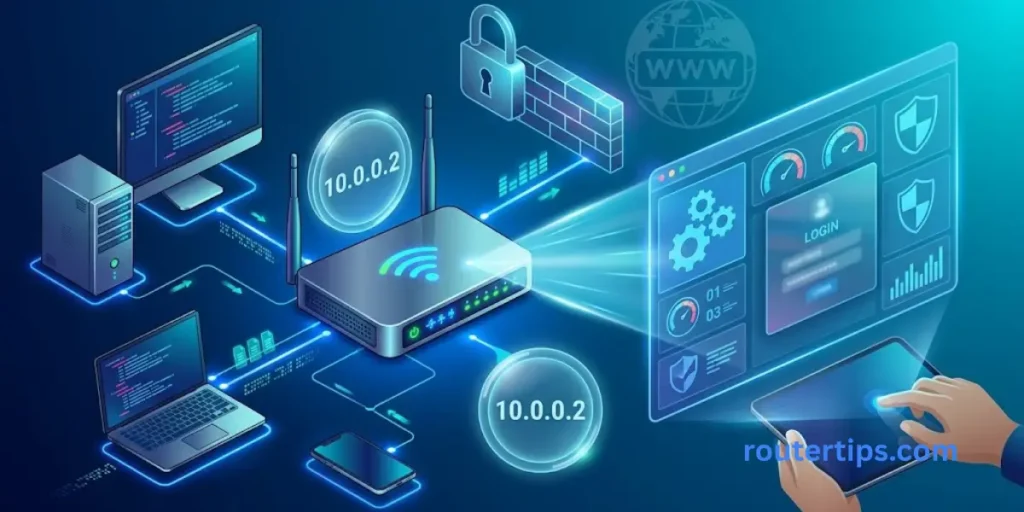
The 10.0.0.2 address is part of the private IPv4 range from 10.0.0.0 to 10.255.255.255. This range is set aside for private networks under RFC 1918. It is often used inside homes, offices, schools, and other local networks. Source: RFC 1918
A private IP address helps devices communicate within a network. For example, a router may use one local address while a laptop, phone, printer, or smart TV uses a different address.
If your router or network device uses 10.0.0.2, you may be able to enter that address in a browser to open its settings page. This works only when the address belongs to a device that provides a web management page and your device can reach it.
🌐 Want to know what the 192.168.1.2 IP address is used for? Read our 192.168.1.2 IP Address Details for a clear explanation of its role on a local network.
Is 10.0.0.2 a Router Login Address?
It can be, but it is not always the router’s login address. The address may belong to another device on the network, such as a computer or network server.
To check whether it is your router’s address, look at the default gateway in your device’s network settings. You can also check the router label, user manual, or instructions from your internet service provider (ISP).
If the default gateway is 10.0.0.2, try opening http://10.0.0.2 in your browser while connected to that network. If the gateway shows a different address, use the address listed on your device instead.
🌐 Need help with the 192.168.3.1 router login address? Visit our 192.168.3.1 Login Reference for information on accessing router settings and managing your network.
What Is the Difference Between 10.0.0.1 and 10.0.0.2?
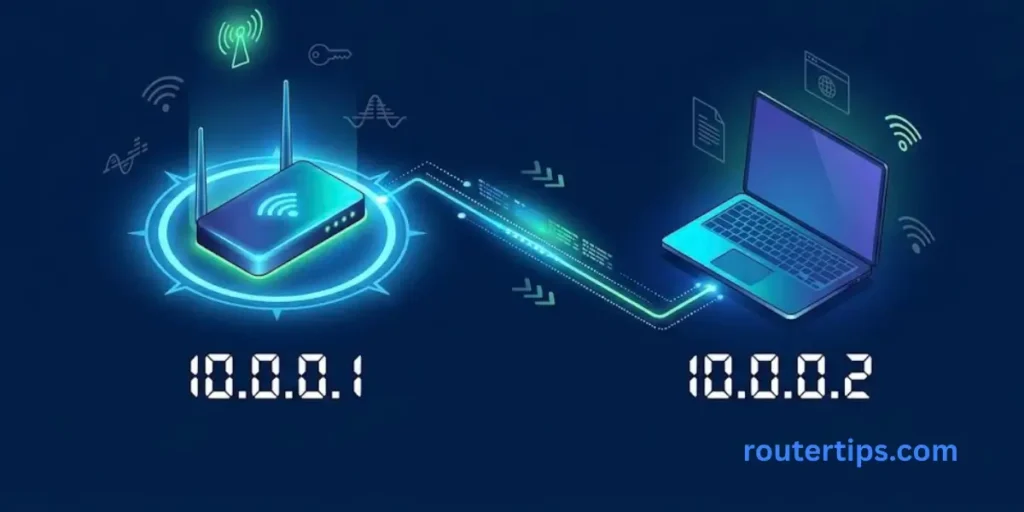
Both addresses belong to the private 10.0.0.0/8 range, but they are not the same address. A network administrator can assign either address to a device when the network settings allow it.
The address 10.0.0.1 is commonly used as a router or gateway address on some networks. The address 10.0.0.2 may be assigned to another router interface, a network device, or a connected client.
Neither address must be used by every router. The correct address depends on the network setup.
How to Log In to 10.0.0.2
You can try to access the router admin page through a browser if 10.0.0.2 is the correct address for your router or network device. Follow these steps.
Connect to Your Router
Connect your computer or phone to the router’s Wi-Fi network. You can also connect a computer directly to the router using an Ethernet cable.
Using the correct network is important. If your device is connected to a different router, guest network, mobile hotspot, or VPN, the address may not open the page you need.
Open a Web Browser
Open a browser such as Chrome, Firefox, Safari, or Edge. You do not need to install a special program to try the router’s local web page.
Enter the IP Address
Click the browser’s address bar and type:
http://10.0.0.2
Press Enter. Make sure you type the address in the address bar, not the search box on a search engine page.
Do not add extra numbers or dots. The address has four number groups separated by three dots.
If the router supports a secure local management page, it may use HTTPS instead. Follow the address and security instructions provided by the router maker or your ISP.
🌐 Want to learn about the 192.168.1.100 IP address and its role on a local network? Read our 192.168.1.100 IP Address Overview for useful information.
Enter Your Router Login Details
If the login page appears, enter the administrator username and password. These details may be printed on the router label or included in the setup guide.
Some newer routers ask you to create an admin password during the first setup. Others may use credentials selected by the ISP or a previous owner.
Your Wi-Fi password and router admin password may be different. Use the details requested by the login page.
Open the Router Settings
After a successful login, you may see menus for wireless settings, connected devices, security, parental controls, or network configuration. The available options depend on your router model.
Change only the settings you understand. Before making major changes, record the current values so you can restore them if needed.
Default Username and Password for 10.0.0.2
There is no single default username and password that works for every device using 10.0.0.2. Login details depend on the manufacturer, model, ISP, and whether someone has changed the original settings.
Some older routers use simple factory credentials, while many newer models require the owner to create a password during setup. Internet providers may also set their own admin details.
Where Can You Find the Default Router Password?
Check these places before trying random login details:
- Router label: Look at the bottom or back of the device. It may list a username, admin password, Wi-Fi password, or setup address.
- User manual: Read the setup section for your exact model.
- ISP instructions: Check the information provided by your internet provider.
- Router app: Some brands let you manage login and network settings through an official app.
- Previous settings: If you own the router and have used it before, the admin password may be one you created during setup.
Do not assume that the word admin or any other common password will work. The correct credentials must match your device.
Router Admin Password vs. Wi-Fi Password
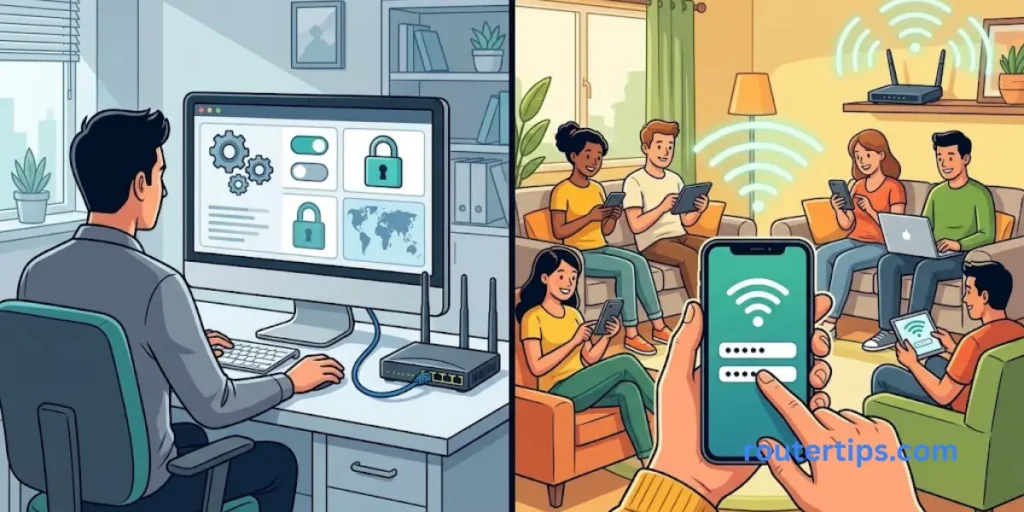
These two passwords serve different purposes.
The router admin password lets you enter the management page and change router settings. The Wi-Fi password lets your devices join the wireless network.
Changing one does not always change the other. If you want to stop other people from accessing the router settings, change the admin password. If you want to change who can connect to your wireless network, update the Wi-Fi password.
How to Change Your Router Admin Password
If you can log in to 10.0.0.2, changing the default or previously used admin password is a useful security step.
Steps to Change the Admin Password
- Connect to the correct router network.
- Open http://10.0.0.2 if that is your verified router address.
- Sign in with your current admin credentials.
- Open a menu named Administration, System, Security, or a similar option.
- Look for the administrator password setting.
- Enter the current password if requested.
- Create a new, strong password and save the changes.
- Sign in again if the router asks you to do so.
Menu names vary by model, so check your router manual if the options look different.
How to Choose a Strong Admin Password
Use a password that is hard for other people to guess. A long, unique password is better than a short password based on your name, phone number, or home address.
Do not reuse the same password for your router, email, and other important accounts. Store it in a trusted password manager or another secure place.
If the router supports separate user accounts, use the lowest level of access needed for each person. Do not share administrator access with people who only need to use the Wi-Fi.
How to Change Your Wi-Fi Name and Password
If you are searching for the 10.0.0.2 IP address Wi-Fi password, first confirm that this address opens your router’s settings. Then follow the steps below.
Sign In to the Router
Open the correct local router address and enter your admin login details.
Open Wireless Settings
Look for a menu called Wireless, Wi-Fi, WLAN, or Wireless Security. The exact name depends on the router.
Change the Wi-Fi Name
Find the network name, also called the SSID. Enter a new name if you want to make your wireless network easier to identify.
Avoid using personal details such as your full name or home address in the network name.
Set a New Wi-Fi Password
Find the wireless password or security key field. Set a long, unique password and use a supported security option, preferably WPA3-Personal or WPA2-AES when available.
Avoid weak passwords that use common words or simple number patterns.
Save Your Changes
Save or apply the settings. Your Wi-Fi connection may disconnect while the router updates. Reconnect your phone, laptop, TV, and other devices using the new network details.
If your router has separate 2.4 GHz and 5 GHz networks, check whether the password applies to both bands or only the selected network.
Router Brands That May Use 10.0.0.2
Searches such as “10.0.0.2 TP-Link,” “10.0.0.2 Huawei,” and “10.0.0.2 Walton router login” suggest that readers want instructions for a particular brand.
However, a brand name alone cannot confirm the correct IP address. Different models from the same company may use different default addresses. The address can also change after setup.
TP-Link Router Login
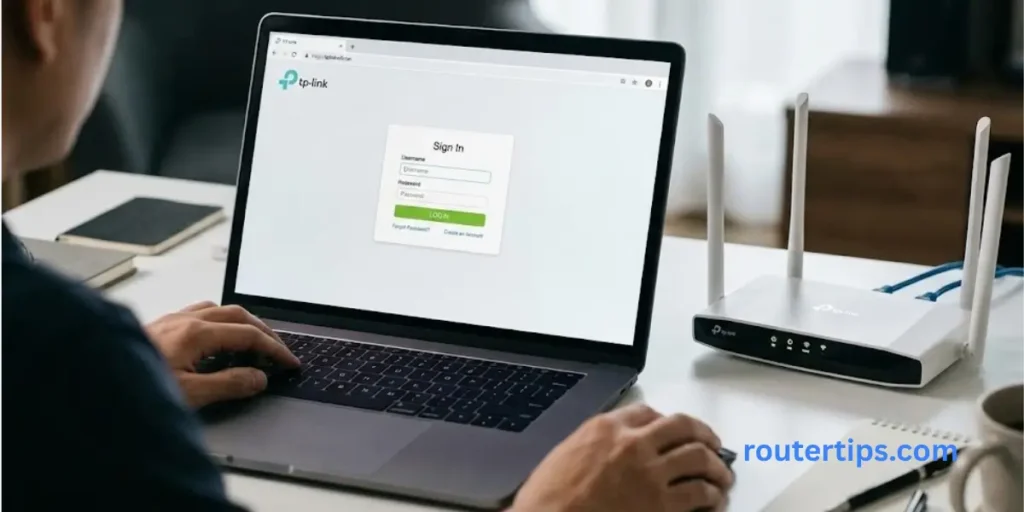
If you have a TP-Link router, check the address printed on the device or follow the official setup instructions for your model. TP-Link lists addresses such as 192.168.0.1 and 192.168.1.1 for many routers, along with its supported local login domain. These details can vary by product. Official TP-Link login instructions
If your TP-Link device is currently set to 10.0.0.2, use that address only after confirming it in the router’s network settings or manual. Do not change the address just because it differs from a common factory setting.
Huawei Router Login
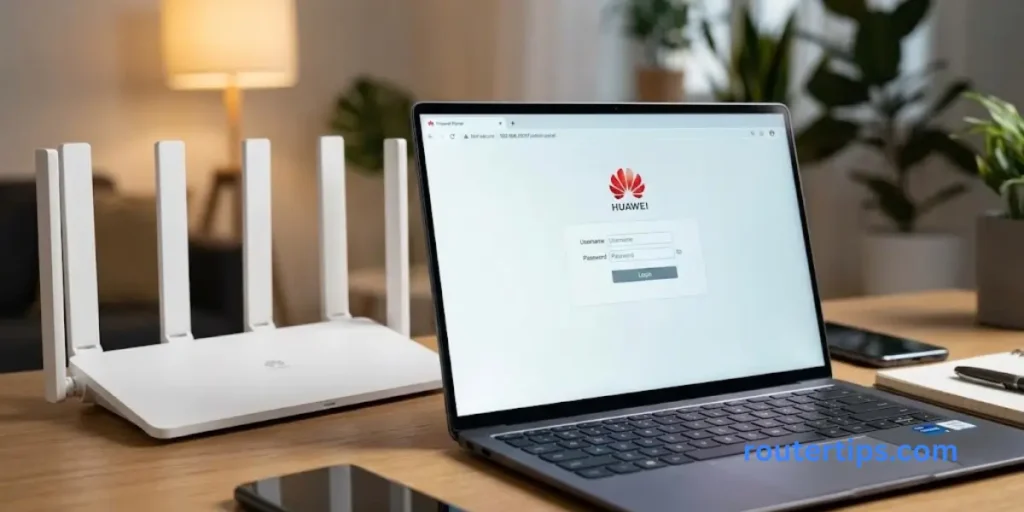
Huawei routers and ISP-provided gateways may have different login addresses and account details. Check the product label, quick-start guide, or the instructions supplied by your internet provider.
If 10.0.0.2 is listed as the device’s current management address, connect to its network and try that address in your browser. If it does not open, check the default gateway and model-specific instructions.
Walton Router Login
For a Walton router, use the address and credentials provided for the exact model. If the label or manual lists 10.0.0.2, enter it in your browser while connected to the router.
If the address is not listed, do not assume it is correct just because it appears in a search result. Check the router’s gateway address and official setup details first.
Other Routers and ISP Gateways
Other manufacturers and internet providers may use custom network settings. Some routers are also configured to work with another router, modem, or managed gateway.
For that reason, the most reliable way to identify the login address is to check your connected device’s default gateway and compare it with the router’s own instructions.
What to Do If 10.0.0.2 Is Not Working
If the 10.0.0.2 login page will not open, the address may be wrong, the device may not be connected to the correct network, or the router may not offer a web login page at that address.
Try these checks before resetting the router.
Check the Router’s IP Address
Your router may use 10.0.0.1, 192.168.1.1, 192.168.0.1, or another local address. Check the default gateway shown in your device’s network settings.
If the gateway is not 10.0.0.2, try the gateway address instead.
Check the Address for Typing Errors
Enter http://10.0.0.2 in the address bar. Do not type 10.0 0.2, 10.0.2, or 10.0.0.0.2. These are not the same valid IPv4 address.
If the browser shows a search page, you may have entered the address into the search field instead of the address bar.
Connect to the Correct Network
Make sure your device is connected to the router you want to manage. If you have more than one router at home, your phone or computer may be connected to a different one.
Try using Ethernet if available. If you are using a guest network, switch to the main network if you have permission to manage the router.
Temporarily Check VPN or Proxy Settings
A VPN or proxy can affect how your device reaches local network addresses. If you use one, check its local-network settings or temporarily disconnect it to test the connection, if it is safe and permitted to do so.
Reconnect the VPN after testing. Do not change security settings you do not understand.
Restart Your Router and Device
If the address is correct but the page still does not open, restart your device and router when it is safe to do so. Wait for the router to finish starting before trying again.
If the router supports services required by your ISP, avoid unplugging cables or equipment that you do not recognize.
Check Whether the Address Belongs to Another Device
The address 10.0.0.2 may be assigned to a laptop, access point, printer, or other device rather than the main router. If another device uses that address, a browser may show a different page or no page at all.
Check the router’s connected-device list or DHCP client list if you have access. If you are unsure, ask your network administrator or ISP for help.
Avoid a Factory Reset as the First Fix
A factory reset can remove custom settings, Wi-Fi details, and ISP configuration. Use it only when simpler checks fail and you understand how to set up the device again.
How to Find Your Router’s Default Gateway
If you do not know whether 10.0.0.2 is correct, finding the default gateway is often the quickest way to check.
Find the Gateway on Windows
- Connect to your home Wi-Fi or Ethernet network.
- Open the Start menu and search for Command Prompt.
- Open it and type ipconfig.
- Press Enter.
- Find the active Wi-Fi or Ethernet adapter.
- Look for the line named Default Gateway.
If it shows 10.0.0.2, that is the gateway your device is using on that connection. You can try opening that address in your browser.
Find the Gateway on macOS
- Open System Settings.
- Select Network.
- Choose your active Wi-Fi or Ethernet connection.
- Open the connection details and look for the router address under TCP/IP.
The menu names can vary by macOS version.
Find the Gateway on Android or iPhone
Open your device’s Wi-Fi settings and select the network you are connected to. Look for a field named Gateway, Router, or Network details, depending on the device.
Some phones do not display every network field. If you cannot find the address, check the router label or use another device connected to the same network.
Remember that a device may show a gateway address without offering a browser-based login page. The router’s manual or ISP instructions can help confirm the correct management method.
How to Factory Reset a Router
A factory reset returns a router to its original settings. It may help if you have forgotten the admin password and cannot recover it through the normal process.
Before resetting, check the manufacturer’s instructions. Some ISP-provided routers need special setup details to reconnect to the internet.
Steps to Reset Your Router
- Make sure you have permission to reset the router.
- Check the manual for the correct reset procedure.
- Keep the router powered on if the instructions require it.
- Use the reset button as directed by the manufacturer.
- Wait for the router to restart fully.
- Follow the setup instructions to restore your network.
- Set a strong admin password and Wi-Fi password.
Do not confuse a brief press of a Wi-Fi or WPS button with a factory reset. The controls differ by model.
A reset may change the router’s IP address, network name, password, and other settings. After setup, check the default gateway again instead of assuming it will remain 10.0.0.2.
What Type of IP Address Is 10.0.0.2?
The 10.0.0.2 address is a private IPv4 address. IPv4 addresses contain four numbers separated by dots, with each number ranging from 0 to 255.
The private address range beginning with 10 is reserved for use on private networks. Other private IPv4 ranges include 172.16.0.0 through 172.31.255.255 and 192.168.0.0 through 192.168.255.255. Source: RFC 1918
Is 10.0.0.2 a Public IP Address?
No. The address belongs to the private 10.0.0.0/8 range, so it is not a normal public IP address assigned for direct global internet routing.
A router may use a public IP address on its internet-facing connection while using private IP addresses for devices inside the home. This allows many local devices to share an internet connection.
Is 192.0.0.2 a Public IP Address?
The address 192.0.0.2 belongs to the special-purpose 192.0.0.0/24 block, which is reserved for Internet protocol assignments. It is not an ordinary public address for a home router. The IANA registry identifies the block’s special-purpose status. Source: IANA IPv4 Special-Purpose Address Registry
Do not confuse 192.0.0.2 with 192.168.0.2. The latter is within the private 192.168.0.0/16 range.
Is 10.20 a Private IP Address?
The text 10.20 by itself is incomplete and is not a full IPv4 address. A complete address contains four number groups, such as 10.20.0.1.
A valid address that begins with 10. falls within the private 10.0.0.0/8 range. Its use on a particular network still depends on the network’s address settings.
Final Thoughts About 10.0.0.2
The 10.0.0.2 IP address is part of a private IPv4 range and may be used to access a router’s admin page when the network is configured that way. It is not a universal login address, and there is no single default username or password for every device using it.
If you want to manage your router, start by checking the default gateway on your connected device. Then open the correct address, use the login details supplied for your model, and change your admin or Wi-Fi password if needed.
If the page does not open, check your network connection, confirm the address, and review the router’s setup instructions before attempting a factory reset. These steps can help you manage your network without making unnecessary changes or losing your existing settings.
Frequently Asked Questions About 10.0.0.2
1. What is 10.0.0.2?
10.0.0.2 is a private IPv4 address used within local networks. It may be assigned to a router, computer, or other network device. It can open a router admin page only if the router uses that address for management.
2. How do I log in to 10.0.0.2?
Connect to the correct router network, enter http://10.0.0.2 in your browser, and sign in with the device’s admin credentials. If the page does not open, verify the default gateway and check the router manual.
3. What is the default username and password for 10.0.0.2?
There is no universal username or password for 10.0.0.2. Check the router label, manual, ISP instructions, or the password created during setup. Do not assume that credentials from another model will work.
4. Why does 10.0.0.2 not open my router login page?
The address may not belong to your router, or your device may be connected to a different network. Check the default gateway, correct any typing errors, and confirm that the router supports browser-based management at that address.
5. Is 10.0.0.2 the same as 192.168.1.1?
No. They are different private IPv4 addresses. Either can be used in a local network, but the correct router address depends on the device’s configuration.
6. Can I change my router IP address from 10.0.0.2?
Some routers allow you to change their LAN IP address through the admin settings. Before changing it, check that the new address fits your network setup and does not conflict with another device. After saving the change, you may need to reconnect using the new address.
7. Is it safe to access 10.0.0.2?
It is generally normal to access your own router’s local management page. Use a trusted network, verify that the address belongs to your device, and keep the admin password private. Do not enter your credentials on a page you cannot identify.
8. What should I do if I forget my router admin password?
Check whether your router or ISP offers a password recovery method. If recovery is not available, a factory reset may be needed. Read the model’s instructions first because a reset can erase custom settings.
9. Can two devices use 10.0.0.2 at the same time?
Two devices on the same local network should not normally share the same IPv4 address. A duplicate address can cause connection problems. Check the router’s device list and DHCP settings, or ask your network administrator to help resolve the conflict.
10. What does an IP address beginning with 10.0 mean?
An address beginning with 10 belongs to the private IPv4 range. It is commonly used for local communication between devices on a home, office, or managed network. It does not identify a particular router brand by itself.