
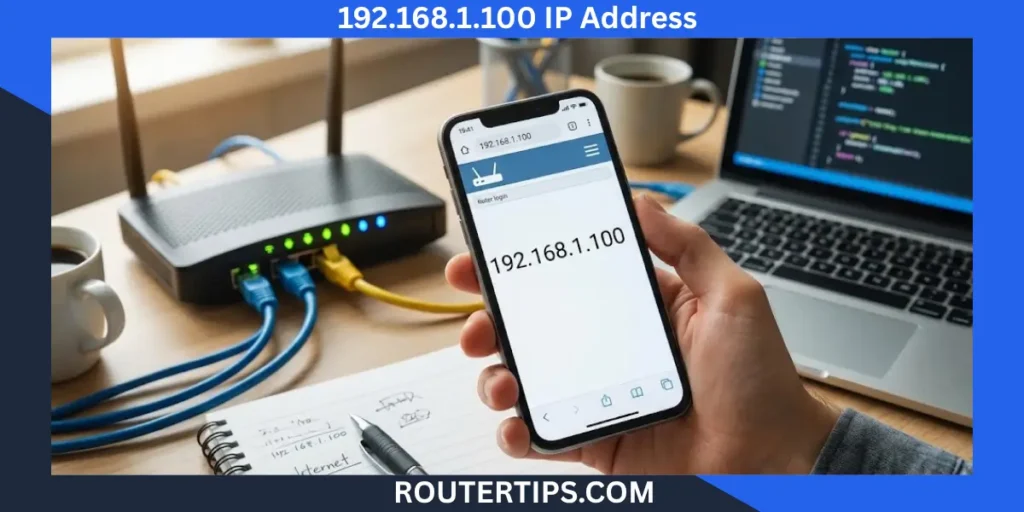
The 192.168.1.100 IP address is a private IPv4 address that can identify a device on a home, office, or other local network. Depending on the network setup, it may belong to a computer, printer, wireless access point, or network device with a web-based management page.
If you want to access 192.168.1.100, change a Wi-Fi password, or check a device’s settings, first make sure this address belongs to the device you want to manage. It is not the default router login address for every brand or model.
To begin, connect your computer or phone to the correct network. Open a web browser and enter http://192.168.1.100 in the address bar. If a login page appears, enter the credentials assigned to that device. If nothing opens, check the device’s IP address and your network settings before trying other solutions.
This guide explains what 192.168.1.100 means, how to access it, where to find login details, how to change passwords, and how to fix common connection problems.
What Is the 192.168.1.100 IP Address?
192.168.1.100 is an IPv4 address reserved for private network use. It belongs to the address range from 192.168.0.0 to 192.168.255.255, which is set aside for local networks rather than direct public internet use.
Home routers, office networks, and other local systems can use addresses from this range to identify connected devices. Many separate networks can use the same private IP address without causing a problem because they operate independently. Source: IANA private-use IP addresses
For example, a home router might assign 192.168.1.100 to a laptop. Another network in a different building could assign the same address to a printer. Both arrangements can work because the devices belong to separate networks.
🌐 Need information about the 10.0.0.2 IP address? Visit our 10.0.0.2 IP Address Resource to learn about its purpose and use on a local network.
Is 192.168.1.100 a Private IP Address?
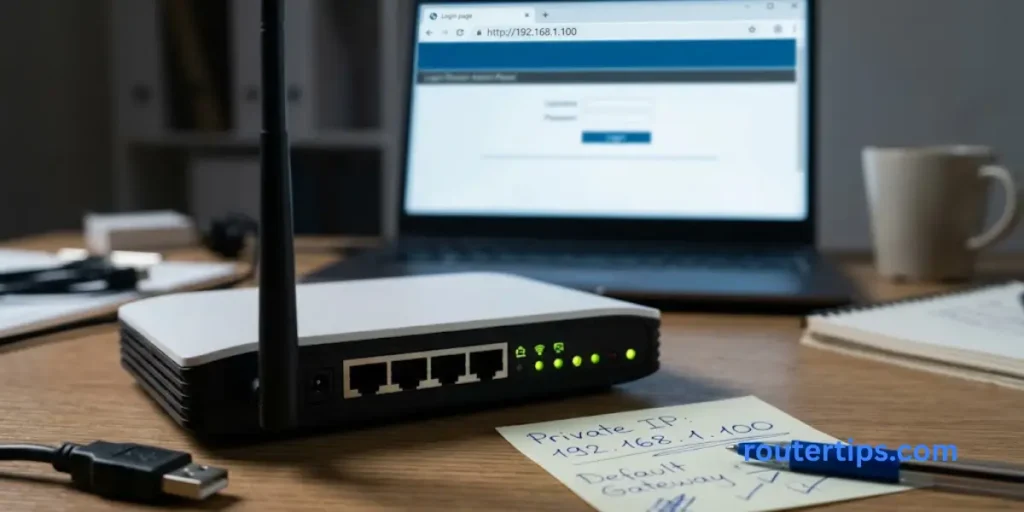
Yes. The address is private because it falls within the 192.168.0.0/16 range reserved for private IPv4 networks.
Private IP addresses help devices communicate inside a local network. A router usually connects that network to the internet and may use Network Address Translation (NAT) to let several devices share a public internet connection.
The private address does not reveal a device’s exact location or identify a specific person on the public internet. It also cannot be used as a normal public internet destination.
🌐 Looking for details about the 192.168.1.2 IP address? Visit our 192.168.1.2 IP Address Guide to learn how this address is used on local networks.
What Is 192.168.1.100 Used For?
The purpose of this address depends on how a network is configured. Common uses include:
- Computers and laptops: A router may assign the address to a connected computer.
- Printers: A network printer may use it so computers can send print jobs.
- Wireless access points: A network administrator may use it to manage a wireless access point.
- Cameras and smart devices: A compatible device may receive this address from the router.
- Network management: An administrator may assign the address to a device that needs a consistent local address.
Some network devices provide a web-based control panel. If 192.168.1.100 belongs to one of these devices and its management page is enabled, entering the address in a browser may open a login screen.
However, the address alone does not tell you which device is using it.
🌐 Need help accessing your router through 192.168.3.1? Visit our 192.168.3.1 Login Reference for details about this IP address and router settings.
Is 192.168.1.100 a Router’s Default Gateway?
Not necessarily. A default gateway is the device that forwards traffic from your local network to other networks, including the internet.
A router may use 192.168.1.1 as its local address while assigning 192.168.1.100 to a connected computer. In that case, 192.168.1.1 is the gateway and 192.168.1.100 is the computer’s address.
A network administrator can also configure a router or another device to use 192.168.1.100. The only reliable way to know is to check the network settings and the device’s configuration.
How to Log In to 192.168.1.100
You can access a device through 192.168.1.100 only if that device uses the address and offers a web management page. Follow these steps to check.
Connect to the Correct Network
Connect your computer or phone to the Wi-Fi network associated with the device. If possible, use an Ethernet cable for a more stable connection.
If you are connected to a guest network, mobile data, or a different router, the address may not lead to the intended device.
Open 192.168.1.100 in Your Browser
Open Chrome, Edge, Firefox, Safari, or another modern browser. Type the following address directly into the address bar:
http://192.168.1.100
Press Enter or Go to continue.
Make sure you enter the address in the browser’s address bar, not in a search engine’s search box. You can try https://192.168.1.100 only if the device supports HTTPS.
A browser warning or connection error does not automatically mean the device is faulty. It may mean that the address is wrong, the management service is unavailable, or the device uses a different connection method.
Enter Your Device’s Login Details
If a login page appears, enter the correct username and password for that device.
Check the label on the device, its setup instructions, or the manufacturer’s support website if you do not know the credentials. Some devices ask you to create an administrator password during the first setup instead of using a shared default password.
Do not assume that every device using 192.168.1.100 has the same username or password.
Open the Required Network Settings
After signing in, look for the setting you need. Depending on the device, the menu may include network settings, wireless settings, administrator settings, DHCP, or device information.
Menu names vary by manufacturer and model. Change only the settings you understand, and save a copy of the current configuration if the device provides that option.
If the login page does not open, follow the troubleshooting steps later in this guide.
192.168.1.100 Default Username and Password
There is no universal default username and password for 192.168.1.100. The address identifies a network endpoint, not a particular manufacturer or product.
A device may use a default login, a password printed on its label, or a password created during setup. A previous owner or network administrator may also have changed the original credentials.
Common Default Login Combinations
Some older networking products use simple default combinations, such as admin for both the username and password. Other devices use different details or require a new password during setup.
These are examples of possible login arrangements, not guaranteed credentials for 192.168.1.100.
Before trying a default login:
- Check the product label for the administrator username or password.
- Look up the exact model in the manufacturer’s official support documentation.
- Check any setup notes supplied by your internet provider or network administrator.
- If the password was changed before, use the current password rather than assuming the factory default still works.
Avoid repeated guesses, since some devices temporarily block login attempts after several failed entries.
What to Do if the Default Password Does Not Work
A failed login does not always mean that you have the wrong IP address. The device may be using a custom password, a different administrator account, or an account managed through a mobile app.
Confirm the device model and check its official instructions. If you manage the device and have forgotten its password, use the manufacturer’s approved recovery process.
A factory reset may restore the original settings on some devices, but it can also erase Wi-Fi names, passwords, internet settings, and other custom changes. Use it only when necessary and after checking the device’s reset instructions.
How to Change the Password at 192.168.1.100
The steps depend on the device’s management page. First, confirm that 192.168.1.100 belongs to the device you want to manage and that you have permission to change its settings.
It is also important to separate the administrator password from the Wi-Fi password. They serve different purposes.
Change the Router Admin Password
The administrator password protects access to the device’s settings. If you are signed in to the correct router or access point, follow these general steps:
- Open its management page and sign in.
- Find the Administration, System, Security, or Account settings.
- Look for an option to change the administrator password.
- Enter the current password if requested.
- Create a strong, unique replacement password.
- Save the change and sign in again if prompted.
The exact menu names depend on the manufacturer. Some devices use an app instead of a browser-based control panel.
Choose a password that is difficult to guess and avoid reusing the password from your email or other accounts. Store it in a secure password manager if needed.
Change the Wi-Fi Password
If your goal is to change the password people use to connect to Wi-Fi, open the wireless settings instead of the administrator account settings.
- Sign in to the correct device.
- Open Wi-Fi, Wireless, or WLAN settings.
- Find the password field, which may be called Wireless Password, Wi-Fi Key, or Pre-Shared Key.
- Enter a strong new password.
- Save the settings and allow the wireless network to restart if required.
- Reconnect your phones, computers, televisions, and other devices with the new password.
Changing the Wi-Fi password may disconnect all devices using the old one. If your router has separate settings for different Wi-Fi bands or guest networks, check which network you are changing.
Use WPA2-AES or WPA3 security when supported by your equipment. Avoid open Wi-Fi networks or outdated security settings where stronger options are available.
Change the Wi-Fi Network Name (SSID)
The SSID is the name displayed when people look for available Wi-Fi networks. You can often change it in the same wireless settings menu used for the Wi-Fi password.
Choose a name that does not reveal personal information, such as your full name or home address. Save the change and reconnect your devices if the network name changes.
Remember that changing an SSID is different from changing the administrator password. If your goal is to protect the device’s settings, update the administrator password as well.
192.168.1.100 Login for Different Router Brands
The IP address used to manage a device varies by manufacturer, model, internet provider, and network configuration. Do not assume that 192.168.1.100 is the factory login address for every router from a particular brand.
192.168.1.100 on Linksys Devices
Linksys routers commonly use 192.168.1.1 or myrouter.local for local management, according to the manufacturer’s support instructions. The actual address can vary with configuration. Linksys official login instructions
If 192.168.1.100 does not open your Linksys router’s settings, check the router’s label or find the default gateway on your connected device.
If 192.168.1.100 appears in your router’s connected-device list, it may belong to a computer or another device rather than the router itself.
192.168.1.100 on TRENDnet Devices
TRENDnet products can have different default addresses depending on the product type and model. Some devices may also receive an address from another router when operating as an access point or client.
Check the exact model number and its official setup guide before attempting to log in. If your TRENDnet device obtained its address through DHCP, look in the main router’s connected-device list for its current IP address.
Do not change network settings based only on a general address list. The wrong setting may interrupt access to the device.
192.168.1.100 on TP-Link Routers
TP-Link lists tplinkwifi.net and 192.168.0.1 among its common router management options. Some models use 192.168.1.1, and configured devices can use other addresses. TP-Link official login guide
To access a TP-Link router, connect to its network and use the address or management method specified for your model. If 192.168.1.100 belongs to a TP-Link extender or another network device, use the address shown in the main router’s DHCP client list when appropriate.
The device’s model and current configuration matter more than the brand name alone.
192.168.1.100 on Tenda Routers
Tenda devices may use different management addresses depending on their model and setup. Some are configured through a browser, while others provide an app-based setup process.
Check the product label or official manual for the correct login address. If the device receives its address from another router, check that router’s client list to find the current address.
Use the login credentials set during setup or the details supplied for your specific model. Do not assume that 192.168.1.100 or a particular default password works on every Tenda device.
192.168.1.100 on Huawei Routers
Huawei routers and gateways also have model-specific management addresses and login procedures. Equipment supplied by an internet service provider may use custom settings or a provider-managed interface.
Check the label, setup manual, or provider’s instructions. If the device is part of a larger network, ask the network administrator before changing its address or resetting it.
If 192.168.1.100 appears in a list of connected devices, it may be the address assigned to another device on the network rather than the Huawei gateway.
How to Fix 192.168.1.100 Not Working
If the login page does not open, work through the checks below in order. Most problems can be narrowed down by confirming the address and the connection before changing any settings.
Check for Typing Errors in the IP Address
Enter 192.168.1.100 carefully. A missing dot or an extra number can send the browser to the wrong address.
Use the browser’s address bar rather than a search field. You can try http://192.168.1.100 explicitly if the browser is searching for the address instead of opening it.
Also, make sure you are not confusing 192.168.1.100 with 192.168.100.1. They are different IP addresses.
Confirm That You Are Connected to the Same Network
Your computer or phone usually needs to be connected to the local network that contains the target device.
If you are using mobile data, a VPN, a guest Wi-Fi network, or a separate router, access may fail. Connect to the correct Wi-Fi network or use an Ethernet cable if possible.
For a managed office network, check with the network administrator before changing any connection settings.
Find the Correct Default Gateway
If you are trying to open your router’s control panel, check the default gateway assigned to your device.
On Windows:
- Open the Start menu and search for Command Prompt.
- Run ipconfig.
- Find the active network adapter.
- Look for the line labeled Default Gateway.
- Enter that address into your browser.
On macOS, open System Settings, select Network, choose your active connection, and look for the router address in the connection details. The exact menu can vary by macOS version.
If the gateway is 192.168.1.1, for example, try that address instead of 192.168.1.100 when you want to manage the router.
Restart the Router or Device
If the address and network connection are correct, restart the device you are trying to access. If necessary, restart the router as well.
Use the normal power procedure described by the manufacturer. Wait for the device to reconnect before trying the address again.
A restart may resolve a temporary network problem, but it will not fix an incorrect IP address or a forgotten administrator password.
Try Another Browser or a Wired Connection
A browser extension, cached page, or network setting can sometimes interfere with access.
Try another current browser and, if possible, connect directly to the router or device with an Ethernet cable. Temporarily disconnect a VPN if it is preventing access to the local network.
Do not ignore browser security warnings. If the device uses HTTPS with a local certificate, check its official documentation before deciding how to proceed.
Check for an IP Address Conflict
Two devices on the same local network should not use the same IPv4 address at the same time. A conflict can cause connection failures or make a device appear and disappear from the network.
Open the router’s connected-device or DHCP client list and check which device has 192.168.1.100. If you find a conflict, review the DHCP settings and any manually assigned addresses.
A DHCP reservation can help keep a device at the same address without manually configuring every network setting. Make sure the address is within the correct subnet and does not conflict with another reservation or static assignment.
Reset the Device Only When Necessary
A factory reset should be a last resort. It can erase custom network settings and may require you to set up the internet connection again.
Before resetting anything, confirm that the device belongs to you or that you have permission to manage it. Read the manufacturer’s reset instructions and make a note of any required ISP settings.
If the device belongs to an internet provider or workplace, contact the provider or administrator before performing a reset.
How to Find Your Router’s IP Address
If 192.168.1.100 does not open the router’s settings, finding the correct router address is usually the best next step.
Find the Router IP on Windows
Connect to the network and open Command Prompt. Enter:
ipconfig
Look under the active Wi-Fi or Ethernet adapter for Default Gateway. That address is normally the next device your computer uses to reach other networks.
If the gateway is missing, check that your device is connected and has received network settings.
Find the Router IP on macOS
Open System Settings and select Network. Choose your active Wi-Fi or Ethernet connection and review its details for the router address.
Depending on the macOS version, the information may appear under Details, TCP/IP, or a similar section.
Find the Router IP on Android and iPhone
Open the Wi-Fi settings and select the network you are connected to. Look for a field labeled Router, Gateway, or similar.
The exact label and menu depend on the phone model and operating system. If the address is not shown, check your router’s label or use its official app.
Can You Assign 192.168.1.100 as a Static IP Address?
Yes, you may be able to assign 192.168.1.100 to a device on your local network if the network uses a compatible subnet and the address is available.
A static IP address is configured manually on the device. A DHCP reservation is configured on the router, which then gives a chosen device the same address when it requests network settings.
Static IP vs. DHCP Reservation
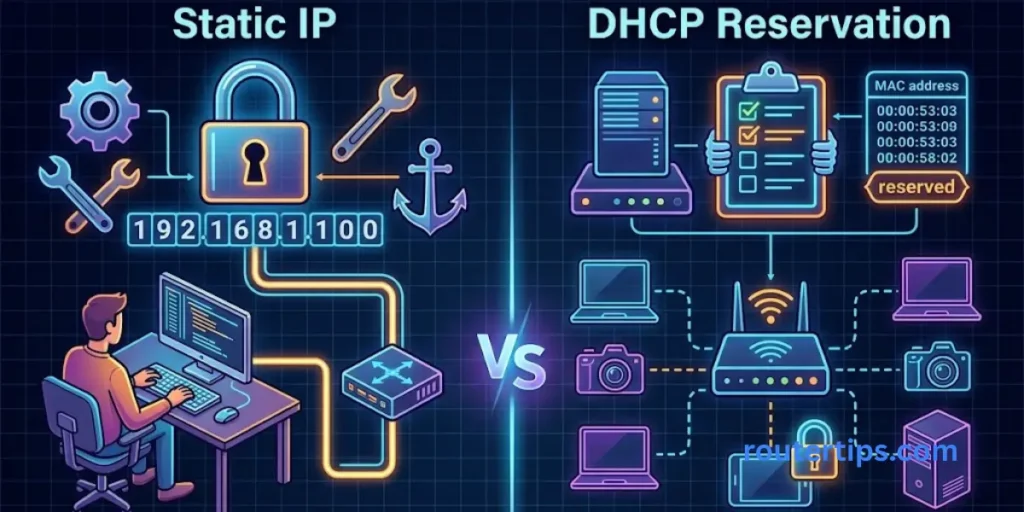
A manually assigned static IP can be useful for devices that need a stable address, such as printers or local servers. However, it must match the network’s subnet, gateway, and other settings.
A DHCP reservation is often easier for home networks because the router manages the assignment. You select the device, usually by its MAC address, and reserve an address for it.
Before using 192.168.1.100, confirm that it is not already assigned to another device and that it fits your router’s DHCP configuration.
How to Avoid IP Address Conflicts
Check the router’s DHCP range and its current client list. Do not assign an address that another device is already using.
If you configure a static address manually, follow the manufacturer’s guidance about choosing an address outside the DHCP pool or reserving it through the router. The correct approach depends on the router’s configuration.
Is 192.168.1.100 Safe to Use?
The address itself is not dangerous. It is a private IP address intended for local networks. However, security depends on the device using it and how that device is configured.
A private address does not automatically protect an insecure router, computer, or camera from other devices on the same network.
Why Private IP Addresses Are Not Public Internet Addresses
The 192.168.0.0/16 block is reserved for private use and is not normally routed across the public internet. Many home networks use addresses from this block. IANA private-address guidance
A device using 192.168.1.100 can still access internet services through a router. The private address is used for local communication, while the router typically handles traffic leaving the network.
How to Secure Your Device’s Admin Page
Use a strong, unique administrator password and update the device’s firmware when the manufacturer provides a suitable update. Disable remote administration if you do not need it, and avoid exposing the management interface directly to the internet.
Use modern Wi-Fi security and change any default credentials that remain active. If the device is managed by an internet provider or workplace, follow its security instructions instead of making unapproved changes.
Related Router IP Addresses
These addresses are similar in appearance but are not interchangeable.
| IP address | Common context |
| 192.168.1.1 | Frequently used as a router’s local address |
| 192.168.0.1 | Common router management address, including on some TP-Link models |
| 192.168.100.1 | Used by some network devices, including certain cable modem interfaces |
| 192.168.1.10 | A private address that may be assigned to a device on a local network |
| 192.168.1.100 | A private address that may identify a connected device or a configured management interface |
These are examples, not fixed rules for every manufacturer. Always check the actual address assigned to your device.
Final Thoughts on 192.168.1.100
The 192.168.1.100 IP address is a private IPv4 address that can be used by computers, printers, access points, and other devices on a local network. It may open a device’s management page, but it is not a universal router login address.
If you want to change a Wi-Fi password or manage router settings, first confirm that you have the correct device address. Check the default gateway, review the device label or official manual, and use the login details set for that specific model.
If the page does not open, verify your network connection and look for an IP address conflict before considering a factory reset. These checks can help you solve the problem without changing settings that are working correctly.
Frequently Asked Questions About 192.168.1.100
Q1. Is 192.168.1.100 a valid IP?
Yes. It is a valid private IPv4 address in the 192.168.0.0/16 range. It can be used by a device on a local network, but it is not a public IP address.
Q2. Why can’t I open the 192.168.100.1 address?
The device may use a different address, your computer may be connected to another network, or its management page may not be available. Check the device’s assigned IP address and confirm that you are connected to the correct network. Remember that 192.168.100.1 and 192.168.1.100 are different addresses.
Q3. Is 192.168.1.10 a public or private IP address?
192.168.1.10 is a private IPv4 address. It belongs to the same reserved private range as 192.168.1.100 and is intended for use on local networks.
Q4. How do I access a 192.168.0.1 router?
Connect to the router’s network, enter http://192.168.0.1 in your browser, and sign in with the correct credentials. If the page does not open, check the router’s actual gateway address and follow its setup instructions.
Q5. Can two devices have the same private IP address?
Two devices on separate networks can use the same private IP address without a problem. However, two devices using the same address on the same local network can cause an IP conflict and interrupt communication.
Q6. Can 192.168.1.100 change automatically?
Yes. If a router assigns the address through DHCP, it may change when the lease expires or network settings change. A DHCP reservation can help keep the same address assigned to a device.