
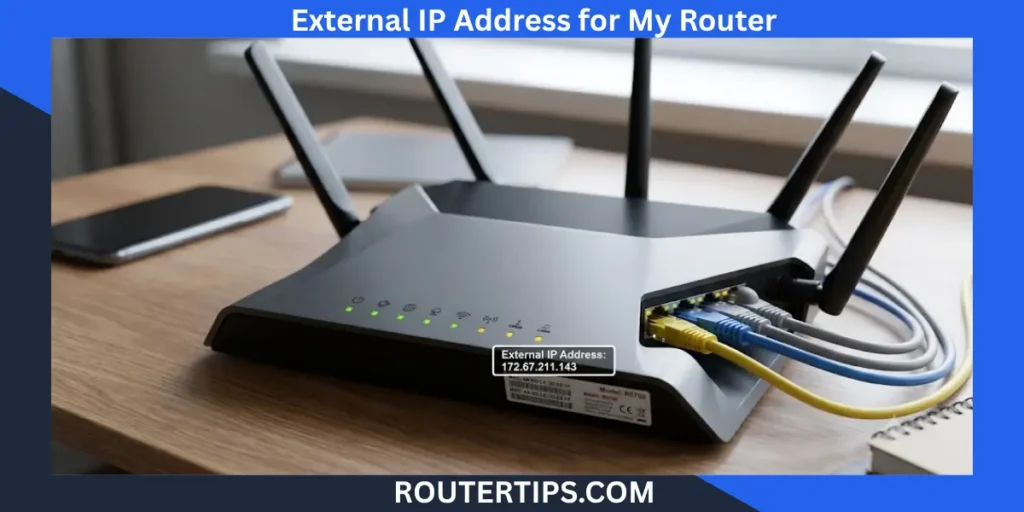
Your router’s external IP address is the public address that connects your home network to the internet. Every website you visit, every online game you play, and every video call you make uses this address to send and receive data.
Many people confuse an external IP address with a router’s local IP address, but they are different. Your external IP address is assigned by your Internet Service Provider (ISP) and is visible to websites and online services. Your internal router IP address, such as 192.168.1.1 or 192.168.0.1, is only used inside your home network to manage your router and connected devices.
Knowing your router’s external IP address can help when setting up remote access, configuring port forwarding, troubleshooting internet issues, using a VPN, or managing security cameras and other smart devices.
In this guide, you’ll learn what an external IP address is, how it works, how to find it on different devices, and how to keep it secure. You’ll also understand the difference between public and private IP addresses and when you may need to use each one.
What Is an External IP Address?

An external IP address, also called a public IP address or WAN IP address, is the unique address assigned to your internet connection by your Internet Service Provider (ISP).
Think of it as the mailing address for your home network. When your router connects to the internet, your ISP gives it an external IP address. Websites, streaming services, online games, and cloud applications use this address to send information back to your router.
Every device connected to your WiFi network, including laptops, phones, tablets, smart TVs, and gaming consoles, shares the same external IP address when accessing the internet through the same router.
For example, if you search “What is my external IP address?” on Google, you’ll see the public IP currently assigned to your internet connection.
Key Facts About an External IP Address
- It is assigned by your Internet Service Provider (ISP).
- It identifies your network on the internet.
- It is also known as a public IP address or WAN IP address.
- Every home or business internet connection typically has one public IP address.
- Multiple devices on the same WiFi usually share the same external IP.
- It can change over time unless you have a static IP address.
📶 Need help accessing your Comcast router? Explore our What Is My Comcast Router IP Address guide and login instructions to find the default gateway, sign in to your router, and manage your Wi-Fi and network settings with confidence.
External IP Address vs Internal IP Address
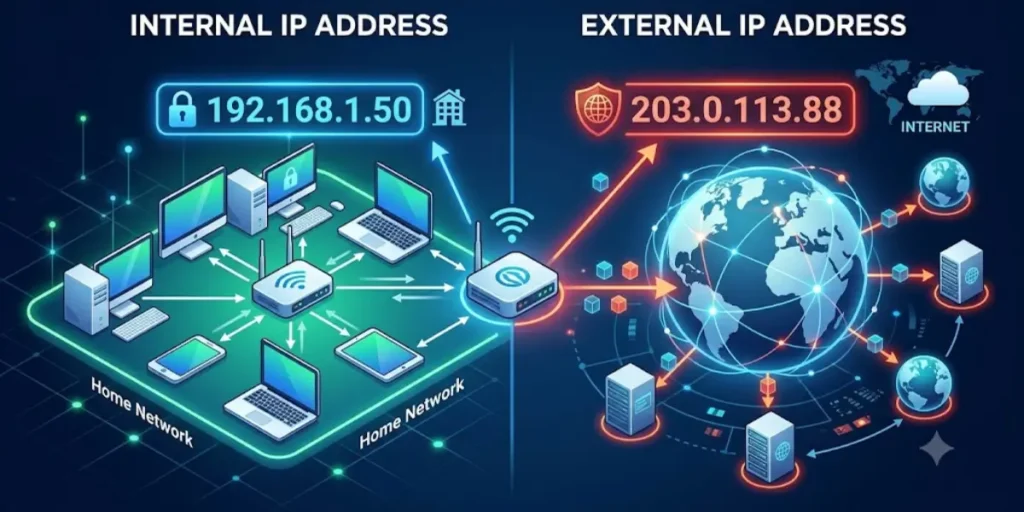
Although both are IP addresses, they serve different purposes.
An external IP address connects your router to the internet, while an internal IP address helps devices communicate within your local network.
For example:
- Your router may have an external IP such as 203.0.113.25.
- Your laptop might have a private IP like 192.168.1.15.
- Your phone could use 192.168.1.18.
These private IP addresses are only used inside your home network and cannot be accessed directly from the internet.
📶 Looking for the correct login address for your AT&T router? Explore our What Is My AT&T Router IP Address guide and setup resources to find the default gateway, access the admin panel, and manage your Wi-Fi and network settings with ease.
External IP vs Internal IP Comparison
| Feature | External IP Address | Internal IP Address |
| Also called | Public IP or WAN IP | Private IP or Local IP |
| Assigned by | Internet Service Provider | Router |
| Used on | Internet | Home or office network |
| Visible online | Yes | No |
| Shared by devices | Usually yes | No, each device has its own |
| Example | 203.0.113.25 | 192.168.1.100 |
Understanding this difference makes it easier to manage your home network, troubleshoot connection issues, and configure router settings correctly.
📶 Need quick access to your ARRIS router settings? Visit our What Is My Arris Router IP Address guide and troubleshooting resources to find the default login IP, access the admin panel, and resolve common router login issues.
Why Does Your Router Have an External IP Address?
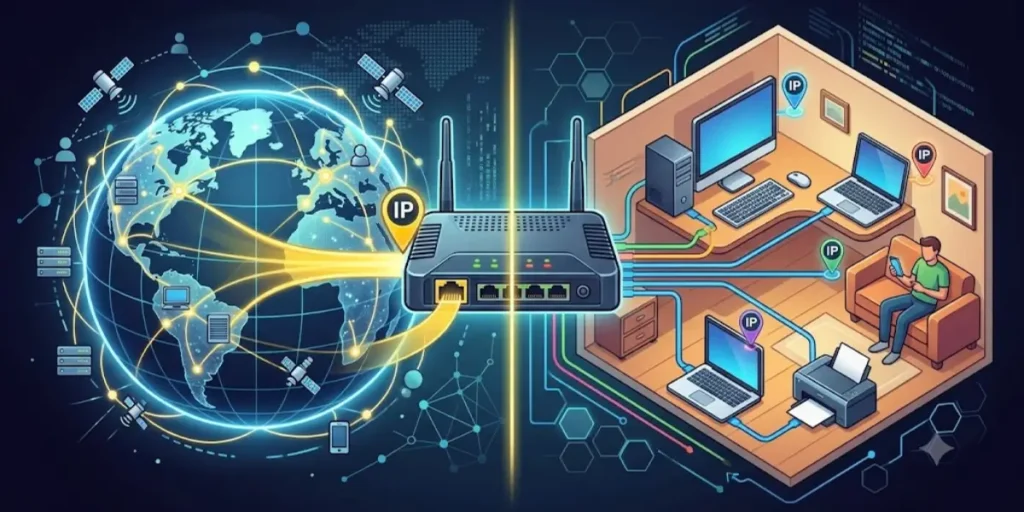
Your router acts as the bridge between your home network and the internet.
Without an external IP address, websites and online services would not know where to send information back to your network.
For example, when you:
- Visit a website
- Stream a movie
- Join a video meeting
- Play an online game
- Download files
- Use cloud storage
your router sends requests through its external IP address. The website or service then responds using that same address.
Your router also uses Network Address Translation (NAT) to allow many devices to share one public IP address. This means your laptop, smartphone, smart TV, and gaming console can all access the internet at the same time without needing separate public IP addresses.
Common Reasons You May Need Your Router’s External IP Address
Knowing your external IP address can be useful for several networking tasks, including:
- Setting up remote desktop access
- Configuring port forwarding
- Accessing a home security camera while away
- Connecting to a Network Attached Storage (NAS) device remotely
- Hosting a game server
- Troubleshooting internet connection problems
- Using a VPN service
- Testing network connectivity
- Managing remote smart home devices
For most everyday internet browsing, you don’t need to know your external IP address. However, it becomes important when configuring advanced network settings or diagnosing connection issues.
🌐 Need help locating your router’s login address? Explore our Find Router IP Address Guide for quick and easy steps to identify your router’s default gateway and access your router settings.
How Do I Find My Router External IP Address?
Finding your router’s external IP address is usually quick and only takes a minute. There are several reliable ways to check it, and each method gives you the same result unless you’re using a VPN, proxy server, or another service that changes your public IP address.
Below are the easiest methods.
Use an Online IP Checker
The fastest way to find your router’s external IP address is to use an online IP lookup tool.
When you open an IP checker in your web browser, it automatically detects the public IP address assigned to your internet connection.
Steps
- Open your preferred web browser.
- Visit a trusted IP lookup website.
- Your external IP address will appear on the screen.
- You may also see your approximate location, Internet Service Provider (ISP), and whether you’re using IPv4 or IPv6.
This method works on:
- Windows PCs
- Mac computers
- Android phones
- iPhones and iPads
- Chromebooks
- Linux computers
Tip: If you’re connected to a VPN, the website will display the VPN’s public IP address instead of the one assigned by your ISP.
🛡️ Protect yourself from internet fraud with our Online Scams Awareness to learn how to recognize common scams, avoid phishing attempts, and stay safe while browsing online.
Check Your Router’s Admin Panel
Your router also displays its external IP address in its settings. This is often labeled as the WAN IP Address, Internet IP Address, or Public IP Address.
Open Your Router Login Page
Open a web browser and enter your router’s local IP address.
Common router login addresses include:
- 192.168.1.1
- 192.168.0.1
- 10.0.0.1
If you’re unsure which address to use, read our guide on finding your router IP address.
Sign In
Enter your router’s administrator username and password.
If you have never changed them, check:
- The label on the router
- Your router manual
- The documentation from your ISP
Find the WAN Information
After logging in, look for sections such as:
- Internet
- Status
- WAN
- Network
- System Information
Here you’ll usually find:
- WAN IP Address
- Public IP Address
- Internet IP
- IPv4 Address
- IPv6 Address
This is your router’s external IP address.
Note: The exact menu names vary by router brand and model.
🌐 Need help managing your home network? Explore our Router IP Resources to find default login addresses, access your router settings, and troubleshoot common networking issues.
Use Your Router’s Mobile App
Many modern routers include mobile apps that let you monitor your network without opening the router’s web interface.
Popular router apps include those from:
- TP-Link
- NETGEAR
- ASUS
- Linksys
- D-Link
- ASUS ZenWiFi
- Google Nest WiFi
- Eero
After signing in, open your network or internet status page. Most apps show:
- Public IP Address
- WAN IP
- Internet Status
- Connection Details
This is one of the easiest ways to check your external IP address from your phone.
Search Google
Google can quickly show your current public IP address.
Simply open Google and search:
- What is my IP
- What is my external IP address
- My public IP address
Google will display your current public IP at the top of the search results.
Keep in mind that this is the IP address currently seen by websites on the internet.
Ask Your Internet Service Provider
If you’re unable to access your router or your internet connection is behaving unexpectedly, your ISP can confirm the public IP address assigned to your connection.
This method is also useful if:
- You have a business internet connection.
- You pay for a static IP address.
- You suspect your ISP is using Carrier-Grade NAT (CGNAT).
- You need help with remote access or port forwarding.
Why Your External IP May Look Different
Sometimes the IP address shown on an online checker doesn’t match the one displayed in your router.
This can happen because of:
- A VPN changing your public IP address
- A proxy service
- Carrier-Grade NAT (CGNAT)
- Multiple routers on the same network
- Your ISP assigning a new dynamic IP address
If you’re not using a VPN or proxy and the addresses still don’t match, check whether your ISP uses CGNAT. In this setup, multiple customers share a public IP address, which can affect remote access and port forwarding.
Which Method Is Best?
Here’s a quick comparison to help you choose the easiest option.
| Method | Difficulty | Best For |
| Online IP Checker | Very Easy | Quick public IP lookup |
| Google Search | Very Easy | Instant IP check |
| Router Admin Panel | Easy | Viewing WAN and network details |
| Router Mobile App | Easy | Checking your router from a phone |
| Contacting Your ISP | Moderate | Static IPs and connection issues |
For most home users, an online IP checker or Google search is the fastest way to find a router’s external IP address. If you need more network information, such as your WAN settings or IPv6 address, logging into your router’s admin panel is the better choice.
How to Find Your External IP Address on Different Devices
Your router’s external IP address is shared by every device connected to the same internet connection. Whether you’re using a Windows PC, Mac, Android phone, or iPhone, you can check the same public IP address by using a web browser or, in some cases, your network settings.
Below are the easiest methods for each device.
How to Find Your External IP Address on Windows
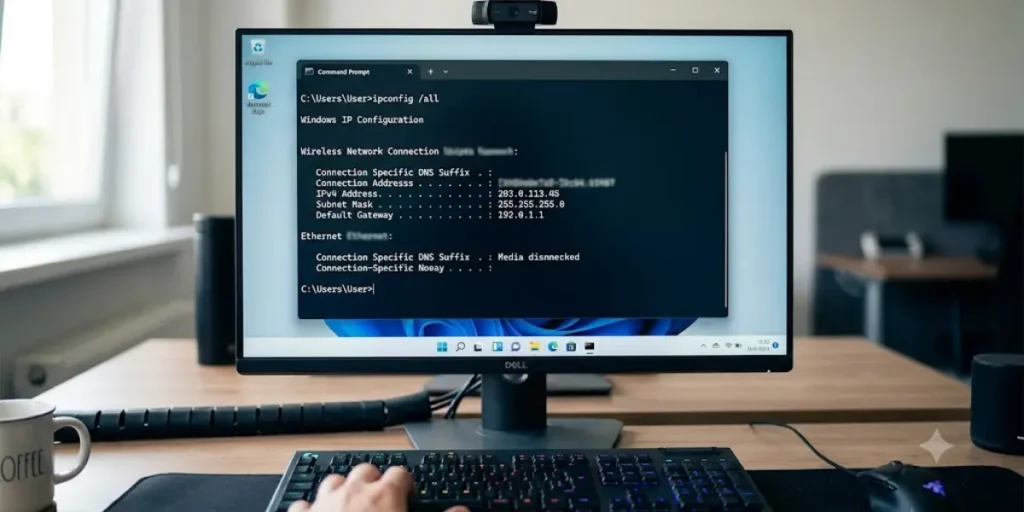
Windows does not display your public IP address directly in its network settings because it only shows your device’s private IP address. To see your router’s external IP address, use one of these methods.
Use a Web Browser
- Open your preferred web browser.
- Search for “What is my IP”.
- Google or an IP lookup website will display your current public IP address.
Check Your Router
- Open a browser.
- Enter your router’s login address, such as 192.168.1.1.
- Sign in with your administrator credentials.
- Open the Status, Internet, or WAN section.
- Find the WAN IP Address or Public IP Address.
This method also lets you view additional network details, such as your IPv4 address, IPv6 address, DNS information, and internet connection status.
How to Find Your External IP Address on a Mac
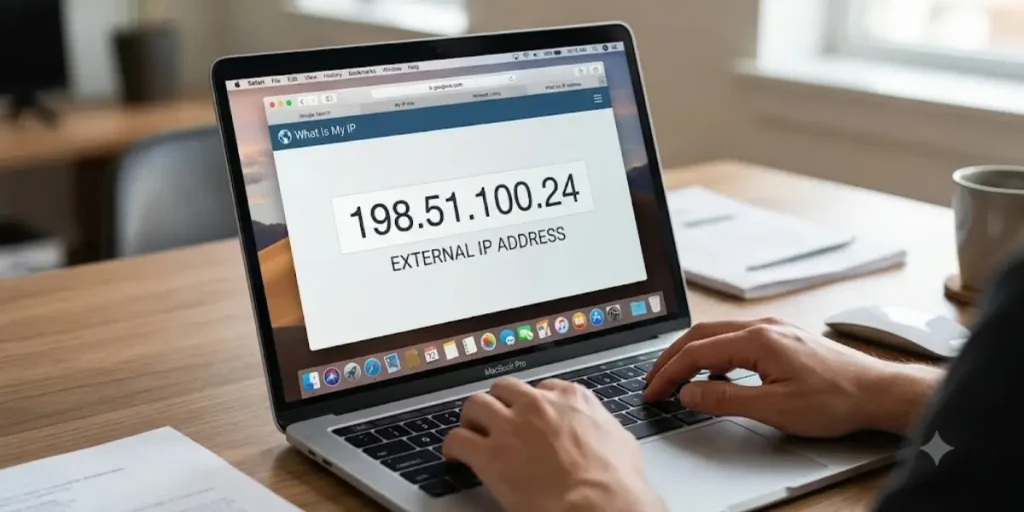
Mac users can check their public IP in just a few steps.
Using a Browser
- Open Safari or another browser.
- Search for “What is my external IP address.”
- Your current public IP address will appear in the search results or on an IP lookup website.
Using Your Router
If you need more network information:
- Open a browser.
- Visit your router’s login page.
- Sign in.
- Open the Internet or WAN section.
- Locate the public IP address.
How to Find Your External IP Address on Android

Checking your public IP address on an Android phone is simple.
Use Google
- Open Chrome.
- Search for “What is my IP.”
- Your external IP address will appear near the top of the results.
Use Your Router App
Many router manufacturers offer Android apps that display:
- Public IP address
- Internet connection status
- Connected devices
- Network information
This is helpful if you already use your router’s mobile app to manage your WiFi network.
How to Find Your External IP Address on an iPhone or iPad
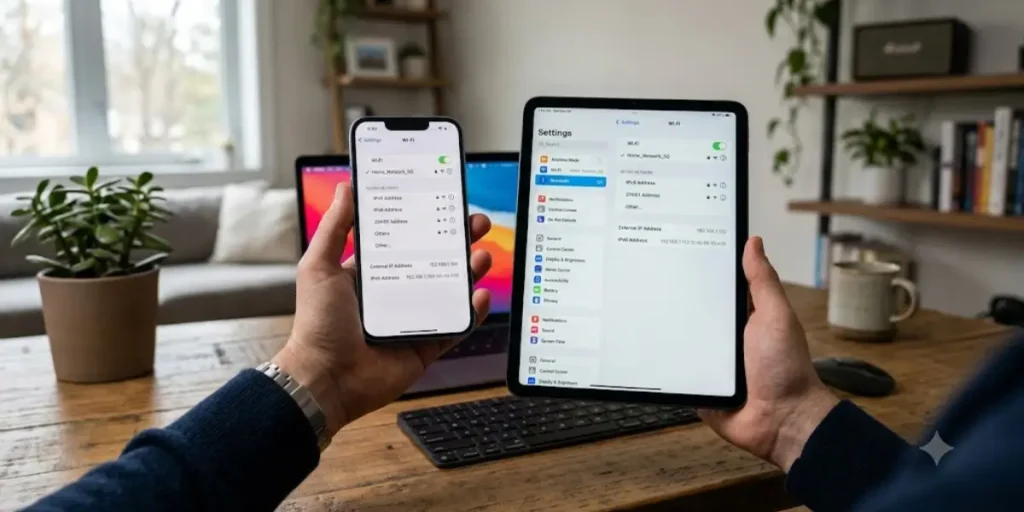
An iPhone’s WiFi settings only show its local IP address. To view the public IP assigned to your router, use a browser or your router app.
Using Safari
- Open Safari.
- Search for “What is my IP address.”
- Your public IP address will appear immediately.
Using Your Router
- Open your router’s mobile app or log in through Safari.
- Navigate to the Internet or WAN page.
- View your router’s external IP address.
How to Find Your External IP Address on a Chromebook
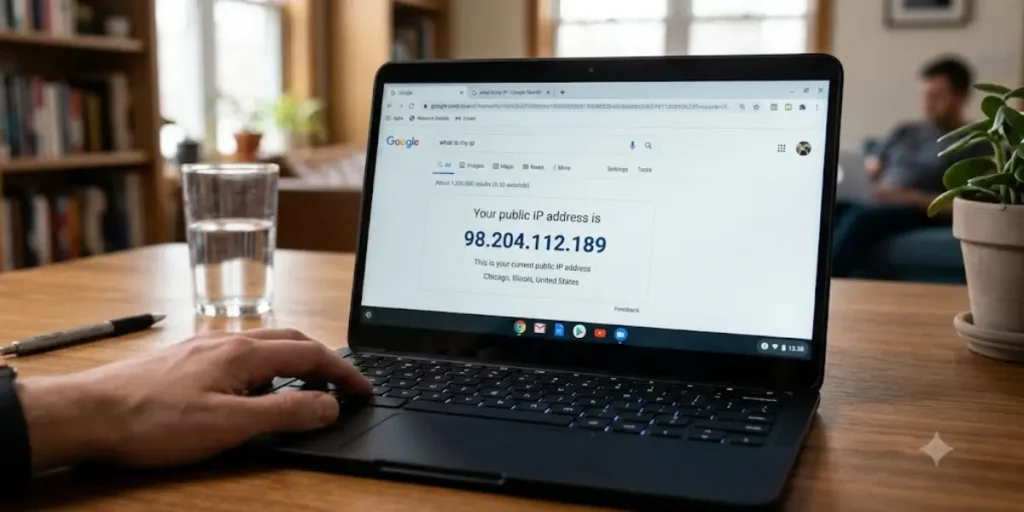
Chromebooks work the same way as other devices.
Steps
- Open Chrome.
- Search for “What is my public IP address.”
- View the IP shown in the search results.
If you need more detailed information, log in to your router’s settings to view your WAN IP address and other network details.
How to Find Your External IP Address on Linux
Linux users have several options.
Browser Method
- Open your web browser.
- Search for “What is my IP.”
- View your public IP address.
Router Method
You can also sign in to your router and check the WAN or Internet Status page to see your external IP address.
Many Linux users prefer checking through the router because it also provides details about DNS servers, IPv4, IPv6, gateway information, and network status.
What Does an External IP Address Look Like?
An external IP address is a series of numbers that identifies your internet connection. The format depends on whether your network uses IPv4 or IPv6.
IPv4 Example
Most home internet connections still use IPv4.
Example:
203.0.113.45
An IPv4 address contains four numbers separated by periods.
Example format:
XXX.XXX.XXX.XXX
Each number ranges from 0 to 255.
IPv6 Example
Many internet providers now support IPv6 in addition to IPv4.
Example:
2001:db8:85a3::8a2e:370:7334
IPv6 addresses are much longer because they provide significantly more unique addresses for the growing number of internet-connected devices.
Today, many routers receive both an IPv4 address and an IPv6 address from the ISP.
Is My External IP the Same as My Public IP?
Yes.
The terms external IP address, public IP address, and WAN IP address usually refer to the same thing.
These names all describe the address your ISP assigns to your router so it can communicate with the internet.
For example, if someone asks for your:
- External IP
- Public IP
- Internet IP
- WAN IP
they are generally asking for the same address.
Does My Router External IP Address Change?
Yes, in many cases, your router’s external IP address can change. Whether it changes depends on the type of IP address your Internet Service Provider (ISP) assigns to your internet connection.
Most home internet users have a dynamic IP address, while some businesses and a few residential customers use a static IP address.
Understanding the difference can help you troubleshoot connection issues and decide whether you need a permanent public IP.
Dynamic IP Address
A dynamic IP address is the most common type of public IP.
Your ISP automatically assigns it when your router connects to the internet. This address may stay the same for weeks or months, but it can change without notice.
Your external IP may change if:
- You restart your modem or router.
- Your ISP renews your connection.
- Your ISP performs network maintenance.
- You move your router to a different internet connection.
- Your ISP updates its network.
For most people, a dynamic IP works perfectly for everyday activities like browsing, streaming, online shopping, and video calls.
Static IP Address
A static IP address does not change unless your ISP updates it manually.
Businesses often choose a static IP because it makes remote access and network management more reliable.
A static IP is useful if you:
- Host a website or web server.
- Run a business email server.
- Access a Network Attached Storage (NAS) device remotely.
- Manage office security cameras.
- Need consistent remote desktop access.
Many ISPs charge an additional fee for a static IP address.
Will Restarting My Router Change My Public IP?
Sometimes.
Restarting your router does not guarantee a new external IP address.
If your ISP uses dynamic IP addressing, your router may receive:
- The same public IP address
- A completely new public IP address
Some ISPs keep the same IP assigned for a long period, while others change it more frequently.
If you need a different public IP, you may have to:
- Turn off your modem and router for an extended period.
- Contact your ISP.
- Request a new IP address if your ISP allows it.
Can Two Devices Have the Same External IP Address?
Yes.
In a home network, every device connected to the same router usually shares one external IP address.
For example, your:
- Laptop
- Smartphone
- Tablet
- Smart TV
- Gaming console
- Smart speaker
may all appear online with the same public IP address.
This is possible because your router uses Network Address Translation (NAT).
How Network Address Translation (NAT) Works
Network Address Translation (NAT) allows multiple devices on a private network to share a single public IP address.
Here’s a simple example.
Imagine your home has:
- One router
- Two laptops
- Three smartphones
- A smart TV
- A gaming console
Each device has its own private IP address, such as:
- 192.168.1.10
- 192.168.1.15
- 192.168.1.20
When these devices connect to the internet, the router sends all requests through one external IP address.
When websites send information back, the router uses NAT to deliver the data to the correct device.
This process happens automatically and usually takes only milliseconds.
Benefits of NAT
- Conserves public IPv4 addresses.
- Allows many devices to share one internet connection.
- Adds a basic layer of network protection.
- Simplifies home network management.
NAT is built into nearly every modern home router.
How Do I Find the External IP Address of a Device?
This is a common question, but the answer depends on where the device is located.
If the Device Is on Your Home Network
All devices connected to the same router normally use the same external IP address.
For example:
| Device | Private IP | External IP |
| Laptop | 192.168.1.12 | Shared |
| Phone | 192.168.1.18 | Shared |
| Tablet | 192.168.1.25 | Shared |
| Smart TV | 192.168.1.30 | Shared |
Although each device has a different private IP address, they all share the router’s public IP when communicating with the internet.
If the Device Is on Another Network
If a device is connected to:
- Mobile data
- Another WiFi network
- A business network
- A hotel network
it will have a different external IP address because it is using a different internet connection.
If You’re Accessing a Remote Device
To identify the public IP of a remote computer, server, or network, you’ll typically need:
- Access to that device
- Access to its router
- A remote management application
- Permission from the network owner
Without authorization, you cannot reliably determine another device’s public IP address.
Why Would You Need Your Router’s External IP Address?
Many people never need to know their public IP address. However, it becomes important when setting up or managing certain network features.
Here are some common situations where knowing your external IP address is helpful.
Remote Access
If you want to connect to your home computer while you’re away, you’ll often need your router’s public IP address.
Remote desktop software and similar services use this information to locate your network.
Port Forwarding
Port forwarding allows outside connections to reach a specific device inside your home network.
You may need your external IP when configuring:
- Game servers
- Security cameras
- Web servers
- Smart home hubs
- NAS devices
Online Gaming
Some multiplayer games perform better when the correct network settings are configured.
Knowing your public IP can help when:
- Troubleshooting connection issues
- Hosting multiplayer games
- Checking NAT status
- Configuring router settings
VPN Connections
If you use a Virtual Private Network (VPN), your visible public IP address changes to the VPN server’s IP.
Checking your external IP helps confirm that your VPN is working correctly.
Network Troubleshooting
Internet support teams often ask for your public IP address when diagnosing:
- Slow internet
- Connection failures
- Remote access issues
- DNS problems
- Router configuration errors
Providing the correct public IP can speed up troubleshooting.
Smart Home Devices
Some smart home systems use your router’s external IP for remote access.
Examples include:
- Security cameras
- Smart doorbells
- Home automation systems
- Network storage devices
Many newer devices use secure cloud services instead, reducing the need to enter your public IP manually.
Is It Safe to Share Your External IP Address?
In most situations, sharing your external IP address is not immediately dangerous, but you should avoid sharing it publicly unless there is a good reason.
Your public IP address is visible to websites, online services, and internet servers whenever you connect to them. This is a normal part of how the internet works.
However, posting your external IP address on public forums or social media can expose your network to unwanted attention.
What Can Someone Do With Your External IP Address?
On its own, an external IP address does not give someone access to your computer or router. They still need a way to bypass your network security.
However, someone who knows your public IP address may be able to:
- Estimate your general geographic location.
- Identify your Internet Service Provider (ISP).
- Scan your network for open ports.
- Attempt unauthorized connection requests.
- Target your connection with a denial-of-service (DoS) or distributed denial-of-service (DDoS) attack.
Modern routers include security features such as firewalls, Network Address Translation (NAT), and access controls that help block most unwanted traffic.
For most home users, keeping the router updated and using strong passwords provides good protection.
Can Someone Find Your Home Address Using Your IP?
Usually, no.
An external IP address does not reveal your exact home address.
Instead, IP lookup services typically show only general information, such as:
- Country
- State or province
- City or nearby area
- Internet Service Provider (ISP)
The reported location is an estimate based on ISP records and IP location databases. It may even point to a nearby city instead of your actual location.
For example, if you live in a small town, an IP lookup may display the nearest major city where your ISP operates.
What Does Your External IP Address Reveal?
Your public IP can provide limited information about your internet connection.
It may reveal:
- Your approximate location.
- Your ISP.
- Whether you’re using IPv4 or IPv6.
- The organization that owns the IP address.
- The country or region where the IP is registered.
It does not normally reveal:
- Your name.
- Your street address.
- Your phone number.
- Your WiFi password.
- Files stored on your devices.
- Your browsing history.
Your personal information remains protected by your ISP, your router’s security features, and the websites you choose to use.
Who Can See Your IP Address Online?
Every time you connect to an online service, your public IP address is used to send and receive data.
Depending on what you’re doing online, your IP address may be visible to:
- Websites you visit.
- Streaming services.
- Online games.
- Email providers.
- Cloud services.
- Video conferencing platforms.
- Internet Service Provider (ISP).
Some websites use your IP address to:
- Display content for your region.
- Prevent fraud.
- Improve network performance.
- Detect unusual login activity.
How Can You Protect Your External IP Address?
While your public IP is necessary for internet access, there are several ways to improve your privacy and security.
Use a Trusted VPN
A Virtual Private Network (VPN) routes your internet traffic through another server.
This means websites see the VPN server’s public IP address instead of the one assigned by your ISP.
A VPN can also help protect your data when using public WiFi networks.
Keep Your Router Firmware Updated
Router manufacturers regularly release firmware updates to fix security issues and improve performance.
Check for updates through your router’s admin panel or mobile app.
Installing the latest firmware helps keep your network secure.
Change the Default Router Password
Many routers are shipped with default administrator usernames and passwords.
If you have not already done so, replace them with a strong, unique password.
A strong password should include a mix of:
- Uppercase letters
- Lowercase letters
- Numbers
- Special characters
Avoid using personal information or common words.
Enable Your Router’s Firewall
Most modern routers include a built-in firewall.
The firewall helps:
- Block unauthorized connection attempts.
- Filter suspicious traffic.
- Protect devices connected to your home network.
For most users, leaving the firewall enabled is the best choice.
Disable Remote Management If You Don’t Need It
Some routers allow you to manage settings from outside your home network.
If you never use this feature, consider turning it off.
Disabling remote management reduces the number of ways someone could attempt to access your router.
Common Problems When Finding Your External IP Address
Sometimes you may notice that different tools show different IP addresses or that your router displays information you don’t expect.
Here are some common reasons.
Your VPN Is Changing Your Public IP
If you’re connected to a VPN, websites will show the VPN server’s IP address instead of the one assigned by your ISP.
Disconnect from the VPN if you want to see your normal public IP.
Your ISP Uses Carrier-Grade NAT (CGNAT)
Some ISPs use Carrier-Grade NAT (CGNAT) to allow many customers to share public IPv4 addresses.
If your ISP uses CGNAT:
- Your router may not receive a unique public IPv4 address.
- Port forwarding may not work as expected.
- Remote access can become more difficult.
If you need a dedicated public IP, contact your ISP to ask whether they offer one.
Multiple Routers on the Same Network
If your home has more than one router, the first router connected to the modem usually receives the public IP address.
The second router may only receive a private IP from the first router.
This setup is often called double NAT and can affect online gaming, remote access, and port forwarding.
Your ISP Assigned a New IP Address
If you have a dynamic IP, your ISP may assign a different public IP after:
- Restarting your modem.
- Network maintenance.
- Long power outages.
- Lease renewal.
This is normal and usually does not affect everyday internet use.
External IP vs Public IP vs WAN IP
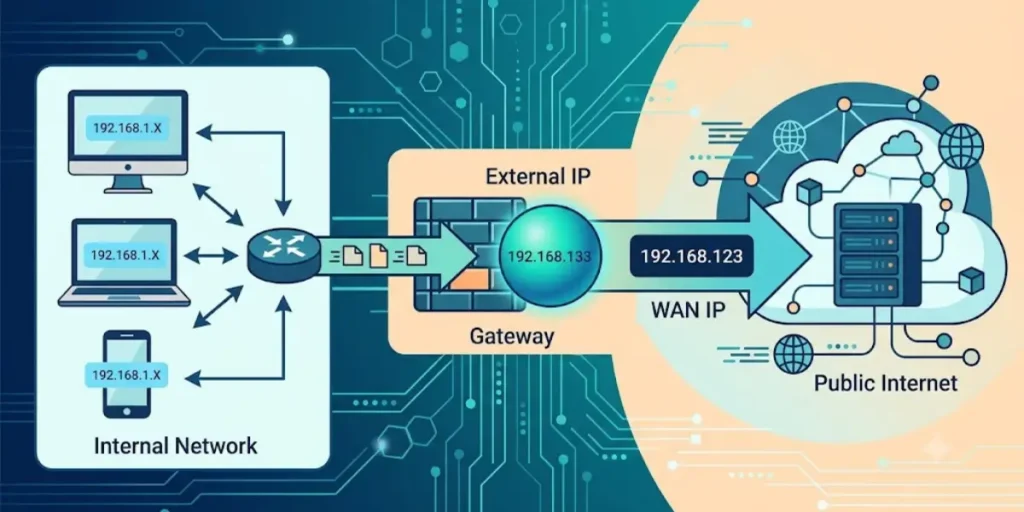
You may notice different names depending on your router, ISP, or online tool.
In most cases, these terms mean the same thing.
| Term | Meaning |
| External IP Address | The public address assigned to your internet connection. |
| Public IP Address | Another name for your external IP address. |
| WAN IP Address | The IP address on the router’s Wide Area Network (WAN) connection. |
Although the wording changes, all three terms generally refer to the same IP address that connects your router to the internet.
Final Thoughts on What Is My External IP Address for My Router
Your router’s external IP address is the public address that connects your home network to the internet. It is assigned by your Internet Service Provider (ISP) and is shared by all the devices connected to your router, including computers, smartphones, tablets, smart TVs, and gaming consoles.
Knowing your external IP address can make many networking tasks easier. It is useful for setting up port forwarding, using remote access, troubleshooting internet connection problems, checking your network status, and confirming that your VPN is working correctly. Understanding the difference between a public IP address and a private IP address also helps you better manage your home network, as each serves a different purpose.
To keep your network secure, update your router’s firmware regularly, use a strong administrator password, keep the router’s firewall enabled, and share your public IP address only when necessary. These simple security practices help protect your personal information while keeping your internet connection reliable. With a clear understanding of your router’s external IP address, you can manage your network more confidently and solve common connectivity issues more easily.
Frequently Asked Questions About What Is My External IP Address for My Router
Q1. How do I find my router external IP address?
The easiest way is to search “What is my IP” in your web browser or use a trusted IP lookup tool. You can also log in to your router’s admin panel and check the WAN, Internet, or Status page, where the public IP address is usually displayed.
Q2. What is my external IP address?
Your external IP address is the public IP address assigned to your router by your Internet Service Provider (ISP). It identifies your internet connection and allows websites, apps, and online services to communicate with your network.
Q3. What does an external IP address look like?
Most home internet connections use an IPv4 address that looks like this:
203.0.113.45
Some networks also use IPv6, which is longer and contains both letters and numbers, for example:
2001:db8:85a3::8a2e:370:7334
Q4. How do I find the external IP address of a device?
If the device is connected to your home WiFi, it usually shares the same external IP address as your router. You can view it by using an online IP checker or by checking your router’s WAN settings.
If the device is connected to a different network, such as mobile data or another WiFi connection, it will have a different external IP address.
Q5. Is my external IP the same as my public IP?
Yes. The terms external IP address, public IP address, and WAN IP address are commonly used to describe the same address assigned to your internet connection.
Q6. Can I change my external IP address?
In some cases, yes. If your ISP assigns a dynamic IP address, your public IP may change after restarting your modem or router, after a lease renewal, or during network maintenance. If you have a static IP address, it usually remains the same unless your ISP changes it.
Q7. Does restarting my router change my IP address?
Not always. Restarting your router may result in a new public IP if your ISP uses dynamic IP addresses, but many ISPs assign the same IP again. If you need a different IP address, you may need to contact your ISP.
Q8. Is my external IP different from my WiFi IP?
Yes.
Your external IP address is assigned by your ISP and is used for communication over the internet.
Your WiFi IP address, also called a private IP address, is assigned by your router to devices connected to your local network. It is only used within your home or office network.
Q9. Can I hide my external IP address?
Yes. A Virtual Private Network (VPN) can hide your public IP address by routing your internet traffic through one of its servers. Websites and online services will see the VPN server’s IP address instead of the one assigned by your ISP.