
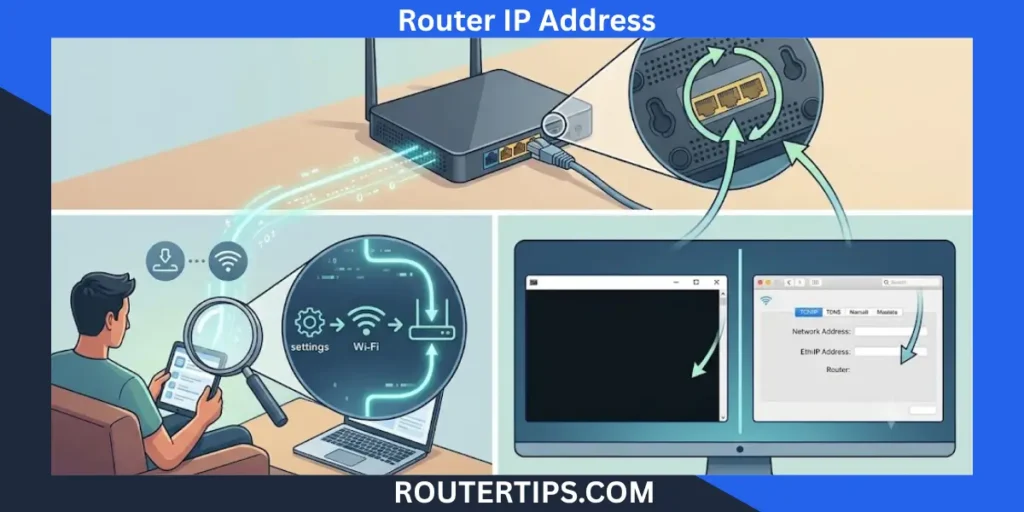
The IP address of your router is the address used to log into your router’s settings page. It can be useful if you need to change your Wi-Fi password, update security settings, set up parental controls or troubleshoot network problems. A lot of people know the name of their Wi-Fi network, but don’t know where to find the IP address of their router. The bright side is that it’s typically easy to find and only takes a couple of minutes.
This guide will show you how to discover the IP address of your router on Windows, Mac, Android, iPhone, Linux and Chrome OS. You will also get to know some common router IP addresses, router admin pages and answers to some common questions people ask online.
What Is A Router IP Address?
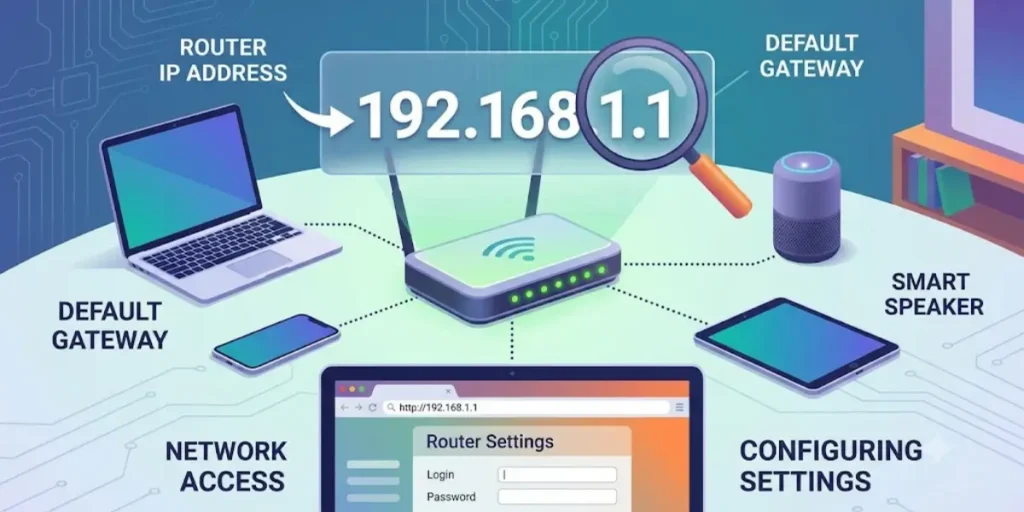
The IP address of your router is the address that your router has in your home or office network. It serves as a connection between your devices and the internet. You can log into the router’s admin login page by typing the router’s IP address into a web browser and use the router to configure network settings.
Common examples include:
- 192.168.1.1
- 192.168.0.1
- 192.168.100.1
- 10.0.0.1
These are private IP addresses used inside local networks.
🔑 Looking for your router’s factory login credentials? Visit our Default Router Username & Password List to quickly find the default username and password for your router model before performing a factory reset.
Private IP Address vs Public IP Address

A private IP address is used within your network. It is used by your router to talk to other devices that are connected to it, like phones, laptops and smart TVs. A public IP address is assigned by your internet service provider (ISP). It is used to recognize your network on the internet.
The router IP address mentioned in this article is typically the private IP address.
Why You Need to Find Your Router IP Address
Knowing your router IP address can help you:
- Access the router admin panel
- Change Wi-Fi settings
- Update router firmware
- Set parental controls
- Configure guest networks
- Fix internet connection problems
- Manage security settings
⚙️ Looking to manage your router settings? Learn more about port forwarding settings and how to open ports for games, cameras, and other network services.
How to Find Router IP Address on Windows
Windows provides several ways to find your router IP address.
Find Router IP Address Using CMD
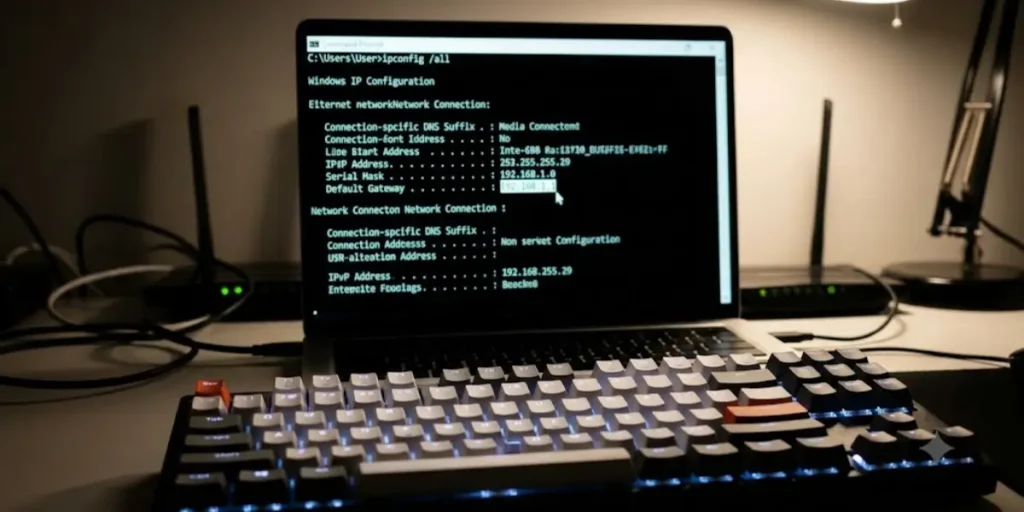
This is one of the fastest methods and is often searched as “find router IP address cmd.”
Follow these steps:
- Press Windows + R
- Type cmd
- Press Enter
- Type ipconfig
- Press Enter
- Look for Default Gateway
The number shown next to Default Gateway is your router IP address.
For example:
Default Gateway . . . . . : 192.168.1.1
In this example, 192.168.1.1 is the router’s IP address.
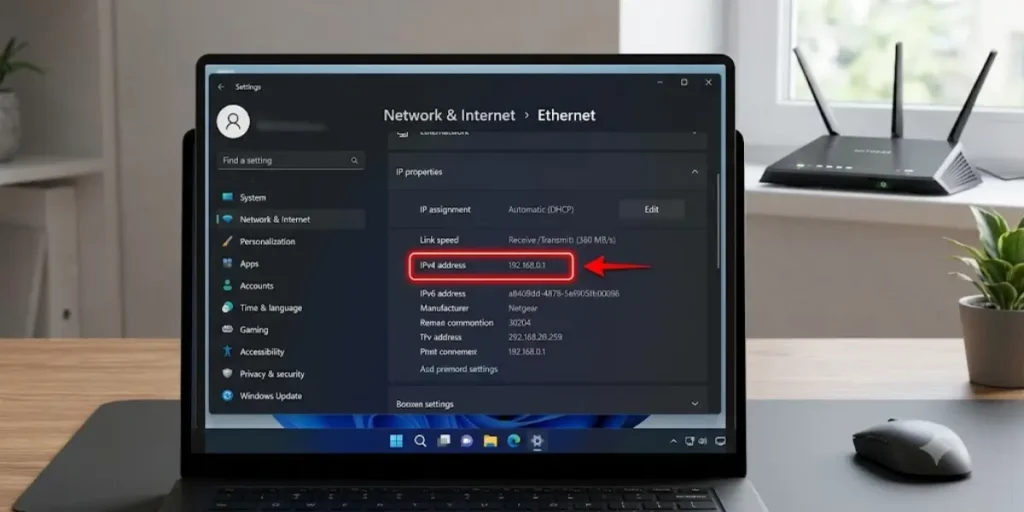
Find Router IP Address on Windows 11

If you want to find router IP address Windows 11 through settings:
- Open Settings
- Select Network & Internet
- Click Wi-Fi or Ethernet
- Select your connected network
- Scroll down to network details
- Find the Default Gateway
The value listed there is your router IP address.
🌐 Need help finding your network details? Check this router IP address information to learn how to locate your router IP and access your network settings.
Find Router IP Address Through Network Settings
Another option in Windows is through Control Panel:
- Open Control Panel
- Select Network and Internet
- Click Network and Sharing Center
- Choose your active connection
- Select Details
- Find IPv4 Default Gateway
This gateway address is your router’s local IP address.
How to Find Router IP Address on Mac
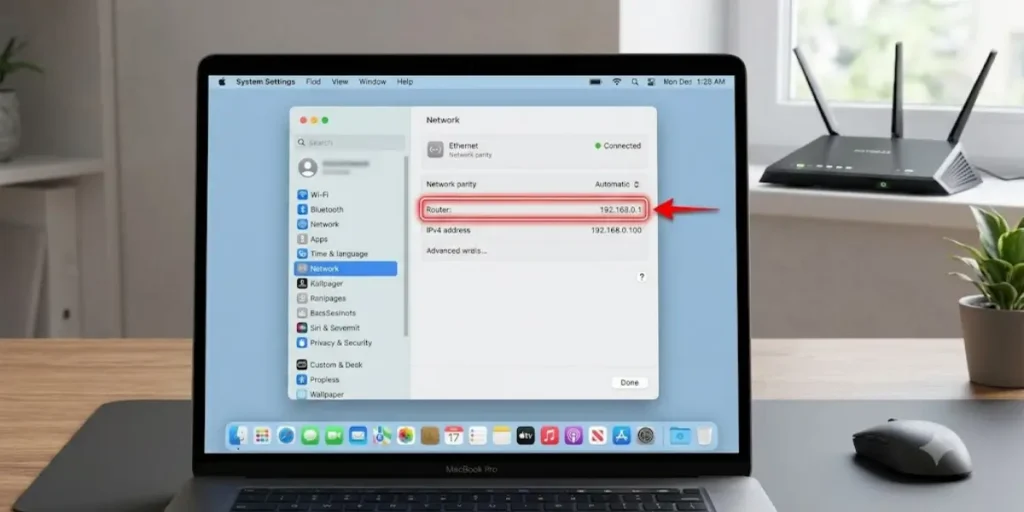
Mac users can locate the router IP address from network settings or Terminal.
Find Router IP Address Using Network Settings
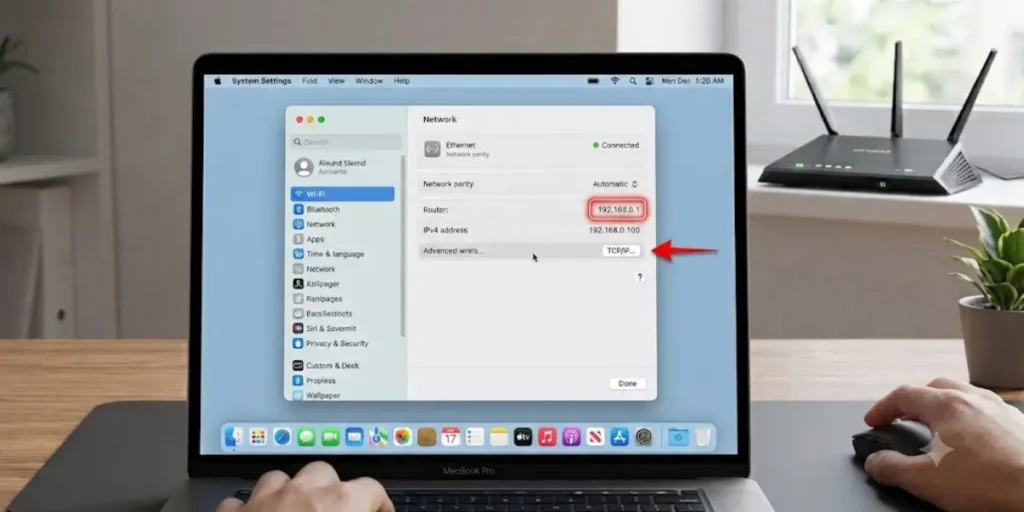
- Open System Settings
- Click Network
- Select your active Wi-Fi connection
- Open network details
- Look for Router
The number shown next to Router is your router IP address.
This is one of the easiest ways to find router IP address Mac users can follow.
Find Router IP Address Using Mac Terminal
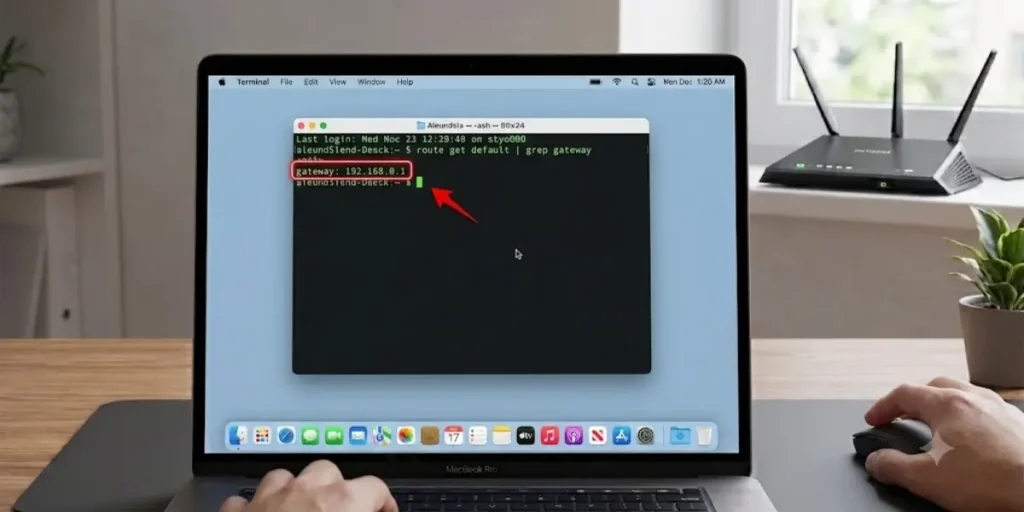
Many advanced users prefer Terminal.
To find router IP address Mac Terminal:
- Open Terminal
- Enter:
netstat -nr | grep default
- Press Enter
The displayed gateway address is your router’s IP address.
How to Find Router IP Address on Android
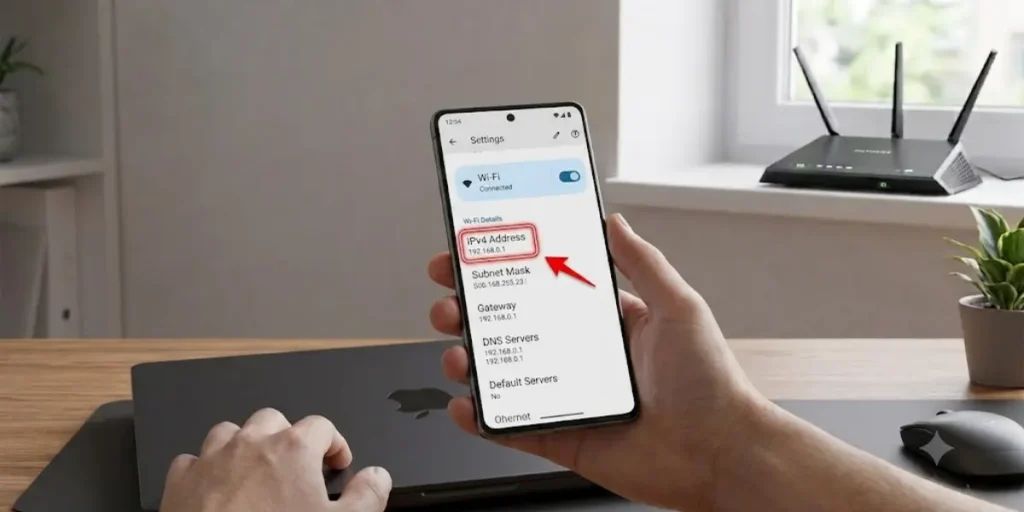
Android devices make it easy to view network information.
Find Router IP Address Through Wi-Fi Settings
- Open Settings
- Tap Wi-Fi
- Select your connected network
- Open network details
- Look for Gateway
The gateway address is your router IP address.
This method works on most Samsung, Google Pixel, Xiaomi, OnePlus, and Motorola devices.
How to Find Router IP Address on Android Phones
Some Android versions may display:
- Gateway
- Router
- Network Gateway
All of these usually point to the same router IP address.
If you want to find my router IP address Android, this is typically the fastest method.
How to Find Router IP Address on iPhone
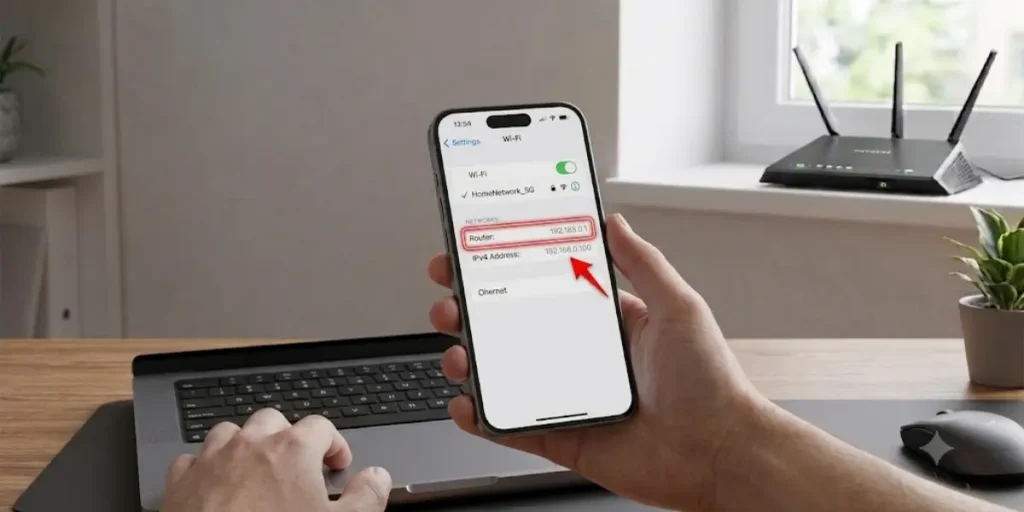
Apple devices provide router details directly in Wi-Fi settings.
Find Router IP Address from Wi-Fi Settings
- Open Settings
- Tap Wi-Fi
- Tap the i icon beside your connected network
- Scroll down
- Find Router
The value shown is your router IP address.
This method works on most iPhone and iPad models.
How to Find Router IP Address on iPhone Quickly
If you’re connected to Wi-Fi, you can usually find the router address in less than a minute using the steps above.
Many users searching for “find my router IP address on iPhone” or “how to find router IP address on iPhone” can use this method without installing any apps.
How to Find Router IP Address from Mobile
Many people want to know how to find my router IP address from mobile devices.
Whether you use Android or iPhone, the process is similar:
- Connect to Wi-Fi
- Open network settings
- View connection details
- Find the Router or Gateway field
The value shown is the router’s local IP address.
This is often the easiest way to find router IP address on phone devices without using a computer.
Final Thoughts About Find Router IP Address
Knowing your router IP address is an important part of managing your home or office network. Whether you use Windows, Mac, Linux, Android, iPhone, or Chrome OS, finding the router IP address usually takes only a few minutes and gives you access to your network settings.
In most cases, the router IP address appears as the Default Gateway or Router in your device’s network settings. Common router IP addresses include 192.168.1.1, 192.168.0.1, 192.168.100.1, and 10.0.0.1. Once you have the correct IP address, you can sign in to the router admin panel to update Wi-Fi settings, improve network security, manage connected devices, and troubleshoot internet connection issues.
If you cannot find the router IP address in your device settings, check the router label, user manual, or the manufacturer’s documentation. Keeping your router IP address, username, and login credentials in a safe place can save time whenever you need to change network settings or troubleshoot your connection in the future.
Frequently Asked Questions About Find Router IP Address
Q1. How do I find the IP address of my Wi-Fi router?
Q2. The easiest way to find your Wi-Fi router’s IP address is by checking the Default Gateway in your device’s network settings. On Windows, use the Command Prompt and type ipconfig. On Android and iPhone, open Wi-Fi settings and view the connected network details. The gateway address shown is usually your router IP address.
Q3. Is 192.168.1.1 an IP address?
Yes. 192.168.1.1 is a private IP address commonly used by many router brands. It allows users to access the router admin page and manage network settings.
Q4. What is 192.168.100.1 router admin?
192.168.100.1 is a default router IP address used by some modem-router combinations and internet service providers. Entering this address in a web browser can open the router admin login page where you can manage network settings.
Q5. How to find router IP address without connecting?
If you are not connected to the router, you can often find the default IP address on a sticker attached to the router. You can also check the user manual or visit the manufacturer’s support website for the default router login information.
Q6. How do I find my router IP address from mobile?
Open your phone’s Wi-Fi settings and select the network you are connected to. Look for Router, Gateway, or Network Gateway information. This address is your router IP address.
Q7. Where can I find my router IP address on Windows 11?
Go to Settings > Network & Internet > Wi-Fi > Hardware Properties. The Default Gateway field usually displays the router IP address.
Q8. How do I find router IP address on Android?
Open Settings > Wi-Fi, tap your connected network, and look for the Gateway or Router field. The displayed address is your router IP address.
Q9. How do I find router IP address on iPhone?
Open Settings > Wi-Fi, tap the information icon next to your connected network, and check the Router field.
Q10. How do I find router IP address on Mac?
Open System Settings > Network, select your active connection, and view the Router information. You can also use Terminal commands to locate the gateway address.