
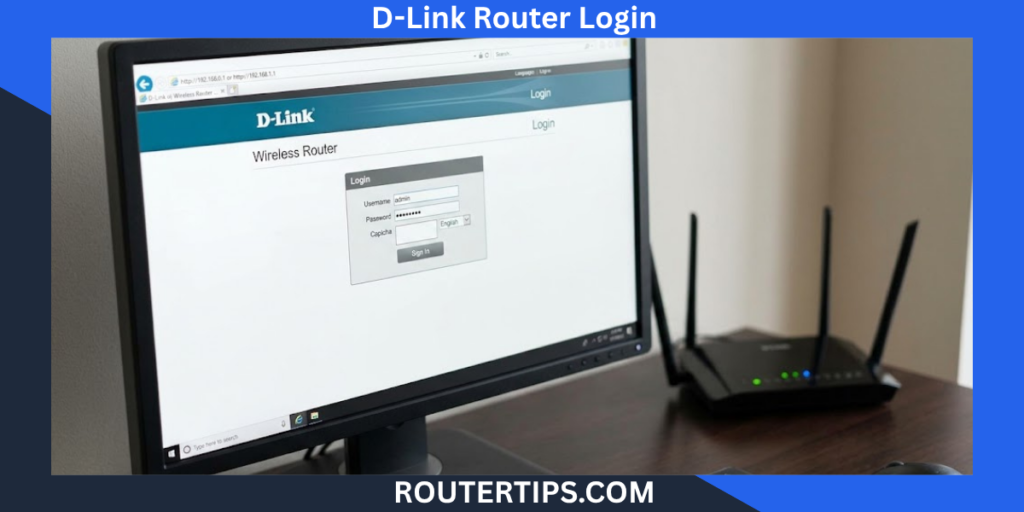
D-Link Router Login lets you open your router’s settings and manage your home Wi-Fi network. You can use the admin page to change your Wi-Fi password, update network settings, check connected devices, and improve network security.
For many D-Link home routers, the login address is http://192.168.0.1 or http://dlinkrouter.local. However, the correct address and login details depend on your router model and how it was set up.
To get started, connect your computer or phone to your D-Link router, open a web browser, and enter one of these addresses. Then enter your router’s administrator password when asked.
If the login page does not open, do not worry. This guide explains how to access your D-Link router, find the correct IP address, change your passwords, use the mydlink app, and fix common login problems.
How To Log In to a D-Link Router

You can usually access your D-Link router through a web browser. You do not need to visit a public website or download an app for basic local access.
Follow these steps to open the D-Link router login page.
Connect to Your D-Link Router

First, connect your computer, laptop, tablet, or phone to your D-Link router.
You can connect in two ways:
- Wi-Fi: Connect to your D-Link wireless network using your Wi-Fi name and password.
- Ethernet cable: Connect your computer to a LAN port on the router with a network cable.
An Ethernet connection is often more reliable when changing router settings. If you use Wi-Fi, stay close to the router to reduce the chance of losing your connection.
Make sure your device is connected to the D-Link router you want to manage. If you have a separate modem and router, connecting to the wrong device may open a different settings page.
Popular IP-addresses
Open the D-Link Router Login Address

Open a browser such as Chrome, Firefox, Edge, or Safari.
Click the address bar at the top of the browser and enter:
http://192.168.0.1
Press Enter to continue.
If that address does not work, try:
http://dlinkrouter.local
Type the address directly into the browser’s address bar, not into the Google search box. A router’s local login page is built into the device, so it does not work like a normal website.
Enter Your D-Link Router Username and Password

When the login page opens, enter the administrator details requested by your router.
On many older D-Link home routers, the default username is admin, and the password may be blank if it was never changed. Some newer models use a password printed on the device label or one created during the initial setup.
Try the details that match your router model. Do not assume that every D-Link router uses the same default password.
If the router rejects your password, check the label on the bottom or back of the device. You can also check the quick-start guide or the official support page for your model.
Remember that your router admin password is different from your Wi-Fi password. The admin password opens the settings page, while the Wi-Fi password connects your devices to the wireless network.
Open the Router Settings

After you sign in, the D-Link admin page should appear.
Depending on your model, you may see options such as:
- Internet connection settings
- Wireless or Wi-Fi settings
- LAN settings
- Connected devices
- Administrator password
- Parental controls
- Firmware updates
- Security settings
The menu names may differ between older and newer D-Link models.
Before changing a setting, read its description. If you are unsure what an option does, leave it unchanged until you understand its purpose. Incorrect network settings can disconnect your devices or stop your internet connection from working.
D-Link Router Login IP Address

An IP address helps devices communicate on a network. Your D-Link router has a local IP address that you can use to open its administrator page.
Is 192.168.0.1 the Default D-Link IP Address?
Yes, 192.168.0.1 is a common default IP address for D-Link home routers.
To try it, connect to your router and enter http://192.168.0.1 in your browser’s address bar.
However, this address is not correct for every D-Link device. The router’s IP may have been changed during setup, or your internet provider may have supplied equipment with different settings.
If the page does not open, check the router label or find the default gateway address on your connected device.
When Should You Use dlinkrouter.local?
Some D-Link routers allow you to access the admin page through this local address:
http://dlinkrouter.local
It can be easier to remember than an IP address. However, it may not work on every model or network setup.
If the address fails, try the router’s actual IP address. Also make sure your device is connected to the correct network.
How to Find Your D-Link Router IP Address on Windows
If 192.168.0.1 does not work, you can check the default gateway on a Windows computer.
- Connect your computer to the D-Link router.
- Press the Windows key and type cmd.
- Open Command Prompt.
- Type ipconfig and press Enter.
- Look for the Default Gateway entry under your active Wi-Fi or Ethernet connection.
- Enter that gateway address in your browser.
For example, if the Default Gateway is 192.168.1.1, enter http://192.168.1.1.
The gateway shown by your computer is often the address of the router serving your local network. If you have more than one router or a modem-router combination, confirm which device you need to manage.
How to Find the Router IP Address on a Phone or Mac
On an iPhone, open Settings, select Wi-Fi, and tap the information icon beside your connected network. Look for the Router field.
On Android, open Settings and find your connected Wi-Fi network. Depending on the phone, the gateway address may appear under network details or advanced settings.
On a Mac, open System Settings, select Network, choose your active connection, and check its TCP/IP details for the router address. Menu names may vary by macOS version.
Use the address shown for your active network. A mobile phone connected to cellular data instead of your router may not show the correct local gateway.
D-Link Default Username and Password

Your D-Link router’s default login details depend on its model, age, and setup history.
What Is the Default D-Link Router Username?
For many D-Link home routers, the default administrator username is:
admin
Some login pages may fill in the username automatically. Others may show only a password field.
If your device uses a different username, check its label, manual, or official product support page.
What Is the Default D-Link Router Password?
There is no single password that works for every D-Link router.
Some older models use a blank password when they are still at factory settings. Newer devices may have a unique password printed on the label, or they may ask you to create an administrator password during setup.
If you see a password on the device label, check whether it is marked as an admin password, device password, or Wi-Fi password. These details are not always interchangeable.
Do not repeatedly guess passwords. If you are unsure, check the documentation for your exact model.
Where Can You Find the D-Link Login Details?
Try these places:
- The label on the bottom or back of the router
- The quick-start guide included with the router
- The official D-Link support website
- Notes you saved during the router’s first setup
- Instructions provided by your internet service provider
If your internet provider supplied the router, it may have changed the default settings. In that case, your provider may be able to help you confirm the correct login details.
Admin Password vs. Wi-Fi Password

These passwords have different purposes.
| Password type | What it does |
| Router admin password | Opens the router’s settings page |
| Wi-Fi password | Connects phones, laptops, TVs, and other devices to Wi-Fi |
| mydlink account password | Signs you in to your mydlink account, where supported features are available |
Changing one password does not always change the others. For example, changing the Wi-Fi password usually does not change the password used to open the router’s admin page.
How to Change Your D-Link Router Login Password
Changing the administrator password helps protect your router settings from people who should not have access.
The exact menu depends on your model, but the process usually follows these steps.
Sign In to the Admin Page
Connect to your D-Link router and open http://192.168.0.1 or http://dlinkrouter.local.
Enter your current administrator password to sign in.
Find the Administrator Settings
Look for a menu called Management, Tools, System Admin, or Admin.
Older D-Link interfaces may use a Tools menu, while newer interfaces may place the password option under Management or System Admin.
If you cannot find the option, search the official support page for your exact model.
Create a New Admin Password
Enter a strong password in the administrator password field. If the page asks you to confirm it, enter the same password again.
Use a password that is difficult to guess and that you do not use for another account. A longer password or passphrase is generally easier to keep strong than a short, simple one.
Avoid using your name, address, phone number, or common passwords.
Save the Changes
Select Save, Apply, or Save Settings, depending on your router.
Some models may refresh the page or ask you to sign in again. If that happens, use your new administrator password.
Store the password somewhere safe. If you lose it, you may need to use the router’s supported recovery process or reset the device.
How to Change Your D-Link Wi-Fi Password
If you want to stop other people from using your wireless network, you may need to change your Wi-Fi password rather than your admin password.
Open Wireless Settings
Sign in to the D-Link admin page.
Look for Wireless, Wi-Fi, or Wireless Settings. The menu name depends on the router.
Choose Your Wi-Fi Network
Some routers show separate settings for 2.4 GHz and 5 GHz networks. Newer models may use different band names or combine them under one Wi-Fi name.
Choose the network whose password you want to change. If both bands have separate passwords, check whether you need to update both.
Enter a New Wi-Fi Password
Find the wireless password or security key field. Enter your new password and make sure the router uses a supported security setting, such as WPA2-Personal or WPA3-Personal when available and supported by your devices.
Avoid weak passwords that are easy to guess. Do not share the new password publicly.
Save and Reconnect Your Devices
Select Save or Apply.
Your Wi-Fi connection may disconnect while the router applies the change. Reconnect your phone, laptop, smart TV, printer, and other wireless devices using the new password.
If you use the same Wi-Fi name and password across several devices, check each device if it fails to reconnect.
D-Link Router Login App and mydlink Access

Some D-Link routers support app-based setup and management. The features available depend on the model and the app designed for it.
Can You Log In to a D-Link Router With an App?
Yes, some supported D-Link models can be managed using a D-Link app. The app may help you set up the router, change certain settings, or manage supported devices.
However, not every D-Link router supports the same app or features. Older routers may rely mainly on a web browser, while newer products may offer app-based setup.
Check your router’s model number and its official documentation before installing an app.
What Is the mydlink App?
mydlink is D-Link’s service for supported network devices. Depending on the product, it may let you view or manage some settings through an account.
A mydlink account is not necessarily the same as the administrator account used for local router login.
If you can open the local admin page but cannot sign in to mydlink, check the account credentials separately. If the app cannot find your router, confirm that the device supports the app and follow the manufacturer’s setup instructions.
Should You Use an App or a Browser?
Use a browser if you want to open the router’s local admin page and your model supports web management. Use the official app if your router supports the app and the feature you need is available there.
Do not install unknown apps that claim to reveal router passwords or automatically fix login issues. Use official D-Link resources and app stores.
How to Reset a Forgotten D-Link Router Password
If you forget the administrator password, first check whether your router offers a password recovery option. Some models do not support password recovery, and a factory reset may be required.
Try Password Recovery First
Before resetting the router:
- Check whether you saved the password in a password manager.
- Look for setup notes or records from the router’s installation.
- Check the router label and model-specific instructions.
- Review the official D-Link support page for recovery options.
Do not confuse a forgotten Wi-Fi password with a forgotten admin password. If you only need the Wi-Fi password, you may be able to view or change it through a device that is already connected or through the router’s settings.
When Is a Factory Reset Needed?
A factory reset may be necessary when you cannot recover the administrator password and the model does not provide another recovery method.
Important: A factory reset removes saved settings. These may include your Wi-Fi name and password, administrator password, internet connection details, and other custom settings. You may need to set up the router again.
If your internet service requires connection details from your provider, make sure you have them before resetting the device.
How to Factory Reset a D-Link Router
The exact reset method can vary, so check your model’s manual first. On many D-Link home routers, the process is similar to this:
- Keep the router powered on.
- Find the small Reset button or reset hole on the device.
- If the manual calls for it, use a paper clip to press the button.
- Hold it for the time stated in the manual. Some models use about 10 seconds.
- Release the button and allow the router to restart fully.
- Connect to the router and follow the initial setup instructions.
Do not unplug the router while it is resetting or restarting unless the manual tells you to do so.
After the reset, use the model’s factory login details. Do not assume the password is blank on every device.
D-Link Router Login Not Working? Try These Fixes
If you cannot open the login page or the router rejects your password, work through the following checks one at a time.
192.168.0.1 Will Not Open
First, confirm that your device is connected to the D-Link router. Then check the address for typing errors.
Enter http://192.168.0.1 directly in your browser’s address bar. If it fails, try http://dlinkrouter.local.
If neither works, find the Default Gateway on your computer or the Router field on your phone. Use that address to open the local login page.
The Login Page Rejects Your Password
Check whether you are entering the admin password instead of the Wi-Fi password.
Also check for capital letters, extra spaces, and other typing mistakes. Passwords are often case-sensitive.
If the router was set up by another person or your internet provider, ask them whether the administrator password was changed. Check the device label and official manual before trying a reset.
You See a Different Router or Modem Page
Some homes have a modem-router combination or more than one router. If you open an address and see a different device’s settings, you may be using the wrong gateway address.
Check which device your computer is connected to and find its gateway address. If your modem and router are separate, connect to the network managed by the D-Link router you want to configure.
You Are Connected to the Wrong Wi-Fi Network
Your phone or computer may have switched to a neighbor’s network, a guest network, a mobile hotspot, or another router in your home.
Reconnect to your D-Link network and try again. If you have multiple access points, check which device controls the settings you want to change.
Try Another Browser or Connection
If the login page still does not load:
- Try another browser.
- Open a private or incognito window.
- Temporarily disconnect a VPN if it interferes with access to your local network.
- Restart the browser.
- Try an Ethernet cable if one is available.
A browser problem is possible, but it is not the only cause. Confirm the router’s address and your network connection as well.
Restart the Router
If the router is not responding, a normal restart may help.
Use the power button if your model has one, or follow the manufacturer’s instructions for restarting it. Wait for the router to finish starting before trying the login page again.
A restart is different from a factory reset. A normal restart should not erase your saved settings, while a factory reset does.
The Router Still Does Not Respond
Check whether the power and network lights look normal according to the router’s manual. Test another device and, if possible, use an Ethernet connection.
If you still cannot access the admin page, check the official support information for your model or contact D-Link support or your internet provider.
Avoid repeatedly pressing the Reset button. It can erase your network configuration without fixing the original problem.
D-Link Router Login for Airtel, PTCL, Telkom, UniFi, and Etisalat

Internet providers may supply D-Link routers with different settings or customized firmware. The login address and password can depend on the device model and the provider’s setup.
Airtel D-Link Router Login
Connect to the D-Link router supplied with your Airtel connection. Check its label or setup paperwork for the admin address and login details.
You can try 192.168.0.1 if the device uses the common D-Link default, but verify the correct address if it does not open.
PTCL D-Link Router Login
For a D-Link router supplied by PTCL, connect to the router and check the label or PTCL setup instructions. Do not assume that all PTCL devices use the same IP address or default password.
If the provider configured the device, contact PTCL for help before resetting it.
Telkom D-Link Router Login
If Telkom supplied your D-Link router, use the model information and login details provided with the equipment. The router may use a customized configuration.
If the common D-Link address does not work, find the active network’s gateway address or ask Telkom for the correct instructions.
UniFi D-Link Router Login
For a D-Link device used with UniFi, connect to the router and check the device label and setup documents. Your network may include an additional gateway or access point, so the address you need may not be the same as the D-Link factory default.
Etisalat D-Link Router Login
For an Etisalat connection, use the login information supplied with the router or provided by the service team. If you cannot reach the settings page, confirm the correct gateway and whether the device is managed by the provider.
For all ISP-provided routers, avoid a factory reset until you know how to restore the internet connection. Some settings may be required by your provider.
How to Keep Your D-Link Router Secure
After you access your router, take a few simple steps to protect your network.
Use a Strong Admin Password
Change the default administrator password if your router allows it. Choose a unique password and keep it in a safe place.
This helps prevent other people connected to your network from changing important router settings.
Protect Your Wi-Fi Network
Use a strong Wi-Fi password and a supported security mode. WPA2-Personal or WPA3-Personal is preferable when supported by your router and devices.
Avoid leaving your wireless network open unless you have a specific reason and understand the risks.
Check for Firmware Updates
Firmware is the software that runs your router. Updates may fix security problems, improve reliability, or add features.
Check the official D-Link support page for your model to see whether an update is available. Follow the manufacturer’s instructions and do not interrupt an update while it is being installed.
Review Connected Devices
Check the connected-device list if your router offers one. Learn which phones, computers, TVs, and smart home devices use your network.
If you see an unfamiliar device, confirm that it does not belong to a family member or another device you own before taking action. You can then change your Wi-Fi password if you believe someone has access without permission.
Be Careful With Remote Access
Some routers offer settings that allow management from outside your home network. If you do not need remote administration, leave it disabled when your model allows you to do so.
Local router management is usually enough for common home tasks, such as changing the Wi-Fi password or checking connected devices.
Final Thoughts on D-Link Router Login
D-Link Router Login gives you access to the settings that control your home network. For many models, you can start with 192.168.0.1 or dlinkrouter.local, then enter the administrator password for your device.
If the login page does not open, check your connection and find the router’s actual gateway address. If you need to change a password, make sure you know whether it is the admin password or the Wi-Fi password.
Keep your login details safe, check for firmware updates, and use your model’s official instructions when changing important settings. If you forget your admin password, treat a factory reset as a last option because it removes saved network settings.
The best approach is to confirm your exact D-Link model and follow the instructions made for that device. This helps you manage your router safely and avoid changes that could interrupt your internet connection.
Frequently Asked Questions About D-Link Router Login
Q1. How do I access my D-Link router?
Connect your device to the router, open a browser, and enter http://192.168.0.1 or http://dlinkrouter.local. Sign in with the administrator details for your model. If neither address works, check your router’s gateway address.
Q2. What is IP 192.168.0.1 D-Link admin?
192.168.0.1 is a private local IP address commonly used by D-Link home routers. When it is the router’s active address, entering it in your browser opens the local admin login page.
Q3. How do I log into my 192.168.1.1 router?
Connect to the router and enter http://192.168.1.1 in your browser’s address bar. Then enter your admin credentials. If the page does not load, check the Default Gateway on your device to confirm that this is the correct router address.
Q4. I can’t log into my D-Link router. What should I do?
Check your Wi-Fi or Ethernet connection, confirm the router’s IP address, and make sure you are using the administrator password. Try another browser or a wired connection. If you have forgotten the password, check the model’s recovery options before resetting the router.
Q5. What is the default D-Link router username and password?
Many D-Link home routers use admin as the default username. Older models may have a blank default password, while newer models may use a unique password on the device label or a password created during setup. Check your exact model before signing in.
Q6. How do I change my D-Link router login password?
Sign in to the router’s admin page, open the administrator or system settings, enter a new password, and save the changes. Menu names differ by model, so use the instructions for your router if you cannot find the password option.
Q7. Can I log in to my D-Link router from my phone?
Yes. Connect your phone to the router’s Wi-Fi, open a browser, and enter the router’s local address. Some models also support a D-Link app for setup or management.
Q8. How do I reset a forgotten D-Link admin password?
Check for a supported recovery option first. If your model does not offer recovery, a factory reset may be required. This removes saved settings, so check the manual and make sure you can set up the internet connection again before proceeding.
Q9. Can I change my D-Link router password online?
You can change supported settings through the local router admin page. Some compatible devices also support management through mydlink. The available features depend on your model, and the router must be set up for the method you use.
Q10. Is D-Link router login safe?
Opening your router’s local login page is a normal part of managing your network. Keep your admin password private, use a secure Wi-Fi password, and avoid sharing login details with unknown people. Make sure you are accessing your own router rather than an unfamiliar device.