
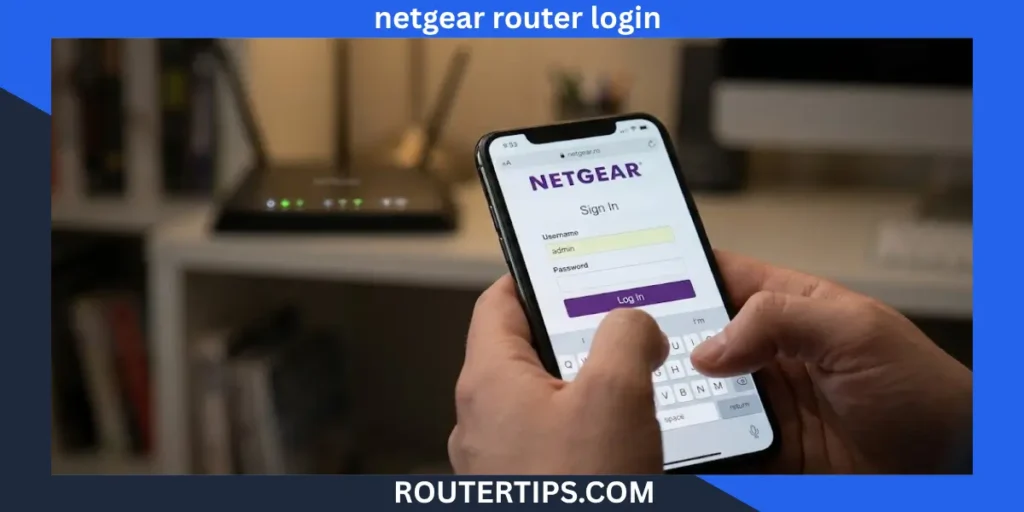
NETGEAR Router Login lets you open your router’s settings to manage your home network. You can change your Wi-Fi name and password, check connected devices, update firmware, and adjust other network settings from the router’s admin page.
Most NETGEAR routers support browser-based access through routertips.com or a local IP address such as 192.168.1.1. Some models use a different address, so the correct option depends on your router’s setup.
To log in, connect your phone or computer to your NETGEAR router, open a web browser, enter the router’s login address, and provide your administrator username and password.
This guide explains how to access the NETGEAR router login page, check default login details, manage Nighthawk and Orbi systems, change passwords, and fix common login problems.
How to Log In to Your NETGEAR Router
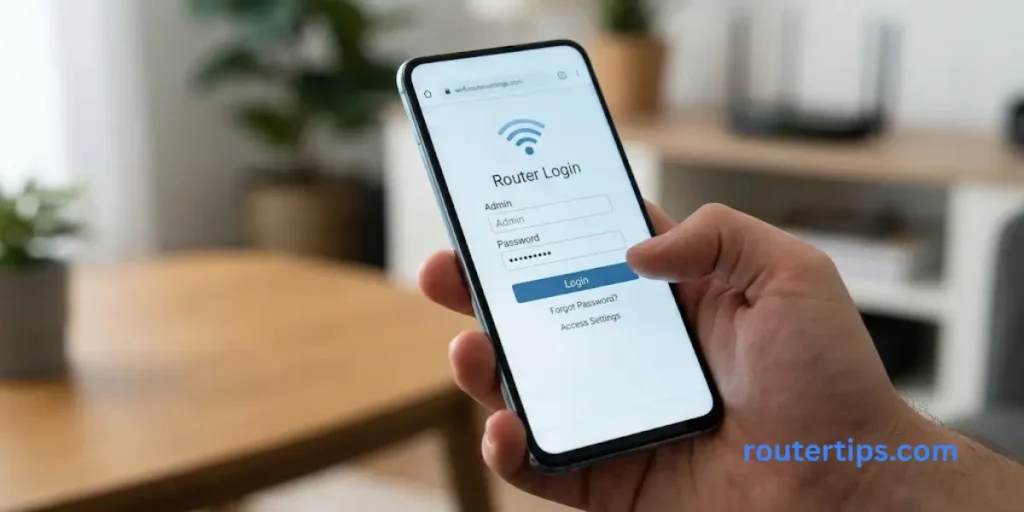
You can access your NETGEAR router through a web browser without installing a separate app. Before you begin, make sure your device is connected to your NETGEAR router’s Wi-Fi network or a LAN port through an Ethernet cable.
Follow these steps to open the router dashboard.
Connect Your Device to the NETGEAR Network
Connect your laptop, desktop computer, tablet, or phone to your NETGEAR router.
You can use either of these methods:
- Wi-Fi: Select your router’s wireless network and enter the Wi-Fi password.
- Ethernet: Connect your computer to one of the router’s LAN ports using an Ethernet cable.
If your router has not been set up yet, use the network name and password printed on its label, if available. Some newer models may require you to complete the initial setup first.
Your device does not always need an active internet connection to access the local router settings. It does need a working connection to the router itself.
Open the NETGEAR Router Login Page
Open a browser such as Chrome, Microsoft Edge, Firefox, or Safari.
Enter one of these addresses in the browser’s address bar:
- http://www.routerlogin.net
- http://www.routerlogin.com
- http://192.168.1.1
Press Enter and wait for the login page to appear.
If none of these addresses works, try http://192.168.0.1. This is another common NETGEAR router IP address. Your router may use a different local address if its network settings were changed.
Do not type the address into a search engine’s search box. Enter it directly into the browser’s address bar.
Related Router & IP Guides
Enter Your NETGEAR Router Username and Password
When the login page appears, enter your router administrator credentials.
The common username is admin. On some older or unchanged setups, the default password may be password. However, many newer NETGEAR routers ask you to create an administrator password during the initial setup.
If you previously changed the password, enter your current one. Remember that the administrator password is different from the password you use to connect to Wi-Fi.
Your login details may also be case-sensitive, so check uppercase and lowercase letters carefully.
Open the Router Dashboard
After a successful login, the router’s Basic Home page or dashboard should appear.
The available options depend on your model and firmware. You may be able to manage:
- Wi-Fi network name and password
- Connected devices
- Guest Wi-Fi
- Parental controls
- Router administrator password
- Firmware updates
- Internet and local network settings
- Security features
Only change settings you understand. If you are unsure what a setting does, check your router’s user manual or NETGEAR support documentation first.
NETGEAR Router Login IP Address
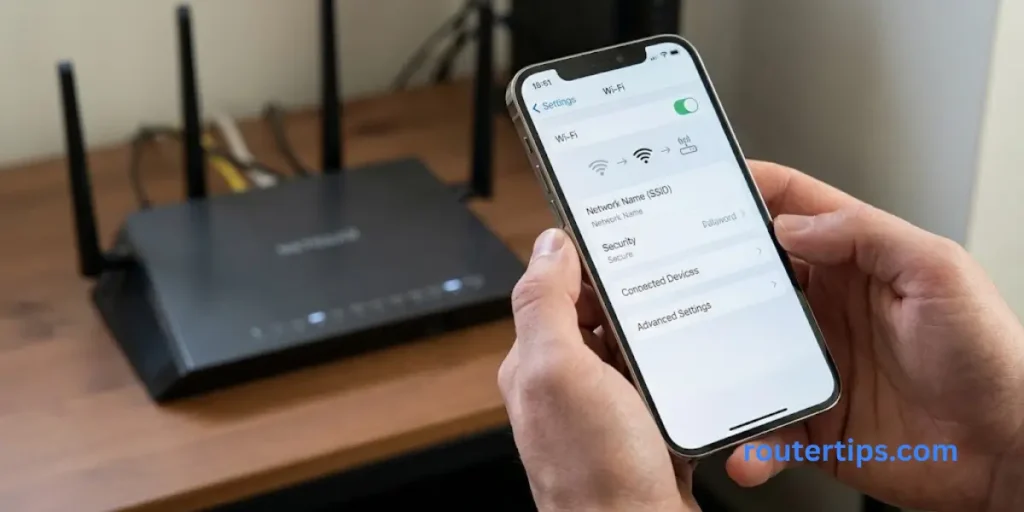
A router IP address is a local network address used to reach the router’s settings. NETGEAR routers commonly use 192.168.1.1 or 192.168.0.1 as their default local IP address.
The correct address depends on your model, initial setup, and any changes made to the network configuration.
Log In Through 192.168.1.1
To try the most common NETGEAR router login IP, follow these steps:
- Connect your device to your NETGEAR network.
- Open your browser.
- Type http://192.168.1.1 into the address bar.
- Press Enter.
- Enter your administrator username and password.
If the login page opens, use your current credentials to continue.
If the address does not work, do not assume the router is broken. The router may use a different IP address, or your device may be connected to another network.
Try 192.168.0.1
Some NETGEAR routers use 192.168.0.1 instead.
Enter http://192.168.0.1 in your browser while connected to the router. If the login screen appears, sign in with your router administrator credentials.
Neither IP address is guaranteed to work on every NETGEAR device. If both fail, find your device’s default gateway address.
How to Find Your NETGEAR Router’s Actual IP Address
Your computer or phone can show the router’s local address. The exact steps depend on the operating system.
On Windows:
- Connect your computer to the NETGEAR router.
- Open Command Prompt.
- Type ipconfig and press Enter.
- Find the Default Gateway entry under your active network connection.
- Enter that address into your browser.
On an iPhone or iPad:
- Open Settings.
- Select Wi-Fi.
- Tap the information icon beside your connected network.
- Look for the Router field.
On Android:
Open Settings and select Wi-Fi or Network and Internet. Open the details for your connected network and look for Gateway or Router. The menu name depends on your phone.
On a Mac:
- Open System Settings.
- Select Network.
- Choose your active Wi-Fi or Ethernet connection.
- Open its details and look for the router address.
Routerlogin.net vs. a Router IP Address
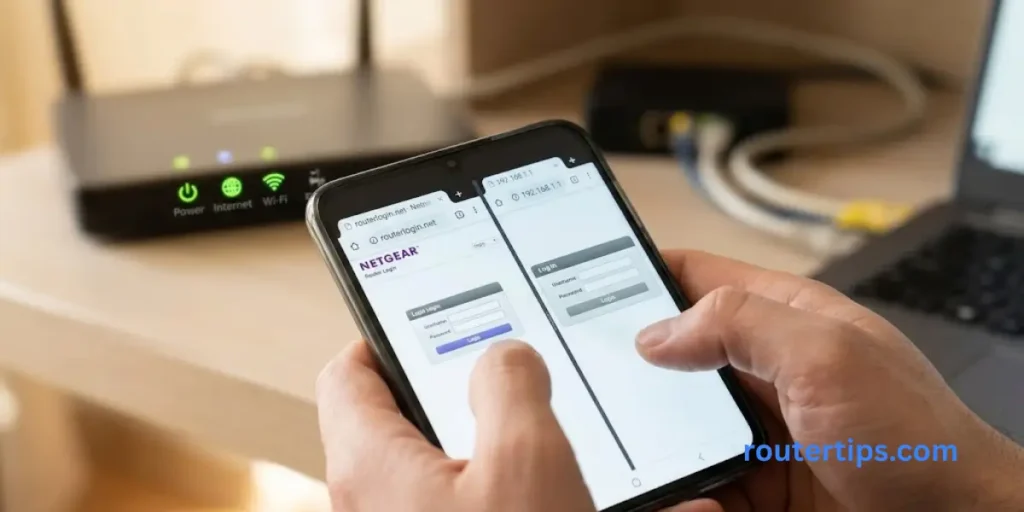
Both options can lead to the router’s local login page, but they work differently.
| Login method | What it does |
| routerlogin.net | Uses NETGEAR’s local router login address |
| routerlogin.com | Another NETGEAR router login address |
| 192.168.1.1 | A common private router IP address |
| 192.168.0.1 | Another common private router IP address |
The router’s local login address is not the same as your public IP address. Your public IP identifies your internet connection to outside networks, while the local router IP helps devices on your home network reach the router.
NETGEAR Router Login Username and Password
Your NETGEAR router username and password allow you to access its administrator settings. These details may differ based on the router model and whether someone has already completed the setup.
What Is the Default NETGEAR Router Username?
The default administrator username on many NETGEAR routers is:
admin
However, you should check your model’s instructions if that username does not work. Older devices, customized settings, or different interfaces may have different login requirements.
What Is the Default NETGEAR Router Password?
The password password is used on some NETGEAR routers when the factory login details have not been changed. It is not a universal password for every model.
Many newer routers require you to create a new administrator password during setup. If you or another person already configured the router, use the current password rather than assuming the factory default will work.
If you cannot sign in, check the router label and model-specific manual. You can also use NETGEAR’sofficial administrator password instructions.
Where Can You Find Your NETGEAR Login Details?
Check the sticker on the back, bottom, or side of your router. Depending on the model, it may show the default Wi-Fi name, Wi-Fi password, serial number, or other setup information.
Be careful not to confuse the Wi-Fi password with the router administrator password. A label may show wireless credentials without showing the current admin password.
If you changed the administrator password during setup, the label may not contain the password you now need.
Router Admin Password vs. Wi-Fi Password
These passwords have different jobs.
| Password type | Purpose |
| Router admin password | Opens the router’s settings |
| Wi-Fi password | Connects phones, computers, and other devices to Wi-Fi |
| NETGEAR account password | Signs you in to your NETGEAR online account or supported app features |
Changing one password does not automatically change the others.
For example, if you want to change the Wi-Fi password for your family, open the router’s wireless settings. If you want to protect access to the router dashboard, change the administrator password instead.
How to Change Your NETGEAR Router Admin Password
Changing the administrator password helps protect your router settings from people who should not have access.
Before changing it, make sure you know the current password and have a safe way to store the new one.
Steps to Change the Admin Password
- Connect your device to your NETGEAR router.
- Open http://www.routerlogin.net or the router’s local IP address.
- Sign in with your administrator credentials.
- Open Advanced.
- Select Administration, then Set Password, if those options appear on your model.
- Enter your current password.
- Enter the new password twice.
- Enable password recovery if your router offers this option.
- Select Apply to save the changes.
The menu names can vary by model and firmware. If you cannot find the same options, check the user manual for your router.
Choose a long, unique password that you do not use for other accounts. Store it in a trusted password manager or another secure place.
After changing the admin password, you may need to use the new password the next time you open the router login page.
How to Change Your NETGEAR Wi-Fi Name and Password
You can change your Wi-Fi network name, also called the SSID, and wireless password through the router dashboard.
Changing these details can help you identify your network and replace an old or shared password.
Change Your NETGEAR Wi-Fi Name
- Connect to the NETGEAR router.
- Open routerlogin.net or the router’s local IP address.
- Sign in with your admin username and password.
- Open Wireless or the wireless settings menu.
- Find the Name (SSID) field.
- Enter your preferred Wi-Fi network name.
- Select Apply.
Some routers have separate names for 2.4 GHz and 5 GHz networks. Others may combine bands under one network name, depending on the model and settings.
Change Your NETGEAR Wi-Fi Password
- Open the router’s wireless settings.
- Find the Wi-Fi password or Password (Network Key) field.
- Enter a strong new password.
- Select Apply to save it.
Your connected devices may disconnect when the wireless settings change. Reconnect each phone, laptop, smart TV, printer, or other device using the new Wi-Fi details.
NETGEAR Nighthawk Router Login
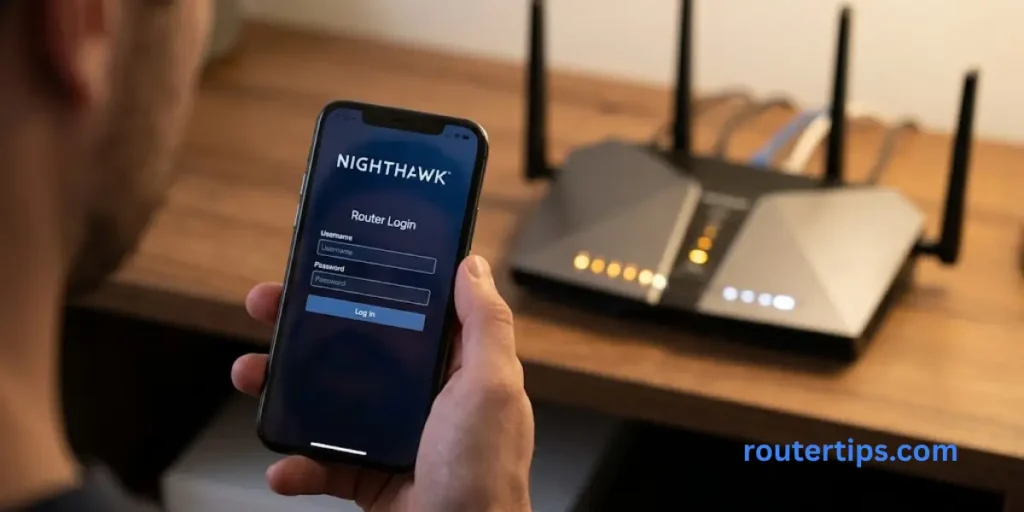
NETGEAR Nighthawk is a family of routers with different features and hardware. Many Nighthawk models support access through a web browser, and supported models can also be managed with the Nighthawk app.
Access a Nighthawk Router Through a Browser
To open the Nighthawk router login page:
- Connect your device to the Nighthawk Wi-Fi network or use Ethernet.
- Open a browser.
- Enter http://www.routerlogin.net.
- If that fails, try the router’s local IP address, such as 192.168.1.1.
- Enter your administrator username and password.
The username is commonly admin, but the password depends on your setup. Use your current admin password if you changed it during installation.
Log In Using the Nighthawk App
The Nighthawk app provides a phone-based way to manage supported NETGEAR routers.
- Install the official Nighthawk app from your phone’s app store.
- Connect your phone to the NETGEAR router’s Wi-Fi.
- Open the app.
- Sign in with your NETGEAR account when prompted.
- Follow the instructions to access your router’s settings.
Depending on the model and app version, some settings may be available only through the browser interface.
You do not need to assume that every router requires the app. Browser login remains an option for supported devices.
NETGEAR Nighthawk R7000 Login
The Nighthawk R7000 is an older router model, so its interface may look different from newer Nighthawk products.
Start by connecting to the R7000’s network and opening routerlogin.net. You can also try its local IP address, often 192.168.1.1 unless it has been changed.
Enter the current administrator credentials. If the default details no longer work, check whether the password was changed during setup.
For R7000-specific menus, firmware information, and reset steps, use the documentation for the exact hardware version.
What If the Nighthawk App Cannot Find Your Router?
First, confirm that your phone is connected to the correct NETGEAR Wi-Fi network. Check that the router is powered on and that the app is up to date.
If the app still cannot connect, try accessing the router through a browser. If neither method works, follow the troubleshooting steps below.
NETGEAR Orbi Router Login
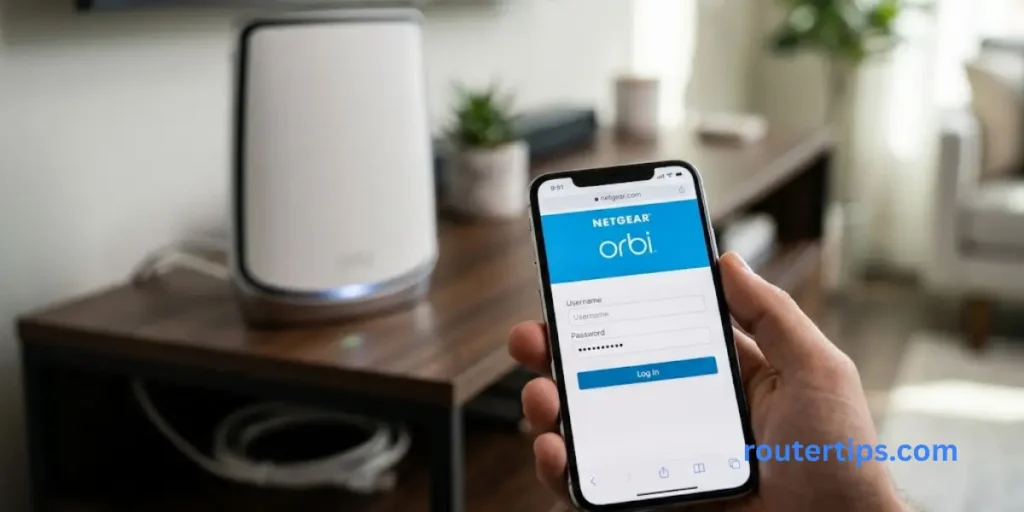
NETGEAR Orbi systems use a router and one or more satellite units to provide Wi-Fi coverage across a home or building. The main Orbi router manages the network, while the satellites extend its coverage.
The login method can vary by Orbi model and firmware.
Sign In Through the Orbi Web Address
When connected to your Orbi network, open a browser and try:
- http://orbilogin.com
- http://orbilogin.net
- http://orbilogin.local, where supported
If the address does not open, try the Orbi router’s local IP address. NETGEAR lists 192.168.1.1 as the default gateway address for many Orbi setups, but your actual address may differ.
Enter your current administrator credentials when prompted.
Use the Orbi App
The Orbi app can help you set up and manage supported Orbi mesh systems.
Install the official app, connect your phone to the Orbi network, and sign in as prompted. You may also need the router’s administrator credentials to change specific settings.
Remember that your NETGEAR account and router administrator login are different credentials.
NETGEAR Router Login Not Working? Try These Fixes
If you cannot access the NETGEAR router login page, work through these checks one at a time. Most access problems relate to the connection, incorrect address, saved browser data, or login credentials.
Check Your Connection
Make sure your device is connected to your NETGEAR router’s Wi-Fi or Ethernet network.
If your phone has mobile data enabled, temporarily turn it off while testing local access. On a computer, disconnect from extra network connections or a VPN if they interfere with local access.
Enter the Address in the Browser Bar
Type the full address directly into the browser address bar, including http:// when needed.
For example:
http://www.routerlogin.net
A search engine result is not the same as opening the router’s local login address.
Try the Router’s IP Address
If routerlogin.net does not load, try 192.168.1.1 or 192.168.0.1.
If neither address works, find the default gateway on your connected device. The router may have a different IP address because its settings were changed.
Try Another Browser or Device
A browser cache problem can sometimes prevent the login page from loading correctly.
Try another browser or device. You can also clear the browser cache and cookies, then reopen the router login address.
Check Your Username and Password
If the login page opens but rejects your details, check the spelling, capitalization, and password you entered.
The username is commonly admin, but the administrator password may have been changed during setup. Do not keep guessing passwords if you are unsure.
Use the password recovery option if it is available on your router.
Restart Your Router
A restart can help if the router or browser is temporarily unresponsive.
- Save any work that depends on the network.
- Turn off the router.
- Wait about 30 seconds.
- Turn it back on.
- Wait for the router to finish starting.
- Try the login page again.
Restarting is not the same as a factory reset. A normal restart should not erase your saved Wi-Fi name, password, or router settings.
Check for Firmware Updates
Once you regain access, check whether your router has a newer firmware version available for your model.
Use the router dashboard, supported app, or official NETGEAR support page. Follow the model-specific instructions and do not interrupt the update process.
A firmware update may improve security or fix known problems, but it is not guaranteed to solve every login error.
Consider a Factory Reset Only as a Last Resort
If you cannot recover the administrator password and other options fail, a factory reset may be necessary.
A factory reset erases personalized settings. You may need to set up your Wi-Fi name, wireless password, administrator password, and other network settings again.
Check the instructions for your exact model before resetting. Do not press the reset button simply because the login page takes longer than expected to load.
How to Recover a Forgotten NETGEAR Router Password
If you forgot your NETGEAR router admin password, try the built-in recovery feature before resetting the router.
Use the Router Password Recovery Feature
Supported models may let you recover access by answering security questions.
The process can vary, but it commonly involves these steps:
- Open the router’s login page while connected to its network.
- Enter incorrect credentials until the recovery option appears, if your model uses that method.
- Follow the on-screen password recovery instructions.
- Provide the requested router serial number and security answers.
- Create a new administrator password.
Password recovery must have been enabled or configured where required. If you cannot complete the recovery process, check the official instructions for your router.
When a Factory Reset Is Necessary
If password recovery is unavailable or unsuccessful, a factory reset may be your remaining option.
Before proceeding, make sure you have the information needed to set up your internet connection again. If your internet provider supplied the router, check whether it has custom settings that you may need to restore.
After the reset, follow the initial setup instructions for your model. Create a new administrator password and set up your Wi-Fi credentials.
Can You Log In to an Older NETGEAR Router?
Yes, you may still be able to access an older NETGEAR router through its local web interface. However, the exact login page, available features, and setup menus depend on the model and firmware.
NETGEAR N300 Router Login
For a NETGEAR N300 router, connect your device to the router and try routerlogin.net or the local IP address listed in the model’s documentation.
Some older models use a different interface or setup process. Check the label and user manual for your exact model rather than assuming that all N300 routers have the same credentials.
NETGEAR Genie and Older Router Interfaces
Some older NETGEAR products used the Genie software or older web-based setup tools. NETGEAR now recommends the Nighthawk app for supported newer products, and its current guidance says the NETGEAR Genie app is no longer supported.
If you have an older router, use the official documentation for that device. Do not install software from unknown websites that claim to provide router login access.
What If Your Old Router Is No Longer Supported?
If NETGEAR no longer provides firmware or security updates for your model, consider whether it is safe to keep using it.
A router can continue to work even when support has ended, but missing security updates can leave known weaknesses unpatched. Check the official support status for your exact model and consider replacing the device if it no longer receives needed security fixes.
Final Thoughts on NETGEAR Router Login
NETGEAR Router Login helps you manage your home Wi-Fi network. To get started, connect your device to the router and open routerlogin.net or your router’s IP address in a web browser.
Enter your router’s admin username and password to sign in. Remember, your admin password is different from your Wi-Fi password. If the login page does not open, check your connection and try another login address.
If you forget your admin password, try the password recovery option if your router supports it. Use a factory reset only as a last option because it erases your saved settings.
For the right steps, check the official NETGEAR instructions for your router model.
Frequently Asked Questions About NETGEAR Router Login
Q1. How do I connect my NETGEAR router to Wi-Fi?
Open your device’s Wi-Fi settings, select your NETGEAR network name, and enter the wireless password. If you have not changed the default settings, check the router label or setup paperwork for the network details.
If the network name does not appear, check that the router is powered on and that Wi-Fi is enabled.
Q2. How do I log in to my 192.168.1.1 router?
Connect your device to the router, open a browser, and enter http://192.168.1.1 in the address bar. Enter the router’s admin username and current password when prompted.
If the login page does not load, your router may use a different local IP address.
Q3. What is the default admin login for a NETGEAR router?
The common username is admin. The default password is password on some older or unchanged configurations, but many newer routers require a password created during setup. Check the label and official instructions for your exact model.
Q4. How can I access my NETGEAR router locally?
Connect your device to the NETGEAR router’s Wi-Fi or an Ethernet LAN port. Then open routerlogin.net or enter the router’s local IP address in a browser.
You normally do not need a separate internet connection to open the local settings page, as long as your device can communicate with the router.
Q5. Can I log in to my NETGEAR router without the Nighthawk app?
Yes, supported routers can be accessed through a web browser. Try routerlogin.net or the router’s local IP address while connected to its network. The app is an additional management option for supported models, not a requirement for every router.
Q6. What is the difference between my NETGEAR router password and Wi-Fi password?
The router admin password protects access to the settings dashboard. The Wi-Fi password lets devices connect to your wireless network. The NETGEAR account password is used for supported online services and apps. These passwords serve different purposes and may all be different.
Q7. Why is routerlogin.net not opening?
Your device may be connected to another network, the router may use a different IP address, or the browser may have cached data that causes an error. Try the router’s local IP, check your connection, and test another browser or device.
Q8. How do I reset my NETGEAR router login password?
First, try the router’s password recovery feature if it is available. If recovery fails, you may need to perform a factory reset and set up the router again. A factory reset erases personalized settings, so use it only after checking other options.