
ASUS router login lets you open your router’s settings page and manage your home network. From there, you can change your Wi-Fi name and password, update settings, manage connected devices, set parental controls, and make other network changes.
For most ASUS routers, you can access the login page by entering routertips.com in a web browser. You can also use the router’s local IP address, such as 192.168.1.1 or 192.168.50.1, depending on the model and configuration. ASUS confirms these addresses in its current support documentation.
You must first connect your computer, phone, or tablet to the ASUS router through Wi-Fi or an Ethernet cable. Then open a browser and enter the router address directly in the address bar.
How to Log In to an ASUS Router
The ASUS router login process is simple when your device is connected to the router.
Connect Your Device to the ASUS Router
Connect your computer or mobile device to the ASUS network.
You can use either:
- Wi-Fi
- An Ethernet cable
A wired connection can be useful during setup because it keeps the connection between your computer and router stable.
Open a Web Browser
Open Chrome, Microsoft Edge, Firefox, Safari, or another modern browser.
You do not need to search Google for the ASUS router login page. Enter the router address directly into the browser’s address bar.
Enter the ASUS Router Address
Try:
asusrouter.com
If that does not open the login page, try the router’s local IP address:
192.168.1.1
or
192.168.50.1
ASUS currently lists asusrouter.com as a router URL and identifies 192.168.1.1 and 192.168.50.1 as possible default LAN IP addresses.
Enter Your Router Login Details
When the ASUS router login page appears, enter the router’s administrator username and password.
These credentials are used to manage router settings. They are different from the password you use to connect a device to Wi-Fi.
If this is the first time you are setting up the router, some models require you to create the router login account and password during setup.
ASUS Default Login – Username, Password and IP Address
Default logins for ASUS
ASUS Router Login Using 192.168.1.1
192.168.1.1 ASUS router login is a common search because many routers use this address as their local management address.
To try it:
- Connect your device to the ASUS router.
- Open your web browser.
- Type 192.168.1.1 in the address bar.
- Press Enter.
- Wait for the ASUS router login page.
- Enter your router username and password.
Do not type the address into a search engine. It should be entered directly into the browser’s address bar.
Also, remember that 192.168.1.1 is not the IP address of every ASUS router. ASUS states that its routers may use either 192.168.1.1 or 192.168.50.1 as the default LAN IP, and the exact address can vary.
If 192.168.1.1 does not work, try 192.168.50.1 or use ASUS Device Discovery to identify the correct router IP.
📶 Need help accessing your Huawei router? See our Huawei Router Login Information to reach the login page and manage your router and Wi-Fi settings.
ASUS Router Login Using 192.168.50.1
Some ASUS routers use 192.168.50.1 as their default LAN address.
The process is the same:
- Connect to the ASUS network.
- Open a browser.
- Enter 192.168.50.1.
- Press Enter.
- Enter your administrator username and password.
ASUS’s current Web GUI instructions use 192.168.50.1 as an example of a router LAN IP. ASUS also states that 192.168.1.1 may be used on other models.
If neither address works, do not keep guessing IP addresses. Find the actual LAN IP used by your router.
What Is the Website for the ASUS Router?
The current ASUS router URL used to access the Web GUI is asusrouter.com on supported routers.
Enter:
asusrouter.com
directly into your browser’s address bar while connected to the router.
ASUS also explains that users can enter the router’s LAN IP instead of the router URL.
This means there are two common ways to reach the ASUS router login page:
| Login method | Example |
| ASUS router URL | asusrouter.com |
| Router IP address | 192.168.1.1 |
| Another common ASUS IP | 192.168.50.1 |
The exact address depends on your ASUS router and its network settings.
📶 Need help signing in to your Tenda router? Check our Tenda Router Login Details to access the login page and manage your router settings.
ASUS Router Default Login Username and Password
There is no single username and password that should be treated as universal for every current ASUS router.
This is important because older online guides often tell users to try admin as both the username and password. That information does not apply to every current ASUS model.
ASUS explains that when a router is being set up for the first time, or after it has been restored to factory defaults, you may need to create the router login account and password. Some models may also show default login information on a label attached to the router.
Router Login Password vs Wi-Fi Password
These two passwords have different jobs.
Router administrator password Used to access router settings.
Wi-Fi password Used by phones, laptops, TVs, and other devices to join your wireless network.
Changing your Wi-Fi password does not mean you have changed the ASUS router administrator password.
Keeping these passwords separate makes your network easier to manage and can improve security.
📶 Want to access your TP-Link router settings? Check our TP-Link Router Login Details to reach the login page and manage your wireless network.
How to Find Your ASUS Router Username and Password
If you do not know your ASUS router login details, check the following:
Check the Router Label
Some ASUS models include default login information on a label on the back or bottom of the router. ASUS notes that the location and information shown on the label can vary by model.
Check Your Previous Setup Information
If you already configured the router, you may have created a custom administrator username and password.
In that case, use the credentials you created during setup rather than assuming the factory defaults.
Check the ASUS Router App
Compatible ASUS routers can also be managed through the ASUS Router app. The app can be used for router setup and network management on supported devices.
If You Forgot the Administrator Password
A forgotten router administrator password is different from a forgotten Wi-Fi password.
If you cannot log in because you forgot the router login password, ASUS states that you may need to restore the router to factory default settings before setting it up again.
📶 Need to locate the IP address for your Linksys router? See our What Is My Linksys Router IP Details to find the default address and access your router settings.
How to Change the ASUS Router Login Password
Changing the administrator password is a good step after setting up a new router.
First, log in to the ASUS Web GUI.
Then:
- Open the router settings.
- Go to Administration.
- Select System.
- Find the router login settings.
- Enter the required current credentials.
- Create a new login name or password.
- Save the changes.
ASUS’s current instructions place the router login name and password controls under Administration > System, although the exact screen can vary between firmware versions.
Create a Strong Router Password
Use a password that is difficult for another person to guess.
ASUS recommends using a longer password with a mix of uppercase and lowercase letters, numbers, and special characters. Its support guidance also warns against simple sequences such as repeated numbers or common keyboard patterns.
Avoid using:
- Your name
- Your phone number
- Your home address
- 123456
- password
- Repeated characters
- The same password used on important online accounts
📶 Looking for the correct Linksys router address? Check our What Is My IP Address for My Router Linksys Details to identify the default IP and access your router’s settings.
How to Set an ASUS Router Password
The phrase ASUS router password can mean two different things, so it is important to know which password you want to change.
To Change the Router Login Password
Use the ASUS Web GUI and go to:
Administration > System
Then change the router administrator login credentials.
To Change the Wi-Fi Password
The Wi-Fi password is managed in the wireless or network settings.
The exact menu depends on the router model and firmware version. ASUS documentation shows that newer interfaces can place wireless network details under network or main network profile settings, while older firmware may use wireless settings.
🏠 Need to locate the IP address used by your home router? Read our What Is My Home Router IP Address Information to identify the default gateway and access your router’s settings.
ASUS Router Login Using the ASUS Router App
You do not always need a computer to manage an ASUS router.
The ASUS Router app supports setup and management for many ASUS router families, including ZenWiFi and several other supported series.
A basic setup process is:
- Connect your phone to the ASUS router’s Wi-Fi network.
- Open the ASUS Router app.
- Select the router setup option.
- Follow the on-screen instructions.
- Create the Wi-Fi network information.
- Create the router login username and password.
- Finish the setup.
The exact screens may differ depending on the ASUS router model and app version.
For a new router, ASUS’s setup instructions show that the app can guide users through the Internet connection, Wi-Fi name, Wi-Fi password, and router login credentials.
ASUS ZenWiFi Login
ASUS ZenWiFi systems can also be managed through supported ASUS tools.
If you have a ZenWiFi system, connect your phone or computer to the ZenWiFi network before trying to access the settings.
You can normally use:
asusrouter.com
or the router’s assigned local IP address.
The ASUS Router app also supports the ZenWiFi lineup, according to ASUS’s current support documentation.
ASUS Router Login Not Working? Try These Fixes
A failed ASUS router login does not always mean the password is wrong. The problem may be the connection, IP address, browser, or router settings.
Make Sure Your Device Is Connected
Your phone or computer needs to be connected to the ASUS router you are trying to manage.
Check the Wi-Fi name or Ethernet connection before opening the login page.
If your computer is connected to another router, extender, VPN, or different network, the ASUS Web GUI may not open as expected.
Try asusrouter.com
If an IP address does not work, try:
asusrouter.com
ASUS lists this as the router URL for accessing the Web GUI.
Try the Other Common IP Address
If 192.168.1.1 does not work, try:
192.168.50.1
ASUS currently lists both addresses as possible default LAN IPs.
Check the Router IP Address
Your router may use a different IP because the LAN settings were changed.
ASUS provides Device Discovery to help identify ASUS routers and their IP addresses on a local network.
For Windows, ASUS Device Discovery can scan the local network and show the IP address of supported ASUS networking devices.
Try Another Browser
If the login page does not load correctly, try another browser.
For example, if Chrome is not working, try Edge or Firefox.
ASUS states that its Web GUI can be accessed through common browsers, including Chrome, Edge, Firefox, and Safari.
Restart the Router
If the router is not responding, restart it and wait for the network to come back online.
Then reconnect your device and try the login page again.
Check Your Username and Password
If the login page loads but rejects your credentials, make sure:
- Caps Lock is not causing an error.
- You are using the router administrator password.
- You are not entering the Wi-Fi password by mistake.
- The password was not changed previously.
What to Do If You Forgot Your ASUS Router Login Password
If you forgot the administrator password, ASUS states that you may need to restore the router to factory default settings and complete the setup again.
A factory reset should not be your first step if you still have another way to access the router.
Before resetting, check your saved router information and make sure you understand that a factory reset can remove your existing configuration.
After the reset, you will need to configure the router again, including the Internet connection, Wi-Fi settings, and administrator login.
ASUS Router Login vs Wi-Fi Login
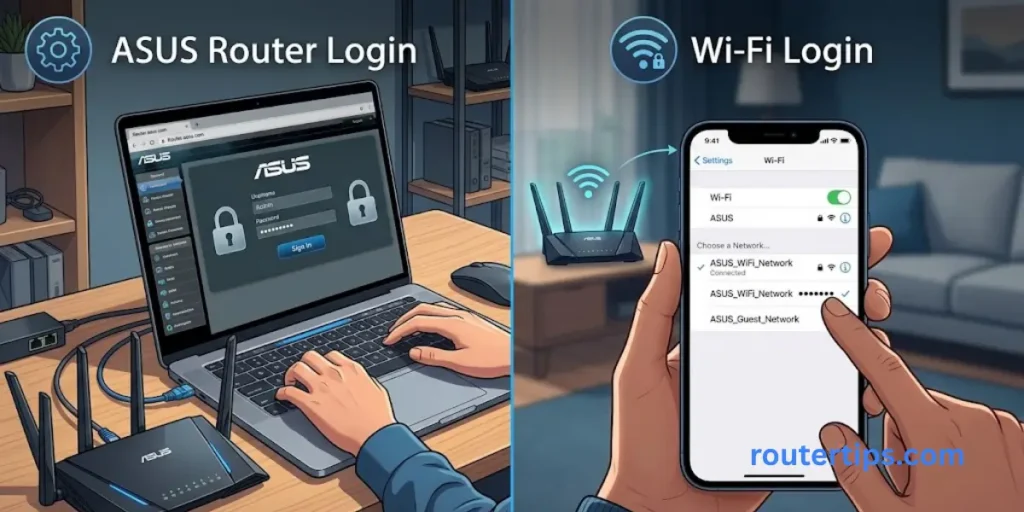
| Feature | ASUS Router Login | Wi-Fi Login |
| Main purpose | Manage router settings | Connect to Wi-Fi |
| Username | Router administrator username | Usually not required |
| Password | Admin password | Wi-Fi password |
| Used for | Router configuration | Internet/network access |
| Example task | Change LAN settings | Connect a phone |
If you can connect to Wi-Fi but cannot open the router settings, your wireless connection may be fine. The issue could be the router’s IP address or administrator credentials.
What Can You Do After ASUS Router Login?
Once you successfully access the ASUS router settings page, you can manage many parts of your network.
Depending on your model and firmware, you may be able to:
- Change the Wi-Fi name
- Change the Wi-Fi password
- Manage connected devices
- Configure guest Wi-Fi
- Set parental controls
- Change LAN settings
- Review network information
- Update router firmware
- Manage security settings
- Configure advanced network options
- Change administrator credentials
The available options depend on the ASUS router model and firmware version.
This is why the ASUS router login page is more than a way to change a Wi-Fi password. It is the main management area for the local router.
ASUS Router Login Security Tips
Your router controls an important part of your home network, so protect the administrator account.
Use a Strong Administrator Password
Choose a long password that is not easy to guess.
Do not use your Wi-Fi password as your administrator password if you can avoid it.
Keep Router Firmware Updated
Firmware updates can add features, fix bugs, and address security issues.
Check the firmware update area in the ASUS router settings and use the instructions for your exact model.
Do Not Share Administrator Credentials
The router administrator password gives access to network settings. Keep it private and only share it with people who need access.
Use a Secure Connection When Available
ASUS also documents HTTPS access to its Web GUI. Its support page gives https://www.asusrouter.com:8443 as the HTTPS address for supported configurations.
The exact behavior can vary by router and firmware, so follow the settings shown on your device.
Final Thoughts on ASUS Router Login
The ASUS router login process is usually quick once you know the correct router address and administrator credentials. Start by connecting your device to the ASUS network, then try asusrouter.com. If that does not work, check 192.168.1.1 or 192.168.50.1, which are common LAN addresses used by ASUS routers.
If the login page still does not open, check your router’s actual IP address using ASUS Device Discovery. If the login page opens but your password is rejected, make sure you are entering the router administrator password rather than the Wi-Fi password. These two passwords may be different.
Once you are logged in, you can manage your ASUS router settings, Wi-Fi network, connected devices, security options, and other features supported by your model. Having access to the router administration page also makes it easier to update settings and troubleshoot common network problems.
To help keep your network secure, use a strong administrator password and keep your router firmware updated. Following these simple steps can help protect your ASUS router and keep your home network running reliably.
Frequently Asked Questions on ASUS Router Login
Q1. How do I login to my 192.168.1.1 router?
Connect your device to the ASUS router, open a browser, enter 192.168.1.1 in the address bar, and press Enter. If that address is not used by your router, try 192.168.50.1 or asusrouter.com. ASUS currently lists both IP addresses as possible default LAN addresses.
Q2. How do I log into my ASUS router?
Connect your computer or phone to the ASUS router. Open a browser and enter asusrouter.com or your router’s LAN IP address. Then enter the router administrator username and password.
Q3. What is the website for the ASUS router?
The ASUS router Web GUI can be accessed through asusrouter.com on supported routers. You can also use the router’s local IP address, such as 192.168.1.1 or 192.168.50.1.
Q4. What is the default login for an ASUS router?
There is no single login that applies to every ASUS router. Some models provide default credentials on the router label, while newer setup processes may require you to create the administrator login during initial configuration.
Q5. What is the default password for an ASUS router?
The default password depends on the model and setup process. Check the router label or the instructions supplied with your specific model. Do not assume that admin is the password for every ASUS router.
Q6. What is the default IP of an ASUS router?
ASUS currently identifies 192.168.1.1 and 192.168.50.1 as possible default LAN IP addresses for ASUS routers. The actual IP can differ depending on the model and network configuration.
Q7. How do I find my ASUS router IP address?
Check the router label first. If you still cannot find it, ASUS Device Discovery can help identify the IP address of ASUS routers and other ASUS networking devices on your local network.
Q8. How do I change my ASUS router password?
Log in to the ASUS Web GUI, go to Administration > System, and change the router login password. The menu can vary slightly by firmware version.
Q9. Can I log in to my ASUS router from my phone?
Yes. You can use a mobile browser to access the ASUS Web GUI, or use the ASUS Router app on supported models. ASUS provides app-based setup and management for many compatible routers.
Q10. Why is my ASUS router login page not opening?
First, make sure your device is connected to the ASUS router. Then try asusrouter.com, 192.168.1.1, or 192.168.50.1. If none works, use ASUS Device Discovery to find the router’s current IP address.
Q11. Can I use the ASUS Router app instead of the Web GUI?
Yes. The ASUS Router app supports setup and management for many ASUS router models. The supported models and available features depend on the router and firmware version.