
The Converge router login page gives you access to your router’s settings. From there, you may be able to change your WiFi name, update the WiFi password, view connected devices, and manage other network settings.
For many Converge ZTE routers, including the ZTE F670L, 192.168.1.1 is commonly used as the local router address. However, the login details can vary by router model, firmware, and the configuration applied by Converge. Current references for the ZTE F670L show different credential combinations, so you should check your own router label or provider information before assuming a password is universal.
This guide explains how to access the Converge router login page, find the correct IP address, log in to ZTE and other Converge routers, change WiFi settings, and fix common login problems.
Converge Router Login Details
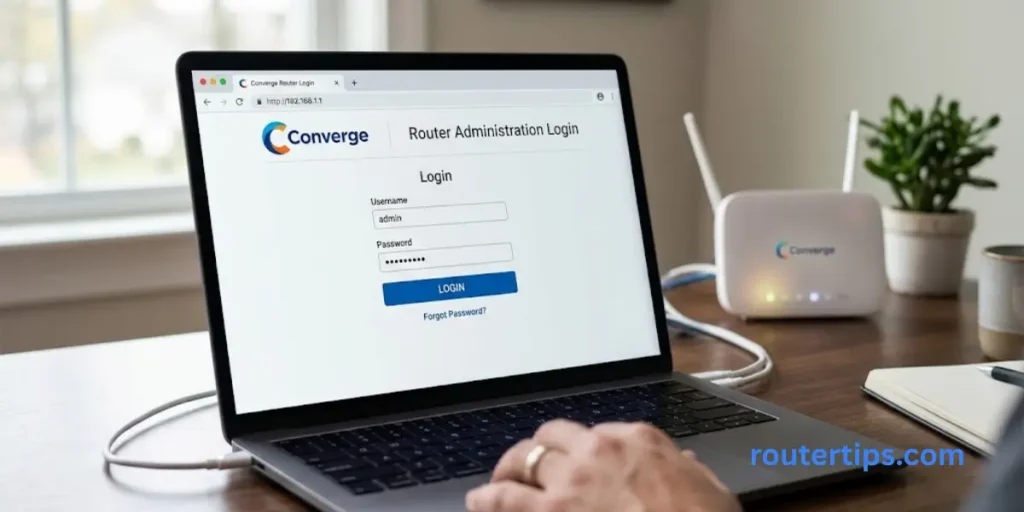
Before opening the login page, connect your phone, laptop, or computer to your Converge router.
For a commonly used ZTE F670L, the local address is often:
192.168.1.1
Some published Converge-specific references report the following credentials for certain F670L configurations:
| Setting | Reported value |
| Router IP | 192.168.1.1 |
| Basic username | user |
| Basic password | user |
| Administrator username | admin |
| Administrator password | Configuration dependent |
Some third-party Converge references list admin with a Converge-specific password for F670L administrator access, while other current ZTE F670L references list different default credentials. This difference is important because it means you should not treat an internet-published password as a guaranteed password for your own router.
If your router has a sticker with login information, use that information first.
Converge Default Login – Username, Password and IP Address
How to Access Your Converge Router
You do not need a special application to open the local router login page. A normal web browser is usually enough.
Connect to Your Converge Network
Connect your device to the Converge WiFi network.
You can also use an Ethernet cable to connect a computer directly to the router. A wired connection can be useful if the WiFi connection is unstable.
Open a Browser
Open Chrome, Edge, Firefox, Safari, or another web browser.
Enter the Router IP Address
Type the following into the browser’s address bar:
192.168.1.1
Then press Enter.
Do not type the address into Google or another search engine. It needs to be entered directly into the browser’s address bar.
Enter Your Username and Password
If the address is correct, the Converge router login screen should appear.
Enter the username and password for your router.
The exact login fields and dashboard can vary between ZTE, Huawei, FiberHome, and other devices supplied by an ISP.
Open the Router Settings
After successful login, you should see the router’s management page.
Depending on your access level and router model, you may find settings for:
- WiFi name
- WiFi password
- SSID
- Wireless security
- Connected devices
- LAN settings
- WAN settings
- Network information
- Administration
- System settings
The options available to you depend on the firmware installed on the router.
📶 Need help signing in to your ASUS router? Visit our Router Asus Login Information to access the login page and manage your router and Wi-Fi settings.
How Do I Access My 192.168.1.1 Router Login Page?
To access a router using 192.168.1.1, follow these simple steps:
- Connect your device to the router.
- Open a web browser.
- Type 192.168.1.1 into the address bar.
- Press Enter.
- Wait for the router login page.
- Enter your router username.
- Enter your router password.
- Select Login or the equivalent button.
If the page does not open, do not assume that the router is broken. Your Converge device may use another local gateway address.
Check the Router’s Default Gateway
The default gateway is the local address your device uses to communicate with the router.
On Windows:
- Press Windows + R.
- Type cmd.
- Press Enter.
- Type ipconfig.
- Press Enter.
- Look for Default Gateway.
The number shown beside Default Gateway is usually the address you should enter into your browser.
This is a better method than repeatedly trying random router IP addresses.
📶 Want to access your Huawei router settings? Check our Huawei Router Login Information to reach the login page and manage your router and wireless settings.
What Is the IP Address and Password for a Converge Router?
There is no single IP address and password combination that applies to every Converge router.
For the ZTE F670L, 192.168.1.1 is widely reported as the router’s local address. Some references also report user/user for basic access, while Converge-specific sources have published separate administrator credentials.
Your actual credentials may be different.
Where to Find Your Converge Router Login Details
Check these sources in this order:
- The label on the router
- Installation information from your ISP
- Credentials you previously created
- Documentation supplied with the device
- Converge customer or technical support
This is especially important for administrator access because ISP-managed routers can have customized firmware and account settings.
📶 Need help accessing your Tenda router? Take a look at our Tenda Router Login Details to reach the login page and adjust your router settings.
How Do I Log In to My ZTE Converge Router?
The exact process depends on your ZTE model, but the basic method is similar.
For a ZTE F670L, connect to the Converge network and try 192.168.1.1 in your browser. Published references commonly identify this as the F670L gateway.
ZTE F670L Basic Login
Some references report:
Username:user
Password:user
This is not a guarantee that these credentials will work on every Converge F670L. Router firmware and ISP configuration can affect available accounts.
ZTE F670L Administrator Login
Some Converge-specific sources report:
Username:admin
They also publish a Converge-specific administrator password for certain F670L configurations. However, this credential should not be presented as universal because recent community reports show that previously working administrator credentials may no longer work on some Converge devices.
If you cannot log in, use the credentials assigned to your device rather than repeatedly trying passwords found on unrelated websites.
Converge Huawei Router Login
Some Converge installations use Huawei equipment.
The login address and credentials can vary between Huawei models. Therefore, do not assume that a Huawei router always uses 192.168.1.1 or the same username and password as a ZTE router.
🌍 Want to check the public IP assigned to your router? Read our What Is My External IP Address for My Router Details to understand your external address and how it differs from your local network IP.
How to Access a Huawei Converge Router
- Connect to the Huawei router’s WiFi.
- Find the device’s default gateway.
- Open that address in a browser.
- Enter the router credentials.
- Open the management interface.
If you are unsure about the address, check the router label or the Default Gateway shown by your computer or phone.
Converge FiberHome Router Login
FiberHome is another router or ONT brand that may be found in ISP networks.
The login process is similar:
- Connect to the FiberHome network.
- Find the router’s gateway address.
- Enter the address into a browser.
- Enter the correct username.
- Enter the correct password.
- Open the router settings.
The dashboard can look different from the ZTE interface, so menu names may not match the instructions for a ZTE F670L.
📶 Need to find your Comcast router’s IP address? Check our What Is My Comcast Router IP Address Details to locate the gateway and access your router’s settings.
What Can You Do After Converge Router Login?
The available settings depend on your router model and account permissions.
Common options include WiFi configuration, network information, wireless security, and connected-device information.
Change Your WiFi Name
The WiFi name is called the SSID, or Service Set Identifier.
A typical process is:
- Log in to the router.
- Open Wireless, WLAN, or WiFi Settings.
- Find the SSID field.
- Enter your new WiFi name.
- Select Save, Apply, or the equivalent option.
If you use separate names for 2.4 GHz and 5 GHz networks, check both settings before leaving the page.
Change Your Converge WiFi Password
Look for a field named WiFi Password, WPA Passphrase, Pre-Shared Key, or a similar term.
Then:
- Open the wireless settings.
- Select the network you want to change.
- Find the security or password field.
- Enter a new password.
- Save the changes.
- Reconnect your devices.
Changing the WiFi password will normally disconnect devices using the old password.
Use a Strong WiFi Password
A good WiFi password should be difficult for someone nearby to guess.
Avoid using:
- Your name
- Birthday
- Phone number
- Home address
- Simple number sequences
- Common words
Use a unique password that you do not reuse for important online accounts.
📶 Need to locate your AT&T router’s IP address? Check our What Is My AT&T Router IP Address Details to find the gateway address and access your router’s settings.
Converge Router Login vs. Converge Portal Login
These two types of login are easy to confuse.
Router Login
The Converge router login opens the local management page of your modem or router.
It is normally accessed through a private IP address such as:
192.168.1.1
Converge Portal Login
A Converge portal login is an online account or customer service login.
It is different from the local router administration page.
In simple terms:
Router login = manage your local network equipment
Portal login = manage your ISP account or services
Converge Router Login Not Working
If the Converge router login page does not open, try these fixes one at a time.
Check Your WiFi Connection
Make sure your phone or computer is connected to the same Converge router.
If you are connected to a different WiFi network, the local router address may not belong to the device you are trying to manage.
Check the IP Address
If 192.168.1.1 does not work, find the actual default gateway.
On Windows, use:
ipconfig
Then look for:
Default Gateway
Use that address in your browser.
Use the Browser Address Bar
Enter the IP address directly into the address bar.
For example:
http://192.168.1.1
Do not search for it on Google.
Try Ethernet
If your WiFi connection keeps dropping, connect your computer to the router with an Ethernet cable.
Then try the router IP again.
Try Another Browser
A router’s web interface may not work correctly in every browser.
Try Chrome, Edge, Firefox, or Safari.
Disable a VPN Temporarily
If you use a VPN or proxy, temporarily disable it and try the local router address again.
A VPN can sometimes affect access to local network addresses.
Restart the Router
A simple restart can fix a temporary connection problem.
Turn the router off, wait briefly, and turn it back on. Allow it enough time to reconnect before trying the login page again.
What If the Converge Router Says Wrong Username or Password?
A wrong-password message does not always mean you entered the credentials incorrectly.
The router may have:
- A different default password
- A changed administrator password
- Different basic and administrator accounts
- ISP-customized firmware
- A model-specific login
- A changed configuration
For example, public references for the ZTE F670L show several different credential combinations across devices and configurations.
Check the Router Label
Look at the back or bottom of the modem or router.
Write down:
- Model number
- Default gateway, if listed
- Username
- Password
- WiFi name
- WiFi password
Do not confuse the WiFi password with the router administrator password. They can be completely different.
Should You Factory Reset a Converge Router?
A factory reset should be your last option.
It can erase settings that were added or configured by the internet provider. Community reports from Converge users specifically warn that resetting an ISP-supplied ZTE ONT can cause configuration or connectivity problems, so resetting the device simply because an admin password does not work is not a good first step.
Before Resetting
Try these options first:
- Check the router label.
- Confirm the correct gateway address.
- Try the credentials provided for your device.
- Try another browser.
- Restart the router.
- Contact Converge support if administrator access is still unavailable.
Only reset the router when you understand what settings will be erased and how the connection will be restored.
How to Find Your Router IP Address
If you are unsure whether your Converge router uses 192.168.1.1, finding the gateway is simple.
Windows
Open Command Prompt and enter:
ipconfig
Find:
Default Gateway
iPhone
Go to:
Settings > Wi-Fi > Your Connected Network
Look for:
Router
Android
Open the details for your connected WiFi network and look for Gateway, Router, or a similar field.
The exact menu can vary by Android version and phone manufacturer.
Router Login Security Tips
Once you can access your router, take a few simple security steps.
Change the Administrator Password If Allowed
If your router allows you to change the administrator password, use a strong and unique password.
Do not use the same password for your email, banking, social media, or other important accounts.
Keep WiFi and Admin Passwords Separate
Your WiFi password and router administrator password serve different purposes.
A guest or family member may need the WiFi password, but that does not mean they should have administrator access to the router.
Avoid Sharing Admin Credentials
Do not post your router administrator username and password publicly.
If you share screenshots of router settings, hide passwords, serial numbers, MAC addresses, account details, and other identifying information.
Final Thoughts on Converge Router Login
For many ZTE F670L routers, you can try 192.168.1.1 first to access the router login page. Keep in mind that the username and password may be different for each router. Check the sticker on your router or the login details provided by Converge before trying a common password.
If the login page does not open, make sure your device is connected to your Converge WiFi network. You can also check the Default Gateway on your device to find the correct router IP address. This can help when 192.168.1.1 is not the address used by your router.
If your login details do not work, avoid trying too many passwords. Also, do not reset the router unless you know how to set it up again. A factory reset can remove your current network settings and may require you to configure the router again.
Once you log in, you can manage settings such as your WiFi name, WiFi password, SSID, security settings, and connected devices, depending on the features available on your Converge router model.
Frequently Asked Questions About Converge Router Login
Q1. How do I access my Converge router?
Connect your device to the Converge network, open a browser, and enter the router’s local gateway address. For many ZTE F670L devices, that address is 192.168.1.1. Then enter the credentials assigned to your router.
Q2. How do I access my 192.168.1.1 router login page?
Connect to the router and type 192.168.1.1 directly into your browser’s address bar. If the page does not open, check your device’s Default Gateway because your router may use another IP address.
Q3. How do I log in to my ZTE Converge router?
For many ZTE F670L devices, start with 192.168.1.1. The username and password depend on the router configuration. Some sources report user/user for basic access, while Converge-specific sources report separate administrator credentials.
Q4. What is the IP address and password for the Converge router?
There is no universal password for every Converge router. The ZTE F670L is commonly associated with 192.168.1.1, but credentials can vary by firmware and configuration. Check your router label or provider information before using a published login.
Q5. Can I access my Converge router from my phone?
Yes. Connect your phone to the router’s WiFi, open a browser, and enter the router’s local gateway address.
Q6. Why does 192.168.1.1 not work on my Converge router?
Your router may use a different IP address, or your device may not be connected to that router. Check the Default Gateway or Router value on your connected device.
Q7. What is the difference between WiFi password and router password?
The WiFi password lets devices connect to your wireless network. The router administrator password lets you access the router’s management settings. They are not necessarily the same.
Q8. What is SSID on a Converge router?
SSID is the technical name for your WiFi network name. It is the name that appears when you search for nearby wireless networks.