

Huawei router login gives you access to the router’s web-based management page. From there, you can change your Wi-Fi name and password, manage connected devices, adjust network settings, and change the administrator login password.
For many Huawei routers, 192.168.3.1 is the default management address. However, this is not universal. Carrier-customized routers can use a different address, so checking the label on the router is important. Huawei’s own support documentation confirms that the management address can vary by model and carrier.
If you want to log in quickly, connect your phone or computer to the Huawei router, open a browser, enter the correct router IP address, and enter your login password.
What Is Huawei Router Login?
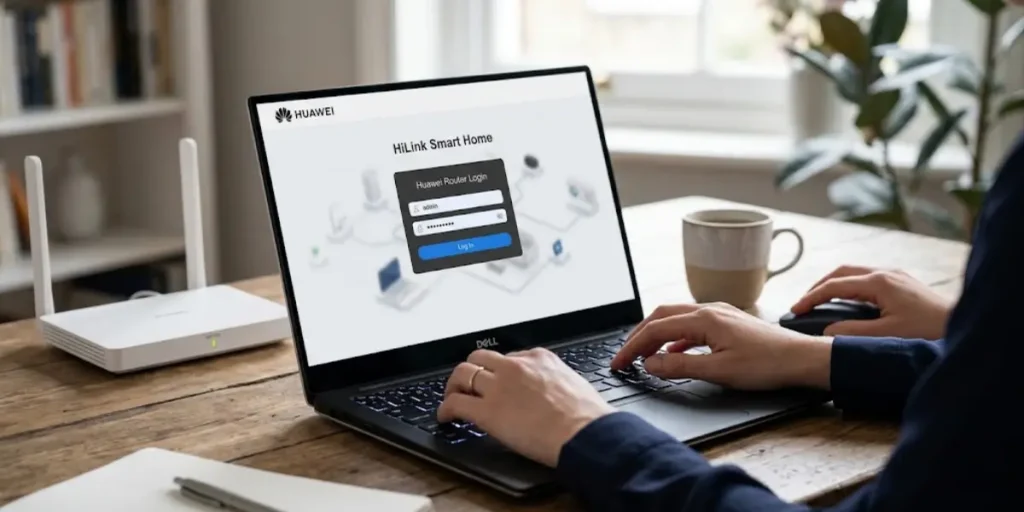
Huawei router login is the process of signing in to the router’s web-based management page. This page lets you control many settings that are not available from the normal Wi-Fi connection screen.
Depending on the Huawei model, you may be able to:
- Change the Wi-Fi name
- Change the Wi-Fi password
- Change the router login password
- View connected devices
- Configure network settings
- Manage guest Wi-Fi
- Check router information
- Change certain security settings
- Restore or update router settings
It is important to understand that the router login password and Wi-Fi password are not always the same. The Wi-Fi password connects a device to the wireless network, while the login password gives access to the router’s settings. Huawei also notes this distinction in its support documentation.
Huawei Default Login – Username, Password and IP Address
Default logins for Huawei
Huawei Router Login Quick Steps
You can usually access the Huawei router login page in a few steps.
- Connect your phone or computer to the Huawei router’s Wi-Fi network.
- If possible, connect a computer to the router with an Ethernet cable.
- Open Chrome, Edge, Firefox, or another web browser.
- Enter 192.168.3.1 in the address bar.
- Press Enter.
- Enter your router login password.
- Select Log In.
Huawei’s official instructions use 192.168.3.1 for many of its routers, but they also advise checking the nameplate on the router for the actual management address.
If 192.168.3.1 does not open the login page, do not assume the router is faulty. Your particular model or ISP may use another IP address.
📶 Need help signing in to your Tenda router? Check our Tenda Router Login Information to access the login page and manage your router and Wi-Fi settings.
What Is the Default IP Address for Huawei Routers?
The most common management address for many Huawei home routers is:
192.168.3.1
Enter it directly into your browser’s address bar, like this:
http://192.168.3.1
Do not type the address into Google Search. It is a local router address, so it should be entered directly into the browser’s address bar.
The default IP can be different on some carrier-customized Huawei routers. Huawei’s support information shows that customized devices can use different management addresses. For this reason, the label on the bottom or back of the router is one of the best places to check.
📶 Looking to access your TP-Link router? See our TP-Link Router Login Details to reach the login page and manage your router and wireless settings.
Common Huawei Router IP Addresses

| Router type or situation | Possible management IP |
| Many Huawei home routers | 192.168.3.1 |
| Some carrier-customized models | May use another private IP |
| Secondary router in some setups | May receive a different address |
The table is intended as a guide, not a list of universal defaults. Your router’s label and current network gateway should take priority.
How to Find Your Huawei Router IP Address
If 192.168.3.1 does not work, find the gateway address used by your device.
On Windows
- Connect your computer to the Huawei router.
- Press Windows + R.
- Type cmd and press Enter.
- Type ipconfig.
- Press Enter.
- Look for Default Gateway under the active network connection.
- Enter that address into your browser.
For example, if Default Gateway shows 192.168.1.1, use that address instead of 192.168.3.1.
On a Phone
The exact menu names can vary by Android version, iPhone version, and device manufacturer. Open the connected Wi-Fi network details and look for information such as Router, Gateway, or IP Address.
If your Huawei router’s label lists a management address, use that address first.
📶 Need to find the IP address used by your Xfinity router? Check our What Is My Router IP Xfinity Details to locate the gateway address and access your router’s settings.
Huawei Router Default Username and Password
There is no single username and password that works with every Huawei router.
The login details can depend on the router model, firmware, carrier, and setup process. Some newer Huawei routers ask you to create a login password during initial setup instead of relying on one universal administrator password. Huawei documentation for the WS5200, for example, explains that the router and Wi-Fi passwords can be configured during the initial setup process.
Before trying random credentials, check:
- The label on the router
- The quick-start guide
- Your ISP’s setup information
- The password created during the first setup
- The router’s current configuration
Huawei Router Username and Password Are Not Always Universal
Searches for Huawei router username and password often lead people to generic default credentials. This can be misleading.
ISP-provided Huawei devices may have customized login details. Advanced administrator accounts can also be restricted by the provider. Therefore, do not assume that a credential such as telecomadmin will work on every Huawei router.
If your router was supplied by an internet provider, the provider’s instructions are often more useful than a generic default-password list.
🛡️ Want to learn how to recognize common internet threats? Read our Online Scams Information to identify phishing, fake websites, suspicious messages, and other common scams.
How to Log In to a Huawei Router
Once you know the correct IP address and login password, the Huawei router login process is straightforward.
Connect to the Router
Connect your computer or phone to the Huawei Wi-Fi network.
For troubleshooting, an Ethernet connection from a computer to a LAN port can be useful because it removes possible wireless connection problems.
Open a Web Browser
Open your preferred browser.
Type the router’s IP address directly into the address bar.
For many Huawei routers, this is:
192.168.3.1
Enter the Login Password
The login page will ask for the router’s login password.
Enter the password you created during setup or the password shown in the router documentation.
Open the Management Page
Select Log In.
After successful authentication, you can access the available router settings. The names and locations of these settings can differ between Huawei models and software versions. Huawei specifically notes that its web interface can vary by model and version.
🌐 Need to find your router’s gateway address? Check our What Is My Router Gateway IP Information to identify the default gateway and access your router’s administration settings.
How to Change the Huawei Router Username and Password
Most users who search for a Huawei router password change actually mean one of two things:
- Change the router administrator login password
- Change the Wi-Fi password
These are different settings.
Change the Router Login Password
On supported Huawei routers, the general process is:
- Connect to the router.
- Open its web-based management page.
- Log in with the current password.
- Open the system or account settings.
- Select the option for changing the login password.
- Enter the current password.
- Enter the new password.
- Confirm the new password.
- Save the change.
On some Huawei router interfaces, the path is More Functions > System Settings > Change Login Password. Huawei notes that the exact interface depends on the model and software version.
Choose a strong password that is different from your Wi-Fi password. Store it somewhere safe so you do not have to reset the router later.
📶 Need to find the login address for your Linksys router? See our What Is My Linksys Router IP Details to locate the default IP and access your router’s administration settings.
How to Change the Huawei Wi-Fi Password
Changing the Wi-Fi password is different from changing the administrator password.
After logging in:
- Open the Wi-Fi or My Wi-Fi settings.
- Find the wireless network password.
- Enter a new password.
- Save the settings.
- Reconnect your devices using the new password.
Huawei’s support instructions show My Wi-Fi as the location for changing or viewing Wi-Fi settings on supported models.
When you change the Wi-Fi password, devices that were connected with the old password may disconnect. You will need to enter the new password on those devices.
Huawei Router Login Using the Huawei App
Some Huawei routers and CPE devices can also be managed through the AI Life app.
The available features depend on the device and software version. On supported devices, you can connect your phone to the router, open the AI Life app, select the router, and access its management options.
Huawei also documents app-based management for supported CPE devices, including changing the administrator login password through the app.
The app can be useful when you prefer managing the router from your phone rather than opening the web interface.
Huawei Router Login for Telecom Admin
The term telecomadmin is often associated with Huawei routers supplied by telecommunications providers.
However, it should not be treated as a universal Huawei router username or password.
ISP-customized routers can have different administrator accounts, passwords, permissions, and management addresses. Some advanced settings may also be controlled by the provider.
If you have a Huawei router from an ISP and the normal login details do not work, check the provider’s documentation or contact the provider. Avoid changing advanced settings without knowing what they do, because incorrect network settings can interrupt your internet connection.
Huawei Router Login Not Working? Try These Fixes
If the Huawei router login page does not open, work through these checks in order.
Check Your Network Connection
Make sure your device is connected to the Huawei router.
If your phone is using mobile data instead of the router’s Wi-Fi, turn mobile data off temporarily and try again.
A wired connection can also help when troubleshooting.
Check the Router IP Address
Try the management address printed on the router.
For many Huawei models, it is 192.168.3.1, but carrier-customized devices may use another address. Huawei recommends checking the router nameplate when the default address does not work.
Make Sure You Are Using the Correct Password
The Wi-Fi password may not be the same as the router login password.
If you recently changed the administrator password, use the new login password.
Try Another Browser
A browser problem can sometimes prevent the management page from loading correctly.
Try another browser or clear the browser cache. Huawei also recommends trying another browser or device for certain management-page access problems.
Check for an IP Address Conflict
A Huawei router used as a secondary router can have a different management IP if its original address conflicts with the main router.
Huawei gives an example where a secondary router may change from 192.168.3.1 to 192.168.4.1 after an IP conflict.
Restart the Router
Turn the router off, wait briefly, and turn it back on.
Wait until the router finishes starting, then connect your device and try the login page again.
How to Reset a Huawei Router Login Password
If you have forgotten the administrator password, a factory reset may be necessary on supported models.
Before resetting the router, remember that a factory reset can remove your current configuration. Your Wi-Fi name, password, internet settings, and other customized options may need to be configured again.
Huawei’s support guidance confirms that restoring factory settings removes existing configurations and requires the router to be configured again.
Huawei Router Factory Reset
The exact reset procedure depends on the model.
A typical process is:
- Keep the router powered on.
- Locate the Reset or WPS/RESET button.
- Use a suitable pin or similar tool if the button is recessed.
- Press and hold the button for the period specified in your model’s manual.
- Wait for the router to restart.
- Connect to the router again.
- Open its management address.
- Complete the setup process.
Do not use a fixed reset time for every Huawei router because the required procedure can vary by model. Huawei’s own support pages show different reset instructions for different products.
Huawei Router Login After a Factory Reset
After a factory reset, you will need to configure the router again.
Start by connecting your computer or phone to the router. Open the browser and enter the management address. For many Huawei routers, this is 192.168.3.1.
Follow the setup wizard if one appears.
You may need to configure:
- Internet connection type
- Wi-Fi name
- Wi-Fi password
- Router login password
- Other network settings
Huawei recommends using the web management page or the AI Life app for supported models during initial setup.
Huawei Router Login for Different Models
Huawei has released many routers and CPE devices over the years, so the login process is not identical across every product.
You may see searches for:
- Huawei AX3 login
- Huawei AX3 Pro login
- Huawei HG8245 login
- Huawei B315 login
- Huawei B525 login
- Huawei B535 login
- Huawei 4G router login
- Huawei 5G router login
The correct IP address, login screen, password setup, and available settings can vary.
For this reason, use the exact model number printed on your router when looking for model-specific instructions. This is especially important for ISP-provided equipment.
What Can You Do After Huawei Router Login?
After you successfully access the Huawei router admin page, the available options depend on your model.
Common tasks include:
- Change Wi-Fi name
- Change Wi-Fi password
- Change the router login password
- View connected devices
- Manage network settings
- Configure guest Wi-Fi
- Check device information
- Adjust selected Wi-Fi settings
- Manage certain security options
- Restore factory settings
Huawei’s support documentation shows that settings such as Wi-Fi configuration, connected-device controls, router information, and network options can be managed from the web interface on supported products.
Huawei Router Login Security Tips
Your router controls your home or office network, so protect the administrator account.
Use these simple practices:
- Change a default administrator password when the router allows it.
- Use a strong, unique password.
- Do not share the admin password with people who do not need access.
- Keep router software updated when updates are available.
- Use a secure Wi-Fi password.
- Do not change advanced network settings unless you understand their purpose.
- Keep your router physically secure.
Changing the management password can help prevent unauthorized people from accessing and modifying router settings. Huawei recommends changing the login password periodically on supported devices.
Huawei Router Login Troubleshooting Table
| Problem | What to Try |
| 192.168.3.1 does not open | Check the router label and find the current gateway |
| Login page keeps loading | Try another browser or device |
| Password is rejected | Confirm that you are using the router login password, not only the Wi-Fi password |
| Wi-Fi is not connected | Reconnect to the Huawei router |
| Router is from an ISP | Check the provider’s login information |
| Secondary router cannot be accessed | Check for an IP address conflict |
| Admin password is forgotten | Use the model-specific factory reset procedure |
| Settings disappeared after reset | Reconfigure the router because factory reset removes saved settings |
Final Thoughts About Huawei Router Login
The Huawei router login process is usually easy when you have the right IP address and login password. For many Huawei routers, 192.168.3.1 is used to open the login page. However, some routers provided by internet companies may use a different address.
Before you log in, make sure your phone or computer is connected to the Huawei router. If 192.168.3.1 does not work, check the label on your router or find the Default Gateway on your device. This will help you find the correct login address.
Keep in mind that the router login password and Wi-Fi password may be different. If you cannot log in, check that you are using the correct password. You can also try another browser or restart the router.
After a successful login, you can manage many useful settings. You can change your Wi-Fi name and password, check connected devices, update network settings, and change the router admin password when your model supports it.
If you forget your login password, do not keep trying random passwords. Check your router guide or the information provided by your internet company. A factory reset may be needed in some cases, but remember that a reset can remove your saved router settings.
In short, always use the correct IP address, keep your login details safe, and follow the instructions for your exact Huawei router model. These simple steps can help you access your router and manage your home network without much trouble.
Frequently Asked Questions About Huawei Router Login
Q1. What is the username and password of Huawei routers?
Huawei routers do not all use one universal username and password. The login details can depend on the model, firmware, and internet provider. Check the router label, setup guide, or ISP documentation.
Q2. What is the default password of a Huawei router?
There is no single default password for every Huawei router. Some models require you to create the login password during setup, while ISP-customized models can use provider-specific credentials.
Q3. What is the default IP of a Huawei router?
192.168.3.1 is the default management address used by many Huawei routers. However, the address can vary by model or carrier. Check the router’s nameplate if 192.168.3.1 does not work.
Q4. How do I log in to a Huawei router?
Connect your device to the router, open a browser, enter the correct management IP such as 192.168.3.1, and enter the router login password.
Q5. How do I find my Huawei router IP address?
On a computer, check the Default Gateway shown by your network settings. You can also check the router’s label or network information on your connected device.
Q6. Can I log in to my Huawei router from my phone?
Yes, supported Huawei routers can be managed from a phone through the web-based management page. Some devices also support management through the AI Life app.
Q7. How do I change my Huawei router username and password?
Log in to the management page and open the account or system settings. On supported Huawei interfaces, the option may appear under More Functions > System Settings > Change Login Password.
Q8. What should I do if I forgot my Huawei router password?
First check whether the password is recorded on the router documentation or was created during setup. If you cannot recover the login password, a factory reset may be required, depending on the model.
Q9. Can I use 192.168.1.1 for Huawei router login?
Not necessarily. Huawei commonly uses 192.168.3.1 on many of its routers, while some carrier-customized models can use other addresses. Use the actual management address shown on your router or network gateway.