
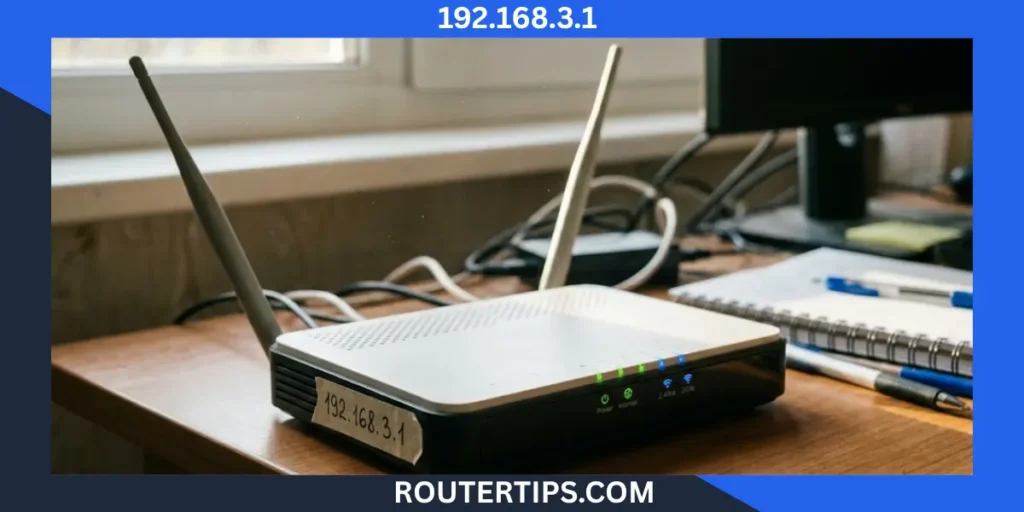
The 192.168.3.1 IP address is a private IPv4 address used by some routers and other network devices. On supported Huawei routers, it can open the web-based management page, where you can manage Wi-Fi settings, change passwords, and check network details.
To log in, connect your phone or computer to the correct router network, enter http://192.168.3.1 in your browser, and provide the required login password. If the page does not open, your router may use a different address or your device may not be connected to the correct network.
This guide explains how to access 192.168.3.1, change your Huawei router password, manage Wi-Fi settings, and fix common login problems. It also explains how to find the correct router IP address if these steps do not work.
What Is the 192.168.3.1 IP Address?
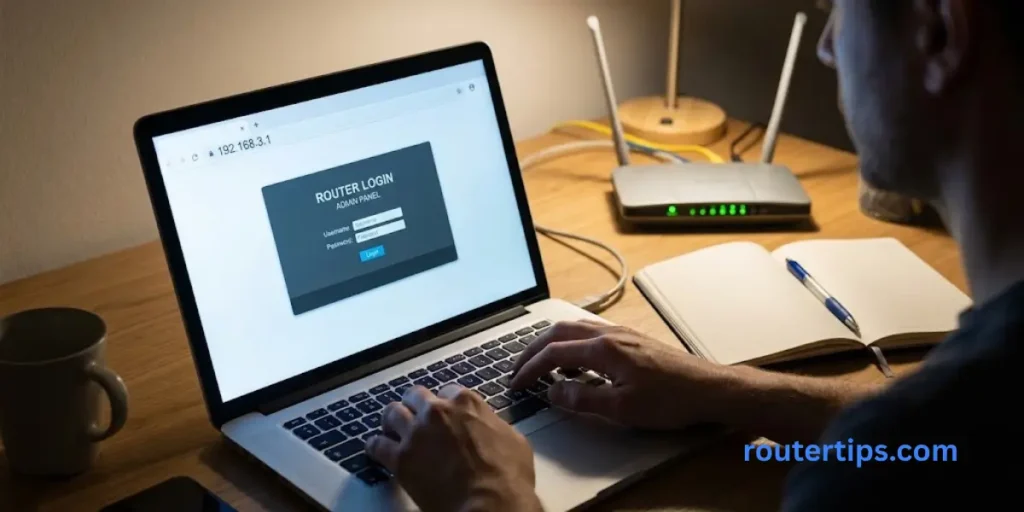
192.168.3.1 is a private IPv4 address that can be used as the local address of a router or another network device. It helps devices communicate within a home or office network.
A router connects your local network to the Internet. It may also assign local IP addresses to phones, laptops, smart TVs, printers, and other connected devices.
On supported Huawei routers, 192.168.3.1 is commonly used to access the router’s web-based management page. However, not every Huawei router or other networking device uses this address. The correct address depends on the model and its configuration.
🌐 Looking for details about the 192.168.1.100 IP address? Visit our 192.168.1.100 IP Address Reference to learn how it may be used on your local network.
Is 192.168.3.1 a Private IP Address?
Yes. 192.168.3.1 is a private IPv4 address.
The Internet Assigned Numbers Authority (IANA) reserves the range from 192.168.0.0 to 192.168.255.255 for private networks. This range is defined in RFC 1918, a technical standard for private Internet networks.
Private addresses can be reused on separate networks. For example, your home router and an office router can both use 192.168.3.1 without creating a conflict, as long as the networks remain separate.
These addresses are not directly routed across the public Internet. A private IP address also does not reveal a person’s exact public location.
You can read more in theIANA guide to private-use IP addresses andRFC 1918.
What Is 192.168.3.1 Used For?
The purpose of 192.168.3.1 depends on the network setup.
Common uses include:
- Router administration: Open a supported router’s settings page.
- Wi-Fi management: Change the wireless network name and password.
- Network settings: View or change selected local network options.
- Connected device management: Review available settings for devices on the network.
- Troubleshooting: Check whether a router or access point is reachable.
For example, a Huawei router that uses 192.168.3.1 may let you sign in through a browser to manage its Wi-Fi network. The exact options depend on the model and software version.
If another device uses this address, you may see a different login page or no page at all.
🌐 Want to learn how the 10.0.0.2 IP address is used on a network? Visit our 10.0.0.2 IP Address Overview for helpful details.
Is 192.168.3.1 a Router Login Address?
It can be. Huawei lists 192.168.3.1 as the default address for supported router models. The address printed on the router label or provided in its official instructions should take priority.
Other routers may use addresses such as 192.168.1.1, 192.168.0.1, or a different local address.
Do not assume that every device from the same brand has identical settings. Internet providers may also change the default configuration.
How to Log In to 192.168.3.1
You can try the 192.168.3.1 admin login page from a phone, tablet, or computer connected to the correct local network.
Follow these steps.
🌐 Want to learn how the 192.168.1.2 IP address works on a local network? Read our 192.168.1.2 IP Address Explanation for useful details.
Connect to Your Router
Connect your device to the router’s Wi-Fi network. If your computer has an Ethernet port, you can also connect it to a suitable LAN port on the router.
Make sure you are connected to the network managed by the device you want to access. A guest network or a different router may block access to its local administration page.
If your phone switches to mobile data, temporarily turn off mobile data while testing the local address.
Open the Login Page
Open Chrome, Firefox, Edge, Safari, or another browser.
Type the following address into the address bar:
http://192.168.3.1
Press Enter or Go.
Do not type the address into a search engine’s search box. The browser may treat it as a search query instead of opening the local device.
If the page does not load, check whether your router uses a different address. You can also consult the device label or official manual.
Enter Your Administrator Password
If the login page appears, enter the required administrator password.
Depending on the model, the router may ask for a username and password or only a password. Some devices require you to create a password during the first setup.
The login password is not always the same as the Wi-Fi password. Check the device label and setup instructions to determine which credentials are required.
Open the Router Settings
After signing in, you may see options for Wi-Fi, network settings, security, connected devices, or system management.
The available menus depend on the router model.
Before making changes, read the setting descriptions and record any important current values. Changing the wrong network setting can interrupt your Internet connection.
Save Your Changes
If you update a password or network setting, select Save, Apply, or the matching option in your router interface.
Some changes may restart the router or disconnect your Wi-Fi connection. If that happens, reconnect your devices using the updated settings.
If the page does not open, do not reset the router straight away. Try the troubleshooting steps later in this guide first.
Default Username and Password for 192.168.3.1
There is no single username and password that works on every device using 192.168.3.1.
The correct login details depend on the manufacturer, model, Internet provider, and previous configuration. Some routers use a password printed on the device, while others require the owner to create one during setup.
Where to Find Your Router Login Details
If you own the router or have permission to manage it, check these sources:
- Router label: Look at the bottom or back of the device for its default address and login information.
- User manual: Follow the instructions for your exact model.
- Manufacturer support: Use the official support website to find the correct login method.
- Internet provider: Contact your provider if it supplied or configured the router.
- Password manager: Check whether you saved the administrator password during setup.
Do not assume that admin is the correct username or that admin or password is the correct password. These details are not universal.
What If the Default Password Does Not Work?
First, confirm that you are opening the correct device’s login page. If your network has a main router and a second router or access point, you may be trying to access the wrong one.
Next, check whether the administrator password was changed during setup. If it was, the original credentials may no longer work.
Use the official recovery instructions for your device. If the router belongs to your Internet provider, ask the provider for help before changing its configuration.
A factory reset may be needed in some cases, but it can remove saved settings. Treat it as a last resort rather than the first solution.
Is the Wi-Fi Password the Same as the Admin Password?
Not always. These passwords have different purposes.
The Wi-Fi password allows a phone, computer, or other device to join your wireless network.
The administrator password allows you to open the router settings and change options such as the Wi-Fi name, wireless password, and other network settings.
Huawei explains this difference in itsofficial router password instructions.
Keep both passwords secure. If your router allows separate passwords, use different ones to reduce the risk of unauthorized access to its settings.
Huawei Router Login at 192.168.3.1
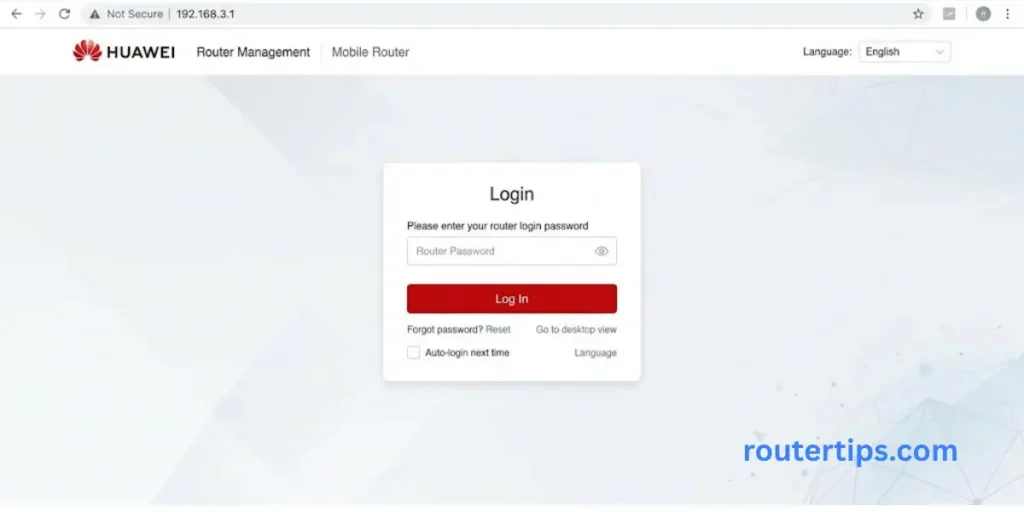
Huawei routers are closely associated with the 192.168.3.1 address, but the correct login method can vary by model, firmware, and Internet provider.
Before signing in, check the label on the router. If it lists a different default address, use that address instead.
How to Access the Huawei Router Admin Page
For a supported Huawei router, follow these steps:
- Connect your phone or computer to the Huawei router’s Wi-Fi network, or connect a computer to a LAN port.
- Open a web browser.
- Enter http://192.168.3.1 in the address bar if that is the router’s listed address.
- Enter the router login password.
- Select Log In to open the management page.
Huawei’s officialrouter login instructions advise users to check the device label because the default address may vary, especially on carrier-customized versions.
If you use a Huawei mesh system or a router connected to another router, the correct management address may differ. Follow the instructions for the device you want to manage.
How to Change the Huawei Router Admin Password
Changing the administrator password can help prevent other people from changing your router settings without permission.
On supported Huawei models, the menu may follow a path similar to More Functions > System Settings > Change Login Password. Menu names can vary by model and software version.
Follow these steps:
- Sign in to the Huawei router’s management page.
- Open the system or administration settings.
- Select the option for changing the login password.
- Enter the current password if requested.
- Enter the new password and confirm it.
- Save the changes.
Choose a password that is long and hard to guess. Avoid personal details and passwords that you already use for other accounts.
If you cannot find the same menu, check the official manual for your exact Huawei model.
How to Change Your Huawei Wi-Fi Password
If you want to change the password used to connect to Wi-Fi, look for the Wi-Fi or My Wi-Fi section rather than the administrator password setting.
The usual process is:
- Sign in to the router.
- Open the Wi-Fi settings.
- Select the wireless network you want to change.
- Enter a new Wi-Fi password.
- Save the settings.
- Reconnect your devices using the new password.
Some routers provide separate settings for different wireless bands. Check whether the password applies to one network or several.
If the router supports WPA3, consider using it. WPA2 with AES is another suitable option for many devices. Avoid outdated security modes when a stronger supported option is available.
How to Find Your Huawei Router IP Address
If 192.168.3.1 does not work, use the address shown on the router label or find the default gateway on a connected device.
On Windows:
- Open Command Prompt.
- Type ipconfig.
- Press Enter.
- Find the active network adapter.
- Read the address beside Default Gateway.
On macOS, open System Settings, select Network, and check the active connection’s TCP/IP details. The router address is normally listed there.
On a phone, open the details for the connected Wi-Fi network and look for Router or Gateway. The menu name depends on your device and operating system.
Use the address shown for the active network rather than guessing which IP address the router should use.
How to Change Your Wi-Fi Name and Password
Your Wi-Fi network name, also called the SSID, is the name that appears when devices search for wireless networks.
You can usually change the SSID and Wi-Fi password from the router’s wireless settings page.
Change Your Wi-Fi Name
- Open the router’s administration page.
- Sign in with your administrator credentials.
- Find the Wi-Fi or Wireless Settings menu.
- Locate the network name or SSID field.
- Enter a new name.
- Save the changes.
Choose a name that helps you recognize your network without including private details such as your full name or home address.
Changing the SSID may disconnect devices that remember the old network name. Reconnect them to the new network when the change is complete.
Create a Strong Wi-Fi Password
Choose a long, unique password that is difficult for other people to guess. A password manager can help you create and store one securely.
Avoid common choices such as 12345678, your phone number, or your home address.
If your router supports WPA3, use it where compatible. If some devices do not support WPA3, check whether WPA2-AES is available.
Once you save the new password, update the saved network details on your phones, computers, smart TVs, and other wireless devices.
Why Is 192.168.3.1 Not Working?
If 192.168.3.1 does not open, the problem may be the IP address, your network connection, the browser, or the router itself.
Work through the following checks in order.
Check the IP Address
Make sure you typed 192.168.3.1 correctly.
An address with missing digits or periods will not work. Also, remember that 192.168.3.1 and 192.168.31.1 are different addresses.
If your router label shows another address, use the one listed there.
Connect to the Correct Wi-Fi Network
Your phone or computer must be connected to the local network that can reach the router’s management page.
If you are using mobile data, a guest network, or another router, the page may not be available.
Connect to the main network or use an Ethernet cable if possible. If you are using a work or school network, follow the administrator’s rules before trying to access network equipment.
Find the Default Gateway
The default gateway is the local address your device uses to send traffic to other networks.
On Windows, open Command Prompt and run:
ipconfig
Find the Default Gateway entry for the active connection.
If the address is 192.168.1.1 or 192.168.0.1, your main router may use that address instead. If you are using a secondary router, its management address may be different.
The default gateway is a useful clue, but a network with multiple routers or access points may require you to check the device list or its manual as well.
Check Your Browser
Try opening the address in another browser. You can also close and reopen your current browser and enter the address again.
Use the exact address in the browser’s address bar. If your router requires a secure connection or uses a different local management method, follow its official instructions.
Do not ignore a browser security warning without checking that you are connecting to the correct device.
Check the Router’s Power and Connection
Confirm that the router is powered on and that the cables are connected properly.
If you are using Ethernet, check the cable and LAN port. If you use Wi-Fi, confirm that your device remains connected to the correct network.
You can try another device to see whether the issue affects only one phone or computer.
Check for an IP Address Conflict
Two devices should not normally use the same IP address on the same local subnet at the same time.
If two devices have been assigned 192.168.3.1 on the same network, they may interfere with each other’s communication.
Check the router’s connected-device list and network settings. If you use a secondary router, verify that its address does not conflict with the main router.
Do not change static IP or DHCP settings unless you understand the network setup or have guidance from the manufacturer.
Check the Router’s Access Settings
Some routers use a mobile app or a model-specific web address for administration. Others may restrict access from guest networks or certain connections.
Check the user manual and the manufacturer’s support page for your exact model.
If the router was supplied by an Internet provider, ask the provider whether it has changed the management address or restricted local access.
How to Factory Reset a Router
A factory reset restores the router to its original settings. It can help when you cannot recover the administrator password, but it also removes saved configuration details.
Before resetting your router, try the official password recovery process and check whether your Internet provider requires special setup details.
When Should You Reset Your Router?
A factory reset may be useful when:
- You cannot recover the administrator password.
- The router’s settings are damaged or badly misconfigured.
- The manufacturer recommends a reset as part of a specific repair process.
A reset is not usually necessary just because the login page fails to load. First, confirm the correct address and check your network connection.
How to Reset a Huawei Router
The reset process varies by model. Some Huawei routers have a physical Reset or WPS/RESET button, while the required button-press time may differ.
For a supported model, the official Huawei instructions may direct you to press and hold the reset button for several seconds until the indicator changes. Do not assume the same timing applies to every model.
Before proceeding:
- Find the official instructions for your exact model.
- Confirm that you have permission to reset the device.
- Check whether your ISP requires special connection settings.
- Follow the documented reset procedure.
- Complete the initial setup and create new passwords.
Huawei warns that a factory reset removes existing configuration details and may require you to configure the router again before Internet access returns. Read itsofficial forgotten Wi-Fi password guidance before resetting.
What Happens After a Factory Reset?
After a successful reset, the router returns to its factory configuration. Your previous Wi-Fi name, Wi-Fi password, administrator password, and custom settings may be removed.
You may need to:
- Set a new Wi-Fi name.
- Create a new Wi-Fi password.
- Set a new administrator password.
- Reconfigure guest Wi-Fi or parental controls.
- Restore any custom network settings.
- Follow your ISP’s setup instructions.
If your router is part of a mesh system or uses settings managed by another router, check the manufacturer’s guidance before resetting it.
Related IP Addresses in the 192.168.x.x Range
Several private IP addresses are used by routers and connected devices. Although these addresses look similar, they are not interchangeable.
| IP address | Possible use |
| 192.168.3.1 | Router management address on supported devices |
| 192.168.1.1 | Common local router or gateway address |
| 192.168.0.1 | Another common router address |
| 192.168.31.1 | Local address used in some network configurations |
| 192.168.1.2 | Possible address for a connected device or configured access point |
These are examples, not fixed assignments. Your own network may use a different address.
What Is the Difference Between 192.168.3.1 and 192.168.31.1?
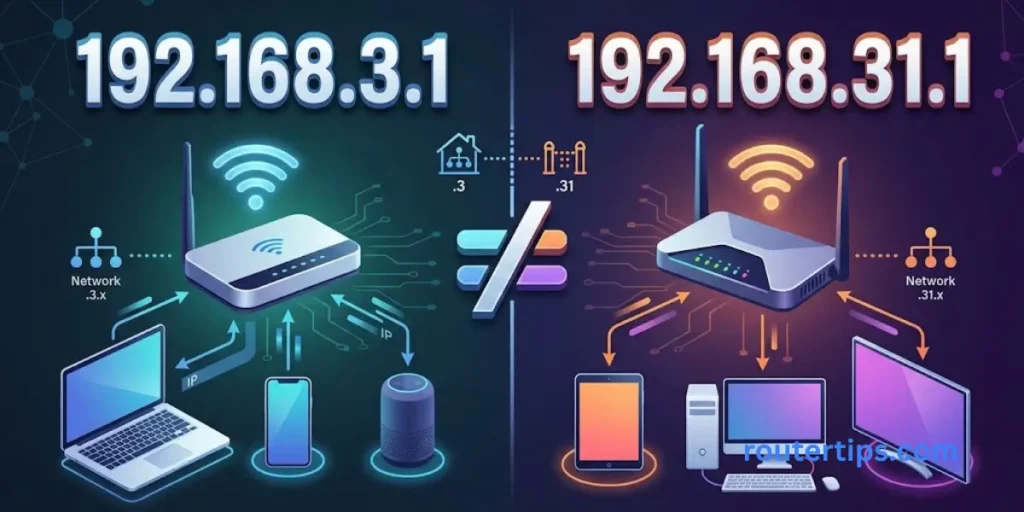
The addresses 192.168.3.1 and 192.168.31.1 are different IPv4 addresses. The second address contains an additional digit in the third section.
If you are trying to open a router login page, enter the address shown on your device label or in the network settings. Do not assume that the two addresses lead to the same router.
How Do I Find My Actual Router IP Address?
Check the Default Gateway field on Windows or the Router field in your active network settings on macOS or a phone.
You can also check the router label and the manufacturer’s setup guide. If the network contains multiple routers, you may need to check the connected-device list to find the address of a secondary router or access point.
Final Thoughts on 192.168.3.1
The 192.168.3.1 IP address is used to access the settings of some routers, including supported Huawei models. It can help you manage your Wi-Fi name, wireless password, administrator password, and other network options.
If you cannot open the 192.168.3.1 login page, check your router label, confirm that your device is connected to the correct network, and find the actual default gateway. The correct address and login details can vary by model and Internet provider.
Keep your router passwords secure, check the official instructions before changing advanced settings, and avoid a factory reset unless you understand what it will remove. These steps can help you manage your home network with fewer problems and keep your router settings protected.
Frequently Asked Questions About 192.168.3.1
Q1. How Do I Log In to My Router Admin Page?
Connect to the router’s network, enter its correct local IP address in your browser, and sign in with the required administrator credentials. If the page does not load, check your default gateway and router documentation.
Q2. How Do I Change the Password for 192.168.3.1 on a Huawei Router?
Sign in to the Huawei router’s management page, open the login password or Wi-Fi settings, enter the new password, and save the changes. The exact menu depends on your model. Remember that the administrator password and Wi-Fi password serve different purposes.
Q3. Why Is 192.168 Not Working?
192.168 by itself is not a complete IPv4 address. You need the full address, such as 192.168.3.1. If the full address does not work, check the digits, your network connection, and the router’s actual gateway address.
Q4. How Do I Change the Password for a 192.168.31.1 Router?
First, confirm that 192.168.31.1 is the correct management address for your device. Sign in, open the relevant administrator or wireless settings, change the required password, and save the changes. Follow the instructions for your specific router model.
Q5. Is 192.168.3.1 Safe?
192.168.3.1 is a private IP address, not a security feature by itself. Access to the router depends on its configuration and credentials. Protect your device with a strong administrator password, a secure Wi-Fi password, and supported security settings.
Q6. Can Two Devices Have the Same IP Address?
Two devices on the same local subnet should not normally use the same IP address at the same time. A duplicate address can cause connection problems. Separate private networks can use the same address without a conflict when they are not part of the same local network.