The 10.0.1.1 IP address is a private IPv4 address that some routers and network devices use to communicate with devices on a local network. When it is configured as your router’s default gateway or management address, you may be able to use it to access network settings through a web browser.
If your device uses this address, you may be able to manage its network settings, check connected devices, or update security options. However, not every router uses 10.0.1.1, and the login process depends on the manufacturer and model.
To access the correct login page, connect your computer or phone to the device’s network and enter its actual management address in your browser. You will then need the administrator password to continue.
In this guide, you will learn what 10.0.1.1 means, how to access the router login page, where to find the default username and password, and how to fix common connection problems.
What Is 10.0.1.1 IP Address?
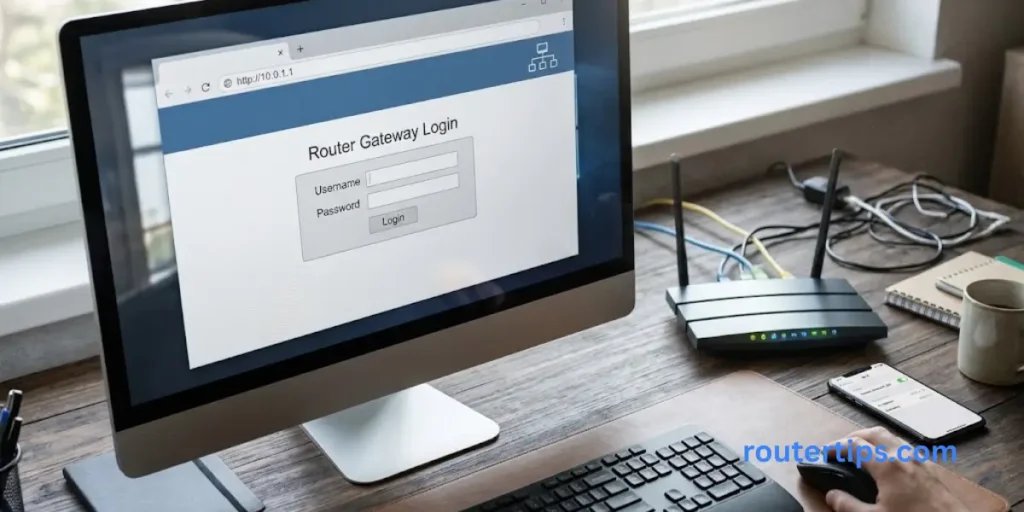
10.0.1.1 is a private IPv4 address that can be assigned to a router, firewall, or another device on a local network. It belongs to the private IP address range 10.0.0.0 to 10.255.255.255, which is reserved for private networks.
A router may use 10.0.1.1 as its default gateway. A default gateway is the network device that helps your computer or phone communicate with devices outside its local network, including the internet.
For example, when your laptop connects to a network using this address, it may send internet traffic through the device assigned to 10.0.1.1.
You can also enter this address into a browser to reach a device’s management page, but only when the device supports browser-based administration at that address.
Is 10.0.1.1 a Private or Public IP Address?

10.0.1.1 is a private IP address, not a public internet address.
Private IP addresses are used inside home, office, and business networks. They allow multiple devices to communicate without requiring each device to have its own public IP address.
The Internet Assigned Numbers Authority (IANA) recognizes three main private IPv4 address ranges:
| Private IP range | Address range |
| Class A private range | 10.0.0.0 to 10.255.255.255 |
| Class B private range | 172.16.0.0 to 172.31.255.255 |
| Class C private range | 192.168.0.0 to 192.168.255.255 |
All three ranges are reserved for private network use under RFC 1918.
This means 10.0.1.1 can be used by many different networks around the world. Your home network and an office network could both use the same address without creating a conflict, as long as they remain separate networks.
What Is the Difference Between 10.0.1.1 and 10.0.0.1?
Both addresses belong to the same private IPv4 range, but they are not identical.
The difference is in the third number:
- 10.0.1.1: Can be used as a local gateway or network device address.
- 10.0.0.1: Can also serve as a router’s local gateway address.
The correct address depends on your network configuration. You cannot use one in place of the other unless your router is configured to support it.
What Does the 10.0.1.x Subnet Mean?
The term 10.0.1.x usually describes a group of IP addresses used on the same local network.
For example, a network using the subnet mask 255.255.255.0 may have these addresses:
| IP address | Possible use |
| 10.0.1.1 | Router or default gateway |
| 10.0.1.2 | Connected computer |
| 10.0.1.10 | Smartphone |
| 10.0.1.100 | Network printer |
| 10.0.1.254 | Another network device |
These are examples, not fixed assignments. Your router’s DHCP settings determine which addresses are given to connected devices.
Popular IP-addresses
How to Log In to 10.0.1.1 Router Admin Page
The 10.0.1.1 router login process is simple when your device uses this address and provides a web-based management page.
Before starting, make sure your computer or smartphone is connected to the correct network.
Follow these steps:
Connect to Your Router
Connect your computer or smartphone to the router using Wi-Fi or an Ethernet cable.
If you are using a computer, a wired connection can help avoid wireless connection problems during setup.
Make sure you are connected to the device whose settings you want to manage.
Open a Web Browser
Open a browser such as Google Chrome, Microsoft Edge, Firefox, or Safari.
You do not need to install special software to access a standard router login page.
Enter the 10.0.1.1 IP Address
Click the browser’s address bar and enter:
http://10.0.1.1
Press Enter.
Make sure you type the address in the address bar, not in the search box.
If the device requires a secure connection or a special management port, you may need a different address. For example, a factory-default WatchGuard Firebox uses:
Enter Your Admin Username and Password
If the correct login page opens, you will see a sign-in screen.
Enter the administrator username and password for your device.
These details may be printed on the router label, included in its setup guide, or provided by your network administrator.
Remember that the administrator password and Wi-Fi password are not necessarily the same.
Access Your Router Settings
After successful login, you can access the available management settings.
Depending on your device, these may include:
- Wireless network name (SSID).
- Wi-Fi password.
- Connected devices.
- Network configuration.
- DHCP settings.
- Security options.
- Firmware updates.
- Administrator password.
The available options depend on your router or firewall model.
Important: Do not change settings you do not understand. Incorrect network changes can interrupt your internet connection or prevent other devices from connecting.
10.0.1.1 Default Username and Password
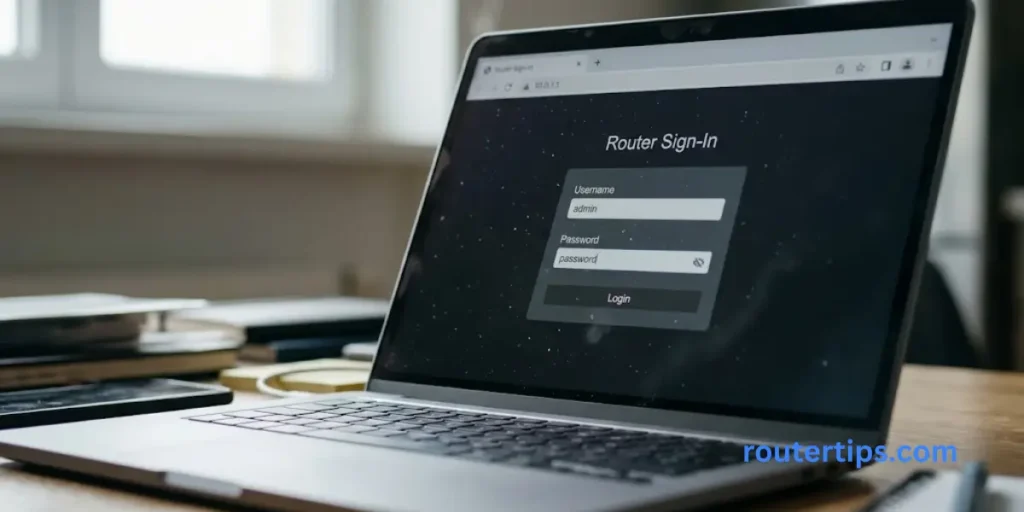
The default username and password for 10.0.1.1 depend on the device using this IP address.
There is no single username and password that works with every router or firewall.
Some devices have factory-set credentials, while others ask you to create an administrator password during the first setup.
Common Default Login Credentials
The following example applies to a specific device, not every router using 10.0.1.1.
| Device | Username | Default password |
| WatchGuard Firebox (factory-default setup) | admin | readwrite |
| Apple AirPort devices | Device-dependent | Base station password |
| TP-Link routers | Model-dependent | Model and setup-dependent |
| Huawei routers | Model-dependent | Check device label |
WatchGuard’s official documentation confirms that its factory-default Firebox management account uses the username admin and passphrase readwrite.
These credentials may change when the setup wizard is completed.
How to Find Your Default Router Password
If you cannot log in, try these steps:
- Check the label on the back or bottom of your router.
- Look for a username, administrator password, or device access password.
- Read the setup guide for your exact model.
- Visit the manufacturer’s official support website.
- Contact your internet service provider if it supplied the device.
Avoid trying random passwords from websites. Default credentials can differ between hardware versions, firmware versions, and internet providers.
What Is the Difference Between an Admin Password and a Wi-Fi Password?
These two passwords have different purposes.
Admin password: This allows you to access the router’s management settings and make changes to the network.
Wi-Fi password: This allows your phone, laptop, television, and other wireless devices to connect to the network.
Changing your Wi-Fi password does not always change your administrator password.
For better security, use different passwords for both.
How to Find Your Router’s 10.0.1.1 IP Address
If 10.0.1.1 does not open the login page, your router may be using another address.
The best way to find the correct router IP is to check your device’s default gateway.
Find the Router IP Address on Windows
You can find your router’s IP address using Command Prompt.
Follow these steps:
- Press Windows + R on your keyboard.
- Type cmd and press Enter.
- Enter the following command:
ipconfig
- Press Enter.
- Find the network connection you are currently using.
- Look for the Default Gateway field.
For example:
Wireless LAN adapter Wi-Fi:
IPv4 Address. . . . . . . : 10.0.1.25
Subnet Mask . . . . . . . : 255.255.255.0
Default Gateway . . . . . : 10.0.1.1
In this example, 10.0.1.1 is the default gateway.
You can enter that address into your browser to try to access the router management page.
Find Your Router IP Address on Mac
If you use a Mac, follow these steps:
- Open the Apple menu.
- Select System Settings.
- Open Network.
- Select your active Wi-Fi or Ethernet connection.
- Open Details and select TCP/IP.
- Find the Router field.
The address shown beside Router is your local gateway address.
Find the Router IP Address on Android
The exact steps depend on your phone’s Android version and manufacturer.
Generally:
- Open Settings.
- Select Network & Internet or Connections.
- Open Wi-Fi.
- Select your connected network.
- Open its network details.
- Look for Gateway or Router.
Some Android phones show this information under Advanced settings.
Find the Router IP Address on iPhone
To check the gateway address on an iPhone:
- Open Settings.
- Select Wi-Fi.
- Tap the information icon beside your connected network.
- Find the Router field.
The displayed address is the gateway for that Wi-Fi connection.
If it shows 10.0.1.1, your network is using that address as its gateway.
Router Brands and Devices That Use 10.0.1.1
Different manufacturers use different default IP addresses. Some also allow network administrators to change the default gateway.
The 10.0.1.1 address is especially relevant to certain WatchGuard Firebox configurations. It can also appear in other networks where an administrator has selected it as the local gateway.
Apple AirPort Extreme, AirPort Express, and AirPort Time Capsule
Apple’s AirPort product family includes wireless base stations and network storage devices.
AirPort Utility is used to manage compatible Apple base stations. It provides access to network settings, wireless security, connected devices, and other configuration options.
If your AirPort network uses 10.0.1.1, first confirm that this is the actual address assigned to the base station.
You can then use AirPort Utility to manage the device.
Do not assume that every AirPort model or configuration uses the same IP address.
WatchGuard Firebox
WatchGuard Firebox is a network security device designed to protect business networks.
Unlike many home routers, a factory-default WatchGuard Firebox uses a special web management address:
To access the Fireware Web UI during the initial setup:
- Connect your computer to the Firebox’s trusted interface.
- Make sure your computer is configured to receive an IP address automatically through DHCP.
- Open a web browser.
- Enter https://10.0.1.1:8080.
- Enter the factory-default username admin.
- Enter the factory-default passphrase readwrite, if the device is still using its initial credentials.
- Follow the setup instructions.
Your browser may show a certificate warning because the device uses a self-signed certificate during initial setup.
Only continue if you have confirmed that you are connected to your own Firebox and are using its correct management address.
After setup, the administrator credentials and network configuration may be different.
Does TP-Link Use 10.0.1.1?
Most standard TP-Link routers use different default IP addresses.
Common addresses include:
- 192.168.0.1
- 192.168.1.1
TP-Link also supports the local address tplinkwifi.net on compatible routers.
If you own a TP-Link router and 10.0.1.1 does not work, check the router’s label or find its current gateway through your computer or phone.
Do not assume that every TP-Link model uses the same login address.
Does Huawei Use 10.0.1.1?
Huawei routers also use model-dependent management addresses.
Many Huawei home routers use an address printed on the device label. Some carrier-customized models may have different settings.
To access your Huawei router:
- Connect to its Wi-Fi or LAN network.
- Check the label on the bottom of the device.
- Enter the printed management address into your browser.
- Enter the router’s login password.
- Open the settings you want to manage.
If your Huawei router displays 10.0.1.1 as its gateway, use that address only if it is also the device’s management address.
How to Change Your Router’s Admin Password at 10.0.1.1
Your administrator password protects the settings that control your network.
If your router still uses an easily guessed default password, changing it is a good security step.
Follow these general instructions:
- Connect to your router’s network.
- Open the browser and enter the correct management address.
- Sign in with your current administrator credentials.
- Open Administration, System, Management, or Security settings.
- Find the administrator password option.
- Enter your new password.
- Confirm the new password.
- Save the changes.
Your router may ask you to sign in again using the new password.
Tips for Creating a Strong Admin Password
Use a password that is difficult for other people to guess.
A good administrator password should:
- Be long and unique.
- Include a mixture of letters, numbers, and symbols when supported.
- Avoid your name, birthday, or phone number.
- Not match your Wi-Fi password.
- Not be reused on other websites.
Store the new password somewhere secure so you do not lose access to your router settings.
How to Change Your Wi-Fi Password Using 10.0.1.1
If you want to stop other people from using your wireless network, you can change the Wi-Fi password through the router’s management settings.
The steps may vary by manufacturer, but the general process is similar.
- Open your router’s login page.
- Enter the administrator username and password.
- Open Wireless, Wi-Fi, or WLAN settings.
- Find the Wi-Fi password or Wireless Security option.
- Enter a new password.
- Select WPA2 or WPA3 security if your device supports it.
- Save the changes.
After saving, your router may restart its wireless connection.
You will need to reconnect your phones, laptops, smart TVs, and other wireless devices using the new password.
Can I Find My Wi-Fi Password at 10.0.1.1?
If your router supports showing the wireless security settings, you may be able to view or change your Wi-Fi password after administrator login.
However, some devices hide saved passwords or only allow you to set a new one.
If you cannot view the existing password, check your connected device’s saved network settings or change the password through the router’s official management interface.
10.0.1.1 Not Working? How to Fix Router Login Problems
Sometimes entering 10.0.1.1 in a browser does not open the router login page.
This does not always mean your router is broken. The address may be incorrect, your device may be connected to another network, or the management service may use a different connection method.
Try these solutions.
Check Your Wi-Fi or Ethernet Connection
First, make sure your computer or smartphone is connected to the correct router.
If you are connected to mobile data, a guest network, or another Wi-Fi network, your device may not be able to reach the local management page.
Disconnect from unrelated networks and connect directly to the router you want to manage.
Check the IP Address Carefully
A small typing mistake can prevent the login page from opening.
The correct address is:
10.0.1.1
Do not enter variations such as:
- 10.0.11.1
- 10.1.1.1
- 10.0.111
- 1.1.10.0
These are different addresses or incorrectly formatted values.
Also, make sure you type the address in your browser’s address bar.
Find the Correct Default Gateway
Your router may not use 10.0.1.1.
On Windows, open Command Prompt and run:
ipconfig
Check the Default Gateway field under your active Wi-Fi or Ethernet connection.
If it displays another address, try that address instead.
Try the Correct HTTP or HTTPS Address
Some routers use HTTP, while others require HTTPS.
For a standard web login, you can try:
http://10.0.1.1
For a WatchGuard Firebox, use its documented management address:
Do not assume that adding HTTPS or a port number will work on every router. Follow the device manufacturer’s instructions.
Clear Your Browser Cache
An old browser session or saved page may sometimes cause problems.
Try opening the router login address in a private or incognito window.
You can also clear your browser’s cache and cookies, close the browser, and try again.
Restart Your Router
A temporary network problem may prevent your device from reaching the router.
If you have permission to restart it:
- Turn off the router.
- Wait around 30 seconds.
- Turn it back on.
- Wait until the network is ready.
- Reconnect your device.
- Try opening the correct gateway address again.
A normal restart does not usually erase your saved network settings.
Check Your Computer’s IP Configuration
Your computer needs a valid network connection to communicate with the router.
On Windows, run:
ipconfig
Check the IPv4 address and Default Gateway.
If your computer shows an address beginning with 169.254, it may not have received an IP address from the router’s DHCP service.
Check the network cable or Wi-Fi connection and reconnect to the network.
Check Whether Router Management Is Disabled
Some network devices allow administrators to restrict access to the management page.
For example, management access may be limited to certain interfaces, network connections, or administrator devices.
If you are using a business firewall, ask the network administrator whether your connection is allowed.
Reset the Router Only When Necessary
A factory reset should be your last option.
It can remove saved settings, including:
- Wi-Fi name and password.
- Internet connection details.
- Custom IP addresses.
- Port forwarding rules.
- Parental controls.
- Other network settings.
Before resetting, check the manufacturer’s instructions and make sure you have the information needed to configure the device again.
How to Factory Reset a Router Using 10.0.1.1
A factory reset returns a device to its original configuration.
You may need to reset your router if you forget its administrator password or cannot restore access through the normal recovery process.
The exact reset method depends on your model.
General Factory Reset Steps
- Keep the router powered on.
- Find the physical Reset button.
- Check the manufacturer’s instructions for the correct reset procedure.
- Press and hold the button for the specified time.
- Wait for the device to restart.
- Connect to its default network.
- Open the device’s default management address.
- Complete the initial setup.
Some devices use a recessed reset button that requires a small pointed object.
Do not guess how long to hold the button. The required time varies by model.
Important: A factory reset is different from restarting the router. Restarting turns the device off and on, while resetting can erase its configuration.
Is 10.0.1.1 a Safe and Private IP Address?
Yes. 10.0.1.1 is part of the private IPv4 address range reserved for local network use.
However, using a private IP address does not automatically make your network secure.
If someone gains access to your router’s administrator account, they may be able to change important network settings.
To protect your network:
- Change the default administrator password.
- Use a strong Wi-Fi password.
- Enable WPA2 or WPA3 security when supported.
- Keep your router firmware updated.
- Disable remote administration if you do not need it.
- Review connected devices regularly.
- Use a guest network for visitors when available.
These steps can reduce the risk of unauthorized access.
Related IP Addresses in the 10.0.1.x Subnet
You may see several IP addresses beginning with 10.0.1 when checking your local network.
These addresses can belong to routers, computers, smartphones, printers, and other connected devices.
Here are a few examples:
| IP address | Possible purpose |
| 10.0.1.1 | Local gateway or router |
| 10.0.1.2 | Network client |
| 10.0.1.10 | Computer or other device |
| 10.0.1.100 | Printer or network client |
| 10.0.1.254 | Another local network device |
Their actual purpose depends on the subnet mask and DHCP configuration.
For example, with a 255.255.255.0 subnet mask, devices in the 10.0.1.0/24 network normally use addresses from 10.0.1.1 through 10.0.1.254 for host devices, with 10.0.1.0 identifying the network and 10.0.1.255 serving as its broadcast address.
Do not assume that every address in this range opens a router login page.
Final Thoughts on 10.0.1.1 IP Address
The 10.0.1.1 IP address is a private IPv4 address that can serve as a default gateway or management address on certain networks. It is useful when your router or network device is configured to use it for local administration.
To access the login page, connect to the correct network, enter the device’s actual management address, and sign in with the administrator credentials. If the page does not open, check your default gateway before trying other addresses.
Remember that not every router uses 10.0.1.1. TP-Link and Huawei devices, for example, often use other default addresses, while WatchGuard Firebox has a specific HTTPS management address and port.
For better network security, change default administrator credentials, use a strong Wi-Fi password, and keep your device updated. These simple steps help protect your network and make router management easier.
Frequently Asked Questions About 10.0.1.1 IP Address
Q1. Is 10.1.1.1 a Valid IP Address?
Yes. 10.1.1.1 is a valid private IPv4 address. It belongs to the 10.0.0.0/8 private network range. However, it is different from 10.0.1.1 and may be used by a different router or network device.
Q2. Is 1.1.1.1 a Real IP Address?
Yes. 1.1.1.1 is a real public IPv4 address used by Cloudflare as a public DNS resolver. It helps translate website names into IP addresses. It is not the same as 10.0.1.1, which belongs to the private IP address range.
Q3. What Is a 10.0 IP Address?
A 10.0 IP address is part of the private IPv4 range from 10.0.0.0 to 10.255.255.255. These addresses are used by routers and other devices on private networks, such as homes, offices, and business networks.
Q4. What Is the Login Information for the 10.0.1.1 Router?
The login details depend on the device and its configuration. A factory-default WatchGuard Firebox uses admin as its username and readwrite as its initial administrator passphrase. Other devices may use different credentials. Check the manufacturer’s documentation or the label on your device.
Q5. How Do I Find My 10.0.1.1 Wi-Fi Password?
If your router uses 10.0.1.1, sign in to its management page and open the Wireless or Wi-Fi settings. If your device allows it, you can view or change the wireless password there. You may also check the saved password on a device already connected to the network.
Q6. Does TP-Link Use 10.0.1.1?
Most standard TP-Link routers use 192.168.0.1 or 192.168.1.1 as their default LAN IP address. Compatible models may also use tplinkwifi.net. If your network administrator changed the router’s address, check the current default gateway.
Q7. Does Huawei Use 10.0.1.1?
Huawei routers have different management addresses depending on the model and internet provider. Check the label on your router or use your connected device’s network settings to find the actual gateway. Do not assume that every Huawei device uses 10.0.1.1.
Q8. Why Is 10.0.1.1 Not Opening?
The address may not be your router’s actual gateway, or your device may not be connected to the correct network. Check your default gateway, verify the address, and make sure the router allows browser-based management.
Q9. Can I Change My Router’s Default IP Address?
Many routers allow you to change their LAN IP address through the administration settings. However, the exact options depend on the device. If you change the address, you may need to reconnect to the network and use the new address to access the management page.