
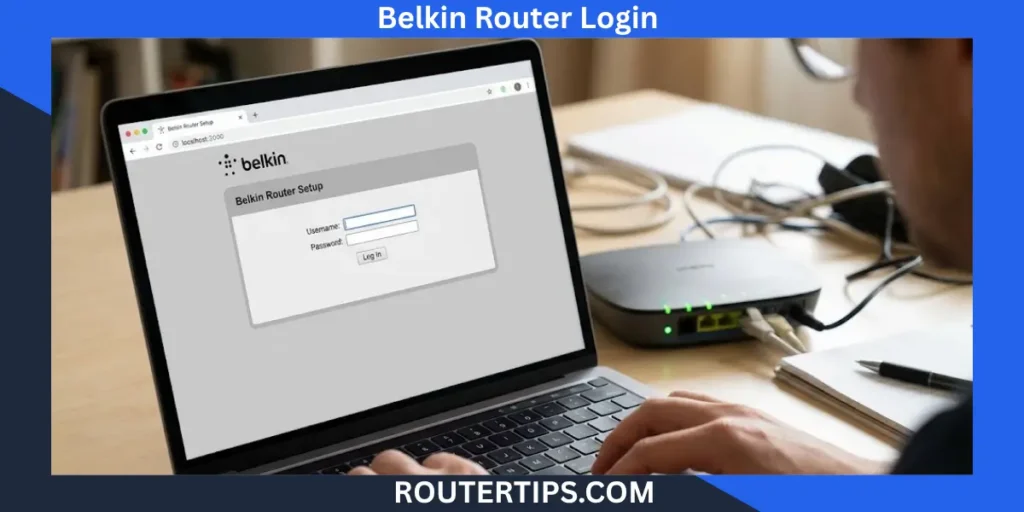
Belkin Router Login lets you open your router’s settings and manage your home Wi-Fi network. You can use the login page to change your Wi-Fi password, update your network name, check connected devices, and adjust other settings.
Most Belkin routers use 192.168.2.1 as the default router IP address. You can enter this address in a web browser on a phone, laptop, or computer connected to your Belkin network. Some models also support http://router.
The login process can be a little different for older Belkin Wireless G, N300, and N450 routers. Your router’s current settings also affect which password you need.
This guide explains how to log in to a Belkin router, find the correct login details, change your password, set up Wi-Fi, and fix common problems.
How Do I Log In to My Belkin Router?
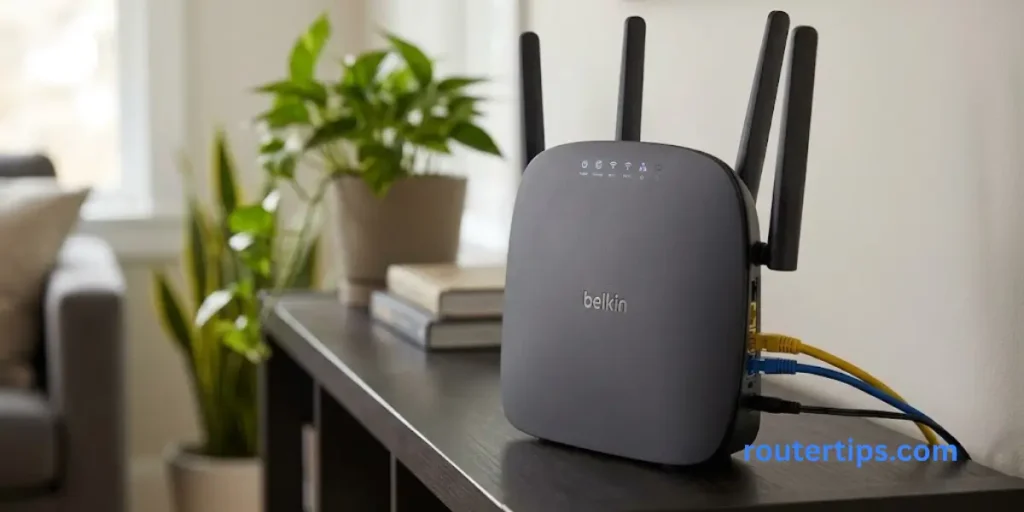
You can usually log in to your Belkin router through a web browser. You do not always need a separate app or setup program.
Before you begin, connect your phone or computer to your Belkin router’s Wi-Fi network. You can also connect a computer to the router with an Ethernet cable.
Follow these steps to open the Belkin router login page.
Connect to Your Belkin Router
First, connect your device to the correct network.
If you use Wi-Fi, open the Wi-Fi settings on your phone or computer and select your Belkin network. Enter the Wi-Fi password if asked.
If possible, you can connect a computer to one of the router’s LAN ports with an Ethernet cable. A wired connection can help if the wireless network is not working well.
Important: Your device must be connected to the Belkin router you want to manage. Opening the router’s login address while using mobile data or a different Wi-Fi network may not work.
Open a Web Browser
Open a browser such as Google Chrome, Microsoft Edge, Mozilla Firefox, or Safari.
You do not need to search Google for the login page. Enter the router address directly in the browser’s address bar.
Enter 192.168.2.1
Type this address into the address bar:
http://192.168.2.1
Press Enter on your computer keyboard. On a phone, tap Go or the arrow on the keyboard.
Check the address carefully. Do not type it into the Google search box. If your browser shows search results instead of the router page, you may have entered it in the wrong place.
Belkin lists 192.168.2.1 as the default IP address for many of its routers. If the address has been changed, you will need to use the router’s current IP address instead
Open the Belkin Login Page
Your browser may show a Belkin setup page, a login screen, or the Belkin Dashboard.
The page depends on your router model and its current settings. Some older routers use a simple web-based setup page, while certain models have a Dashboard with shortcuts to common settings.
If the page opens, continue to the next step.
Popular Router Brands
Enter Your Belkin Router Password
If the router asks for a password, enter the administrator password you set earlier.
Some Belkin routers may not have an administrator password set by default. On certain models, you can open the settings and then select the option to add a password. Older models may show different login fields.
Do not assume that every Belkin router uses admin as its default password. Check the instructions for your exact model if you are unsure.
Open the Router Settings
After you sign in, look for the settings you need. Depending on the model, these may include:
- Wi-Fi name and password
- Administrator password
- Connected devices
- Internet connection settings
- Wireless security
- Parental Internet Control
- Firmware or software updates
Change only the settings you understand. If you are unsure what an option does, check your router’s manual before changing it.
What Is the Default IP Address for a Belkin Wi-Fi Router?
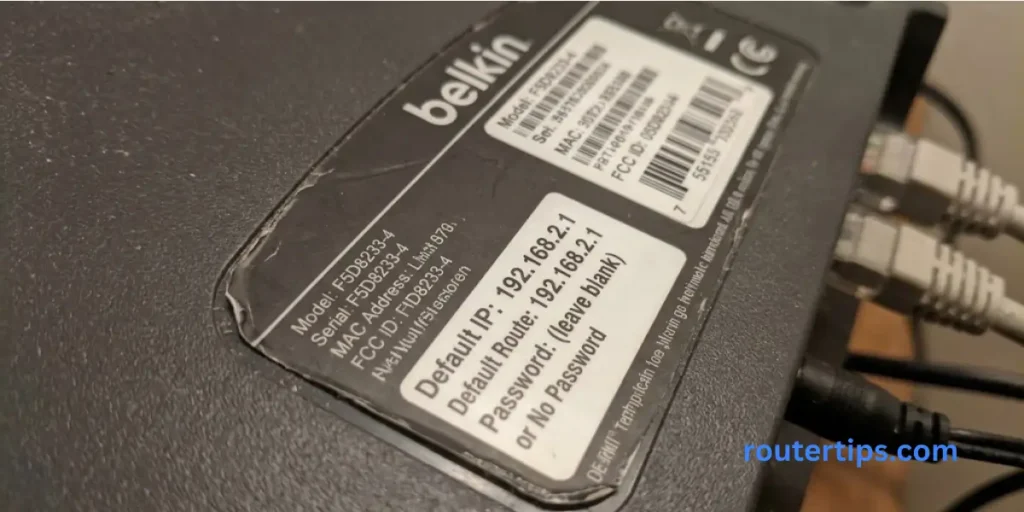
The common default IP address for a Belkin Wi-Fi router is 192.168.2.1. It opens the router’s local setup page on supported models.
A router IP address is a number that helps devices communicate with the router. The address used to manage your router on your home network is different from your public IP address, which identifies your internet connection to websites and online services.
Is 192.168.2.1 the Default Belkin Router IP?
Yes, 192.168.2.1 is a common default address for Belkin routers. However, it may not work if you or your internet provider changed the router’s network settings.
Some Belkin routers also support this address:
http://router
Try it in your browser if 192.168.2.1 does not open the settings page. This alternative does not work on every router or network.
How to Find Your Belkin Router’s IP Address
If neither address works, check the default gateway on your connected device. The default gateway is usually the local address of the router that your device uses to reach other networks.
On Windows:
- Connect your computer to the Belkin network.
- Open the Start menu and search for Command Prompt.
- Open Command Prompt.
- Type ipconfig and press Enter.
- Find the active Wi-Fi or Ethernet connection.
- Look for the number beside Default Gateway.
Enter that number in your browser’s address bar.
On a Mac:
- Open System Settings.
- Select Network.
- Choose your connected Wi-Fi or Ethernet connection.
- Open its details and look for the router address. The exact menu can vary by macOS version.
On a phone:
Open the Wi-Fi settings, select your connected network, and look for its router or gateway details. The location of this information varies between Android phones and iPhones.
If your router uses a different address, use that address instead of repeatedly trying 192.168.2.1.
What Is the Belkin Router Login Password?
Your Belkin router login password lets you change the router’s settings. It is not always the same as the password you use to connect your phone or laptop to Wi-Fi.
The correct password depends on your router model and whether someone changed its settings.
Does Belkin Have a Default Admin Password?
There is no single default password that works for every Belkin router.
Belkin’s instructions for many models explain that the router may not have a default administrator password. On some older models, the login page may allow you to leave the password field blank. Other models may use a different login process.
For this reason, avoid guessing passwords from lists you find online.
If the router is new or has been reset, check its label, quick-start guide, or official user manual. Follow the instructions for the exact model number.
What Is the Difference Between the Admin Password and Wi-Fi Password?
These two passwords have different jobs.
Router admin password: This lets you open and change the router’s settings. It may control access to network settings, connected devices, and other features.
Wi-Fi password: This lets phones, computers, televisions, and other devices connect to your wireless network.
Changing one does not always change the other. If you want to stop other people from accessing the router’s settings, change the administrator password. If you want to change the password people use to join your Wi-Fi, change the wireless password.
What If the Belkin Default Login Does Not Work?
Try these steps:
- Check that you are using the correct router IP address.
- Make sure you are connected to the Belkin network.
- Check the manual for your router model.
- If you set a password before, use that password instead of a default one.
- If the router was supplied by your internet provider, check whether the provider changed its settings.
If you still cannot sign in, use the password recovery or reset instructions for your model. A factory reset should be your last option because it can erase your saved settings.
How to Change Your Belkin Router Login Password
Changing the administrator password can help protect your router from people who should not be changing its settings.
The menu names may differ between Belkin models, but the general process is similar.
Sign In to the Belkin Admin Page
Connect to your Belkin network and open http://192.168.2.1 in a browser. If your router uses another address, enter that address instead.
Sign in with your current administrator password if the page asks for one.
Find the Administrator Password Setting
Look for a section called System Settings, Administration, Security, or a similar option.
On certain Belkin Dashboard models, you may see a lock icon. Belkin’s Dashboard instructions explain that this icon can be used to set an administrator password on supported models.
If you cannot find the password option, check your model’s manual. The layout can be different on older routers.
Create a Strong New Password
Choose a password that is hard for other people to guess.
A good password should:
- Be long enough to resist easy guessing.
- Use a mix of letters, numbers, and symbols where supported.
- Avoid your name, birthday, or common words.
- Be different from your Wi-Fi password.
- Not be the same password you use for your email or other important accounts.
Save the new password in a safe place, such as a trusted password manager.
Save the Changes
Enter the new password and confirm it if the page asks you to do so. Select Save or Apply.
Some routers may ask you to sign in again with the new password. This is normal. Use the new password the next time you open the Belkin admin page.
If you lose the new password, check the recovery instructions for your model before resetting the router.
How to Change Your Belkin Wi-Fi Password
If you want to change the password used to connect devices to your wireless network, you need to open the Wi-Fi settings instead of the administrator password settings.
Open the Wireless Settings
Sign in to the Belkin router admin page. Look for Wi-Fi, Wireless, or Wireless Settings.
On some models, you may see separate settings for the 2.4 GHz and 5 GHz bands. Other models may manage these bands together.
Find the Wi-Fi Password Field
Look for a setting called Wireless Password, Wi-Fi Password, Security Key, or a similar name.
You may also see your network name, often called the SSID. This is the name that appears when devices search for nearby Wi-Fi networks.
Set a New Password
Choose a strong password that is easy for your household to store safely but difficult for others to guess.
If the router offers a security option, use a modern option supported by your devices. Avoid old or unsecured settings when a stronger option is available.
Save the New Wi-Fi Settings
Select Save or Apply. Your wireless connection may stop working for a short time while the router applies the changes.
You will then need to reconnect your devices using the new Wi-Fi password. This can include your phone, laptop, smart TV, printer, and other wireless devices.
If you use the same network name and change only the password, some devices may keep trying the old password. Open the device’s Wi-Fi settings, forget the network if needed, and connect again.
Belkin explains that changing a wireless password can disconnect connected devices until they join the network again with the new password.
How to Set Up a Belkin Router
If you have a new Belkin router, you can usually set it up through a web browser. The exact steps depend on your model and the type of internet connection you have.
Connect the Router to Your Modem
Turn off your modem and router before connecting the cables if the setup instructions tell you to do so.
Connect the modem’s Ethernet port to the Belkin router’s internet or WAN port. The port may have a different label depending on the model.
If your internet provider gave you a combined modem and router, the connection may need a different setup. Check the provider’s instructions before changing the cables.
Connect Your Phone or Computer
Turn the devices back on and wait for the router to start.
Connect your phone or computer to the Belkin Wi-Fi network. If you have an Ethernet cable, you can use it to connect a computer to a LAN port on the router.
Open the Setup Page
Open a browser and enter http://192.168.2.1. If your router supports it, you can also try http://router.
Follow the instructions shown on the page. Some routers use a setup wizard, while others open the main settings page.
Set Your Wi-Fi Name and Password
Choose a Wi-Fi name that helps you recognize your network. Then set a strong wireless password.
If the router has separate network settings for different Wi-Fi bands, follow the on-screen instructions to configure them.
Test Your Internet Connection
Connect a phone or computer to the Wi-Fi network and open a trusted website.
If the router settings page works but the internet does not, the problem may be with the modem, cable connection, internet provider, or router configuration. Check the modem’s status lights and your provider’s instructions before changing advanced settings.
How to Set Up a Belkin Router Using a Smartphone
You can manage many Belkin routers using a browser on your smartphone. You do not always need to install a separate app.
Connect Your Phone to Belkin Wi-Fi
Open the Wi-Fi settings on your Android phone or iPhone. Select your Belkin network and enter the Wi-Fi password.
If you are setting up the router for the first time, use the network details provided with the router or follow its setup instructions.
Open Your Phone’s Browser
Open Chrome, Safari, or another browser on your phone.
Enter http://192.168.2.1 in the address bar. If the address does not work, try http://router if your model supports it.
Sign In and Change Settings
Enter the administrator password if requested. You can then open the available settings and make the changes you need.
You may be able to change the Wi-Fi name, update the password, or review connected devices. The available options depend on your model.
Does Belkin Have a Router App?
Belkin has offered different apps and setup tools for different products over time. App availability and support can vary by product and region.
Do not assume that one Belkin app works with every older router. Check the official Belkin support page for your model before installing an app. If your router supports browser-based management, you may be able to use its local login page instead.
Belkin N300, N450, and Wireless G Router Login
Belkin has made several router models over the years. N300, N450, and Wireless G refer to different router families or wireless standards. The login process may look different depending on the exact model.
Belkin N300 Router Login
To try the login page on a Belkin N300 router:
- Connect your phone or computer to the router.
- Open a browser.
- Enter http://192.168.2.1.
- Enter the administrator password if requested.
- Open the settings you need.
If the page does not open, check the model number on the router label and use the matching user guide.
Belkin N450 Router Login
Many older Belkin N450 models use a browser-based setup page. You can try 192.168.2.1 first, but do not assume every model has identical login fields.
If the router asks for a password, use the one that was set for the device. For a previously used router, the old administrator password may still be active.
Belkin Wireless G Router Login
Belkin Wireless G routers are older products. Some use a simple setup interface and may have different login steps from newer routers.
Check the exact model number before trying a reset. A model-specific manual can explain its login page, default settings, and reset process.
Tip: The model number is usually printed on a label on the back or bottom of the router. Use that number when searching Belkin’s official support site.
Overview of the Belkin Dashboard
The Belkin Dashboard is a web page that lets you manage supported Belkin routers. It may show shortcuts, advanced settings, and details about the router.
Not every Belkin model uses the same Dashboard. Older routers may show a different web-based setup page.
What Can You Do in the Belkin Dashboard?
Depending on the model, you may be able to:
- Change your Wi-Fi name and password.
- Review connected devices.
- Adjust local network settings.
- Configure internet connection options.
- Set up guest Wi-Fi.
- Manage supported parental controls.
- Change the administrator password.
Should You Set an Administrator Password?
If your router allows access to its settings without an administrator password, anyone with access to the local network may be able to open the settings page on that device.
Set a strong administrator password if your model supports it. This adds protection against unwanted changes to your router settings.
Keep this password separate from the Wi-Fi password, and store it somewhere safe.
How to Set Up a Secure Belkin Wi-Fi Network Using WPS
Wi-Fi Protected Setup, often called WPS, is a feature that can help connect supported devices to a wireless network without typing the Wi-Fi password.
Not all routers and devices support WPS. You can still connect devices by selecting your Wi-Fi network and entering its password.
How Does WPS Work?
On supported Belkin routers, WPS may let you connect a compatible printer or other device by pressing a WPS button or following the router’s on-screen instructions.
The exact steps depend on the model. Check the router’s manual to see whether WPS is available and how to use it.
What If WPS Does Not Work?
Try these checks:
- Make sure the device you want to connect supports WPS.
- Check the router manual for the correct WPS steps.
- Confirm that you are using the right Wi-Fi band if the router has more than one.
- Restart the device if it is not responding.
- Connect manually using the Wi-Fi name and password if WPS is not available.
WPS is optional. You do not need it to use your Belkin Wi-Fi network.
How to Fix Belkin Router Login Problems
If the Belkin router login page does not open, you may have an incorrect address, a network connection problem, a browser issue, or a password problem.
Try these fixes one at a time.
192.168.2.1 Is Not Opening
First, make sure you entered the address in the browser’s address bar.
Try:
http://192.168.2.1
If it still does not work, try http://router if your model supports it. You can also check your device’s default gateway to find the router’s current address.
The Belkin Login Page Is Not Loading
Check whether your phone or computer is connected to the correct network. If you use Ethernet, check that the cable is connected properly and try another cable if you suspect it is damaged.
You can also:
- Try another browser.
- Close and reopen your browser.
- Restart the router if the connection is not working.
- Temporarily disconnect from other VPN or network connections if they prevent access to the local router page.
Do not change advanced network settings unless you know what they do.
The Belkin Router Password Is Incorrect
If the password does not work, check whether you are entering the administrator password or the Wi-Fi password. They may be different.
If you changed the administrator password before, the original default setting may no longer work.
Check your saved passwords or the router’s model-specific instructions. Do not reset the router until you have tried the safer options.
http://router Is Not Working
The http://router address is supported by some Belkin models, but it is not universal.
Try http://192.168.2.1 instead. If neither address works, find the default gateway on your connected device and use that address.
Your Phone or Computer Is on the Wrong Network
If you have a modem-router combination, a second router, or a Wi-Fi extender, your device may be connected to a different network than you expect.
Connect directly to the Belkin router’s Wi-Fi or use an Ethernet cable. Then try the login address again.
Your Modem and Router Have an IP Address Conflict
Sometimes a modem and a separate router use the same local IP address. This can make it hard to open their settings pages.
Belkin describes this as one possible reason for access problems. If you suspect an address conflict, check the modem and router instructions before changing their IP addresses. You may need to temporarily separate the connection for testing, then reconnect everything as it was.
If you are not sure how to do this, ask your internet provider or a network technician for help.
Restart the Router
A restart can help if the router is not responding.
Use the router’s power button if it has one, or follow its manual for a safe restart. Wait for it to start fully, reconnect your device, and try the login page again.
A restart is different from a factory reset. A restart usually keeps your saved settings, while a factory reset can erase them.
Check the Router Lights and Cables
Look at the lights on the router and modem. Their meaning depends on the model, but they can help show whether the router has power and whether its network connections are active.
Check that the Ethernet cable is firmly connected to the correct port. If the router’s internet connection is down, you may still be able to open its local settings page, but websites may not load.
Check for a Firmware Update
Firmware is the software inside the router that controls how it works. Some models may have updates that fix problems or improve performance.
Check Belkin’s official support page for your exact model and follow its update instructions. Do not install firmware intended for another router model, and do not turn off the router while an update is being installed.
How to Reset a Belkin Router Password
If you forgot the administrator password, first check whether your router has a password recovery option or whether the password is saved in your password manager.
If those options do not help, a factory reset may be needed.
When Should You Factory Reset a Belkin Router?
A factory reset returns the router to its original settings. It may erase your Wi-Fi name, Wi-Fi password, administrator password, internet settings, and other changes you made.
Before resetting the router:
- Find the exact model number.
- Read the official reset instructions for that model.
- Make sure you have the details needed to set up your internet connection again.
- Confirm that you are ready to configure the Wi-Fi network again.
How to Reset the Router
Many Belkin routers have a physical Reset button, but the location and reset method depend on the model.
Follow the instructions in your router’s manual. Belkin’s general troubleshooting guide describes holding the Reset button for about 10 seconds for supported devices, but you should confirm the correct method for your specific model.
After the reset, wait for the router to restart. Connect to its network and follow the setup instructions. You may then be able to open 192.168.2.1 and configure the router again.
Do not use a factory reset just because a web page is slow to load. Check the network connection and IP address first.
Does Belkin Still Make Routers?
Belkin has offered routers and other networking products, but current product availability can vary by model and region. Older models such as some N300, N450, and Wireless G routers may no longer be sold as new products.
Belkin’s official support site still lists router product support, manuals, and troubleshooting information for many models. You can start with the Belkin support website and search for your router’s model number.
Before buying or replacing a router, check whether the model is still available, whether its support information is current, and whether it meets your internet speed and Wi-Fi needs.
If you already own an older Belkin router, you may still be able to open its local settings page. However, the available features and support options depend on the model.
Final Thoughts on Belkin Router Login
Logging in to your Belkin router is usually simple once you know the correct address and password. Start by connecting to your Belkin network and opening http://192.168.2.1 in your browser. If that does not work, try http://router on supported models or check your device’s default gateway.
After signing in, you can change your Wi-Fi password, update your network name, check connected devices, and manage other available settings. Keep your administrator password safe and separate from your Wi-Fi password.
If you cannot log in, check your network connection, confirm the router IP address, and review the instructions for your exact model. Use a factory reset only when other options fail, because it can erase your saved settings.
Helpful tip: The model number printed on your Belkin router is the best starting point when you need the correct login, setup, or reset instructions.
Frequently Asked Questions About Belkin Router Login
Q1. How do I log in to a Belkin router?
Connect your device to the Belkin network, open a browser, and enter http://192.168.2.1. If your model supports it, you can also try http://router. Enter the administrator password if requested.
Q2. How do I log in to my router online?
You usually manage a home Belkin router from a device connected to its local network. Open the router’s local IP address in a browser and sign in. You do not normally need to use a public website to change local router settings.
Q3. What is the default IP address for a Belkin Wi-Fi router?
The common default IP address is 192.168.2.1. If it does not work, the address may have been changed. Check your connected device’s default gateway or the router’s manual.
Q4. What is the Belkin router login password?
There is no single password for every Belkin router. Some models may not have an administrator password set by default, while others may use different login details. Check the instructions for your exact model.
Q5. Can I log in to my Belkin router without an app?
Yes, many Belkin routers support local browser-based access. Connect to the router and enter its IP address in a web browser. App support varies by model.
Q6. How do I change my Belkin router password?
Sign in to the router settings, open the administrator or system settings, and look for the password option. Enter a strong new password and save it. Menu names vary by model.
Q7. How do I change my Belkin Wi-Fi password?
Open the router’s wireless settings and find the Wi-Fi password or security key field. Enter the new password and save your changes. Reconnect your wireless devices with the new password.
Q8. How do I reset my Belkin router if I forget the password?
Check your model’s recovery instructions first. If a factory reset is necessary, follow the official steps for your router. A reset can erase saved network settings, so be ready to set up the router again.
Q9. Does Belkin still make routers?
Belkin has sold routers and networking products, but availability differs by model and region. Check Belkin’s official website for current products and search its support pages for information about your existing router.