
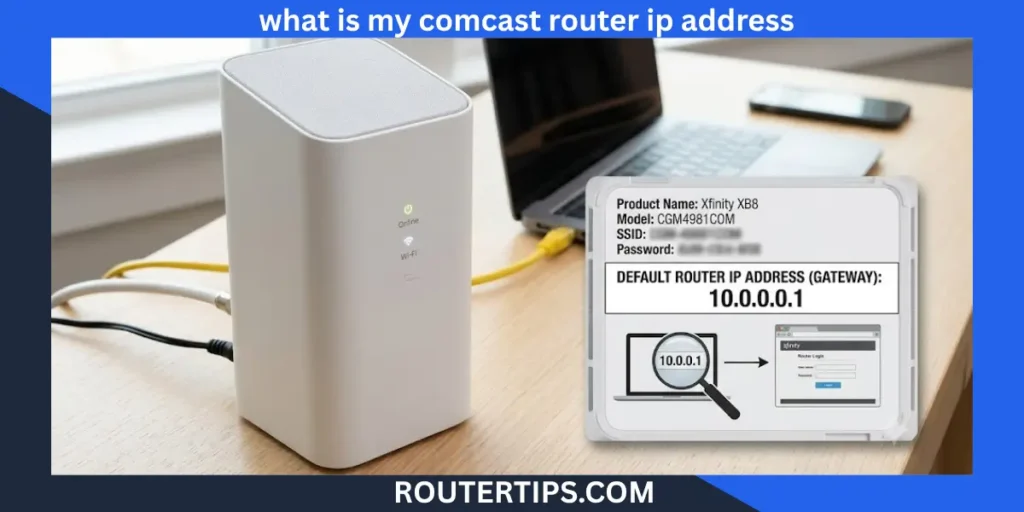
Managing your home network starts with knowing your router’s IP address. If you are an Xfinity or Comcast Internet customer, your router uses a private IP address that lets you access the admin settings. From there, you can change your WiFi password, update your network name, manage connected devices, and improve your network security.
Most Comcast Xfinity gateways use 10.0.0.1 as the default router IP address. However, some models or custom network setups may use a different private IP address such as 192.168.1.1 or 192.168.0.1.
In this guide, you’ll learn how to find your Comcast router IP address on Windows, Mac, Android, and iPhone. You’ll also learn how to log into your router, what the default username and password are, and what to do if the login page does not open.
What Is My Comcast Router IP Address?
A Comcast router IP address is the private network address assigned to your Xfinity gateway or router. It acts as the default gateway for devices connected to your home network.
Unlike your public IP address, which is visible on the internet, the router IP address only works inside your local network. It gives you access to the router’s web interface where you can manage network settings.
Most Comcast customers use one of these private IP addresses:
- 10.0.0.1 (Most common Xfinity Gateway)
- 192.168.1.1
- 192.168.0.1
If you’re wondering, “What is my Comcast router IP address?”, the quickest way to find it is by checking your device’s Default Gateway.
📶 Need help accessing your AT&T router? Explore our What Is My AT&T Router IP Address guide and login instructions to find the default gateway, sign in to your router, and manage your Wi-Fi and network settings with ease.
Router IP Address vs Public IP Address
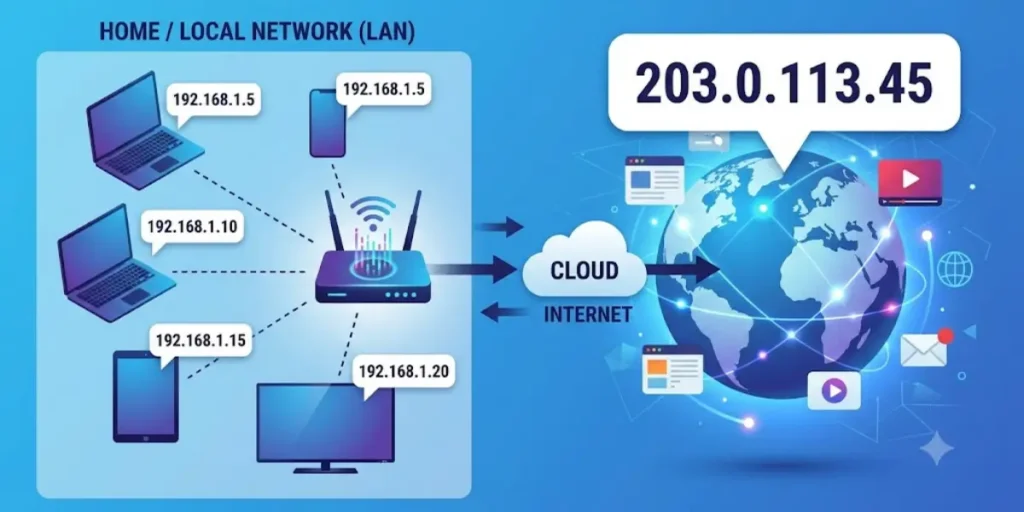
Many people confuse these two addresses.
| Router IP Address | Public IP Address |
| Used inside your home network | Used on the internet |
| Opens the router login page | Identifies your internet connection |
| Usually 10.0.0.1 or 192.168.x.x | Assigned by Comcast |
| Cannot be accessed from outside your network | Visible to websites you visit |
Knowing the difference helps you troubleshoot network issues more effectively.
Default Comcast Router IP Addresses
Different Comcast gateways may use different default IP addresses, although 10.0.0.1 is the most common.
| Comcast Router Model | Default IP Address | Default Username | Default Password |
| XB3 Gateway | 10.0.0.1 | admin | password |
| XB6 Gateway | 10.0.0.1 | admin | password |
| XB7 Gateway | 10.0.0.1 | admin | password |
| XB8 Gateway | 10.0.0.1 | admin | password |
| Comcast Business Gateway | 10.1.10.1 (varies by model) | admin | password |
Tip: If the defaults were changed during setup, use your custom login credentials instead.
📶 Looking for the correct login address for your ARRIS router? Explore our What Is My Arris Router IP Address guide and setup instructions to find the default gateway, access the admin panel, and manage your Wi-Fi and network settings with confidence.
How to Find Your Comcast Router IP Address
If you’re not sure which IP address your router uses, you can find it from almost any device connected to your WiFi network.
Find Comcast Router IP Address on Windows
Windows makes it easy to locate the default gateway.
Steps
- Connect to your Comcast WiFi.
- Press Windows + R.
- Type cmd and press Enter.
- Type:
ipconfig
- Press Enter.
- Look for Default Gateway under your active network adapter.
The number shown next to Default Gateway is your Comcast router IP address.
Example:
Default Gateway . . . . . : 10.0.0.1
🌐 Looking for router login help and network configuration advice? Visit our Router IP guides and troubleshooting resources to find default login addresses, access your router’s admin panel, and manage your home network with confidence.
Find Comcast Router IP Address on Mac
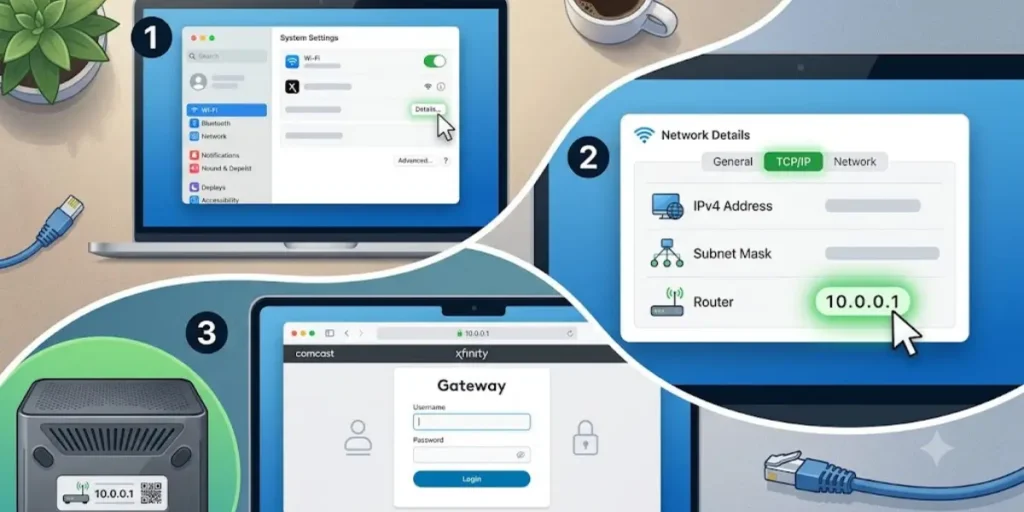
Mac users can locate the router IP from the Network settings.
Steps
- Open System Settings.
- Select Network.
- Choose your WiFi connection.
- Click Details.
- Open the TCP/IP tab.
The value beside Router is your router IP address.
⚙️ Want to improve your router’s connectivity for gaming, remote access, or self-hosted services? Read our Port Forwarding guide and configuration resources for simple setup steps, security tips, and troubleshooting advice.
Find Comcast Router IP Address on Android
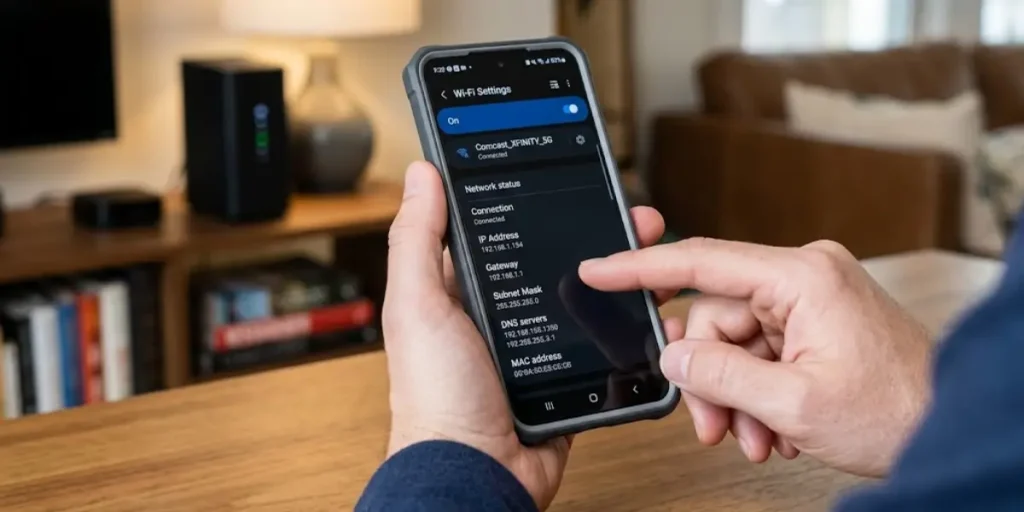
Android phones also display the gateway address.
Steps
- Open Settings.
- Tap Network & Internet or WiFi.
- Select your connected WiFi network.
- Open Network Details.
- Find the Gateway field.
This is your Comcast router IP address.
🔐 Regain secure access to your router with our Recovering Router User and Password help guide for practical recovery methods, default login tips, and steps to restore your router settings safely.
Find Comcast Router IP Address on iPhone
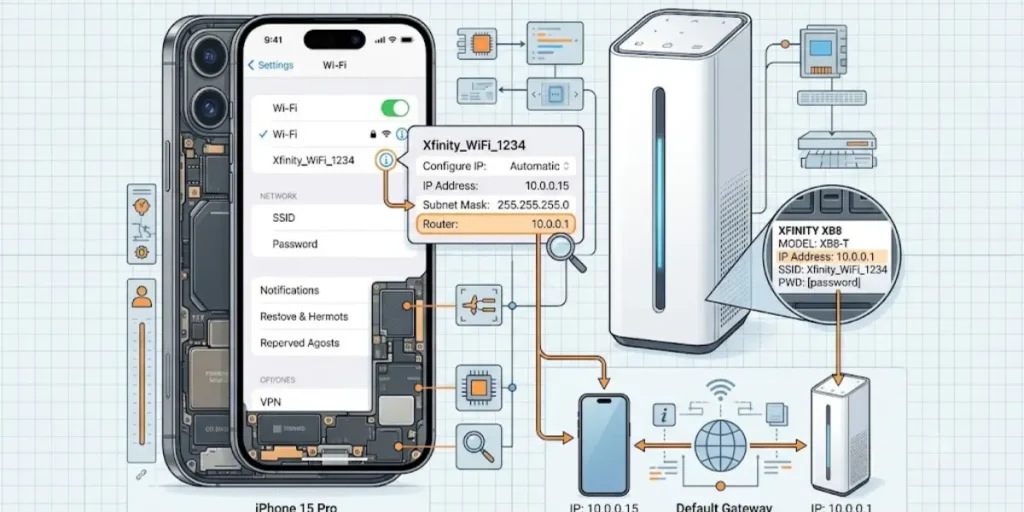
If you use an iPhone or iPad, finding the router address only takes a few taps.
Steps
- Open Settings.
- Tap WiFi.
- Tap the ⓘ icon beside your connected network.
- Scroll to Router.
The address shown there is your router’s IP address.
Find the Router IP Address from the Router Label
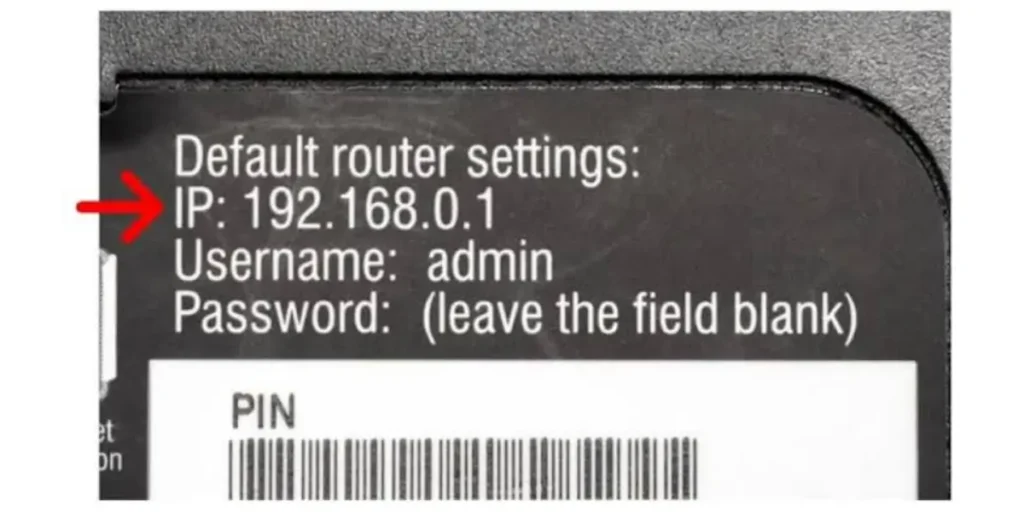
Many Comcast gateways include important network details on a label attached to the bottom or back of the device.
The label may include:
- Default IP address
- Default WiFi name (SSID)
- WiFi password
- Model number
- Serial number
If you recently installed your gateway, checking the label can save time.
🌐 Need to locate your router’s login address quickly? Visit our Find Router IP Address guide and troubleshooting resources for simple methods to identify your default gateway and access your router settings on any device.
How to Log Into Your Comcast Router
After finding your Comcast router IP address, the next step is to sign in to the router’s admin panel. This web-based interface lets you manage your WiFi network, change passwords, update security settings, and view connected devices.
Before you begin, make sure your device is connected to the Comcast/Xfinity network, either through WiFi or an Ethernet cable.
Steps to Log Into Your Comcast Router
- Connect your computer, phone, or tablet to your Comcast network.
- Open a web browser such as Google Chrome, Microsoft Edge, Safari, or Firefox.
- Type your router’s IP address into the address bar. Most Comcast gateways use:
10.0.0.1 - Press Enter.
- When the login page appears, enter your username and password.
- Click Log In to open the router’s admin dashboard.
If you have never changed the login details, the default credentials are often:
- Username: admin
- Password: password
Important: Many newer Xfinity gateways require you to create a unique admin password during the initial setup. If the default credentials do not work, use the password you created or check your router documentation.
Once you’re logged in, you can:
- Change your WiFi name (SSID)
- Update your WiFi password
- View connected devices
- Manage parental controls
- Configure guest WiFi
- Update security settings
- Restart your router
- Check firmware information
Comcast Router Login Without the Xfinity App
Many users believe they must use the Xfinity app to manage their router. While the app is helpful, it is not always required.
If your gateway supports local administration, you can access the router through a web browser.
Steps to Log In Without the App
- Connect to your Comcast WiFi.
- Open your preferred web browser.
- Enter 10.0.0.1 in the address bar.
- Enter your administrator credentials.
- Access the router settings.
Using the browser interface allows you to manage many network settings directly without installing additional software.
When Browser Login May Not Work
Some newer Xfinity gateways manage certain settings through the Xfinity app or your Xfinity account for added security. If you cannot access specific features in the browser, you may need to use the app or your online account.
Xfinity Router Default Username and Password
Most Comcast gateways ship with default administrator credentials. These credentials allow you to access the router during the initial setup.
| Setting | Default Value |
| Default IP Address | 10.0.0.1 |
| Username | admin |
| Password | password |
These values may vary depending on the gateway model or firmware version.
What If the Default Login Doesn’t Work?
There are several possible reasons:
- The administrator password was changed previously.
- Your gateway requires a custom password created during setup.
- The router has been reset or replaced.
- You are entering the wrong IP address.
If you cannot remember the administrator password, you may need to reset the router to restore its factory settings.
Tip: Changing the default administrator password helps protect your home network from unauthorized access.
10.0.0.1 Xfinity Gateway Login Setup
When you first sign in to your Comcast gateway, it is a good idea to review the basic network settings.
Change Your WiFi Network Name
A unique WiFi name makes your network easier to identify.
Choose a name that is easy for your family to recognize but does not include personal information such as your address or full name.
Create a Strong WiFi Password
A secure password helps prevent unauthorized users from joining your network.
A strong password should:
- Include uppercase and lowercase letters
- Include numbers
- Include special characters when supported
- Be at least 12 characters long
- Avoid common words or personal information
Review Connected Devices
Most Comcast gateways display every device connected to your network.
Review the list regularly to:
- Remove unknown devices
- Identify inactive devices
- Monitor network usage
Configure a Guest Network
A guest network allows visitors to use your internet connection without accessing your personal devices.
This is a useful feature if friends or family visit frequently.
Check for Firmware Updates
Router firmware updates often include:
- Security improvements
- Bug fixes
- Better stability
- Performance enhancements
Keeping your gateway updated helps maintain a secure and reliable network.
Comcast Business Router IP Address
Comcast Business Internet customers often use business gateways with different network settings than residential users.
While many business gateways use 10.1.10.1 as the default management address, the exact IP address depends on the gateway model and network configuration.
Common Comcast Business Router IP Addresses
| Business Gateway | Common Login IP |
| Comcast Business Gateway | 10.1.10.1 |
| Advanced Business Gateway | 10.1.10.1 |
| Customized Network | May vary |
If you’re unsure which IP address your business gateway uses, check:
- The label on the gateway
- Your network’s Default Gateway
- The gateway documentation
- Your Comcast Business account information
Business gateways often provide additional features such as:
- Static IP address management
- Advanced firewall settings
- VPN support
- Port forwarding
- Business WiFi management
- Network monitoring
If your business network was configured by an IT administrator, some settings may be restricted.
Why Isn’t 10.0.0.1 Working?
If 10.0.0.1 does not open the Comcast router login page, don’t worry. This is a common issue and is usually caused by an incorrect IP address, a network connection problem, or browser-related issues.
Try the solutions below before resetting your router.
Make Sure You’re Connected to Your Comcast Network
The router login page only works when your device is connected to the same Comcast gateway.
Check that:
- Your device is connected to the correct WiFi network.
- The Ethernet cable is securely connected if you’re using a wired connection.
- Your internet connection is active.
If you’re connected to a different network, the router’s admin page will not load.
Verify the Router IP Address
Not every Comcast router uses the same private IP address. While 10.0.0.1 is the most common, your gateway may use another address.
Check your device’s Default Gateway to confirm the correct router IP.
Common Comcast router IP addresses include:
- 10.0.0.1
- 192.168.1.1
- 192.168.0.1
Entering the correct IP address is important because even a small typing mistake will prevent the login page from opening.
Check the Address Bar
Make sure you type the IP address into your browser’s address bar, not the search box.
Correct example:
10.0.0.1
Incorrect example:
or searching for:
10.0.0.1 Xfinity
Typing the address correctly helps your browser connect directly to the router.
Troubleshooting Router Connections
Sometimes the issue is related to your browser rather than your router.
Google Chrome
If you’re using Google Chrome:
- Refresh the page.
- Clear the browser cache.
- Open an Incognito window.
- Disable browser extensions temporarily.
- Try entering the IP address again.
If the page still doesn’t load, restart Chrome and try again.
Safari
On a Mac or iPhone:
- Refresh the page.
- Clear Safari history and website data if needed.
- Make sure you’re connected to the correct WiFi network.
- Try opening the login page again.
Firefox
If Firefox cannot open the login page:
- Refresh the browser.
- Clear cached files.
- Disable extensions temporarily.
- Restart Firefox.
- Enter the router IP address again.
Microsoft Edge
Microsoft Edge users can try these steps:
- Clear browsing data.
- Close and reopen the browser.
- Disable VPN services temporarily.
- Enter the router IP directly into the address bar.
Restart the Router
Restarting your gateway often fixes temporary connection issues.
Steps
- Unplug the router’s power cable.
- Wait about 30 seconds.
- Plug the router back in.
- Wait until all status lights become stable.
- Try opening the login page again.
A restart does not erase your settings.
Restart Your Device
Sometimes the issue is with the computer or phone instead of the router.
Restart your device and reconnect to the Comcast WiFi network before trying again.
Reset the Comcast Router
If you’ve forgotten the administrator password or the router is not responding, a factory reset may help.
How to Reset
- Keep the router powered on.
- Locate the Reset button on the back of the gateway.
- Press and hold it for about 15 seconds using a paper clip.
- Release the button.
- Wait several minutes while the router restarts.
After a factory reset:
- The administrator password returns to its default or setup state.
- Your WiFi name may return to the default value.
- Your WiFi password may also reset.
- You’ll need to configure your network again.
Only perform a factory reset if other troubleshooting steps have not solved the problem.
Difference Between Router IP and Public IP Address
Many users ask whether their router IP address is the same as their internet IP address. They are different and serve different purposes.
| Router IP Address | Public IP Address |
| Used inside your local network | Used on the internet |
| Also called the Default Gateway | Assigned by your Internet Service Provider |
| Opens the router settings page | Identifies your internet connection online |
| Usually starts with 10.x.x.x or 192.168.x.x | Can change over time unless you have a static IP |
Router IP Address
A router IP address is a private IPv4 address. It allows devices in your home to communicate with the router and access the admin interface.
Examples include:
- 10.0.0.1
- 192.168.1.1
- 192.168.0.1
Public IP Address
A public IP address is assigned by Comcast and identifies your internet connection to websites and online services.
Your public IP address is different from the private IP address used to manage your router.
How to Change Your Comcast WiFi Name and Password
Changing your WiFi name and password improves security and helps you recognize your network more easily.
Sign In to the Router
Open your browser and enter your router IP address, such as 10.0.0.1.
Log in using your administrator credentials.
Open WiFi Settings
From the router dashboard, navigate to the wireless or WiFi settings section.
Depending on your gateway model, the menu names may vary slightly.
Change the WiFi Name
Update the SSID, which is your wireless network name.
Choose a name that is easy to identify but does not reveal personal information.
Create a New Password
Use a strong password that includes:
- Uppercase letters
- Lowercase letters
- Numbers
- Special characters, if supported
Avoid using simple passwords such as:
- 12345678
- password
- your phone number
- your address
Save Your Changes
Save the new settings.
Your router may restart automatically. Once it comes back online, reconnect all of your devices using the new WiFi password.
Router Security Tips
A few simple security practices can help keep your Comcast home network safe.
Change the Default Administrator Password
If your gateway still uses the default administrator password, change it to something unique.
This helps prevent unauthorized access to the router settings.
Keep Your Router Updated
Install firmware updates whenever they become available.
Updates often improve:
- Security
- Performance
- Stability
- Compatibility with newer devices
- Use Strong WiFi Encryption
If your gateway supports it, use WPA3 security.
If WPA3 is unavailable, choose WPA2-AES instead.
Avoid using older security methods because they provide less protection.
Enable a Guest Network
Create a guest WiFi network for visitors.
This keeps guest devices separate from your personal computers, phones, and smart home devices.
Review Connected Devices Regularly
Check the list of connected devices every few weeks.
If you notice an unfamiliar device, remove it and change your WiFi password.
Turn Off Features You Don’t Use
If your gateway includes optional features that you don’t need, consider disabling them to reduce unnecessary network exposure.
Common Comcast Router Problems and Fixes
| Problem | Possible Solution |
| Cannot open 10.0.0.1 | Verify the Default Gateway and confirm you’re connected to the correct WiFi network. |
| Forgot the administrator password | Use your saved credentials or perform a factory reset if necessary. |
| Login page keeps refreshing | Clear your browser cache or try another browser. |
| Slow WiFi speeds | Restart the router, move it to an open location, and check for firmware updates. |
| Devices keep disconnecting | Reduce wireless interference and review your WiFi settings. |
| Wrong IP address displayed | Check the Default Gateway on your connected device instead of guessing the address. |
| Cannot see all connected devices | Refresh the router dashboard or restart the gateway. |
Following these troubleshooting steps will solve most Comcast router login and connection issues without requiring advanced networking knowledge.
Final Thoughts on What Is My Comcast Router IP Address
Knowing your Comcast router IP address makes it easier to manage your home network. For most Xfinity gateways, the default login address is 10.0.0.1, giving you access to your router settings where you can change your WiFi password, update your network name, manage connected devices, and review important security options.
If 10.0.0.1 does not work, it does not always mean there is a problem with your router. Some Comcast gateways use a different private IP address. The fastest way to find the correct address is by checking the Default Gateway on a connected Windows PC, Mac, Android device, or iPhone before attempting other troubleshooting steps.
Keeping your router’s administrator password secure, installing firmware updates when available, and reviewing your network settings regularly can help maintain a reliable and secure internet connection. Whether you are setting up a new Xfinity gateway or fixing a login issue, knowing your Comcast router IP address gives you the control needed to manage your network with confidence.
Frequently Asked Questions What Is My Comcast Router IP Address
Q1. What is my Comcast router IP address?
Most Comcast Xfinity gateways use 10.0.0.1 as the default router IP address. Some older or custom router configurations may use 192.168.1.1 or 192.168.0.1 instead. If you’re unsure, check the Default Gateway on a device connected to your network.
Q2. How do I find my Comcast router IP address?
You can find your Comcast router IP address by viewing the Default Gateway in your device’s network settings. On Windows, use the ipconfig command in Command Prompt. On Mac, Android, and iPhone, you can find the router address in the network or WiFi settings.
Q3. How do I log into my Comcast router?
Connect your device to the Comcast WiFi network, open a web browser, and enter your router’s IP address, usually 10.0.0.1, into the address bar. Sign in with your administrator username and password to access the router settings.
Q4. What is the default Comcast router username and password?
For many Comcast Xfinity gateways, the default login credentials are admin as the username and password as the password. If these credentials don’t work, the login details may have been changed during setup or your gateway may require a custom administrator password.
Q5. Can I log into my Xfinity router without the Xfinity app?
Yes. Many Comcast routers allow you to log in through a web browser by entering the router’s IP address, such as 10.0.0.1. Some newer gateway models may require the Xfinity app or your online Xfinity account to manage certain settings.
Q6. Why won’t 10.0.0.1 open on my browser?
If 10.0.0.1 doesn’t open, make sure you’re connected to your Comcast network and that you’re entering the correct router IP address. Clearing your browser cache, restarting the router, or checking the Default Gateway on your device can also help resolve the issue.