
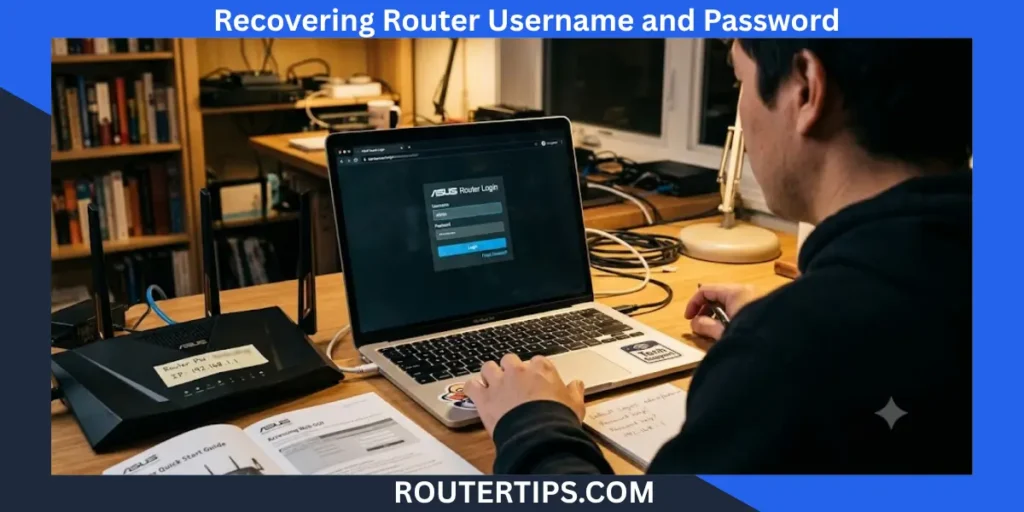
Have you forgotten your router username or password? It happens more often than you might think. Many people only log in to their router when setting up a new internet connection, changing the Wi-Fi password, or fixing a network problem. After months or even years, it is easy to forget the login details.
The good news is that in many cases, you can recover your router user and password without resetting the router. Depending on your router model, you may be able to use the default login credentials, check saved passwords, or recover access through your browser or internet service provider.
It is also important to know the difference between your router admin password and your Wi-Fi password. They are not the same, and each serves a different purpose. Knowing which one you need will help you solve the problem much faster.
In this guide, you’ll learn how to recover router login credentials, find your router username and password without resetting, recover access to popular brands like TP-Link and Huawei, and understand when a factory reset is the only option. The steps are written in simple language so anyone can follow them.
What Is a Router Username and Password?
Your router has an administrator account that allows you to manage network settings. To access this account, you need a router username and router password.
These login details protect your router from unauthorized access. Once you sign in, you can:
- Change your Wi-Fi name (SSID)
- Update your Wi-Fi password
- Set up parental controls
- Configure port forwarding
- Update router firmware
- Improve network security
- Manage connected devices
Without the correct administrator credentials, you cannot make changes to your router settings.
⚙️ Looking to customize your router options? Explore our advanced network configuration to manage connections, open ports, and optimize your home network.
Router Admin Username Explained
The router username is the administrator name used to sign in to the router’s web interface.
Many routers use a default username such as:
- admin
- administrator
- user
Some newer routers ask you to create your own administrator username during the first setup.
If you never changed it, the default username may still work.
Router Admin Password Explained
The router admin password protects access to your router settings.
Unlike the Wi-Fi password, this password is only used when logging into the router dashboard through an IP address such as:
- 192.168.1.1
- 192.168.0.1
- 10.0.0.1
Many people change the default password during setup and later forget it. Fortunately, there are several ways to recover router passwords before considering a factory reset.
🌐 Need more information about accessing your network? Check these network access details to find your router address and manage your connection settings.
Router Login Password vs Wi-Fi Password

This is one of the most common points of confusion.
| Router Login Password | Wi-Fi Password |
| Used to access router settings | Used to connect devices to the wireless network |
| Protects the administrator account | Protects your wireless network |
| Entered on the router login page | Entered when joining Wi-Fi |
| Usually changed during router setup | Can be changed anytime from router settings |
For example, if your phone cannot connect to Wi-Fi, you probably need the Wi-Fi password. If you want to change your network settings, you need the router administrator password.
Understanding this difference helps you choose the correct recovery method.
How to Recover Router User and Password
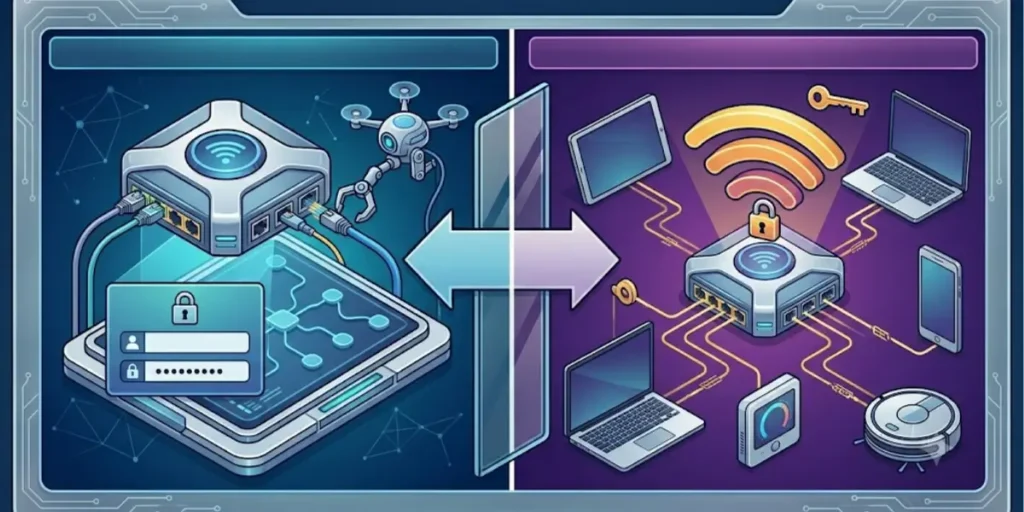
If you forgot your router login details, don’t panic. In many situations, you can recover access without erasing your settings.
Start with the easiest methods first.
Check the Router Sticker
Many routers include important information on a label attached to the bottom or back of the device.
The sticker may show:
- Default username
- Default password
- Router IP address
- Default Wi-Fi name
- Default Wi-Fi password
- Model number
Some internet providers also place a custom label on the router with administrator login information.
Before trying anything else, inspect the router carefully.
Use the Default Router Username and Password
If the administrator credentials have never been changed, the factory defaults may still work.
Common default combinations include:
| Username | Password |
| admin | admin |
| admin | password |
| admin | blank |
| user | user |
| administrator | admin |
Open your browser and enter your router’s IP address. Then try the default login information.
Remember that newer routers often require you to create your own password during the first installation, so the default credentials may no longer apply.
Find Saved Router Credentials
Many browsers save usernames and passwords automatically.
If you logged into your router before using Chrome, Edge, Firefox, or Safari, the login information may still be stored.
Check your browser’s password manager and search for your router IP address.
Examples include:
- 192.168.1.1
- 192.168.0.1
- routerlogin.net
- tplinkwifi.net
If the credentials are saved, you can sign in without resetting the router.
Recover Router Password from a Password Manager
Many people use password managers to store important login information.
If you use one of these tools, search for:
- Router
- Admin
- Network
- TP-Link
- Huawei
- Netgear
- ASUS
You may find the administrator username and password you created during setup.
Ask Your Internet Service Provider
If your router was supplied by your internet service provider, they may have set a custom administrator password.
Contact customer support and provide your router model number. They may help you recover access or guide you through the correct login process.
This is especially helpful for ISP-branded routers that use customized firmware.
In many cases, these simple methods allow you to recover router user and password without losing your network settings.
How to Find Router Username and Password Without Resetting
A factory reset should always be your last option. Resetting removes your custom settings, Wi-Fi name, password, parental controls, and other configurations.
Fortunately, there are several ways to find router username and password without resetting.
Check Previously Saved Login Information
Think about where you may have stored the administrator credentials.
Many people save passwords in:
- A notebook
- Notes app
- Password manager
- Computer documents
Searching these places may save you from resetting the router.
Review Router Documentation
The router’s user guide often lists the default administrator username and password.
Even if you no longer have the printed manual, the model number on your router can help you identify the correct default login information.
Keep in mind that these defaults only work if they were never changed.
Check Browser Password Storage
Modern browsers can remember login information automatically.
If you selected “Save Password” when logging into the router previously, the credentials may still be available.
This is one of the easiest ways to recover router password without reset.
Contact the Router Manufacturer
Router manufacturers often provide support for login problems.
If you know your router model, customer support can tell you:
- The default administrator username
- The default administrator password
- Whether your model supports password recovery
- Safe recovery options
They cannot usually tell you a custom password that you created, but they can explain your recovery choices.
Can You Find Router Username and Password Using CMD?

Many users search for how to find router username and password with CMD or how to find router username and password without resetting using CMD. This is a common question, but there is an important fact to understand.
The Command Prompt (CMD) can help you find your router’s IP address, but it cannot show your router’s administrator username or password. Those login credentials are stored securely on the router itself and are not visible through Windows commands.
CMD is still useful because it helps you locate the correct router login page.
Find Your Router IP Address Using CMD
Follow these steps on a Windows computer:
- Press Windows + R.
- Type cmd and press Enter.
- In the Command Prompt window, type:
ipconfig
- Press Enter.
- Look for Default Gateway.
The number shown next to Default Gateway is your router’s IP address. It is often one of these:
- 192.168.1.1
- 192.168.0.1
- 10.0.0.1
Open your web browser and enter that IP address into the address bar to access the router login page.
Why CMD Cannot Show the Router Password
Some websites claim that CMD can reveal your router password. This is incorrect.
CMD can display information about your computer’s network connection, such as:
- IP address
- Default gateway
- DNS server
- Network adapter details
It cannot display:
- Router administrator password
- Router administrator username
- Wi-Fi password stored inside the router
If someone promises a CMD trick that reveals your router password, it is not reliable.
Better Ways to Recover Your Router Login
Instead of relying on CMD, try these methods:
- Check the router label.
- Look in your browser’s saved passwords.
- Search your password manager.
- Review the router manual.
- Contact your internet service provider.
- Contact the router manufacturer.
These methods are much more likely to help you recover access without resetting the router.
How to Recover Your 192.168.1.1 Username and Password
The address 192.168.1.1 is one of the most common router login IP addresses. Many brands, including TP-Link, Netgear, ASUS, and Linksys, use it for their web interface.
If you forgot the administrator login, follow these steps before considering a factory reset.
Confirm That 192.168.1.1 Is Your Router’s IP Address
Not every router uses the same IP address.
Check your Default Gateway using CMD or your device’s network settings. If the Default Gateway is 192.168.1.1, you are using the correct login address.
Try the Default Login Credentials
If the administrator account has never been changed, try the factory defaults.
Some common combinations include:
| Username | Password |
| admin | admin |
| admin | password |
| admin | (leave blank) |
If these do not work, the administrator password has probably been changed.
Check for Saved Login Details
If you logged in before, your browser may have saved the credentials.
Search your browser’s password manager for:
- 192.168.1.1
- Router Login
- Admin
You may be able to sign in immediately without changing any settings.
Reset Only When Necessary
If you have tried every recovery method and still cannot log in, a factory reset may be your only option.
Remember that resetting removes:
- Wi-Fi name (SSID)
- Wi-Fi password
- Administrator password
- Port forwarding rules
- Guest network settings
- Parental controls
- Other custom router settings
Always try password recovery methods before resetting your router.
Recovering TP-Link Router Username and Password
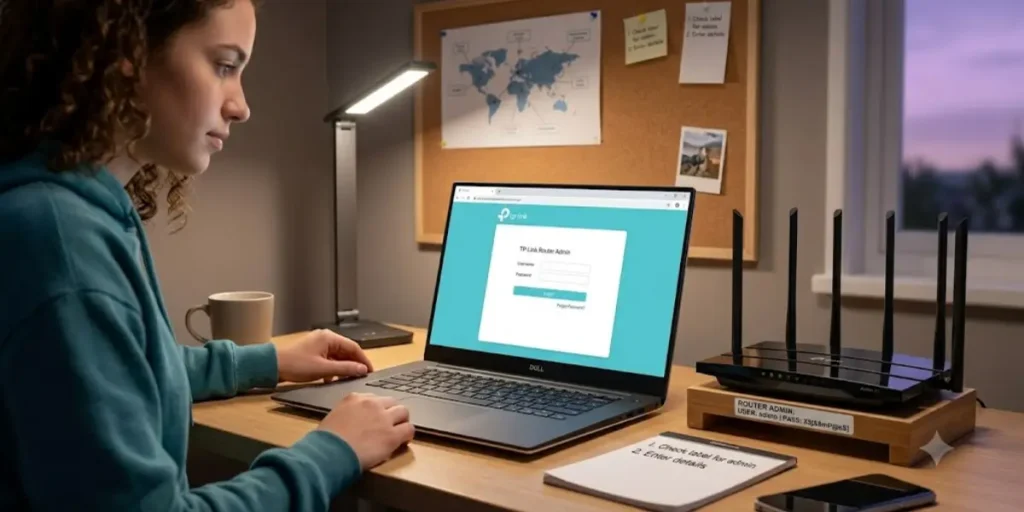
TP-Link routers are among the most popular home networking devices. If you are searching for recovering router user and password TP-Link, there are several ways to regain access.
Check the Router Label
Many TP-Link routers include:
- Default username
- Default password
- Default Wi-Fi name
- Default Wi-Fi password
- Login address
Newer TP-Link models often use a unique administrator password created during the first setup instead of the traditional “admin” password.
Try the Default TP-Link Login
Older TP-Link routers commonly use:
| Username | Password |
| admin | admin |
Open your browser and visit:
- 192.168.0.1
- 192.168.1.1
- tplinkwifi.net
The correct address depends on your router model.
Recover Saved TP-Link Credentials
If you previously logged in using the same computer, check your browser’s saved passwords.
Many users are surprised to find that Chrome or Edge has already saved the administrator password.
Factory Reset Only If Needed
If none of the recovery methods work, press and hold the Reset button for about 10 to 15 seconds while the router is powered on.
After the reset:
- Sign in using the default credentials.
- Create a strong administrator password.
- Change the Wi-Fi password if needed.
- Update the router firmware.
Huawei Router Password Recovery
Huawei routers are commonly used in homes and businesses around the world. If you forgot your administrator password, you may still be able to recover access.
Check the Router Sticker
Many Huawei routers include useful information on the label, such as:
- Router login address
- Default Wi-Fi password
- Model number
Some models also include the default administrator username.
Try the Default Login
Depending on the model, Huawei routers may use:
| Username | Password |
| admin | admin |
| admin | Printed on the router label |
Some internet providers customize Huawei routers, so the administrator password may be different from the factory default.
Recover Huawei Router Password Without Resetting
Before resetting, try these options:
- Check your browser’s saved passwords.
- Search your password manager.
- Review the router manual.
- Contact your internet service provider.
- Contact Huawei support.
These methods may help you recover your Huawei router password without losing your settings.
When a Reset Is Required
If the administrator password cannot be recovered, perform a factory reset.
Once the router restarts:
- Log in using the default credentials.
- Create a new administrator password.
- Configure your wireless network.
- Save the new password in a secure location.
This reduces the chances of losing access again.
I Forgot My Wi-Fi Password. What Should I Do?
Forgetting your Wi-Fi password is common, especially if your devices connect automatically. The good news is that you can often recover it without changing your router settings.
Remember, the Wi-Fi password is different from the router admin password. The Wi-Fi password connects your devices to the wireless network, while the admin password lets you manage the router.
View the Saved Wi-Fi Password on Windows
If a Windows computer is already connected to your Wi-Fi network, you can view the saved password.
- Open Control Panel.
- Go to Network and Sharing Center.
- Select your Wi-Fi network.
- Click Wireless Properties.
- Open the Security tab.
- Check Show characters.
Your saved Wi-Fi password will appear.
View the Saved Wi-Fi Password on Android
Many Android phones allow you to share a saved Wi-Fi network.
Open:
Settings > Network & Internet > Wi-Fi
Select your connected network and look for the Share option. After verifying your identity, the phone may display the password or a QR code.
The available options may vary depending on your Android version.
View the Saved Wi-Fi Password on iPhone
If you use iOS 16 or later:
- Open Settings.
- Tap Wi-Fi.
- Select your connected network.
- Tap the Password field.
- Use Face ID, Touch ID, or your passcode to view the password.
Change the Wi-Fi Password
If you cannot recover the current password, log in to your router and create a new one.
Choose a password that:
- Uses uppercase and lowercase letters
- Includes numbers
- Includes special characters
- Is easy for you to remember but difficult for others to guess
- When Should You Factory Reset Your Router?
A factory reset should only be used when other recovery methods fail.
Resetting the router removes all custom settings and returns it to its original factory configuration.
Situations That May Require a Reset
A reset may be necessary if:
- You forgot the administrator password.
- The login page rejects every password.
- The router settings have become corrupted.
- You purchased a used router.
- You suspect unauthorized changes to the router settings.
What Happens After a Factory Reset?
After resetting, your router will lose:
- Administrator username and password (if customized)
- Wi-Fi network name (SSID)
- Wi-Fi password
- Guest network settings
- Port forwarding rules
- Parental controls
- Custom DNS settings
- Security settings
You will need to configure the router again before using it.
How to Reset a Router
Most routers have a small Reset button.
- Keep the router powered on.
- Press and hold the Reset button for about 10–15 seconds.
- Wait for the router to restart.
- Sign in using the default administrator credentials.
Check your router manual if your model uses a different reset process.
Default Router Usernames and Passwords for Popular Brands
The table below shows common factory login credentials. These may vary by model, especially on newer routers.
| Router Brand | Default Username | Default Password |
| TP-Link | admin | admin |
| Netgear | admin | password |
| ASUS | admin | admin |
| D-Link | admin | admin |
| Linksys | admin | admin |
| Huawei | admin | admin or device label |
| Tenda | admin | admin |
| ZTE | admin | admin |
If these credentials do not work, the administrator password has likely been changed during setup.
Tips to Avoid Losing Your Router Password Again
Recovering your router password takes time, so it is worth taking a few simple steps to prevent the problem in the future.
Save Your Password Securely
Store your administrator password in a trusted password manager or another secure location that only you can access.
Change Default Credentials
Default usernames and passwords are widely known. Change them after setting up your router to improve security.
Keep Router Firmware Updated
Firmware updates often include security improvements, bug fixes, and better performance.
Check for updates regularly through your router’s web interface.
Keep a Backup of Your Settings
Many routers let you export a backup file containing your configuration.
If you ever reset the router, restoring the backup can save time.
Common Router Login Problems and Fixes
Even with the correct password, you may still have trouble signing in.
The Login Page Will Not Open
Make sure you are entering the correct router IP address.
Common router addresses include:
- 192.168.1.1
- 192.168.0.1
- 10.0.0.1
You can also check the Default Gateway on your computer.
Username or Password Is Incorrect
Check for typing mistakes, including:
- Extra spaces
- Capital letters
- Incorrect keyboard language
- Old saved passwords
If you recently changed the password, make sure you are using the latest one.
The Browser Keeps Rejecting the Login
Try these steps:
- Refresh the page.
- Clear your browser cache.
- Use another browser.
- Try another device connected to the same network.
Final Thoughts About Recovering Router Username and Password
Forgetting your router username or password can be frustrating, but it does not always mean you need to reset your router. In many cases, you can recover access by checking the label on the router, trying the default login details, reviewing your browser’s saved passwords, or looking in your password manager. If your router was provided by your internet service provider (ISP), their support team may also be able to help.
A factory reset should be your last option because it restores the router to its default settings. Your Wi-Fi name, Wi-Fi password, and other custom settings will be erased. Before pressing the reset button, try the recovery methods covered in this guide. You may be able to regain access without having to set up your router again.
Once you have access to your router, take a few simple steps to avoid the same problem in the future. Create a strong administrator password that is easy for you to remember but difficult for others to guess, and store it in a safe place or a trusted password manager. Keeping your router firmware up to date also improves security and fixes known issues. Protecting your router information helps keep your home network secure, making it easier to manage your Wi-Fi for work, school, gaming, streaming, and everyday internet use.
Frequently Asked Questions About Recovering Router Username and Password
Q1. How do I retrieve my router username and password?
Start by checking the router label, browser password manager, or password manager app. If you never changed the administrator credentials, the default username and password may still work.
Q2. How can I recover my 192.168.1.1 username and password?
Visit the router login page at 192.168.1.1 and try the default credentials. If they do not work, check for saved passwords or contact your internet service provider. If all recovery methods fail, perform a factory reset.
Q3. What do I do if I forgot my Wi-Fi username and password?
Your Wi-Fi network uses a network name (SSID) and a Wi-Fi password. You can view the saved password on a connected device or sign in to your router and create a new one.
Q4. How do I recover my router admin password without resetting?
Check your browser’s saved passwords, password manager, router documentation, or contact your router manufacturer or internet service provider. These methods often help you recover access without resetting the router.
Q5. Can CMD show my router password?
No. Command Prompt can display your router’s IP address, but it cannot reveal the administrator username or password.
Q6. What is the default router username?
Many routers use admin as the default username, but newer models may ask you to create your own administrator account during setup.
Q7. Can I recover my router password without a factory reset?
Yes. Many users recover their passwords through saved browser credentials, password managers, default login information, or help from their internet service provider.