
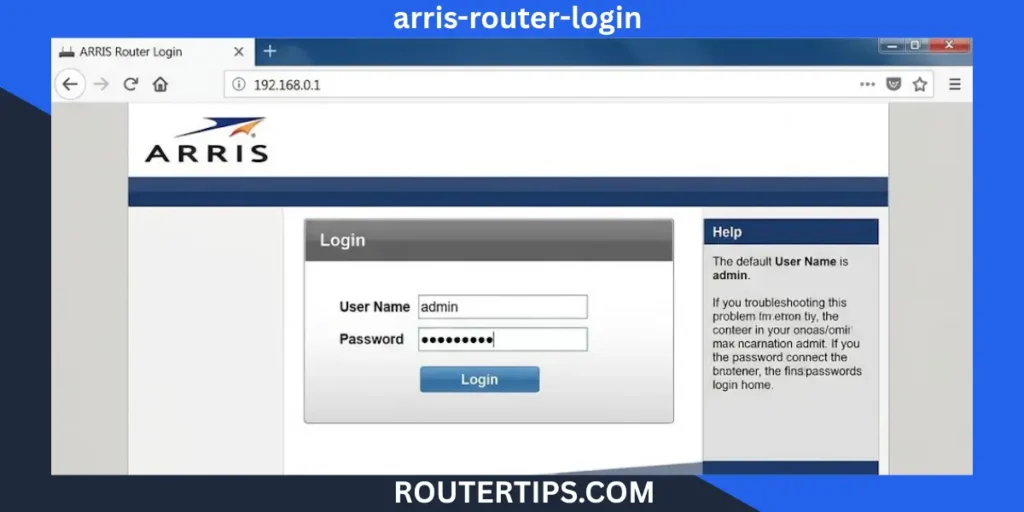
Arris Router Login helps you open your router’s settings page and manage your home internet network. After signing in, you may be able to change your Wi-Fi name, update your password, check connected devices, and adjust other network settings.
Many Arris Wi-Fi gateways use 192.168.0.1 as their login address. Some devices use 192.168.1.1, while certain Arris cable modems use 192.168.100.1 to show modem information. The correct address depends on your device and its settings.
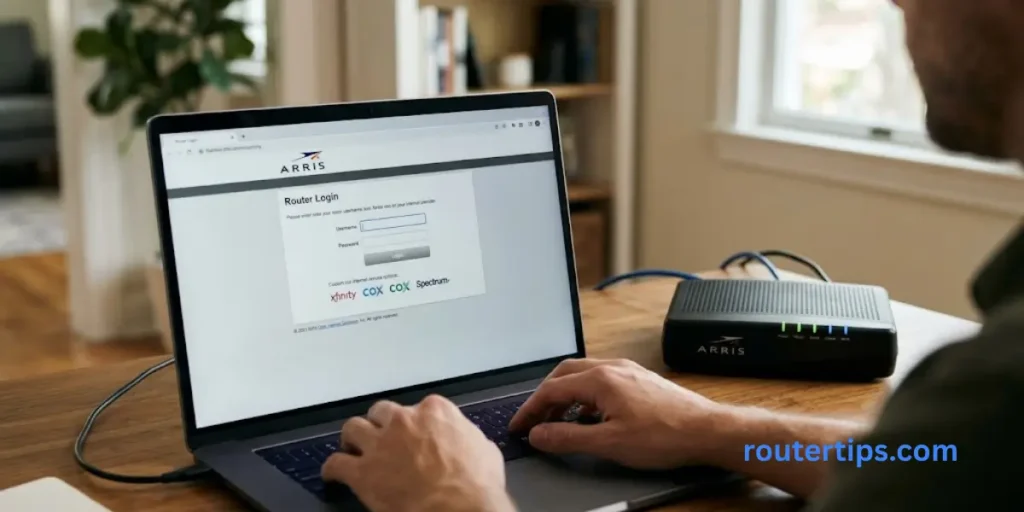
To log in, connect your phone or computer to your Arris network, open a web browser, and enter the correct router IP address. Then enter the login details for your model.
This guide explains how to access the Arris router login page, find the default username and password, change your Wi-Fi settings, reset your router, and fix common login problems. It also covers Arris SURFboard, G34, SBG10, SB8200, and selected ISP-provided devices.
How Do I Access the Admin Page on My Arris Router?
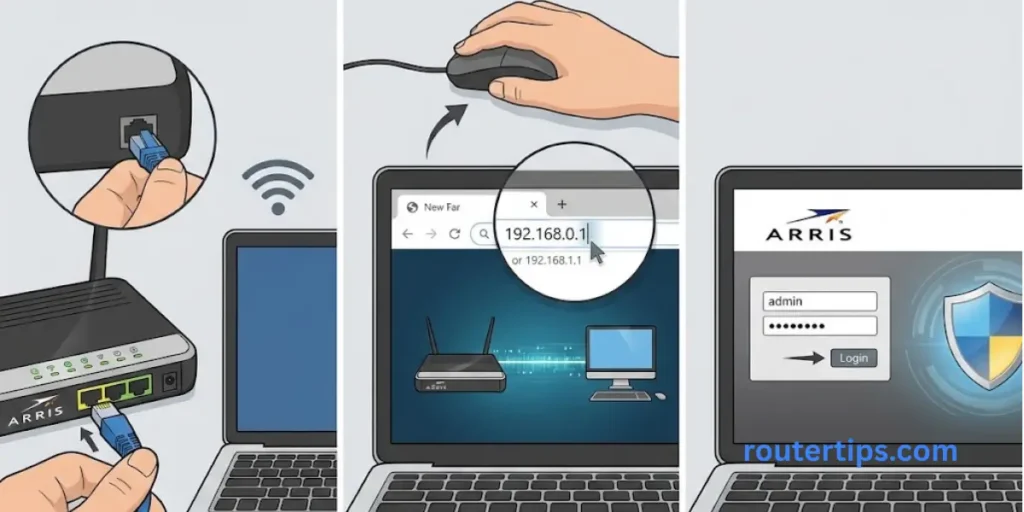
You can access many Arris router settings through a web browser. You do not always need an app. However, the exact steps can vary between router models and internet providers.
Follow these steps to try the Arris router login process.
Connect to Your Arris Network
First, connect your phone, laptop, or computer to your Arris router.
You can connect in two ways:
- Wi-Fi: Select your Arris wireless network and enter its Wi-Fi password.
- Ethernet: Connect a computer to a LAN port on the router using an Ethernet cable.
Make sure you connect to the device you want to manage. If your home has a separate modem and router, your computer may be connected to a different device.
Popular Router Brands
Open a Web Browser
Open a browser such as Google Chrome, Microsoft Edge, Firefox, or Safari.
You do not need to search Google for the Arris login page. You need to enter the router’s local IP address directly into the browser’s address bar.
Enter the Arris Router IP Address
Start with this address if your model uses it:
http://192.168.0.1
Press Enter on a computer or tap Go on a phone.
If the page does not open, your router may use another address. You can try http://192.168.1.1 if it matches your device’s settings. For some Arris cable modems, such as the SB8200, the correct address is http://192.168.100.1.
Do not assume all three addresses work on every device. Check your model’s manual or find your network’s default gateway if needed.
Enter Your Arris Username and Password
If a login page appears, enter the username and password for your device.
Some Arris gateways ask you to create an administrator password the first time you open the settings page. Others may use existing login details or settings provided by your internet provider.
The default username and password are not the same for every Arris model. If you have changed the password before, use your current password rather than guessing.
Open the Arris Web Manager
After a successful login, you may see a page called the Arris Web Manager or SURFboard Web Manager.
Depending on your model, you may be able to manage:
- Wi-Fi network name and password
- Administrator login details
- Wireless security
- Connected devices
- Internet and network settings
- Guest Wi-Fi
- Other router features
Some cable modems show only modem status and connection information. For example, the Arris SB8200 Web Manager is mainly used to view the modem’s network settings and operating status. It does not offer the same Wi-Fi controls as a Wi-Fi router.
What Is the Default IP Address for an Arris Router?
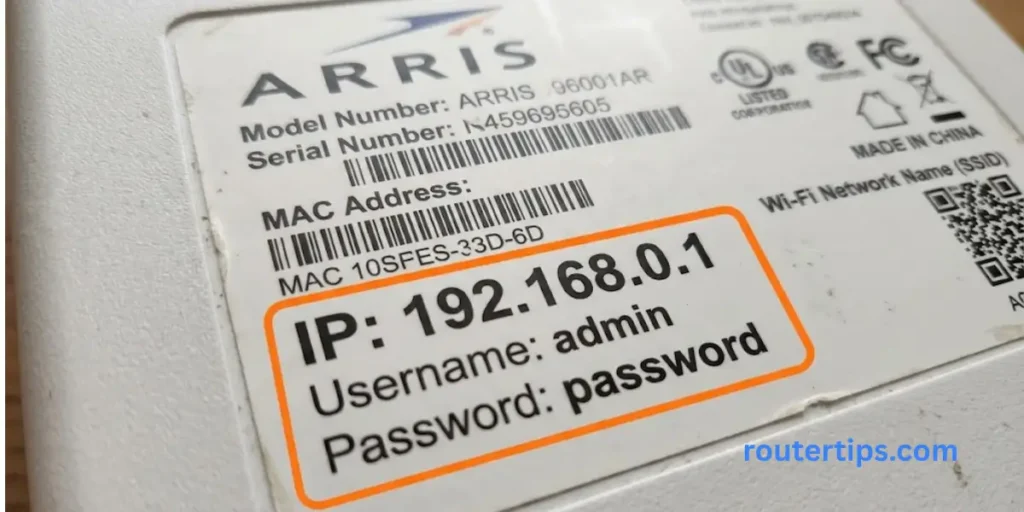
The correct Arris router login IP depends on the model and network setup. These are three addresses you may come across:
| IP address | Common use |
| 192.168.0.1 | Many Arris Wi-Fi gateways, including the G34 and G36 |
| 192.168.1.1 | Some router and gateway setups |
| 192.168.100.1 | Arris SB8200 cable modem Web Manager |
These addresses are examples, not a list of addresses that work on every Arris device.
Arris Router Login at 192.168.0.1
The address 192.168.0.1 is used by supported Arris gateways, including the G34 and G36.
To open the page, connect to the gateway, enter http://192.168.0.1 in your browser, and follow the login instructions. Some G34 and G36 devices redirect the browser to a more secure connection before showing the login page.
During first-time setup, these models may ask you to create an administrator password and Wi-Fi details before you can access the main settings.
Arris Router Login at 192.168.1.1
Some home networks use 192.168.1.1 as the router address. If your Arris device or internet provider uses this address, enter:
http://192.168.1.1
If the login page does not open, do not keep trying random addresses. Find the default gateway on your connected device or check the router’s label and manual.
Also make sure the address is typed into the browser’s address bar, not the search box.
Arris Modem Login at 192.168.100.1
The Arris SB8200 cable modem uses 192.168.100.1 to open its Web Manager on supported firmware versions.
This page is used to check the modem’s status and network information. If the SB8200 is connected to a separate router, Arris recommends connecting the modem directly to a computer with an Ethernet cable when accessing its Web Manager.
The SB8200 is a cable modem, so it does not provide the same wireless settings as an Arris Wi-Fi gateway.
How to Find Your Arris Router IP Address
If you do not know the correct login address, check the default gateway on a device connected to your home network.
On Windows:
- Connect your computer to the Arris network.
- Open the Start menu and search for Command Prompt.
- Open the program.
- Type ipconfig and press Enter.
- Find your active Wi-Fi or Ethernet connection.
- Look for the number beside Default Gateway.
Enter that number into your browser’s address bar.
On a Mac:
- Open System Settings.
- Select Network.
- Choose your connected Wi-Fi or Ethernet connection.
- Open its details and look for the router address.
The exact menu can vary by macOS version.
On a phone:
Open the Wi-Fi settings and select your connected network. Look for a field named Router, Gateway, or a similar term. Its location depends on your phone and operating system.
If you are using an ISP-provided gateway, your internet provider may also have instructions for finding its login address.
What Is the Default Login for an Arris Router?
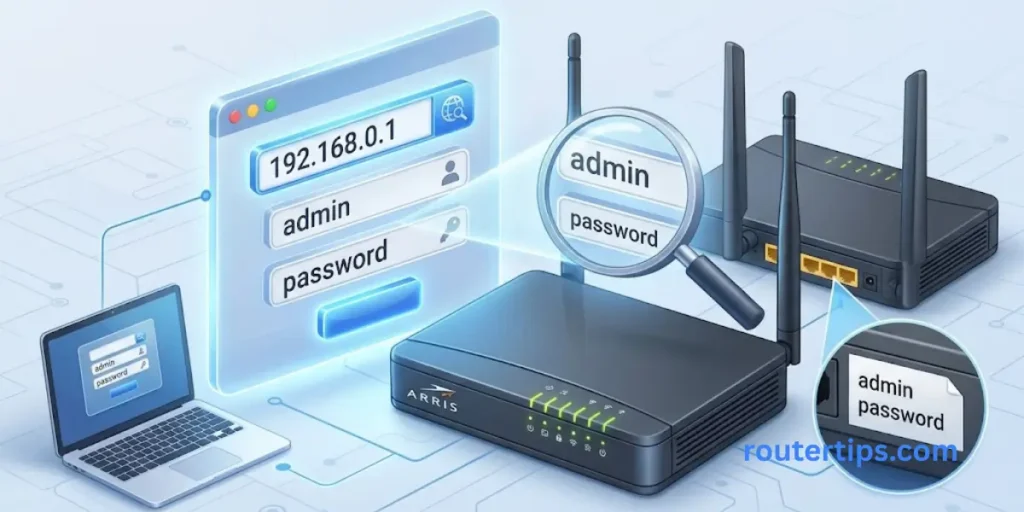
There is no single username and password that works for every Arris router, modem, and gateway. The login details depend on the model, firmware, and previous setup.
Some devices use a default login. Others ask you to create a password during the first setup. Internet providers may also change the login process on devices they supply.
Arris Default Username and Password
Before trying a password, check the label on your device and the official manual for its model number.
For example, Arris lists these details for the SB8200 Web Manager:
- Username:admin
- Password:password or the last eight digits of the modem’s serial number, depending on the setup and firmware.
These details apply to the SB8200 instructions. They should not be treated as the default login for every Arris router.
For the G34 and G36, the first-time setup process asks you to create a custom administrator password. If you use the SURFboard Central app for setup, the login details may be linked to the account configured in that app.
Where Can You Find the Default Arris Login Details?
Check these places in order:
- Device label: Look at the bottom or back of your Arris device. It may show the model number, serial number, default Wi-Fi name, or Wi-Fi password.
- Quick-start guide: Check the guide that came with the router or modem.
- Official Arris support: Search for your exact model number on theArris support website.
- Internet provider: If your provider supplied the device, check its setup instructions or contact its support team.
Remember that the Wi-Fi password and administrator password may be different. The Wi-Fi password connects your devices to the network, while the administrator password lets you change router settings.
Why Is the Arris Default Password Not Working?
There are several possible reasons:
- Someone changed the original administrator password.
- The router was set up through an app.
- Your internet provider uses its own login process.
- You are using the details for a different Arris model.
- The device has not been reset to its original settings.
- The login page asks for an email address instead of a standard username.
Check the model number and the instructions before trying another password. Avoid repeated guesses, because some devices may limit login attempts.
How to Change Your Arris Router Login Password
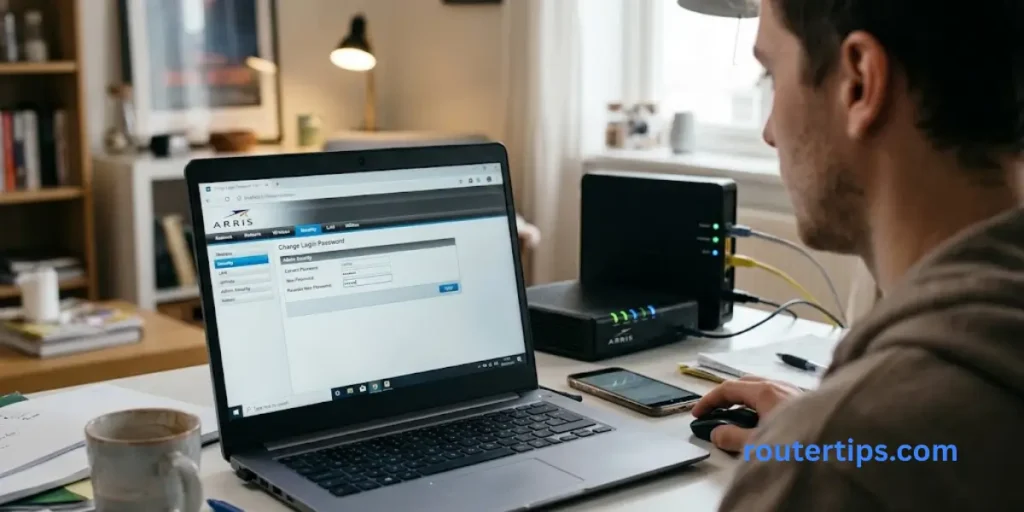
Changing your administrator password can help stop other people from changing your router settings without permission.
The steps vary by model. On many supported devices, you can change the password through the Web Manager.
Open the Arris Login Page
Connect your computer or phone to the Arris network. Open the correct IP address in a browser and sign in using your current administrator details.
For supported G34 and G36 gateways, the login address is http://192.168.0.1.
Find the Administrator Settings
After signing in, look for a section related to Admin, Login, System, or Security.
The menu name may be different on older models. If you cannot find the password option, check the manual for your device.
Create a New Password
Choose a password that is difficult to guess.
A good administrator password should:
- Be long enough to protect against easy guessing.
- Use a mix of letters, numbers, and symbols where supported.
- Avoid your name, birthday, or common words.
- Be different from your Wi-Fi password.
- Not be reused for your email or other important accounts.
Save the new password in a secure place, such as a trusted password manager.
Save the Changes
Enter the new password and confirm it if asked. Select Save or Apply.
You may need to sign in again using the new password. If your device uses the SURFboard Central app for login, follow Arris’s instructions for that setup rather than changing the password without checking how the app manages access.
Important: Arris notes that resetting the administrator password on some G34 and G36 setups may require a factory reset if you cannot sign in. A factory reset removes saved settings, so try the correct recovery steps first.
How to Change Your Arris Wi-Fi Name and Password
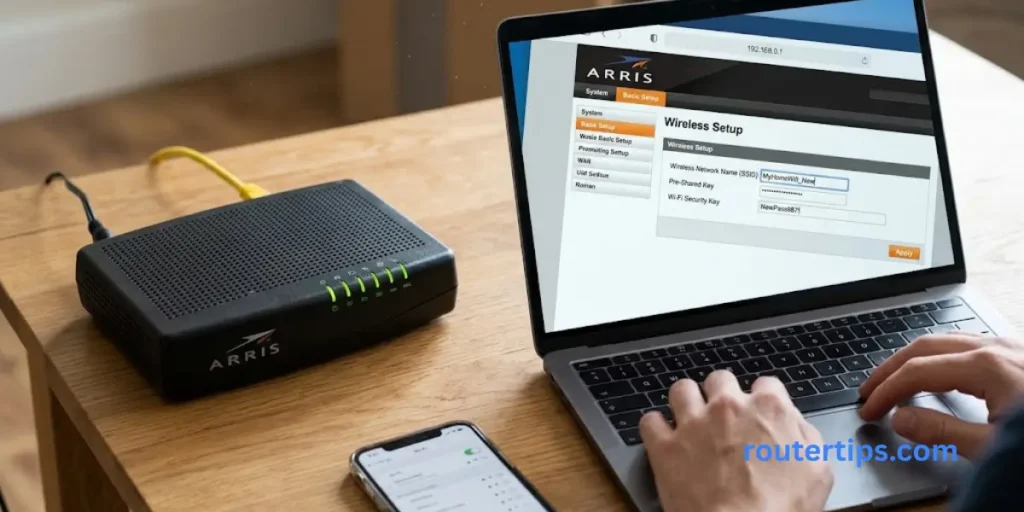
Your Wi-Fi name is also called the SSID. It is the name you see when you open the Wi-Fi settings on a phone or computer.
Changing your Wi-Fi password can help you control who connects to your network. It is separate from changing the administrator password.
Open the Wireless Settings
Sign in to your Arris Web Manager. Look for a menu called Wi-Fi, Wireless, or Connection.
On supported G34 and G36 gateways, the Wi-Fi settings are available through the Web Manager. Other models may use a different menu or the SURFboard Central app.
Change Your Wi-Fi Name
Find the field called Network Name or SSID. Enter the new name you want to use.
Choose a name that helps you recognize your network. Avoid adding personal details, such as your full name or home address.
Some Arris devices use separate names for the 2.4 GHz and 5 GHz Wi-Fi bands. Others can use one name across several bands. Follow the options shown by your model.
Set a New Wi-Fi Password
Find the Wi-Fi password or security key field. Enter a strong password that is hard for other people to guess.
Use a modern security option if your device and connected devices support it. Do not change advanced security settings unless you understand their effect on your network.
Save the Changes
Select Save or Apply. Your Wi-Fi connection may stop working briefly while the router applies the new settings.
You will then need to reconnect your phone, laptop, television, printer, and other wireless devices using the new Wi-Fi name or password.
Arris’s G34/G36 instructions explain how to change the wireless name and password through the Web Manager. The SURFboard Central app can also manage Wi-Fi details on supported models
How to Connect to an Arris Router
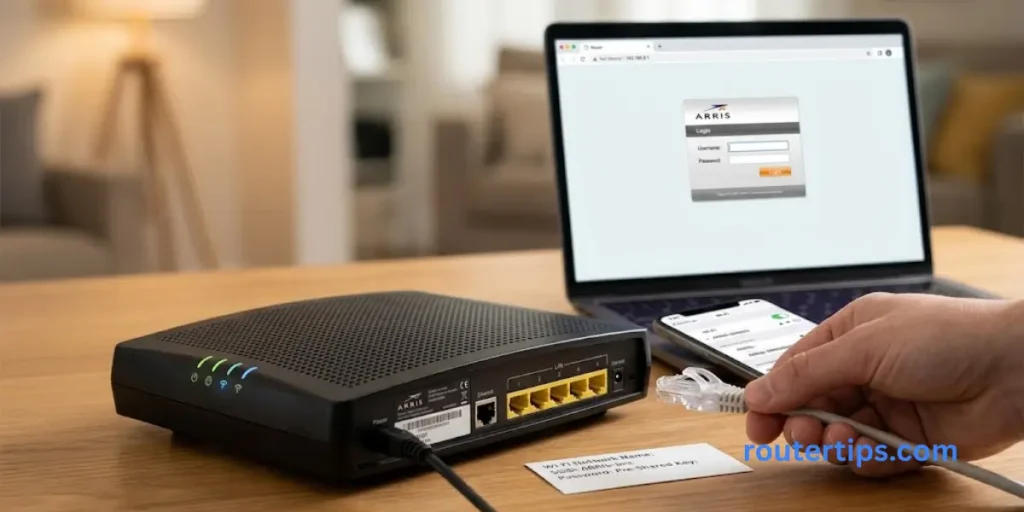
You can connect to an Arris router through Wi-Fi or an Ethernet cable. The best method depends on whether you are setting up a new device or fixing a connection problem.
Connect Using Wi-Fi
- Open the Wi-Fi settings on your phone or computer.
- Find your Arris network name.
- Select the network.
- Enter the Wi-Fi password.
- Wait for the device to connect.
If you changed the Wi-Fi name or password, use the new details.
Connect Using an Ethernet Cable
An Ethernet connection can help when Wi-Fi is not working or you need a stable connection to open the router settings.
Connect one end of the cable to a LAN port on the Arris router and the other end to your computer. Make sure the cable is firmly connected.
Then open a browser and enter the router’s correct IP address.
What If Your Arris Modem Connects to a Separate Router?
Some homes use an Arris cable modem with a separate Wi-Fi router. In this setup, each device may have its own local settings page.
The router manages Wi-Fi and local network settings. The modem connects your home network to the cable internet service.
If you want to change Wi-Fi settings, you usually need to sign in to the separate router, not the modem. If you want to check modem status, use the modem’s own address and manual.
Arris Router Login by Model
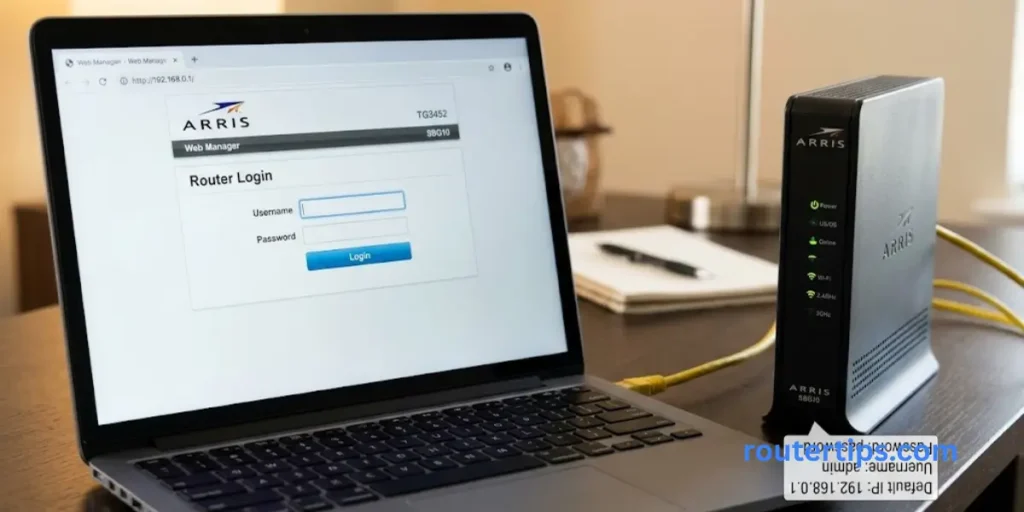
Arris has made different types of networking devices. The model number helps you find the correct login steps and avoid using instructions meant for another device.
Arris SURFboard Router Login
SURFboard includes cable modems, Wi-Fi gateways, and modem-router combinations. The login address and available settings depend on the model.
Some SURFboard Wi-Fi gateways use a Web Manager. Certain supported models can also use the SURFboard Central app to set up the network and manage Wi-Fi details.
Check the model number before choosing the login method.
Arris G34 Router Login
The Arris G34 is a Wi-Fi cable modem gateway. Its Web Manager uses http://192.168.0.1.
During first-time access, the Home Network Wizard guides you through setting up administrator credentials, Wi-Fi details, and the time zone. If the gateway has already been configured, use the existing login details.
If you set it up through SURFboard Central, the login may use the account details linked to the app.Read the G34/G36 first-time setup instructions.
Arris SB8200 Modem Login
The Arris SB8200 is a cable modem, not a Wi-Fi router. Its Web Manager uses http://192.168.100.1 on supported firmware versions.
The page can show modem status and network information. If the modem is connected to a separate router, you may need to connect a computer directly to the modem with an Ethernet cable to access the Web Manager.
Arris documents admin as the username and password or the last eight digits of the serial number as the default password for this model’s Web Manager. These details may not apply to other Arris products.
Arris SBG10 Router Login
The SBG10 is a SURFboard Wi-Fi cable modem gateway. It combines a cable modem and Wi-Fi router in one device.
The available settings and login steps can depend on its current software and setup. Check the model’s manual or Arris support instructions before using a default password or resetting it.
Some supported SURFboard models can use the SURFboard Central app to manage their Wi-Fi name and password.
Arris TG2482A, TG1682G, TG2472G, and TG3452 Login
These model numbers may appear on Arris gateways supplied by internet providers. The provider may control some settings or use a custom login process.
Start by checking the label for the full model number and the name of the internet provider. Then use the provider’s official setup instructions or the matching Arris documentation.
Do not assume that the username, password, or IP address for one TG model will work on another.
Arris Router Login for Different Internet Providers
Internet providers sometimes supply Arris routers or gateways with their own settings. The login process can vary even when two devices carry the Arris name.
Xfinity Arris Router Login
If you have an Arris gateway supplied by Xfinity, check Xfinity’s instructions for the exact device. Some provider-managed gateways use the provider’s app or online account for certain settings.
If you cannot access the local login page, check the model number and provider documentation before trying a factory reset.
Frontier Arris Router Login
For a Frontier-supplied Arris device, use the setup instructions provided by Frontier for your model. The provider may use customized settings or manage some gateway features.
If the default Arris address does not work, check the device label or ask Frontier support which login method applies to your equipment.
SaskTel Arris Router Login
If SaskTel supplied your Arris gateway, check SaskTel’s instructions or contact its support team for the correct login details.
Provider-supplied devices may have settings that differ from retail Arris models.
WOW! Arris Router Login
WOW! customers should check their equipment guide for the correct router address and administrator details. If your device has been configured by the provider, its default settings may differ from general Arris instructions.
Astound and Flow Arris Router Login
For Astound or Flow customers, the correct login process depends on the gateway model and provider setup. Use the model number and provider documentation to confirm the address and credentials.
Tip: If the router was supplied by your internet provider, contact that provider before resetting it. A reset may remove settings needed for your internet service.
How to Reset an Arris Router
A router reset can help when you cannot access its settings or need to return it to its original setup. However, there is an important difference between restarting and factory resetting a device.
Restarting an Arris Router
A restart turns the router off and back on. It can help when the device is slow or not responding.
Follow the instructions for your model. Wait for the router to start fully before trying to sign in again.
A restart usually keeps your saved Wi-Fi name, password, and other settings.
Factory Resetting an Arris Router
A factory reset returns the device to its original settings. It may remove the Wi-Fi name, Wi-Fi password, administrator password, and other changes.
Only use this method if you understand that you may need to set up the device again.
Using the Physical Reset Button
Many Arris devices have a Reset button, but the button location and reset timing vary by model.
Before pressing it:
- Find the exact model number.
- Read the official reset instructions.
- Make sure you have the details needed to set up your internet connection again.
- Follow the instructions for your model.
Do not guess how long to hold the button. The correct process can differ between devices.
Using the Web Interface
If you can still sign in, your model may offer a reset or restore option in its settings. Look for a menu related to administration, system settings, or factory defaults.
Read the warning on the page before confirming. A factory reset can erase saved settings even when started from the Web Manager.
What to Do After a Factory Reset
Once the device restarts, follow the setup guide for your model. You may need to:
- Reconnect your phone or computer to the network.
- Open the correct router IP address.
- Create a new administrator password.
- Set a Wi-Fi name and password.
- Restore any required internet settings.
If your provider supplied the device, ask the provider for help if the internet does not return after the reset.
How to Fix Arris Router Login Problems
If the Arris login page does not open, work through these checks one at a time. This can help you find the problem without changing settings that are already working.
Arris Router Login Page Is Not Opening
First, confirm that your device is connected to the correct Arris network. Then check the IP address.
Try the address listed in your manual. If you are not sure, find the default gateway on your computer or phone.
Also check that you entered the address in the browser’s address bar rather than a search box.
192.168.0.1 Is Not Working
The address may not match your device’s current network settings.
Check your default gateway and model number. If you have a separate modem and router, make sure you are trying to access the correct device.
192.168.1.1 Is Not Working
Not every Arris router uses 192.168.1.1. Your device may use 192.168.0.1 or another address.
Check the router’s manual or the connected device’s default gateway rather than continuing to try different addresses at random.
The Arris Router Password Is Incorrect
Confirm whether the login page asks for the administrator password or another type of account login. Some devices use a custom password created during first-time setup.
If your device uses SURFboard Central, check the account details linked to the app. If your provider supplied the gateway, contact the provider if you cannot confirm the correct login method.
The Login Page Keeps Timing Out
A timeout may happen if the device is not connected properly or the router is not responding.
Try these steps:
- Check your Wi-Fi or Ethernet connection.
- Close and reopen the browser.
- Try another browser.
- Restart the router if needed.
- Confirm the correct IP address.
If you can open the login page but cannot reach websites, the problem may be with the internet connection rather than the local router page.
Your Browser Shows a Security Warning
Some Arris Web Manager pages redirect to a secure connection and may show a browser warning, especially when the router uses a local certificate.
Do not ignore every security warning on the internet. First confirm that you are connected to your own network and have entered the correct local address. Follow the official instructions for your model if the Web Manager displays a warning during local access.
Do not enter your router password on a page that you do not trust.
The Router Stops Working After You Change Settings
If the connection fails after a change, return to the setting you changed and check it carefully. If you cannot access the page, restart the router and check your network connection.
Avoid a factory reset until you have tried safer steps. If the device belongs to your internet provider, ask the provider for help before removing its settings.
Does Arris Have a Router Login App?
Some Arris SURFboard devices support the SURFboard Central app. It can help with setup and managing Wi-Fi settings on supported models.
However, the app does not work with every Arris device. Availability also depends on the model and setup method.
For example, Arris documents SURFboard Central support for changing Wi-Fi names and passwords on models such as the G18, G20, G34, G36, G54, and selected other SURFboard gateways.
If your model supports a browser-based Web Manager, you may be able to manage it without an app. Check the manual before installing an app or resetting your device.
Final Thoughts on Arris Router Login
Arris Router Login is usually simple once you know the correct address and login details for your device. Many Arris gateways use 192.168.0.1, while some setups use another address. The SB8200 cable modem, for example, uses 192.168.100.1 for its Web Manager on supported firmware.
After signing in, you may be able to change your Wi-Fi name, update your wireless password, and manage other settings. Keep your administrator password safe and separate from your Wi-Fi password.
If the login page does not open, check your network connection and find the correct IP address before trying a reset. If your device was supplied by your internet provider, its support team can help with provider-specific settings.
The most useful first step is to check the model number on your Arris device. That will help you find the correct login address, password instructions, and setup guide for your exact model.
Frequently Asked Questions About Arris Router Login
Q1. How do I access the admin page on my Arris router?
Connect your phone or computer to the Arris network, open a browser, and enter the router’s correct IP address. Many Arris gateways use 192.168.0.1, but the address depends on the model. Enter the administrator details when asked.
Q2. What is the 192.168.1.1 username and password?
There is no single username and password for every device using 192.168.1.1. The correct details depend on the router model, its settings, and the internet provider. Check the label, manual, or provider instructions.
Q3. How do I connect to my Arris router?
Connect through Wi-Fi by selecting your Arris network and entering the Wi-Fi password. You can also connect a computer to a LAN port with an Ethernet cable. Then open the router’s local IP address if you need to manage its settings.
Q4. What is the default login for an Arris router?
Arris default login details vary by model. Some gateways ask you to create an administrator password during first-time setup. For the SB8200 Web Manager, Arris lists admin as the username and password or the last eight digits of the serial number as the default password, depending on the setup.
Q5. What is the Arris router login IP?
Many Arris gateways use 192.168.0.1. Some networks use 192.168.1.1, and the SB8200 cable modem uses 192.168.100.1 for its Web Manager on supported firmware. Check your model to confirm the correct address.
Q6. How do I reset my Arris router login password?
First, check the password recovery instructions for your model. If you cannot recover access, a factory reset may be required. A reset can erase your Wi-Fi settings and other changes, so follow the official instructions before proceeding.
Q7. Can I log in to an Arris router without an app?
Yes, many Arris devices support a local Web Manager that opens in a browser. Some models also support the SURFboard Central app. Check your model’s instructions to confirm which methods are available.
Q8. Why is my Arris router login not working?
Common causes include using the wrong IP address, connecting to a different network, entering an incorrect password, or using instructions for another model. Check the connection and default gateway first, then review the model-specific login instructions.