
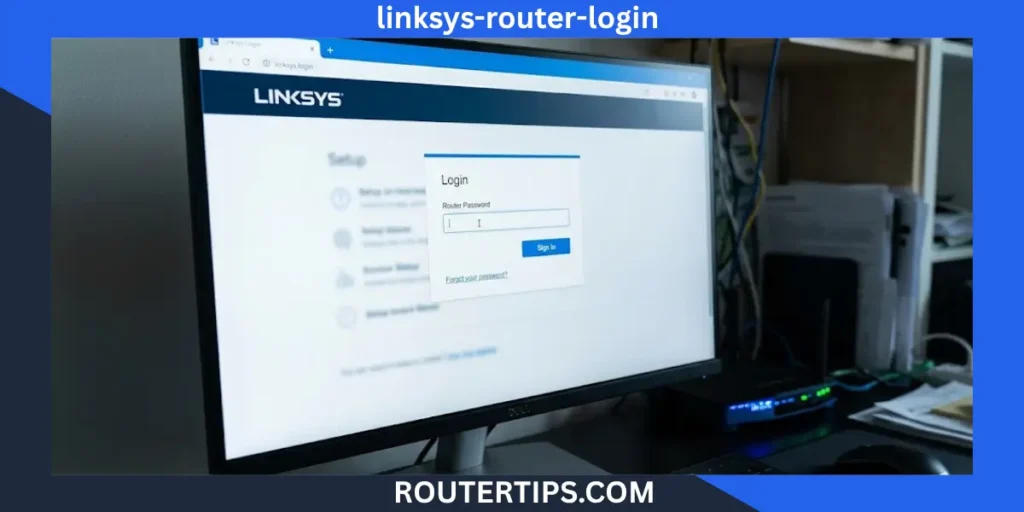
Do you want to log in to your Linksys router? You can usually do this with a web browser. You do not always need to install an app. Connect your device to your Linksys network, open a browser, and enter https://192.168.1.1 or myrouter.local.
When the login page opens, enter your router admin password. On some Linksys routers, the default password is admin. If you changed the password during setup, you must use your new password. The correct login details depend on your router model.
The Linksys router login page lets you manage your Wi-Fi settings, change passwords, check connected devices, and control other network features. This guide shows you how to log in, change your passwords, and fix common login problems.
How to Login to a Linksys Router
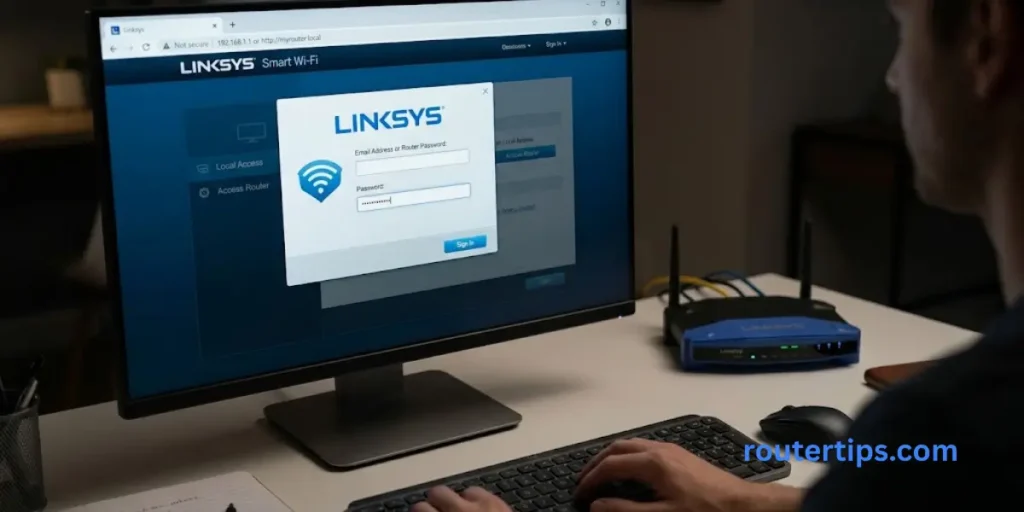
You can log in to most Linksys routers using a computer, phone, or tablet. First, connect your device to your Linksys network. You can use Wi-Fi or an Ethernet cable.
Connect to Your Linksys Router
Connect your device to your Linksys router.
If you use Wi-Fi, select your network name and enter your Wi-Fi password. If you use a computer, you can also connect it to the router with an Ethernet cable.
Remember that your Wi-Fi password and router admin password are not always the same.
Your Wi-Fi password lets you connect to the network. Your admin password lets you open the router settings and make changes.
Open the Linksys Router Login Page
Open a web browser such as Chrome, Firefox, Safari, or Microsoft Edge.
Type one of these addresses into the address bar:
https://192.168.1.1myrouter.local
Press Enter to open the login page. Make sure you type the address into the browser’s address bar, not the search box.
Many Linksys routers use 192.168.1.1 as their default IP address. The address myrouter.local can also open the settings page on supported models.
If neither address works, your router may use a different IP address. Your device may also be connected to the wrong network.
Enter Your Linksys Router Password
When the login page opens, enter your router admin password.
Many Linksys routers use admin as the default password when it has not been changed. However, this password does not work on every model.
If you created a new password during setup, use that password instead.
Some Linksys routers show different login screens. Follow the instructions on your screen. If you see an option called For local access, click here, select it when needed.
Popular Router Brands
Open the Router Admin Dashboard
After entering the correct password, click Sign In.
You should now see your router’s settings page. Depending on your model, you may be able to change your Wi-Fi name, update your password, check connected devices, and manage other network settings.
Be careful when changing settings you do not understand. Write down the original settings before making changes so you can restore them if needed.
What Is the Linksys Router Login IP Address?
A router IP address is a number that helps your device find the router on your local network.
Many Linksys routers use 192.168.1.1 as the default login IP address. However, some routers use a different address. The correct address depends on your router and network settings.
Login Using 192.168.1.1
Follow these steps to open your Linksys router login page:
- Connect your device to the Linksys network.
- Open a web browser.
- Type
https://192.168.1.1in the address bar. - Press Enter.
- Enter your router admin password.
If the page does not open, try http://192.168.1.1 if your router supports it. You can also try myrouter.local.
If neither address works, do not keep trying the same steps. Check your router’s current IP address instead.
Access Your Router Through Myrouter.local
The address myrouter.local gives you another way to open your Linksys router settings. It is easier to remember than a number.
Connect to your Linksys network before using this address. Then type myrouter.local into your browser’s address bar.
If the page does not open, your router or network may not support this address correctly. A VPN, guest network, or other network settings may also cause problems.
In that case, try the router’s current IP address.
Find Your Router’s Current IP Address
If 192.168.1.1 does not work, you can find the router address through your device’s network settings.
On Windows:
- Press Windows + R.
- Type
cmdand press Enter. - Type
ipconfigand press Enter. - Find your active Wi-Fi or Ethernet connection.
- Look for Default Gateway.
The number next to Default Gateway is usually the address of the router your device uses.
On a Mac:
- Open System Settings.
- Select Network.
- Choose your active Wi-Fi or Ethernet connection.
- Open its details and look for the router address.
The exact steps may differ by macOS version.
On a phone:
Open your connected Wi-Fi network’s details. Look for a field called Router, Gateway, or something similar.
Once you find the address, enter it into your browser. Make sure it belongs to the Linksys router you want to manage.
Linksys Router Default Username and Password
Many people search for the Linksys router login username and password when they cannot open their settings page.
The login details depend on the router model and how it was set up. Some Linksys routers ask only for an admin password, while others may show a username field.
What Is the Default Password for a Linksys Router?
Many Linksys Smart Wi-Fi routers use admin as the default admin password when the password has not been changed.
However, this does not apply to every Linksys router. You may have created a new password during setup, or your model may use a different login method.
If you cannot log in, try these steps:
- Check the label on your router.
- Read the user guide for your model.
- Think about whether you changed the password during setup.
- Use the password recovery option if your router supports it.
If you changed the password, the old default password may no longer work.
Does a Linksys Router Have a Default Username?
Some Linksys login pages ask for only an admin password. Others may show both a username and a password field.
If your router asks for a username, check the instructions for your exact model. Do not assume that all Cisco Linksys routers use the same login details.
Using the correct information for your router can save time and prevent login problems.
Router Admin Password vs. Wi-Fi Password
Your router admin password and Wi-Fi password have different jobs.
Router admin password: This lets you open the router settings and change how your network works.
Wi-Fi password: This lets your phone, laptop, TV, and other devices connect to your wireless network.
Changing your Wi-Fi password does not always change your admin password. If you want to protect your router, check both passwords and update them when needed.
You can also read the official Linksys password and access support for more help.
How to Login to a Linksys Router Without the App
You can access many Linksys routers through a web browser. This means you may not need to install an app to change your router settings.
Access Linksys Settings Through a Web Browser
Follow these steps:
- Connect your phone or computer to your Linksys network.
- Open a web browser.
- Enter
https://192.168.1.1ormyrouter.local. - Select the local access option if it appears.
- Enter your router admin password.
- Click Sign In.
After logging in, you can open the settings you need.
Many routers allow local access without an online account. However, some setup steps and extra features may need an app or account, depending on the model.
Sign In Using a Phone or Computer
You can use a computer, phone, or tablet to open your Linksys router login page.
A computer may be easier to use because the settings are often easier to read on a larger screen. A phone works too, as long as it is connected to the correct network.
If the login page does not open on your phone, turn off mobile data for a moment. If you use a VPN, disconnect it temporarily and try again while connected to your Linksys Wi-Fi.
What to Know About Linksys Smart Wi-Fi Cloud Access
Linksys announced changes to its Smart Wi-Fi cloud services starting March 26, 2026, for selected router and mesh models.
These changes affect some online management features. They do not automatically mean that your router has stopped providing Wi-Fi or internet access.
For affected models, Linksys provides local access options such as https://192.168.1.1 and myrouter.local. The available features depend on your router model and firmware.
Before following older online instructions, check the official Linksys Smart Wi-Fi service notice. This helps you find the correct way to manage your router.
How to Change Your Linksys Router Login Password
Changing your router admin password helps protect your settings. It can stop other people with access to your network from changing important router settings without permission.
Sign In to the Admin Dashboard
Open your Linksys router login page and enter your current admin password.
You usually need to sign in before changing the password. If you have forgotten it, check whether your router has a password recovery option.
Find the Router Password Setting
After signing in, look for the password or administration settings.
On some Linksys Smart Wi-Fi routers, these options may appear under Connectivity or a similar menu. Other models may use different menu names.
Look for an option such as Router Password or Administration. Follow the instructions shown on your router’s screen.
Create and Save a Strong New Password
Choose a password that is hard to guess. Avoid using your name, birthday, phone number, or simple words.
A longer password made from several unrelated words can be easier to remember and harder to guess.
Enter the new password and confirm it if the router asks you to do so. Save the changes and keep the password somewhere safe, such as in a password manager.
Remember that passwords can use capital letters, small letters, numbers, and symbols. Enter them exactly as you saved them.
For more help, read the official Linksys administrator password instructions.
How to Change Your Linksys Wi-Fi Password
If you want to stop old devices from connecting to your Wi-Fi, you can change your wireless password.
This is different from changing your router admin password.
Open the Wireless or Wi-Fi Settings
Log in to your Linksys router. Then look for Wi-Fi Settings, Wireless, or Wireless Security.
The menu name depends on your router model.
Some routers have separate settings for different Wi-Fi bands. Check whether your password change applies to all networks or only one.
Change Your Wi-Fi Name and Password
Find your Wi-Fi name, also called the SSID, and the password field.
You can keep your current Wi-Fi name and change only the password. Choose a strong password that is difficult for others to guess.
If your router supports WPA2-Personal or WPA3-Personal, choose a secure option that works with your devices.
Save your changes and wait for the router to apply them. Your Wi-Fi connection may stop for a short time while the router updates its settings.
Reconnect Your Devices
After changing your Wi-Fi password, reconnect your devices using the new password.
This may include your phone, laptop, smart TV, printer, and other wireless devices.
If a device keeps trying to connect with the old password, remove or forget the saved Wi-Fi network. Then connect again using the new details.
You can read Linksys Connectivity settings support if you need more help.
Linksys Router Login for Different Models
The login process is similar on many Linksys routers, but the settings and password recovery steps may differ. Always check your exact model before following model-specific instructions.
Linksys E900 Router Login
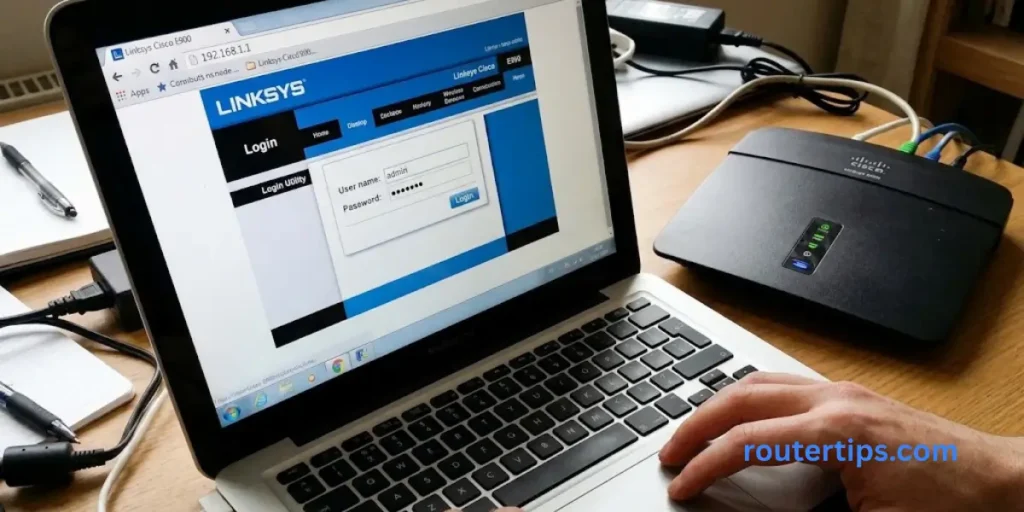
The Linksys E900 is an older wireless router. Connect your device to its network and check the router’s manual for the correct login address.
You can try 192.168.1.1 if it matches your network settings. If the page does not open, check the current gateway address.
Some features on newer Linksys routers may not be available on the E900. Use its own manual for help with passwords and settings.
Linksys E1200 Router Login
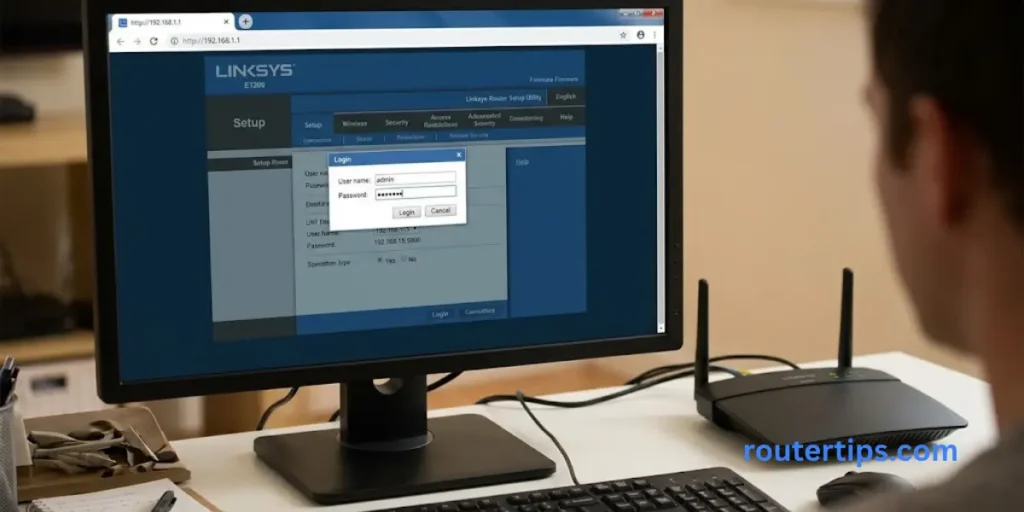
To log in to a Linksys E1200, connect your computer or phone to the router and open its local login page.
You can try 192.168.1.1, but check your current gateway address if it does not work.
The E1200 may have an older settings page than newer Linksys models. Follow its model-specific instructions when changing passwords or wireless settings.
Linksys E5400 Router Login
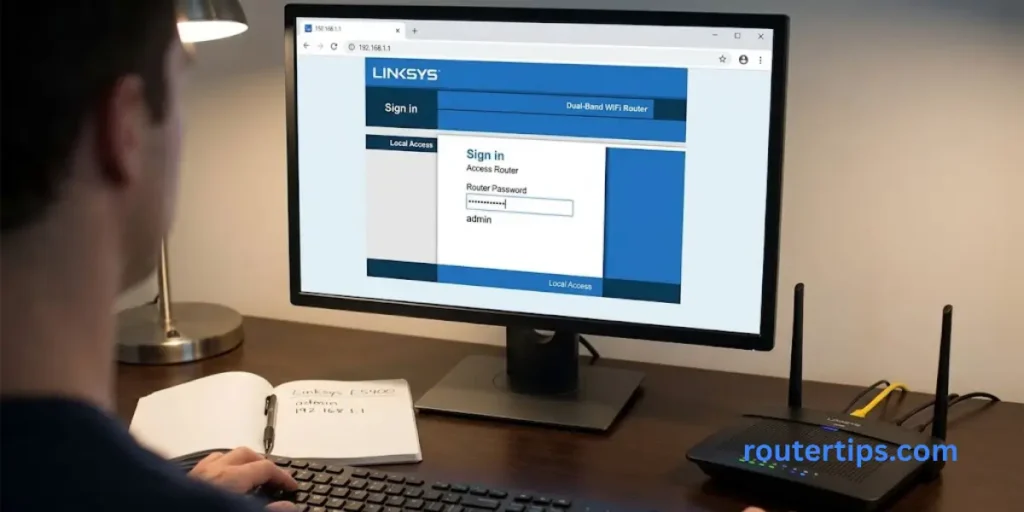
To access a Linksys E5400, connect to its Wi-Fi network or use an Ethernet cable.
Open the router’s supported local address in your browser. If the page looks different from the steps in this guide, follow the instructions for your router’s model and firmware.
Do not use login details from another router unless the official instructions confirm they are correct.
Linksys E9450 Router Login
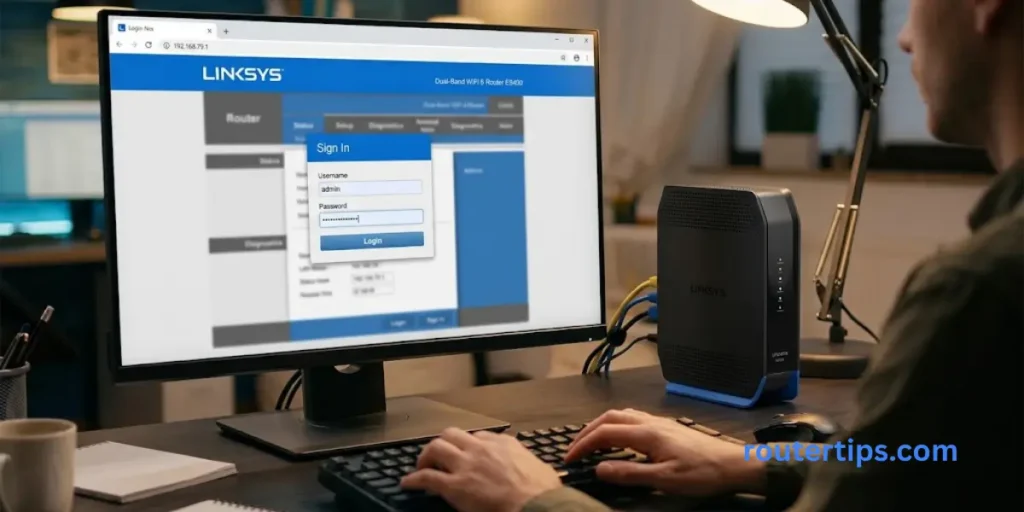
The Linksys E9450 has its own setup and settings options. Connect to the router and check its manual for the correct login method.
If 192.168.1.1 does not open, check the current gateway address instead of repeatedly trying the same one.
The correct password and available settings depend on the router’s setup.
Linksys Velop and Mesh Router Login
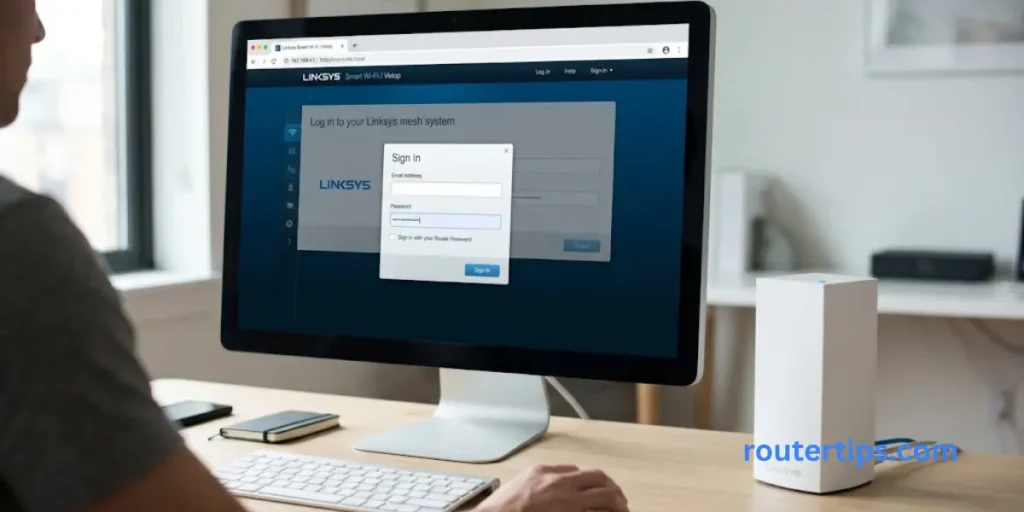
Linksys Velop is a mesh Wi-Fi system. It can use a main router and extra nodes to provide Wi-Fi coverage in different parts of your home.
Connect to the network managed by the main router. Then try https://192.168.1.1 or myrouter.local.
Some Velop models use different login and password recovery steps. If you cannot sign in, check the instructions for your exact model.
Visit Linksys Mesh router support for more information.
Cisco Linksys Router Login
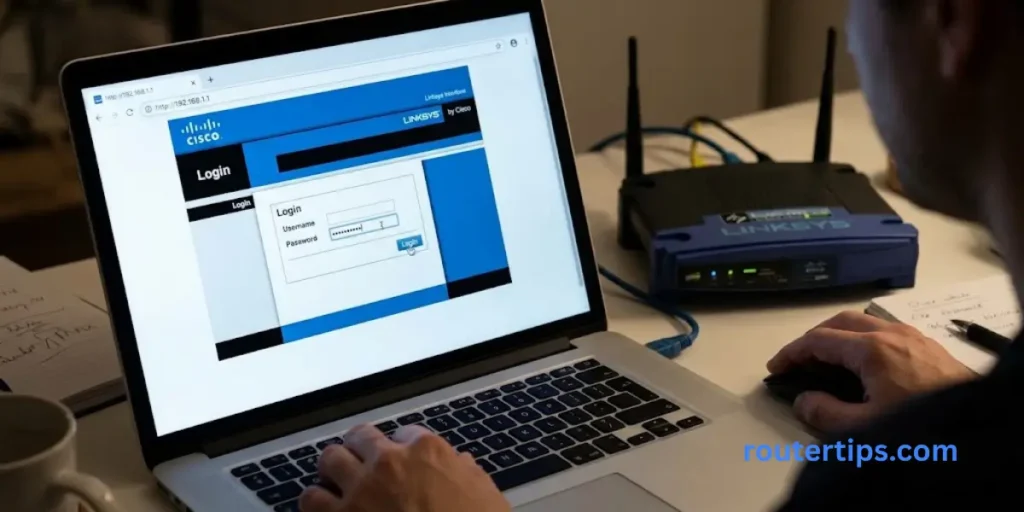
Cisco Linksys is a name used for older Linksys networking products. The correct login method depends on the exact router model.
Check the model number on the router label. Then use its manual to find the login address, username, and password details.
Remember that home Linksys routers and business Cisco networking devices may use different tools and login methods.
How to Fix Linksys Router Login Not Working
If your Linksys router login page does not open, or your password is rejected, try the fixes below. Start with the easiest steps before resetting your router.
192.168.1.1 Is Not Opening
First, check that your device is connected to the correct Linksys network.
Make sure you entered the address into the browser’s address bar. Then try myrouter.local if your router supports it.
If neither address works, find your current default gateway and enter that address into the browser.
You may also be trying to open the settings for a different router, access point, or internet provider gateway.
Myrouter.local Is Not Working
The address myrouter.local may not work on every device or network.
Try opening the router’s IP address instead. You can also disconnect your VPN for a moment and make sure you are connected to the main Linksys network rather than guest Wi-Fi.
If the page still does not open, check that the router is powered on and your device has a valid network connection.
The Router Password Is Incorrect
Check the password carefully before trying again. Make sure you are using the admin password, not the Wi-Fi password.
Look for typing mistakes, including extra spaces and incorrect capital letters.
If you changed the admin password earlier, the default password may no longer work. Check whether your router supports password recovery.
Do not reset your router straight away. You may be able to recover access without removing your saved settings.
The Login Page Keeps Loading
If the Linksys login page keeps loading, refresh the page or try another browser.
Check that you are entering the correct local address. You can also reconnect your device to Wi-Fi or test the connection with an Ethernet cable.
Sometimes, a browser shows a security warning when you open a router’s local HTTPS page. Make sure the address belongs to your own router and follow the official instructions for your model. Do not ignore warnings on unfamiliar websites.
Your Device Is Connected to the Wrong Network
Your phone or computer may connect to a saved Wi-Fi network automatically.
Check the network name and make sure it belongs to your Linksys router. If you have more than one router or a mesh system, confirm which device you want to manage.
Disconnect from the wrong network and connect to the correct one before trying again.
Restart the Router Before Resetting It
Restarting your router can help if it stops responding. A normal restart does not usually erase your saved settings.
Turn the router off as directed in its manual, wait briefly, and turn it back on. Give it time to start before trying to log in again.
A factory reset is different. It can erase your Wi-Fi name, password, internet settings, and other changes.
Only consider a factory reset when other options fail.
How to Reset a Forgotten Linksys Router Password
If you forget your admin password, check whether your router supports password recovery. The steps depend on the model.
Try the Router’s Password Recovery Option
Open your Linksys login page and look for Reset password, if available.
Some supported routers use a recovery key printed on the product label. Follow the on-screen instructions to check the key and create a new admin password.
The recovery key is different from your Wi-Fi password on supported models. Keep it private and do not share it publicly.
Use the Recovery Key if Your Model Supports It
On supported models, the process may include these steps:
- Open
myrouter.localor your router’s IP address. - Select the local access option if needed.
- Click Reset password.
- Enter the recovery key from the router label.
- Follow the instructions to create a new password.
Factory Reset as a Last Resort
If password recovery is not available, a factory reset may be your last option.
A factory reset can remove your Wi-Fi name, Wi-Fi password, internet settings, and other saved changes. You may need setup details from your internet provider to reconnect.
Some Linksys routers use a reset button that must be held for several seconds while the router is powered on. The exact timing and steps can differ by model.
Check your router’s manual before pressing the reset button. After the reset, follow the setup instructions and create new passwords.
What Can You Do After Logging In to Your Linksys Router?
After you log in, you can manage several parts of your home network. The options depend on your router model and firmware.
- Change your Wi-Fi name and password: Update the details you use to connect your devices.
- Check connected devices: See which phones, computers, and other devices are using your network, if your model supports this feature.
- Check for firmware updates: Install supported updates to help keep your router secure and working well.
- Set up guest Wi-Fi: Give visitors a separate network if your router supports it.
- Manage parental controls: Use available tools to manage internet access for selected devices.
- Check internet settings: Review connection details when your internet stops working.
Be careful when changing advanced settings. A wrong change can stop your internet or Wi-Fi from working. If you are not sure what a setting does, read your router’s manual before saving changes.
Final Thoughts on Linksys Router Login
Logging in to your Linksys router is usually simple once you know the correct address and admin password. Start by connecting to your network and opening 192.168.1.1 or myrouter.local in your browser.
If you cannot log in, check your router’s IP address, make sure you are using the admin password, and look for a password recovery option. Use a factory reset only when other methods fail because it can erase your saved settings.
After you sign in, choose a strong admin password, check for supported firmware updates, and keep your Wi-Fi settings secure. These simple steps can help you manage your Linksys router and keep your home network working properly.
Frequently Asked Questions About Linksys Router Login
Q1. How do I log in to my Linksys router?
Connect your device to your Linksys network. Open a browser and enter https://192.168.1.1 or myrouter.local. Enter your router admin password and click Sign In. If the page does not open, check your router’s current IP address.
Q2. What is the Linksys 192.168.1.1 password?
Many Linksys Smart Wi-Fi routers use admin as the default admin password if it has not been changed. However, some models use different login details. Check your router label or manual if the password does not work.
Q3. How can I log in to my home router?
Connect your device to your home Wi-Fi or use an Ethernet cable. Open a browser and enter your router’s IP address. Then enter the admin username and password if requested. The correct details depend on your router.
Q4. How do I log in to my 192.168.1.1 router?
Type 192.168.1.1 into your browser’s address bar while connected to the router. Enter the admin password when the login page opens. If the page does not load, check whether your router uses a different IP address.
Q5. Can I access my Linksys router without an app?
Yes, many Linksys routers support local access through a web browser. Connect to your router and try 192.168.1.1 or myrouter.local. Some setup steps and features may differ by model.
Q6. What is the default Linksys router username and password?
Many Linksys Smart Wi-Fi routers ask for an admin password without a separate username. The default password may be admin if it has not been changed. Check the instructions for your model if you cannot sign in.
Q7. Why is my Linksys router login not working?
Your router login may fail because you are using the wrong IP address, connected to the wrong network, or entering an incorrect password. Check your connection, try the current gateway address, and use password recovery if your router supports it.
Q8. How do I change my Linksys router login password?
Sign in to your router, open the admin or password settings, and enter a new password. Save the changes. The exact menu depends on your router model. Changing the admin password does not always change the Wi-Fi password.
Q9. Does a Linksys router reset erase my Wi-Fi password?
Yes, a factory reset usually removes saved Wi-Fi settings, including your Wi-Fi name and password. You will need to set them up again. If your router supports admin password recovery, try that first to avoid losing your settings.