
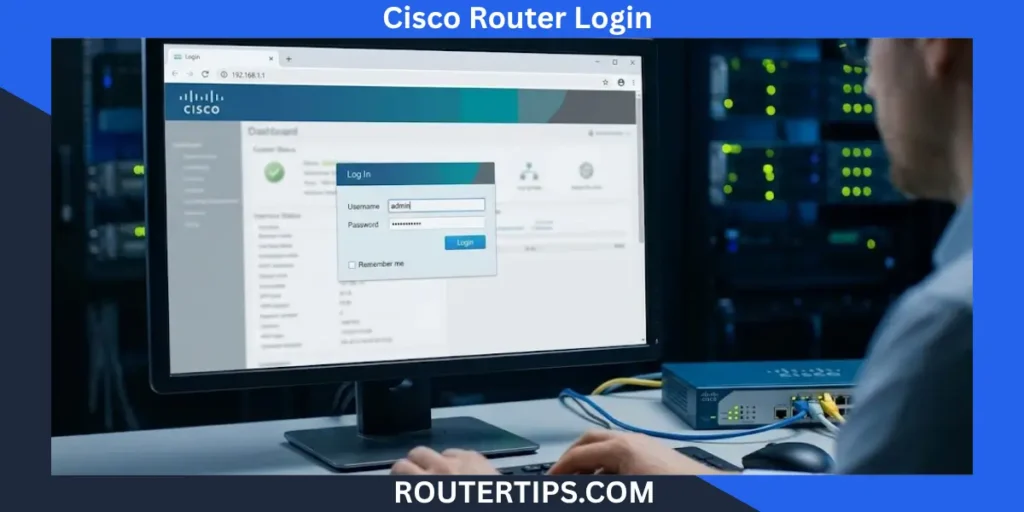
If you want to access your Cisco router settings, you need to open its login page and enter the correct administrator credentials. From there, you may be able to change your Wi-Fi password, update your network name, manage connected devices, and adjust other network settings.
The exact login process depends on your Cisco device. Some Cisco Business routers have a web-based admin page, some Linksys routers use a local web interface, and enterprise Cisco routers may require a command-line connection. Cable modem gateways may also use settings provided by your internet service provider (ISP).
In this guide, you will learn how to log in to a Cisco router, find its IP address, check the default username and password, change your password, and fix common login problems.
How to Log In to Your Cisco Router
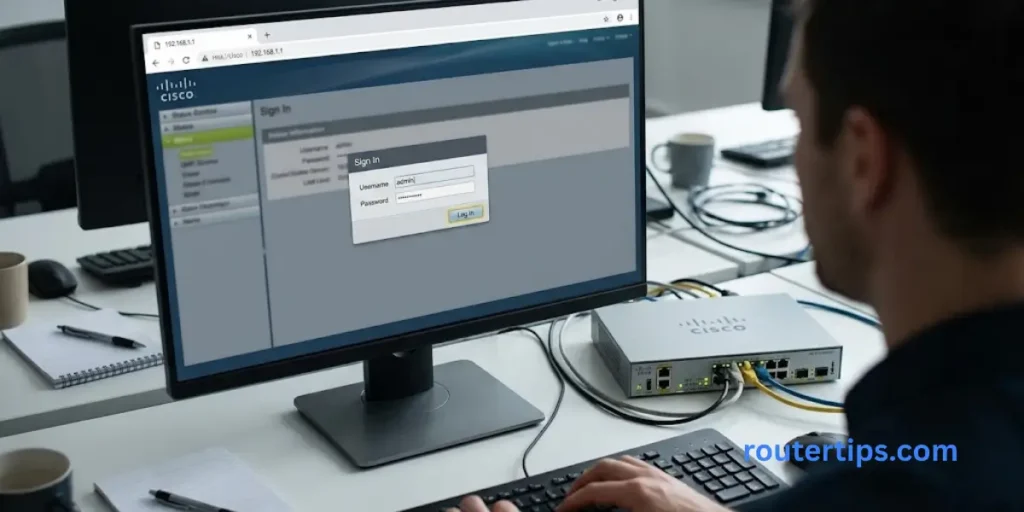
You can usually access a supported Cisco router through a web browser, provided that the model has a local web management page. Before you begin, make sure your computer or phone is connected to the correct network.
Connect to Your Cisco Router Network
Connect your computer to the router using Wi-Fi or an Ethernet cable. A wired connection is often helpful when you are setting up a router for the first time or fixing a connection problem.
If your Cisco router is already working, connect to its Wi-Fi network. If it is a new device, follow the setup instructions supplied with the router.
Make sure you are connected to the router you want to manage. If your home has a modem, a separate router, and a Wi-Fi access point, the address you need may belong to a different device.
Find Your Cisco Router IP Address
A router IP address is the local address used to reach its management page. The address varies by model and network configuration.
For some Cisco Business routers, the default address is 192.168.1.1. However, a router that is already connected to a network may use another address.
If you do not know the correct address, check the router label or follow the instructions in the IP address section below.
Open the Router Login Page
Open a web browser such as Chrome, Firefox, Edge, or Safari.
Type the router’s IP address into the browser’s address bar. For example, if your router’s gateway address is 192.168.1.1, enter:
http://192.168.1.1
Press Enter to load the page.
Some routers support or require HTTPS, so use the connection method stated in the device manual. A browser security warning can occur with a local router that uses a self-signed certificate. Before continuing, verify that the address belongs to your own router and that you are connected to the correct network.
If the page does not load, do not assume the router is broken. First, check the IP address and your network connection.
Popular Router Brands
Enter Your Cisco Router Username and Password
When the login page appears, enter the administrator username and password.
For some Cisco Business devices in their initial setup state, Cisco documents cisco as both the default username and password. This does not apply to every Cisco router. Other devices may use different initial credentials or require you to create a password during setup.
Check the product label, setup guide, or official manual for your exact model. If someone has already configured the router, you will normally need the credentials they set.
Keep in mind that your Wi-Fi password and router administrator password may be different.
Access and Manage Router Settings
After signing in, you may see a dashboard with menus for network settings, wireless configuration, security, or system management. The available options depend on your model and software.
Before changing a setting, read its description and note the current value. If your router offers a configuration backup, save one before making major changes.
What Is the Default IP Address for a Cisco Router?
There is no single IP address used by every Cisco router. The correct address depends on the product, its initial setup, and any changes made by a network administrator.
192.168.1.1 is a common starting point for certain Cisco Business routers, including supported RV Series models. It is not a universal Cisco router login address.
Other private addresses may be used on home networks and cable gateways. For example, 192.168.0.1 and 192.168.100.1 can be used by some network devices, depending on their configuration.
Is 192.168.1.1 the Cisco Router Login IP?
It can be, but you should verify it before trying to sign in.
If your Cisco Business router is in its initial setup state, its manual may specify 192.168.1.1. If it has already been configured, the address may have changed. A device that receives its address from another router may also use a different IP address.
To check, look at the router’s label or find the default gateway on a device connected to the same network.
How to Find Your Cisco Router IP Address on Windows
Windows can show the default gateway for the network connection you are using.
- Connect your computer to the Cisco router.
- Press Windows + R to open the Run box.
- Type cmd and press Enter.
- Enter the following command:
ipconfig - Find the active Wi-Fi or Ethernet adapter.
- Look for Default Gateway.
The address shown next to Default Gateway is often the local router address for that connection. If your network uses separate gateways or multiple routers, check that the address belongs to the device you want to manage.
How to Find the Router IP Address on Mac
- Open System Settings.
- Select Network.
- Choose your active Wi-Fi or Ethernet connection.
- Open the connection details and look for the router address.
The exact menu names may differ between macOS versions. You can also use the Terminal app and run:
route -n get default
Look for the value next to gateway.
How to Find the Router IP Address on Android or iPhone
On a phone, open the Wi-Fi settings and select the network you are connected to.
On an iPhone, tap the information icon beside the network and look for Router. On Android, open the network details and look for Gateway or a similar field. The exact label depends on the phone maker and Android version.
If the address is missing, check the router’s label or use a connected computer.
What Is 192.168.100.1 Router Admin?
192.168.100.1 is a private IPv4 address that some modems, gateways, and other network devices may use for local management.
It is not the default admin address for all Cisco routers. If your Cisco-branded cable gateway or ISP-supplied modem uses this address, follow the instructions for that exact model.
If the page fails to load, check the gateway address, confirm your connection, and review the device manual. Do not enter administrator credentials on an unfamiliar website that only looks like a router login page.
Cisco Router Default Username and Password
The default username and password depend on the model and how the router was set up. Cisco has different product families, and their login methods are not always the same.
Some Cisco Business router setup guides list cisco for both the username and password during initial access. Older devices and other product families may use different credentials. Some devices require you to create an administrator password during the first setup.
Common Cisco Router Login Credentials
| Router or device type | Login information |
| Supported Cisco Business routers in initial setup | Some models use cisco / cisco |
| Cisco Linksys home routers | Follow the model’s Linksys setup instructions |
| Cisco EPC3925 or EPC3928 cable gateways | Check the gateway label, manual, and ISP instructions |
| Cisco Meraki devices | Use the supported Meraki management method |
| Cisco IOS or IOS XE enterprise routers | Use the credentials configured by the administrator |
These are general examples, not a universal credential list. Do not assume that a username and password listed for one device will work on another.
Where to Find the Default Login Details
Check these sources in order:
- Router label: Look for the model number, default address, and any printed login details.
- Quick-start guide: The supplied guide may explain the first login process.
- Official product manual: Search for the exact model and hardware version.
- Internet provider: If the device came from your ISP, ask whether it uses a custom login or provider-managed settings.
- Network administrator: For a business or school network, contact the person responsible for the equipment.
If the router has been configured before, its current credentials may be different from the factory defaults.
Why Cisco Routers Do Not All Use the Same Password
Cisco sells equipment for home offices, small businesses, service providers, and large enterprise networks. These products can use different management systems and security settings.
A Linksys home router may provide a browser-based interface. A Cisco Business router may use a local web dashboard. An enterprise router may be managed through a console or SSH session.
For this reason, use model-specific documentation instead of trying random username and password combinations.
How to Change Your Cisco Router Password
Changing the administrator password helps protect your router settings from people who should not have access.
The exact menu depends on your device, but the general process is similar on many routers.
Change the Router Administrator Password
- Connect to your Cisco router.
- Open its local management page.
- Sign in with your current administrator credentials.
- Open the administration, user management, or security section.
- Find the option for changing the administrator password.
- Enter your current password if requested.
- Create and confirm a strong new password.
- Save the change and sign in again if required.
Menu names can vary, so consult the manual if you cannot find the setting.
Use a password that is unique to your router. A long password or passphrase is usually easier to manage and harder to guess than a short, common word.
Change Your Cisco Wi-Fi Password
The Wi-Fi password controls who can join your wireless network. It is not necessarily the same as the administrator password.
To change it:
- Sign in to the router’s management interface.
- Open the wireless or Wi-Fi settings.
- Select the correct wireless network or SSID.
- Find the Wi-Fi security or password field.
- Enter a new, strong password.
- Save the settings.
Your phone, computer, smart TV, and other wireless devices may disconnect after the change. Reconnect each device using the new Wi-Fi password.
If your router has separate settings for 2.4 GHz and 5 GHz networks, check whether both need updating.
Choose a Strong and Secure Password
Follow these basic security steps:
- Use a long, unique administrator password.
- Do not reuse your email or social media password.
- Keep the administrator password separate from the Wi-Fi password.
- Store the new password in a trusted password manager.
- Update the router’s firmware when supported updates are available.
- Disable remote administration if you do not need it and your model allows it.
Never share your administrator password in a public post or an untrusted support chat.
How to Reset a Cisco Router Login Password
If you forgot your Cisco router password, the right recovery method depends on the model.
First, check whether your browser or password manager saved the correct login. If the router belongs to your ISP, ask the provider about account or device recovery. For a business network, contact the administrator before resetting anything.
What to Do If You Forgot Your Password
If you can still access the router through another authorized administrator account, use that account to change or recover access according to the device’s instructions.
If you cannot sign in, consult the model’s official password-recovery guide. Some home routers offer a recovery key or app-based process. Some Cisco Business devices may require a factory reset when no supported recovery method is available.
Enterprise Cisco IOS and IOS XE routers use a different recovery process. Cisco’s official guidance for supported platforms requires a direct console connection and physical access or control of the device’s power. The steps vary by router family and software version.
When to Use the Factory Reset Button
A factory reset may help if you own the router and cannot recover access through another supported method. It should be a last resort, not the first troubleshooting step.
Before resetting, understand the risks. A factory reset can erase saved settings, including the Wi-Fi name, passwords, internet connection details, port forwarding rules, and other custom settings.
The reset process varies by model. Check the official manual for the correct button location and reset time. Do not assume every Cisco device uses the same procedure.
What Happens After a Factory Reset?
After a successful reset, the router may return to its original setup state. You may need to:
- Connect to the router using its documented default address.
- Follow the initial setup process.
- Create a new administrator password.
- Set a new Wi-Fi name and password.
- Restore internet settings supplied by your ISP.
- Reconnect phones, computers, and smart devices.
- Reapply any required network settings.
If your ISP manages the gateway, contact the provider before resetting it. You may need specific settings or assistance to restore your connection.
Cisco Router Login Not Working? How to Fix It
A Cisco router login problem does not always mean the password is wrong. The device may be using another IP address, your computer may be connected to a different network, or the router may not offer the type of login page you expect.
Try the following checks before resetting the device.
The Router Login Page Will Not Open
Start with these steps:
- Confirm that your computer or phone is connected to the correct network.
- Check the router’s IP address.
- Type the address into the browser’s address bar, not the search box.
- Check whether the device requires HTTP or HTTPS.
- Restart the browser and try again.
- If needed, restart the router after checking whether doing so will disrupt other users.
If the address is correct but the page still fails, consult the device manual. Some enterprise Cisco devices are not configured for browser-based management.
Incorrect Username or Password
If the login page opens but rejects your credentials, check that Caps Lock is off and that you have entered the correct username.
Remember that the administrator password may have been changed during setup. A password printed on a label may apply only to a particular function or initial setup state.
Do not keep guessing passwords. Check the official documentation or contact the person who manages the router.
192.168.1.1 Is Not Working
The address 192.168.1.1 only works if it is the correct address for your router.
Run ipconfig on Windows and check the Default Gateway field. On a Mac, check the router address in network settings or use the Terminal command shown earlier.
If another address appears, use that address instead. If the router is part of a larger network, its address may have been assigned by another device or changed by the administrator.
Browser, Connection, and IP Address Problems
Try another browser or a private browsing window. Temporarily disable a VPN if it is routing traffic away from your local network, then test the router address again.
If your computer has both Wi-Fi and Ethernet enabled, confirm which network connection is active. Avoid changing your computer’s IP settings unless you know what the router requires.
For a new Cisco Business router connected directly to a computer, the setup instructions may require the computer to obtain an IP address automatically. Other configurations may need specific network settings.
Router Settings Changed and the Connection Stopped Working
If you changed the LAN IP address, the old login address may no longer work. Use the new address if you know it, or check the network’s current gateway.
If you changed DHCP, Wi-Fi, VLAN, or other network settings, your computer may no longer be on the correct network. Follow the model’s recovery instructions before making more changes.
For a managed business router, ask the network administrator for help. A factory reset can cause a wider outage if the device supports important services.
Cisco Router Login for Different Models
Cisco router login steps vary by product family. Use the exact model number printed on your device to find the right instructions.
Cisco Linksys E1000, E2000, E3000, and E900
These are Linksys home-router model names. The available management features and login process depend on the specific model and firmware.
For supported Linksys routers, the local web interface may be available through 192.168.1.1 or myrouter.local. Linksys also documents model-specific password and access steps.
Cisco EPC3925 and EPC3928 Cable Gateways
The EPC3925 and EPC3928 are cable gateway model names that may appear in ISP-provided equipment. The exact login address, username, and password can depend on the firmware and provider settings.
Check the label on the gateway and any setup information from your ISP. If the gateway was supplied by your cable provider, contact its support team if the login page or credentials do not match the manual.
Do not assume that a credential listed for one EPC model will work on another.
Cisco Meraki Router and Network Login
Meraki network equipment is commonly managed through the Meraki Dashboard rather than through the same local login process used by many home routers.
If you manage a Meraki network, use your authorized Dashboard account and the access method configured for your organization. A local device status page, where available, is not the same as the full cloud management dashboard.
If you do not have access, contact the network owner or administrator. Do not use consumer router login instructions for a managed Meraki network.
Cisco Business Routers and Enterprise Devices
Cisco Business routers may offer a local web interface with a setup wizard and menus for network configuration. The exact features depend on the model and software version.
Enterprise routers running Cisco IOS or IOS XE are often administered through a console or SSH connection. Their login process may involve a configured username, an enable password, and command-line access.
Check the correct product guide before changing the configuration. If you manage a live business network, back up the configuration and understand the effect of each change before applying it.
Cisco Router Login Commands for Administrators
This section is for authorized administrators of Cisco IOS devices. These commands are not instructions for logging in to a home router’s browser page.
Cisco Username and Password Commands
On supported Cisco IOS devices, an administrator may configure a local username with a secret password from global configuration mode.
For example:
configure terminal
username netadmin privilege 15 secret YOUR_STRONG_PASSWORD
end
Replace YOUR_STRONG_PASSWORD with a secure password before entering the command. Do not use the example text as a real password.
The username command creates a local account, privilege 15 assigns a high privilege level, and secret stores the password using the device’s supported secret mechanism. Exact command support and authentication behavior can vary by platform and configuration.
Follow Cisco’s documentation for your device and software release. Never make account changes on a router you do not own or administer.
Cisco Router Login Banner Example
A login banner can display a message before a user signs in. Organizations may use it to state that access is restricted to authorized users.
A basic example on supported IOS devices is:
configure terminal
banner login #Authorized users only. Activity may be monitored.#
end
The # characters mark the start and end of the banner text in this example. Use a delimiter that does not appear in the message, and check the syntax supported by your software version.
A banner does not replace authentication or other security controls. Follow your organization’s security policy when writing a banner.
Recovering Access to Cisco IOS and IOS XE Devices
Enterprise password recovery is more sensitive than resetting a typical home router. The process can involve console access, rebooting the device, and working with its startup configuration.
Cisco’s recovery instructions apply to specific device families and software versions. Some configurations may also prevent password recovery.
How to Secure Your Cisco Router
After you regain access, take a few minutes to improve the router’s security.
- Change default credentials. Use a unique administrator password.
- Protect the Wi-Fi network. Set a strong wireless password and use a supported, secure Wi-Fi encryption option.
- Update firmware. Install supported updates from the manufacturer or follow your ISP’s update process.
- Review remote access. Disable remote administration if it is not needed and the device allows it.
- Check connected devices. Remove unknown devices only after confirming that they are not yours or part of your network.
- Save a configuration backup. If your model supports it, store the backup somewhere secure.
- Limit administrator access. Use separate accounts and appropriate permissions when supported.
For business equipment, follow your organization’s security rules. A change that is safe for a home router may disrupt a larger network.
Final Thoughts on Cisco Router Login
The Cisco router login process starts with finding the correct IP address and using the credentials for your particular device. Although 192.168.1.1 is a common address for some Cisco Business routers, not every Cisco router uses it.
If you cannot sign in, verify your network connection, check the default gateway, and consult the manual for your model. If you forgot the password, use the correct recovery method rather than repeatedly trying random credentials or resetting the device without a plan.
Once you regain access, change any default credentials, use a strong Wi-Fi password, and keep the router’s software up to date. These simple steps can help you manage your network more safely and avoid common login problems.
Frequently Asked Questions About Cisco Router Login
Q1. How do I log in to my Cisco router?
Connect to the router, find its local IP address, and enter that address in your browser. Sign in with the administrator credentials for your exact model. Some Cisco routers use a web interface, while enterprise models may require console or SSH access.
Q2. What is the default username and password for a Cisco router?
Some Cisco Business routers use cisco for both the username and password during initial setup. This is not true for every Cisco device. Check the product label and official manual for the correct credentials.
Q3. How do I log in to my 192.168.1.1 router?
Connect to the router’s network and enter http://192.168.1.1 in the browser’s address bar. If the login page does not appear, verify that this is the router’s actual IP address and check whether it uses HTTPS.
Q4. What is 192.168.100.1 router admin?
192.168.100.1 is a private IPv4 address that some modems and gateways use for local management. It is not the standard admin address for every Cisco router. Check your device’s documentation to confirm its correct address.
Q5. What is the Cisco router login IP address?
192.168.1.1 is a common default address for certain Cisco Business routers, but the correct address depends on the model and network settings. Check the label or find the Default Gateway on a connected device.
Q6. How do I reset a forgotten Cisco router password?
Use the supported recovery process for your model. A home router may offer a recovery feature or require a factory reset, while an enterprise IOS or IOS XE router may require a direct console connection. Review the official manual before taking action.
Q7. Can I log in to my Cisco router from my phone?
Yes, if your router provides a compatible web interface or management app. Connect your phone to the correct Wi-Fi network, open the browser or supported app, and follow the device’s login instructions.
Q8. Is a Cisco router administrator password the same as the Wi-Fi password?
No. The administrator password protects access to router settings. The Wi-Fi password lets devices join the wireless network. You may need to change them separately.