
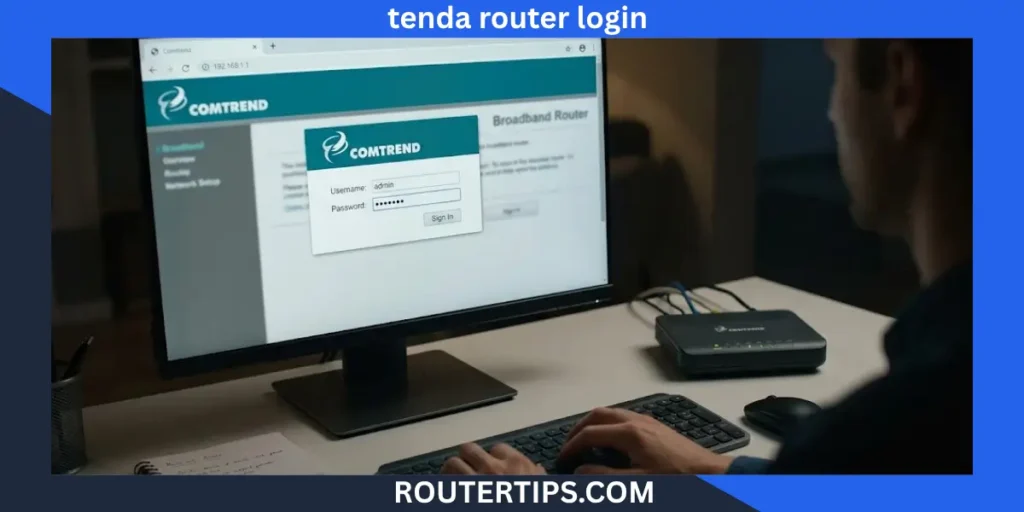
If you need to access your Comtrend router settings, start by connecting your phone or computer to the router’s Wi-Fi network or using an Ethernet cable. Then open a web browser and enter your router’s local IP address, often 192.168.1.1. Enter the correct administrator username and password when the login page appears.
However, not every Comtrend router uses the same IP address or login details. Your model, internet service provider (ISP), and saved settings can affect how you sign in. For example, the Comtrend NexusLink 3120 manual lists 192.168.1.1 as its factory LAN address, with root and 12345 for administrative access. Other Comtrend devices may use different credentials.
This guide explains how to complete a Comtrend router login, find the correct admin details, change your Wi-Fi password, set up your connection, and fix common login problems.
How to Log In to Your Comtrend Router
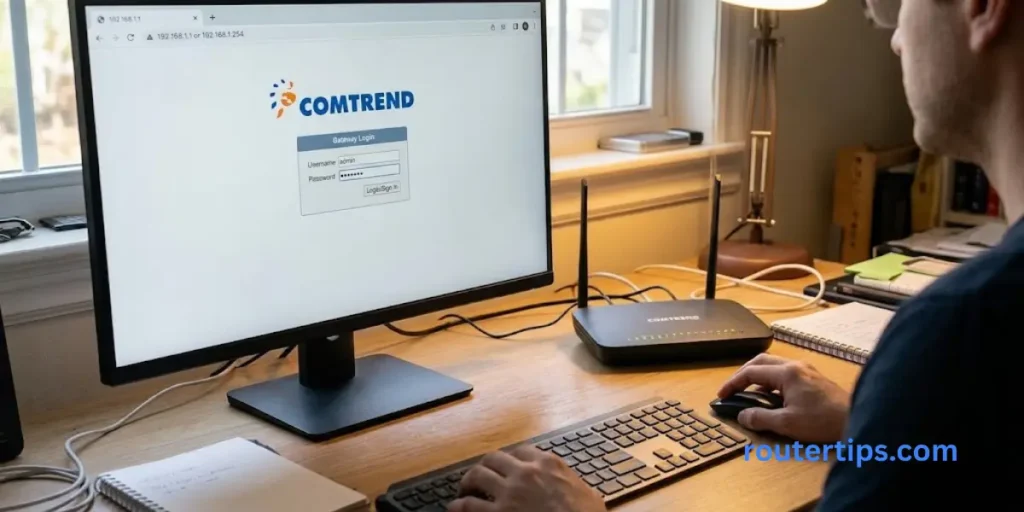
You can usually open the Comtrend router admin page from a phone, tablet, or computer connected to your home network. You do not normally need a working internet connection to open the local settings page, but your device must be connected to the router.
Follow these steps to sign in.
Connect to Your Comtrend Router
Connect your device to the Comtrend network using one of these methods:
- Wi-Fi: Join your router’s wireless network.
- Ethernet: Connect your computer to a LAN port on the router with a network cable.
If your Comtrend device is supplied by your internet provider, use the network name and Wi-Fi password provided with the device or set during installation.
Make sure you are connected to the correct network. If your phone switches to mobile data or another saved Wi-Fi network, you may not reach the router’s login page.
Popular Router Brands
Find Your Comtrend Router IP Address
A router IP address is the local address you use to open its settings. Many Comtrend models use 192.168.1.1, but you should check the address for your own device rather than assume it is correct.
You can find the address in several ways:
- Check the label on the router or gateway.
- Read the setup card or user manual.
- Check the default gateway on your connected computer.
- Ask your internet provider for the correct admin address.
If you need more help, follow this guide to find your router IP address.
Open the Comtrend Router Login Page
Open Chrome, Edge, Firefox, Safari, or another web browser. Type the router’s IP address directly into the address bar.
For example:
http://192.168.1.1
Press Enter to load the page.
Make sure you enter the address in the browser’s address bar, not in Google Search. If your router uses a different address, replace 192.168.1.1 with the correct one.
A login window or router sign-in page should appear. Its design may differ depending on the model and the software installed by your internet provider.
Enter Your Comtrend Username and Password
Enter the administrator username and password for your particular device. These details may be printed on a label, listed in the manual, or supplied by your ISP.
If the router is new and has not been configured, its factory login details may still work. If someone changed the administrator password during setup, the original password may no longer be valid.
Do not keep trying random password combinations. Check the device label and model manual first.
Open Your Router Settings
After a successful login, you should see the router’s administration panel. Depending on the model, the menu may include settings for:
- Internet or WAN connection
- Local network or LAN
- Wireless network name (SSID)
- Wi-Fi password and security
- Connected devices
- DHCP settings
- Administrator accounts
- Firmware and system tools
Menu names differ between models. Before changing a setting, read its description and note the current value. A wrong WAN or network setting can interrupt your internet connection.
What Is the Default IP Address for a Comtrend Router?
The default IP address depends on the Comtrend model and the settings applied by your internet provider.
192.168.1.1 is a documented factory LAN address for the Comtrend NexusLink 3120. However, it is not a guaranteed address for every Comtrend router.
Here are some addresses you may come across when checking router or modem settings:
| IP address | What to know |
| 192.168.1.1 | A common router admin address and the documented factory LAN address for the NexusLink 3120 |
| 192.168.0.1 | Used by some other router models; check your Comtrend manual before trying it |
| 192.168.100.1 | A private address used by some modems and gateways, but not a universal Comtrend login address |
These addresses are examples, not a list of guaranteed Comtrend defaults. The address that works for your device is the one configured as its local gateway or administration address.
Is 192.168.1.1 the Comtrend Router Login Address?
It may be. The Comtrend NexusLink 3120 user manual identifies 192.168.1.1 as its default LAN IP address.
To check whether it works on your device:
- Connect your computer or phone to the Comtrend network.
- Open a browser.
- Enter http://192.168.1.1 in the address bar.
- Press Enter.
- If the login page does not appear, check your device’s default gateway.
If the router has been configured with a different local IP address, entering 192.168.1.1 will not open its admin page.
How to Find the Router IP Address on Windows
You can use Command Prompt to find the default gateway on a Windows computer.
- Connect your computer to the Comtrend router.
- Open the Start menu.
- Search for Command Prompt and open it.
- Type ipconfig and press Enter.
- Find the active Wi-Fi or Ethernet connection.
- Look for Default Gateway.
The number beside Default Gateway is usually the local address of the router handling your connection. Enter that address in your browser.
If you see more than one network connection, check the one you are using to connect to the Comtrend device.
How to Find the Router IP Address on a Phone or Mac
On an iPhone or iPad:
- Open Settings.
- Tap Wi-Fi.
- Tap the information icon beside your connected network.
- Look for the Router field.
On Android:
- Open Settings and go to Wi-Fi or Network settings.
- Select your connected network.
- Open its network details.
- Look for Gateway, Router, or a similar field.
The exact menu names depend on your phone and Android version.
On a Mac:
- Open System Settings.
- Select Network.
- Choose your active Wi-Fi or Ethernet connection.
- Open its details and look for the router address.
If the address is not shown in the same place, check your device’s current network settings or support instructions.
What Is 192.168.100.1 Router Admin?
192.168.100.1 is a private IPv4 address. Some modems, gateways, and other network devices use it to provide access to local settings or status information.
It is not the standard admin address for every Comtrend router. If 192.168.100.1 does not open your Comtrend login page, check the model manual, router label, or ISP instructions.
You should also avoid assuming that an address used for a modem’s status page is the same as the address used to manage your router. Some home networks have separate modem and router devices, each with its own local address.
Comtrend Default Username and Password
The default username and password for a Comtrend router depend on its model and configuration. There is no single login combination that works on every Comtrend device.
For an accurate result, identify the full model number on the device label and check its user manual or contact your internet provider.
Common Comtrend Router Login Credentials
Some third-party router references list admin as a possible default username, and some list admin as a possible password. These details should be treated as examples, not universal factory settings.
The official NexusLink 3120 manual lists the following factory access details:
| Account type | Username | Password |
| NexusLink 3120 administrative access | root | 12345 |
| NexusLink 3120 user access | user | user |
These credentials apply to the documented factory configuration of that specific model. They may not work if your ISP supplied customized firmware, changed the login details, or updated the router configuration.
The distinction between administrator access and user access also matters. A user account may let you view some settings without giving you permission to change every part of the router.
Comtrend NexusLink 3120 Router Login
For the NexusLink 3120, the user manual lists 192.168.1.1 as the factory LAN IP address. It also documents separate administrator and user accounts.
To try the documented factory administrator login:
- Connect to the NexusLink 3120 network.
- Open http://192.168.1.1.
- Enter username root.
- Enter password 12345.
- Select the login option.
Use these details only if they match your device’s model and configuration. If the login fails, check the label and contact your ISP before resetting the gateway.
Comtrend WR-6895 Router Login
The WR-6895 appears in provider-specific setup material. However, login details can vary according to how a provider supplied and configured the device.
Check the exact model and provider instructions before using a default password. Do not assume credentials listed for another Comtrend model will work on the WR-6895.
If your WR-6895 came from an internet provider, ask that provider for its current admin login details. The provider may use a custom username, password, or management page.
Comtrend WR-5931, WR-5882, and ADSL2+ Routers
Comtrend has made several router and broadband gateway models, including devices designed for DSL connections. Their login pages and menu layouts may differ.
For the WR-5931, WR-5882, or a Comtrend ADSL2+ router:
- Read the full model number on the label.
- Find the matching manual or setup guide.
- Confirm the local IP address.
- Check the documented factory credentials.
- If the ISP supplied the device, confirm whether it controls the login settings.
You can start with the official Comtrend Resource Hub, which lists manuals and product documents for supported models.
Where to Find Your Comtrend Default Login Details
If you do not know the correct username and password, use these sources in order:
- Router label: Look for the model number, admin address, username, or password. Some labels show only the Wi-Fi details.
- User manual: Find the login or default settings section for your exact model.
- Internet provider: Ask whether the router uses a custom administrator account.
- Previous setup records: Check whether you or your installer saved a new password.
- Official product support: Use the manufacturer’s support page or product resources where available.
Remember that the Wi-Fi password and administrator password are different. The Wi-Fi password connects your devices to the network. The administrator password opens the router settings.
How to Change Your Comtrend Router Password
Changing the administrator password helps prevent other people connected to your network from opening the router settings without permission.
The exact steps depend on the Comtrend model and its software. Make sure you are changing the administrator password, not only the Wi-Fi password.
Change the Router Administrator Password
- Sign in to your Comtrend router.
- Open the Administration, Management, Account, or Access Control section.
- Look for a password or user account option.
- Select the administrator account if more than one account appears.
- Enter the current password if requested.
- Create a new, strong password.
- Save or apply the changes.
- Sign in again with the new password if prompted.
Some ISP-managed gateways do not allow customers to change every administrator setting. If the password option is missing or locked, contact your provider rather than trying to bypass its controls.
Store your new password in a secure password manager or another safe place. If you lose it, you may need to follow the model’s recovery instructions.
How to Change Your Comtrend Wi-Fi Password
Your Wi-Fi password protects access to your wireless network. To change it:
- Sign in to the router admin page.
- Open Wireless, WLAN, or Wi-Fi settings.
- Select the correct wireless band or network.
- Find the password, pre-shared key, or security key field.
- Enter a new, strong password.
- Choose a supported security mode, preferably WPA3-Personal when available or WPA2-AES if WPA3 is not supported.
- Save the changes.
Your devices may disconnect after you save the new password. Reconnect each phone, computer, smart TV, and other wireless device using the updated details.
If your router has separate 2.4 GHz and 5 GHz networks, check whether you need to update the password for each one. Some devices use a single shared name and password, while others allow separate settings.
How to Change Your Comtrend Wi-Fi Name
The wireless network name is also called the SSID. It is the name you see when choosing a Wi-Fi network on your phone or computer.
To change it, open the Wireless or WLAN settings and look for SSID or Network Name. Enter a name that does not reveal personal details, then save the setting.
Changing the network name can disconnect devices that were saved under the old name. Reconnect them to the updated network.
Choose a Strong Password
A strong administrator or Wi-Fi password should be hard for others to guess. Use a long, unique password rather than a name, birthday, phone number, or simple sequence.
For better security:
- Use a different password for the admin page and Wi-Fi.
- Avoid reusing passwords from email or other accounts.
- Do not share your administrator password with people who only need Wi-Fi access.
- Keep a secure record of the new credentials.
- Use the strongest security option supported by your router and connected devices.
These steps can reduce the chance of someone making unwanted changes to your network.
Comtrend Router Setup Guide
A new Comtrend router or gateway may need an internet connection, Wi-Fi name, and security settings before you can use it. The setup process depends on whether your device connects through DSL, fiber, Ethernet, or another service.
If your ISP supplied the router, follow its setup instructions first. The provider may have already configured the device to work with its network.
How to Set Up a Comtrend Router for the First Time
Use these general steps when setting up a device that you own and are allowed to configure.
- Place the router correctly. Keep it in a dry, open area with room for airflow. Avoid hiding it inside a closed cabinet.
- Connect the required cables. Connect the DSL line, WAN cable, or other connection as shown in your model’s manual.
- Turn on the device. Connect the power adapter and wait for the status lights to settle.
- Connect your computer or phone. Use Wi-Fi or an Ethernet cable.
- Open the local admin page. Enter the correct router IP address in your browser.
- Sign in. Use the administrator details for your model or provider.
- Review the settings. Check the internet connection, wireless network, and security options.
- Save your changes. If the router asks to restart, allow it to finish before testing the connection.
Do not change DSL, WAN, or provider connection values unless you know what they should be. Some broadband connections need details from the ISP, such as a connection type or login information.
Configure Your Internet Connection
If the router connects to the local network but cannot access the internet, check the WAN or Internet status page. Depending on your Comtrend model, it may show whether the connection is active and whether the router has received network information.
If you see a disconnected status, check:
- Whether the DSL, WAN, or Ethernet cable is connected to the correct port.
- Whether the relevant connection light is on.
- Whether your ISP reports an outage.
- Whether the provider has given you specific setup instructions.
- Whether the router has the correct connection settings.
Avoid changing advanced connection values just to test random options. Incorrect settings can make it harder to restore the connection.
Set Up Your Wireless Network
Open the Wireless or WLAN menu to review your Wi-Fi name, password, and security settings. The available options depend on your model.
For a home network, choose a unique Wi-Fi name and a strong password. Use WPA3-Personal when your router and devices support it, or WPA2-AES if that is the strongest available choice.
After saving the settings, connect one device to the network and test a few websites. If the connection works, reconnect your other devices as needed.
Save and Test Your Router Settings
Before leaving the admin page, check that the changes have been saved. Some Comtrend interfaces use an Apply, Save, or Save/Apply button. Other interfaces may ask you to restart the router.
Test the internet connection after the router finishes applying the changes. If a setting causes a problem, use the saved values or the manual to restore the correct configuration.
Comtrend Router Login Not Working? How to Fix It
A Comtrend router login problem does not always mean the router is broken. The cause may be the wrong IP address, an incorrect password, a device connected to another network, or an ISP setting.
Try the following fixes one at a time.
The Comtrend Login Page Will Not Open
If your browser cannot load the router login page, start with the basics.
- Confirm that your device is connected to the Comtrend router.
- Enter the IP address in the browser address bar.
- Check that the address is correct.
- Try the address with http:// at the beginning.
- Turn off any VPN temporarily if it changes how your device reaches local network addresses.
- Try another browser or device.
- Restart the router only if it is safe to do so and you are not in the middle of a provider update.
If 192.168.1.1 does not work, find the default gateway on your device and use that address instead. The router may have a different local IP address.
Comtrend Router Says the Username or Password Is Incorrect
An incorrect password message can appear for several reasons. The factory credentials may not match your model, your ISP may have set custom details, or someone may have changed the password.
Try these steps:
- Check the router label for administrator details.
- Confirm the full model number.
- Check the matching user manual.
- Make sure the username and password are entered correctly.
- Ask your ISP whether it controls the admin account.
Do not confuse the Wi-Fi password with the router administrator password. They serve different purposes, and entering the Wi-Fi password into the admin login page may not work.
If you still cannot sign in, read the model’s password recovery instructions before considering a factory reset.
192.168.1.1 Is Not Working
The address 192.168.1.1 is common, but it is not correct for every router. It may also have been changed by an installer or internet provider.
To check the correct address:
- Connect your computer to the Comtrend network.
- Open Command Prompt on Windows.
- Enter ipconfig.
- Find Default Gateway under the active connection.
- Type that address into your browser.
On a phone or Mac, check the connected network’s details for the Router or Gateway field.
If the gateway address is missing, your device may not be connected properly or may not have received a local network address. Check the cable or Wi-Fi connection and reconnect.
The Router Login Page Keeps Loading or Shows an Error
A browser problem may stop the admin page from opening even when the router is working.
Try these options:
- Close the browser and open it again.
- Use a private or incognito window.
- Clear the browser cache if the page appears stuck.
- Try a different browser.
- Restart your computer or phone.
- Connect by Ethernet if Wi-Fi is unstable.
If the router uses a local HTTP page, the browser may show a security warning or mark the page as not secure. A local admin page does not always use the same certificate setup as a public website. However, confirm the address carefully and do not enter your router password on an unfamiliar website.
You Can Log In but Cannot Change Settings
Some Comtrend routers provide separate user and administrator accounts. A user account may allow you to view status details but not change the full configuration.
The NexusLink 3120 manual, for example, documents separate root administrator and user accounts with different access levels.
If an option is missing or disabled:
- Check whether you are using an administrator account.
- Read the manual for the model.
- Check whether the device is managed by your ISP.
- Ask the provider to make the change if it controls the settings.
Avoid attempting to bypass access controls on a provider-managed device.
The Internet Stopped Working After a Setting Change
If your internet connection stops after changing a setting, first check the cable connections and the router’s status lights. Then review the setting you changed.
For example, changing wireless settings may disconnect Wi-Fi devices without affecting the broadband connection. Changing WAN or DSL settings, however, may stop the router from connecting to your ISP.
If you can still open the admin page, restore the previous value if you recorded it. If you cannot tell which value is correct, contact your provider before changing more settings.
The Router Is Slow or Unresponsive
If the Comtrend admin page responds slowly, wait for any save or restart process to finish. Avoid repeatedly unplugging the router while it is applying settings or installing an update.
If the router remains unresponsive:
- Check its power connection.
- Confirm that the power and network lights behave as expected.
- Disconnect and reconnect your device to the network.
- Restart the router if the provider’s instructions allow it.
- Contact your ISP if the device remains unresponsive.
A restart is different from a factory reset. A restart turns the device off and on. A factory reset removes saved settings and may require the router to be configured again.
How to Reset Your Comtrend Router
A factory reset can help when you cannot recover the administrator password or the router has serious configuration problems. However, it should not be your first troubleshooting step.
A factory reset can erase saved settings, including the Wi-Fi name, Wi-Fi password, administrator password, and internet connection configuration. On an ISP-managed gateway, the provider may need to restore the service settings.
When Should You Reset a Comtrend Router?
Consider a factory reset only when:
- You cannot recover the administrator password.
- The router has settings problems that other fixes have not resolved.
- The user manual or your ISP recommends resetting the device.
- You have the information needed to set up the internet connection again.
Do not reset a provider-managed gateway without checking with the provider first. It may use custom settings required to connect to the broadband service.
How to Restore Factory Settings
The exact reset method depends on the model. Some Comtrend devices have a physical Reset button, while others provide a reset option in the admin interface.
For a physical reset, follow the instructions in your model’s manual. Some devices require the reset button to be held for a set period while the device is powered on. The NexusLink 3120 manual, for example, describes holding its reset button for more than ten seconds until the power indicator blinks. This instruction should not be assumed to apply to every Comtrend model.
After the reset:
- Wait for the router to restart.
- Connect to its network.
- Check the default IP address in the manual.
- Use the correct factory login details.
- Restore the required internet and Wi-Fi settings.
If the internet does not return after a reset, contact your ISP. It may need to reconfigure the gateway.
How to Secure Your Comtrend Router
Once you can access your Comtrend router, take a few minutes to check its security settings. These steps help protect your home network and reduce the risk of unwanted access.
Change the Default Administrator Password
If your router still uses a known factory password, replace it with a strong, unique password if your settings allow it. Anyone who can access the admin page and guess the password may be able to change network settings.
Do not use the same password for your router, email, and other online accounts.
Keep Router Firmware Up to Date
Firmware is the software that runs inside your router. Updates may fix security problems, improve stability, or correct software issues.
Check your router’s admin page or the support instructions for your model. If your internet provider manages the gateway, ask whether firmware updates are installed automatically. Do not install firmware intended for a different model or hardware version, as this can stop the device from working.
Comtrend directs customers who received their gateways through an ISP to that provider for product support and configuration help.
Review Wi-Fi Security and Connected Devices
Use a strong Wi-Fi password and the best supported wireless security mode. If the admin page shows a list of connected devices, review it for devices you recognize.
An unfamiliar device name does not always mean someone has accessed your network. Phones and smart home devices may appear under names you do not recognize. Check the device details before taking action.
Also, turn off remote administration if you do not need it and your router allows you to control it. This can reduce access to the admin page from outside your local network.
Final Thoughts on Comtrend Router Login
Logging in to your Comtrend router is usually simple once you know the correct IP address and administrator details. Many users start with 192.168.1.1, but the right address and password depend on the router model and its settings.
If the login page does not open, check your network connection and find the correct default gateway. If the password fails, check the router label, user manual, or internet provider before resetting the device.
After signing in, use a strong administrator password, protect your Wi-Fi network, and make changes only when you understand what they do. If your Comtrend gateway was supplied by your ISP, contact the provider for help with settings it manages.
Frequently Asked Questions About Comtrend Router Login
Q1. How do I access my Comtrend router login page?
Connect your phone or computer to the Comtrend network. Open a browser and enter the router’s local IP address, such as 192.168.1.1 if that is the address used by your model. Enter the correct administrator username and password when prompted.
Q2. Is Comtrend a router?
Comtrend is a networking equipment company that makes broadband gateways, routers, and other network products. Some devices combine a modem and router functions in one unit. The exact features depend on the model and the internet provider’s setup.
Q3. What is the Comtrend default username and password?
There is no single default login for every Comtrend router. The NexusLink 3120 manual lists root and 12345 for factory administrator access, while other models or ISP-managed devices may use different details. Check the manual or ask your provider for the correct credentials.
Q4. How do I find my 192.168.1.1 username and password?
The IP address does not tell you the username or password. Check the router label, the model’s user manual, or the setup details supplied by your ISP. If the administrator password was changed, the factory password may no longer work.
Q5. What is 192.168.100.1 router admin?
192.168.100.1 is a private IPv4 address that some modems and gateways use for local management. It is not a universal Comtrend admin address. Check your device’s manual or network settings to confirm which address applies to your router.
Q6. What is the Comtrend router login IP address?
192.168.1.1 is the documented factory LAN address for the NexusLink 3120. Other Comtrend models may use different addresses, and an ISP may change the default settings. Check the label, manual, or default gateway on your connected device.
Q7. Why is my Comtrend router login not working?
Common causes include using the wrong IP address, connecting to another Wi-Fi network, entering an incorrect password, or using a router with custom ISP settings. Confirm your connection, check the default gateway, and verify the login details for your exact model.
Q8. How do I change my Comtrend router password?
Sign in to the admin page and look for Administration, Management, Accounts, or a similar option. Select the administrator account, enter a new password, and save the change. Menu names vary by model, and some ISP-managed devices restrict this setting.
Q9. How do I change my Comtrend Wi-Fi password?
Open the router admin page, sign in, and go to Wireless, WLAN, or Wi-Fi settings. Find the password or security key field, enter a new password, and save the changes. Reconnect your wireless devices using the new password.
Q10. How do I reset a Comtrend router if I forgot the password?
First, check whether the password can be recovered through your ISP or the model’s documented process. If a factory reset is necessary, follow the instructions for your exact model. A reset can erase saved Wi-Fi and internet settings, so contact your provider first if it manages the gateway.