
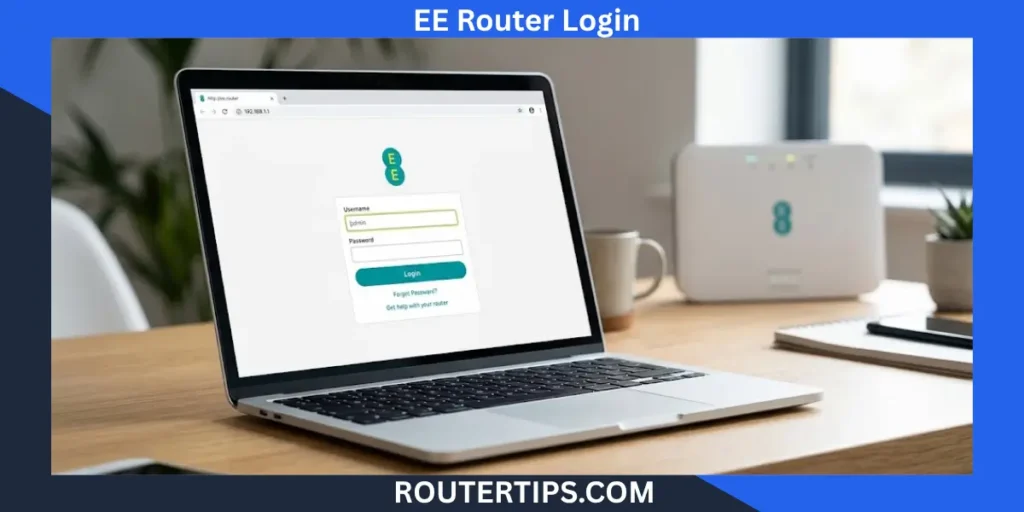
If you need to change your EE WiFi name, update a password, check your router settings, or manage your home network, you can use EE router login to open Hub Manager.
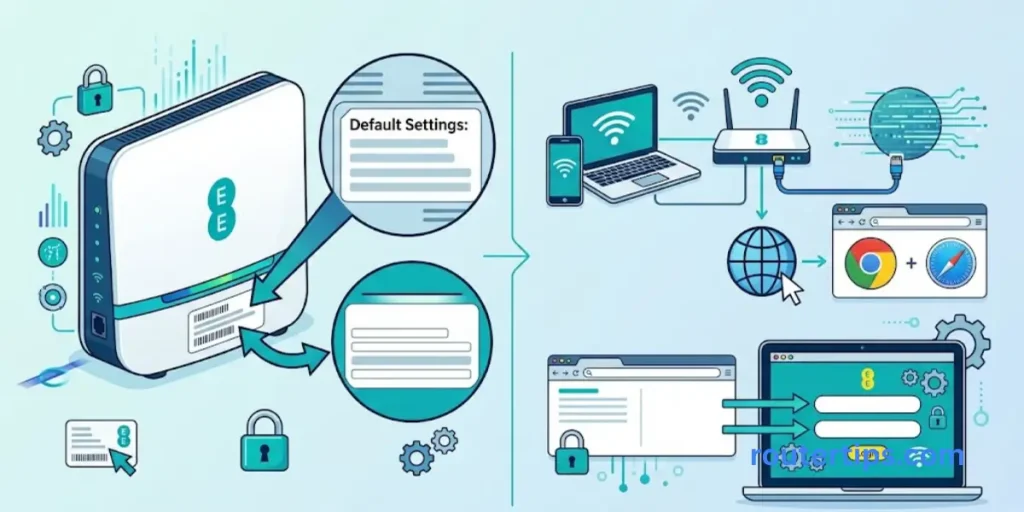
For most current EE broadband hubs, the local management address is 192.168.1.254. Connect your phone, computer, or another device to the EE hub, enter this address in your browser, and follow the login instructions. EE says you will need the admin password from the back of the hub when you want to make changes.
This guide explains how to access the EE router login page, find the correct password, connect to EE WiFi, change network settings, and fix common login problems.
EE Router Login Details at a Glance
| Setting | EE router details |
| Router login IP | 192.168.1.254 |
| Router management page | EE Hub Manager |
| Admin password | Found on the settings card on the back of the hub |
| WiFi password | Found on the WiFi settings card |
| Connection needed | EE WiFi or Ethernet |
| Main purpose | Manage router and WiFi settings |
EE Default Login – Username, Password and IP Address
EE – Smart Hub Router Login – Username, Password and IP Address
- Username: –
- Password: –
- IP Address: –
- SSID: –
The most important point is that the WiFi password and admin password are different. Your WiFi password lets devices join your wireless network. The admin password lets you manage settings in Hub Manager. EE confirms that both details are provided on the card on the back of compatible hubs.
How to Access Your EE Router
You do not normally need special software to access an EE router. A standard web browser is enough.
Step-by-Step EE Router Login
- Connect your phone, laptop, tablet, or computer to your EE hub.
- Open Chrome, Edge, Safari, Firefox, or another browser.
- Click the browser’s address bar.
- Type 192.168.1.254.
- Press Enter.
- The EE Hub Manager page should open.
- Enter your hub’s admin password when requested.
- Choose the setting you want to manage.
EE’s current support information confirms that Hub Manager is accessed by entering 192.168.1.254 while connected to the hub.
Use the IP Address in the Address Bar
A common mistake is typing 192.168.1.254 into Google or another search engine.
Instead, type it directly into the address bar at the top of your browser:
192.168.1.254
You can also try:
Some EE settings pages may ask you to switch to HTTPS or deal with a browser security warning. EE provides instructions for this when accessing certain Hub Manager features.
📶 Need help accessing your Converge router? Check our Converge Router Login Information to reach the login page and manage your router and Wi-Fi settings.
What Is the EE Router IP Address?
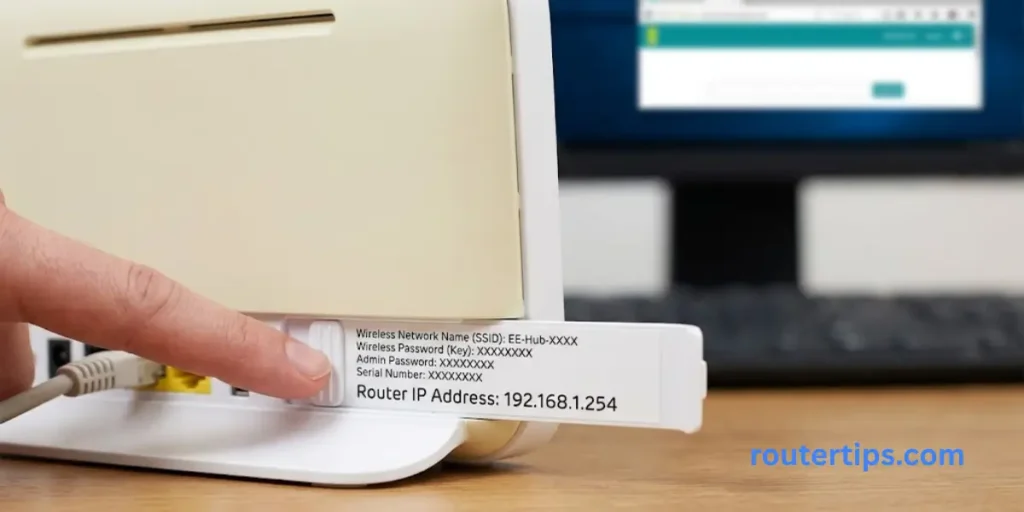
The common EE router IP address is 192.168.1.254.
This is the local IP address used to reach the Hub Manager on compatible EE broadband hubs. It is not the same as your public IP address.
You may have seen 192.168.1.1 in router login guides for other brands. That address is widely used by different router manufacturers, but it is not the standard Hub Manager address given by EE for its hubs.
For EE broadband, start with:
192.168.1.254
EE’s official help page uses this address for Hub Manager access, WiFi settings, and other router controls.
📶 Need help accessing your ASUS router? Check our Router Asus Login Information to reach the login page and manage your router and wireless settings.
192.168.1.1 vs 192.168.1.254 for EE
If you search for “192.168 1.1 router login,” you may find general router instructions.
For an EE hub, however, use 192.168.1.254.
| IP address | EE use |
| 192.168.1.254 | Main EE Hub Manager address |
| 192.168.1.1 | Common on some other routers, not the standard EE Hub Manager address |
This distinction can save you time when the wrong login page keeps appearing.
EE Router Username and Password
Many people search for the EE router login username and password because other router brands often ask for both.
With EE hubs, the key information is usually the admin password.
The admin password is printed on the settings card on the back of the hub. EE also explains that the WiFi password is separate from the admin password.
📶 Want to access your Huawei router settings? Check our Huawei Router Login Information to reach the login page and manage your router and Wi-Fi settings.
WiFi Password vs Admin Password
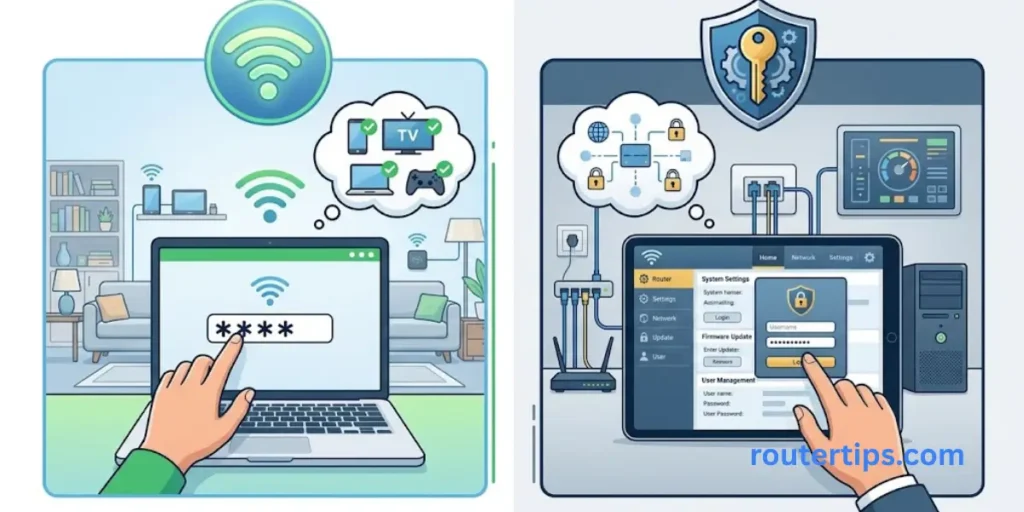
These two passwords have different jobs.
WiFi password
You use this when connecting a phone, laptop, smart TV, games console, or another device to your EE WiFi.
Admin password
You use this to make changes through Hub Manager, such as changing wireless settings.
So, if you are already connected to WiFi but Hub Manager rejects the password, check the back of the hub for the admin password instead.
Where Is the EE Router Password?
Look at the back of your EE hub for the removable settings or wireless card.
EE says the admin password is printed there. On some compatible devices, the WiFi information is also shown on the same card.
If the card is difficult to read, EE also provides guidance for retrieving information from the QR code on supported hub settings cards.
How to Access EE Hub Manager
EE Hub Manager is the web interface used to manage your compatible EE hub.
It gives you access to settings and tools that can help you manage your home network.
Steps to Open Hub Manager
- Connect your device to the EE hub.
- Open a web browser.
- Enter 192.168.1.254.
- Press Enter.
- Wait for Hub Manager to load.
- Enter your admin password when required.
EE says Hub Manager can be used to restart the hub, change the WiFi password, and test the connection.
The exact menu names can vary between EE hub models, so you may not see every option described in older guides.
📶 Need to locate the IP address for your ARRIS router? Check our What Is My Arris Router IP Address Information to find the default address and access your router’s settings.
How to Connect to an EE WiFi Router
Before trying to access the router settings, make sure your device is actually connected to the EE hub.
Connect Using WiFi
On your phone or computer:
- Open WiFi settings.
- Look for your EE network name.
- Select the correct network.
- Enter the WiFi password from your hub’s settings card.
- Wait for the connection.
- Open your browser.
- Enter 192.168.1.254.
If your device shows several WiFi networks, check the network name carefully. EE recommends checking that you have selected the correct network and entered the correct password.
Connect Using Ethernet
You can also connect a computer directly to the hub with an Ethernet cable.
For a normal wired device, use one of the numbered Ethernet ports. EE advises not to use the port labelled WAN or Internet for connecting a computer, TV, or games console as a normal local device.
A wired connection can be useful if WiFi is not working properly and you need to access your router settings.
🌐 Need to check your router’s IP address? Visit our Router IP Information to find common router addresses and access your network settings.
What Can You Change in EE Hub Manager?
The settings available depend on your EE hub model, but Hub Manager can provide access to several useful controls.
You may be able to manage:
- WiFi network name
- WiFi security password
- Wireless settings
- 2.4GHz WiFi
- 5GHz WiFi
- Compatible WiFi
- Connected devices
- Admin password
- WiFi controls
- Connection checks
- Port forwarding
- Hub restart and related settings
For example, EE’s current instructions use Advanced Settings > Wireless to change WiFi information.
Change Your WiFi Name and Password
If you want to change your wireless network details without using the EE app:
- Connect to your hub.
- Open 192.168.1.254.
- Select Advanced Settings.
- Select Wireless.
- Enter the admin password.
- Enter your new network name.
- Enter your new security password.
- Select Save.
These steps are based on EE’s current Hub Manager instructions.
Remember that changing the WiFi password disconnects devices using the old password. You will need to reconnect them with the new details.
⚙️ Need to allow a device or service through your router? Read our Port Forwarding Information to understand how port rules work and when they may be needed for games, cameras, servers, and remote access.
How to Change the EE Router Admin Password
Your admin password protects access to the router settings.
On supported EE hubs, you can change it through Hub Manager:
- Connect your device to the hub.
- Open 192.168.1.254.
- Select Advanced Settings.
- Select System.
- Enter the current admin password.
- Enter your new admin password.
- Save the change.
EE confirms this route for changing the admin password without the EE app.
Choose a password that is hard for other people to guess. Keep a secure record of it so you do not lose access to your router settings later.
Can You Manage an EE Router Without Hub Manager?
In many cases, yes.
EE provides app-based controls for compatible Smart Hub models. The current EE app can let users manage WiFi settings and, on supported hubs, change the admin password.
The exact options depend on the hub you have.
Manage Your Hub Through the EE App
For supported hubs, EE’s current process is:
- Open the EE app.
- Select Manage.
- Select Broadband.
- Select your Smart Hub.
- Open the menu.
- Choose the relevant WiFi or admin setting.
- Make your change.
- Save it.
This can be useful if you do not want to use a browser to manage basic settings.
EE Router Login Without Password
The phrase EE router login without password can mean two different things.
If you only want to open the local Hub Manager page, you can enter 192.168.1.254 while connected to the hub.
If you want to change router settings, you may be asked for the admin password.
The first place to check is the settings card on the back of the hub. EE says this card contains the admin password for supported hubs.
If you previously changed the admin password and forgot the new one, do not immediately reset the router. Check the instructions shown in Hub Manager or use the EE app if your hub supports the required option. EE notes that forgotten admin-password situations can be handled through instructions provided in Hub Manager.
EE Router Login Not Working? Try These Fixes
If 192.168.1.254 does not open, the problem is often simple.
Check Your Connection
Your device should be connected to the EE hub.
If you are using mobile data, disconnect it temporarily and connect to your EE WiFi.
Check the IP Address
Make sure you entered:
192.168.1.254
Do not replace the final number with 1.
Also enter the IP address directly in your browser’s address bar.
Try HTTP
Try:
Some EE instructions use the HTTP version when opening Hub Manager. Certain settings may then ask you to switch to HTTPS.
Try Another Browser
If the page looks broken or does not load, try another browser.
You can also try another device that is connected to the same EE hub.
Check the Admin Password
If Hub Manager opens but does not accept your password, check the settings card on the back of the hub.
Remember:
WiFi password ≠ admin password
EE confirms that these passwords serve different purposes.
Restart the EE Hub
A restart can help with temporary connection problems.
EE recommends switching off the hub, removing power, waiting around 60 seconds, then reconnecting power and turning the hub back on when troubleshooting broadband connection issues.
A restart is not the same as a factory reset.
Check for a Browser Security Warning
When opening some Hub Manager features, your browser may show a security warning.
EE provides instructions for continuing to Hub Manager when this happens.
EE Router Factory Reset
A factory reset should be your last option for a simple login problem.
A restart normally leaves your settings in place. A factory reset removes changes you have made to the hub.
EE says a factory reset can remove settings such as:
- Wireless settings
- Guest WiFi
- Compatibility WiFi
- LED brightness
- Other custom settings
After the reset, the network name and password return to the details shown on the card on the back of the hub. WiFi extenders may also need to be paired again.
How to Reset an EE Hub
The reset method can vary by model.
EE’s current guidance says that on supported hubs you should:
- Make sure the hub is switched on.
- Find the Factory Reset button on the back.
- Press it for about 5 seconds.
- If your hub has a pinhole reset button, press and hold it for about 20 seconds.
- Wait for the hub lights to indicate that the reset has completed.
- Reconnect your devices using the default network name and password.
EE notes that the reset process can take up to five minutes.
Check the instructions for your exact EE hub before resetting it.
EE Router Login and WiFi Extenders
If you use an EE WiFi Extender, your hub settings can affect how devices connect.
EE recommends placing a WiFi Extender about halfway between the hub and the area where you need better coverage. It also advises keeping extenders away from things such as microwaves, TVs, metal surfaces, windows, and cupboards where possible.
Your admin password may also be needed when managing certain extender settings through the EE app.
If you change your WiFi name or password, remember that connected devices may need to be reconnected.
EE Router Login and Compatible WiFi
Some newer EE hubs include Compatible WiFi, which can help older smart devices connect when they have trouble with the main wireless network.
EE says Compatible WiFi can be enabled through the EE app or Hub Manager on supported hubs. Through Hub Manager, the process starts at 192.168.1.254, followed by Advanced Settings > Wireless.
This can be useful for devices such as older smart home products that may have trouble connecting to a particular WiFi band.
EE Router Port Forwarding
Advanced users may also use Hub Manager for port forwarding.
Port forwarding can allow certain types of traffic to reach a specific device on your home network. EE gives examples such as web servers, VPNs, some older online games, CCTV cameras, and remote access systems.
This is not something most home users need to change.
If you do need it, make sure you know the correct port numbers and protocols before changing the setting. EE recommends getting those details from your IT department, device maker, or software provider.
Final Thoughts on EE Router Login
The main address to remember for EE router login is 192.168.1.254. Connect your device to the EE hub, enter that address in your browser, and open Hub Manager. If you need to change settings, use the admin password shown on the settings card on the back of the hub.
If the page does not open, check your WiFi connection first and confirm that you entered the correct IP address. You can also try another browser or device. A simple router restart can help with temporary login problems.
A factory reset should only be used when necessary because it removes your custom settings and may require you to configure the EE hub again. Before resetting the device, make sure you know the required setup details.
For the safest and most accurate setup, always check the instructions for your specific EE hub model. Menus, login options, and available features can vary between different Smart Hub versions.
People Also Ask About EE Router Login
Q1. How do I access my EE router?
Connect your device to the EE hub, open a browser, and enter 192.168.1.254 in the address bar. This opens EE Hub Manager. You need the admin password from the back of the hub to make settings changes.
Q2. How do I access my 192.168.1.1 router login page?
192.168.1.1 is used by some routers, but it is not the standard EE Hub Manager address. For an EE hub, use 192.168.1.254.
Q3. How do I connect to an EE WiFi router?
Open WiFi settings on your device, select your EE network name, and enter the WiFi password shown on the hub’s settings card. Once connected, open 192.168.1.254 to access Hub Manager.
Q4. What is the password for the 192.168.1.254 EE WiFi hub?
The password depends on what you are trying to access. The WiFi password connects your device to the network. The admin password gives access to Hub Manager settings. EE says these details are provided on the settings card on the back of the hub.
Q5. What is the EE router login password?
The EE hub admin password is normally printed on the settings card on the back of the hub. If you changed it, you should use the updated admin password.
Q6. Can I log in to my EE router without a password?
You can open the Hub Manager address while connected to the hub, but you may need the admin password to make changes. If you forgot a changed password, check the options provided by EE before considering a factory reset.
Q7. Why is 192.168.1.254 not working?
First, check that your device is connected to the EE hub. Then enter 192.168.1.254 directly into the browser address bar. Try http://192.168.1.254, another browser, or another connected device if needed.
Q8. What is EE Hub Manager?
EE Hub Manager is the local web interface for managing compatible EE hubs. It can provide access to WiFi settings, connection checks, restart controls, and other router settings.