
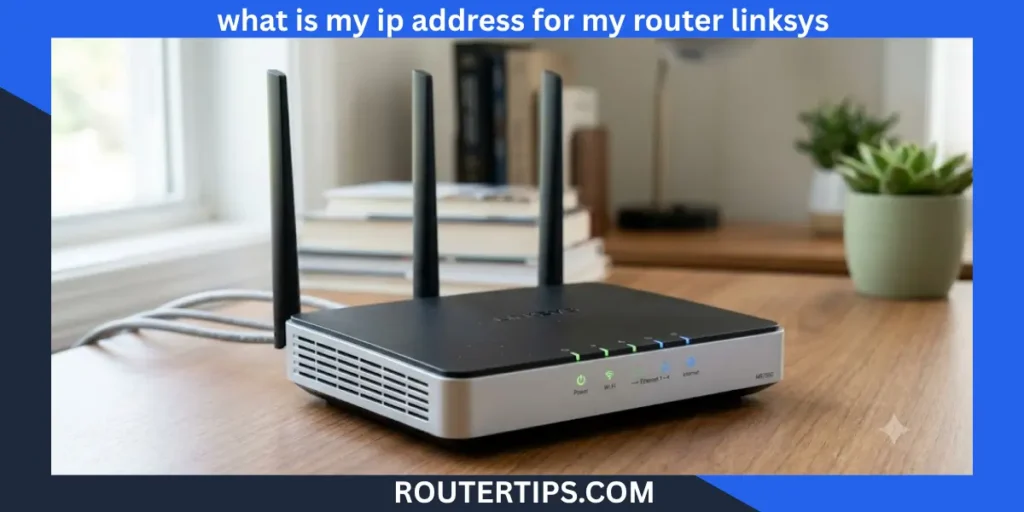
Your Linksys router IP address is the local address used to open your router’s settings page. It lets you sign in to the admin panel where you can change your WiFi name, update your password, manage connected devices, adjust security settings, and troubleshoot network problems.
For most Linksys routers, the default IP address is 192.168.1.1. Some older models or customized networks may use a different local IP address, such as 192.168.0.1. If the default address does not work, you can quickly find the correct router IP from your Windows PC, Mac, Android phone, iPhone, Linux device, or ChromeOS laptop by checking your network settings.
Knowing your router’s IP address is helpful whether you are setting up a new Linksys router, changing your wireless settings, fixing connection issues, or simply logging in to the router dashboard. It is different from your public IP address, which is assigned by your Internet Service Provider (ISP) and identifies your home network on the internet.
In this guide, you’ll learn how to find your Linksys router IP address, access the Linksys router login page, use myrouter.local, change your router’s LAN IP address, and solve common login problems. The steps are written in simple language and work for most Linksys Smart WiFi routers and traditional Linksys models.
What Is a Linksys Router IP Address?
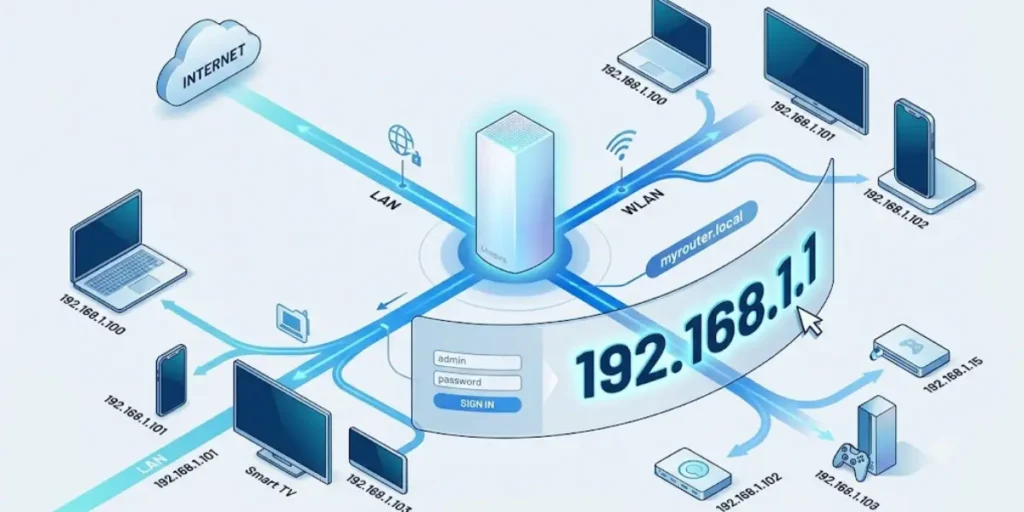
A Linksys router IP address is the local network address that allows you to access your router’s management page through a web browser. It acts as the gateway between your devices and your home network, making it possible to manage your router’s settings.
When you type the router’s IP address into your browser, you are taken to the Linksys admin login page. After signing in with your administrator credentials, you can:
- Change your WiFi network name (SSID)
- Update your WiFi password
- View devices connected to your network
- Configure network and LAN settings
- Set up port forwarding
- Update the router firmware
- Improve your network security
- Restart or reset your router
The router IP address is also called the default gateway, local IP address, or LAN IP address. These terms all refer to the address your devices use to communicate with the router inside your home network.
It is important not to confuse your router’s local IP address with your public IPv4 address. Your public IP is assigned by your ISP and is visible on the internet, while your Linksys router IP is used only within your local network.
🌐 Need help managing your home network? Explore our What Is My Home Router IP Address Tutorial to find your router’s login address, access settings, and troubleshoot common connection issues.
Router IP Address vs. Public IP Address
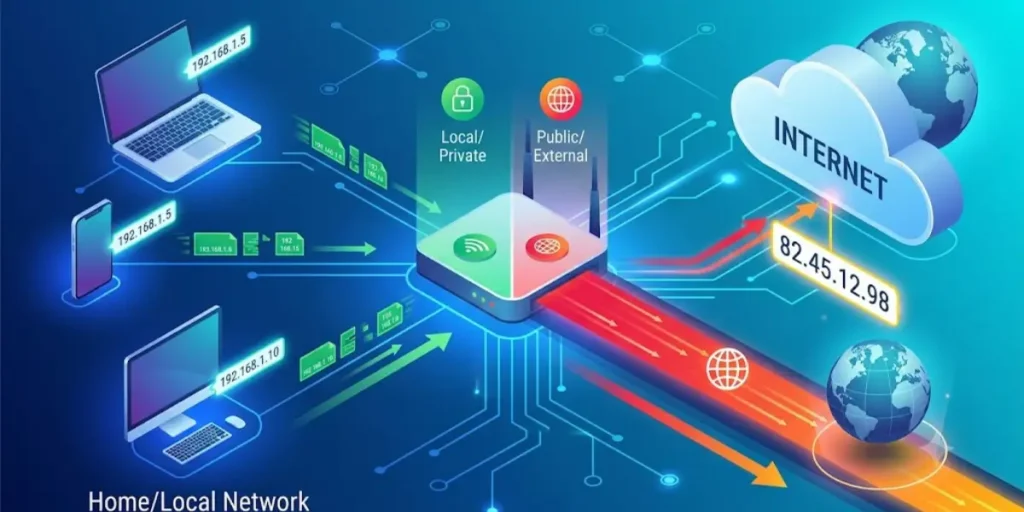
| Router IP Address | Public IP Address |
| Used inside your home network | Used on the internet |
| Assigned by your router | Assigned by your Internet Service Provider |
| Opens the Linksys admin page | Identifies your internet connection |
| Usually starts with 192.168.x.x or 10.x.x.x | Can vary depending on your ISP |
| Not visible outside your local network | Visible to websites and online services |
Most Linksys routers use 192.168.1.1 as their default gateway, making it easy to access the router settings. If your network administrator has changed the LAN IP address, you can still find the current address by checking your device’s network information.
Understanding your Linksys router IP address is the first step toward managing your home network safely and efficiently. It helps you keep your WiFi secure, customize your network settings, and quickly resolve common connection issues.
What Is the Default IP Address for a Linksys Router?
Most Linksys routers use 192.168.1.1 as their default IP address. This local address opens the router’s login page, where you can manage your network settings through a web browser.
When you enter the correct IP address in your browser’s address bar, you’ll see the Linksys login screen. After signing in with your administrator username and password, you can change your WiFi settings, update security options, manage connected devices, and configure other network features.
If 192.168.1.1 does not open the login page, don’t worry. Some Linksys routers use a different local IP address, or the default address may have been changed during setup.
🌍 Want to understand your router’s public connection? Explore our What Is My External IP Address for My Router Overview to check your public IP, understand network access, and troubleshoot internet connectivity issues.
Common Default Linksys Router IP Addresses
The table below shows the most common IP addresses used by Linksys routers.
| Linksys Router | Default IP Address |
| Most Linksys Smart WiFi Routers | 192.168.1.1 |
| Older Linksys Routers | 192.168.1.1 |
| Some Customized Networks | 192.168.0.1 |
| Business or Advanced Setups | A custom LAN IP chosen by the administrator |
In most home networks, 192.168.1.1 is the correct address. If it doesn’t work, check your device’s Default Gateway to find the current router IP.
Why Your Linksys Router May Have a Different IP Address
There are several reasons why your router may not use the default IP address.
- The router’s LAN IP address was changed during setup.
- Another router or modem on the network uses 192.168.1.1, so the address was changed to avoid a conflict.
- Your Internet Service Provider (ISP) configured the router with a custom network.
- A previous owner or network administrator changed the router settings.
If any of these apply, your router may use an address such as 192.168.0.1, 10.0.0.1, or another private IP address.
How to Confirm Your Linksys Router IP Address
Instead of guessing, you can quickly check the router’s current IP address from any connected device.
Look for the Default Gateway in your network settings. The number shown there is your Linksys router’s current IP address.
You can find it by:
- Running ipconfig in Command Prompt on Windows.
- Opening Network Settings on a Mac.
- Viewing your WiFi connection details on Android.
- Checking the connected WiFi information on an iPhone.
- Using network commands on Linux.
- Opening WiFi details on ChromeOS.
Once you know the correct IP address, type it into your browser’s address bar to access the Linksys router login page.
📶 Need help accessing your Comcast gateway? Explore our What Is My Comcast Router IP Address Tutorial to find the default login address, access router settings, and manage your Xfinity network connection.
Can You Use myrouter.local Instead of the IP Address?
Yes. Many newer Linksys Smart WiFi routers also support myrouter.local.
If your router supports this feature and your device is connected to the router, entering myrouter.local into your web browser may open the same login page as the IP address.
However, if myrouter.local doesn’t work, using the router’s IP address is usually the more reliable option.
Tip Before You Log In
Before opening the Linksys admin page, make sure:
- Your device is connected to the Linksys router.
- You enter the IP address in the browser’s address bar, not a search engine.
- You use the correct administrator username and password.
- Your internet connection is active, although many router settings can still be accessed without internet access as long as you’re connected to the router.
Knowing the default Linksys router IP address makes it much easier to manage your home network. If the default address has been changed, finding the current Default Gateway will help you access the correct router settings page.
🛡️ Learn how to stay safe from digital threats with our Online Scams Awareness to recognize fake websites, phishing attempts, and common tricks used to steal personal information.
How to Find Your Linksys Router IP Address
If you don’t know your Linksys router’s IP address, you can find it in just a few minutes. The easiest method is to check your device’s Default Gateway, which is the local IP address assigned to your router.
The steps below work whether you’re connected through WiFi or an Ethernet cable.
Find Your Linksys Router IP Address on Windows
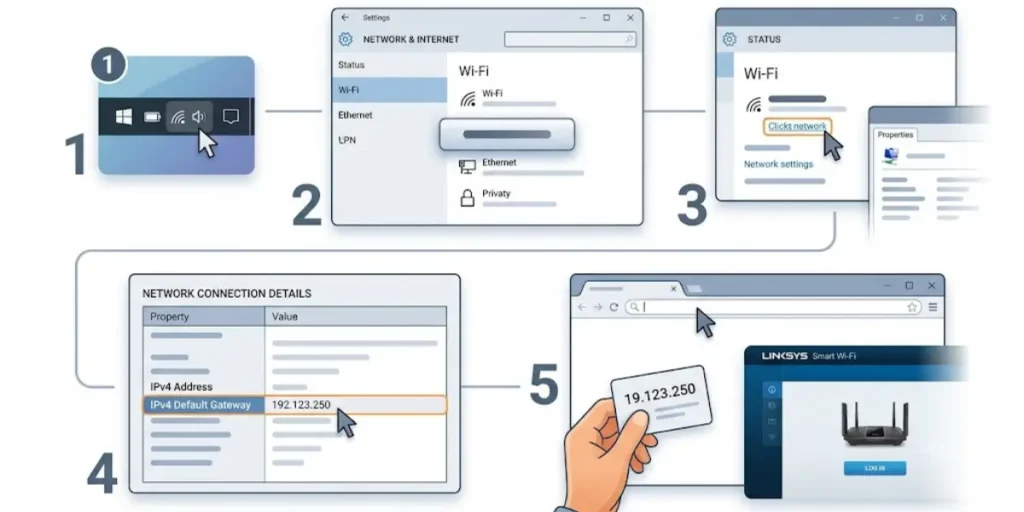
Windows makes it easy to view your router’s IP address using Command Prompt.
Using Command Prompt
- Press Windows + R.
- Type cmd and press Enter.
- Type the following command:
ipconfig
- Press Enter.
- Find your active network connection.
- Look for Default Gateway.
The number shown next to Default Gateway is your Linksys router’s IP address.
Example:
Default Gateway . . . . . . . . : 192.168.1.1
Using Windows Settings
- Open Settings.
- Select Network & Internet.
- Choose WiFi or Ethernet, depending on your connection.
- Click your connected network.
- Scroll to Properties.
- Find Default Gateway.
This is your router’s local IP address.
📶 Need help accessing your ARRIS router settings? Explore our What Is My Arris Router IP Address Instructions to find the default login address, access the admin panel, and manage your network settings.
Find Your Linksys Router IP Address on Mac
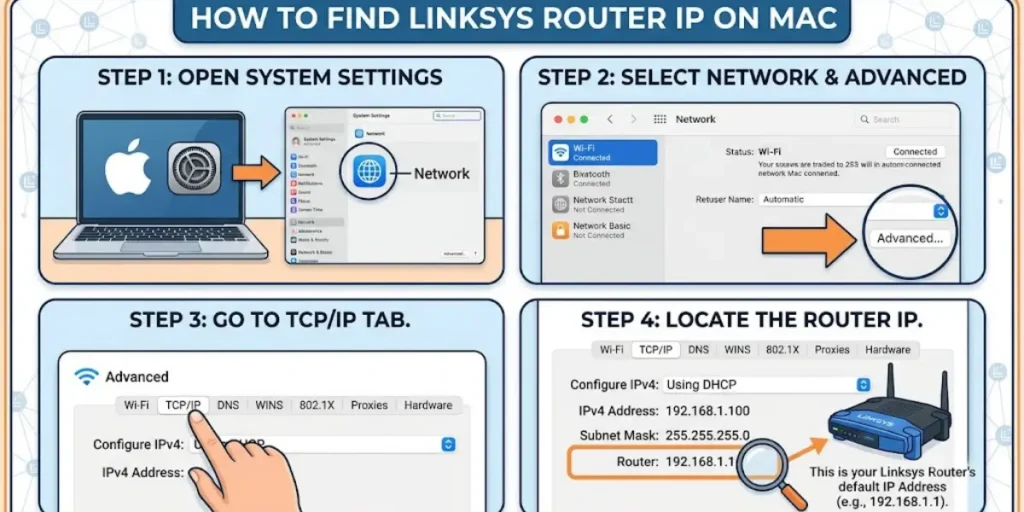
You can also locate the router IP through macOS network settings.
- Open System Settings.
- Select Network.
- Click your connected WiFi or Ethernet network.
- Select Details.
- Open the TCP/IP section.
The Router field displays your Linksys router’s IP address.
For example:
Router: 192.168.1.1
Find Your Linksys Router IP Address on Android
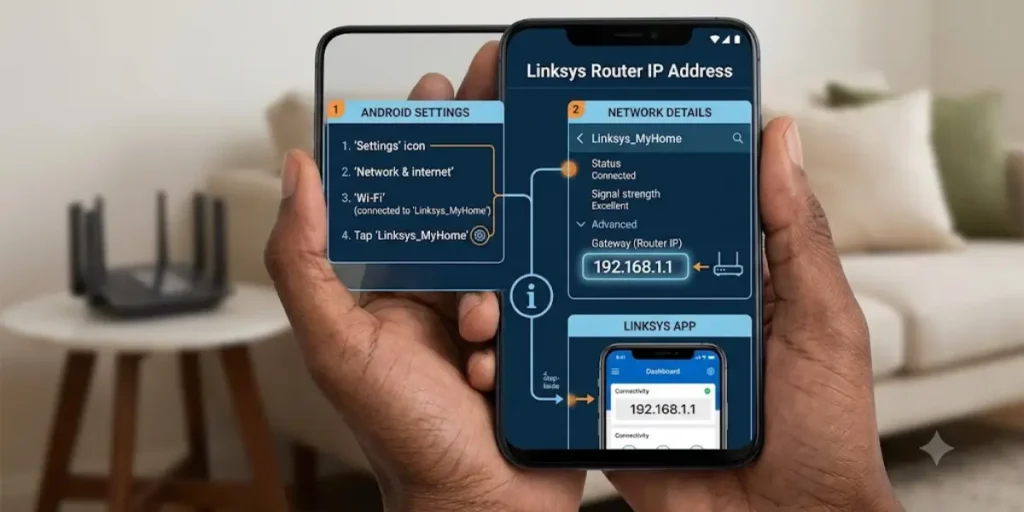
Android phones can display the router’s IP address directly from WiFi settings.
- Open Settings.
- Tap Network & Internet or Connections.
- Select WiFi.
- Tap your connected WiFi network.
- Open Network Details, Advanced, or Manage Network.
Look for one of these:
- Gateway
- Router
- Default Gateway
This number is your Linksys router’s IP address.
Note: The exact menu names may vary depending on your Android version and phone manufacturer.
Find Your Linksys Router IP Address on iPhone
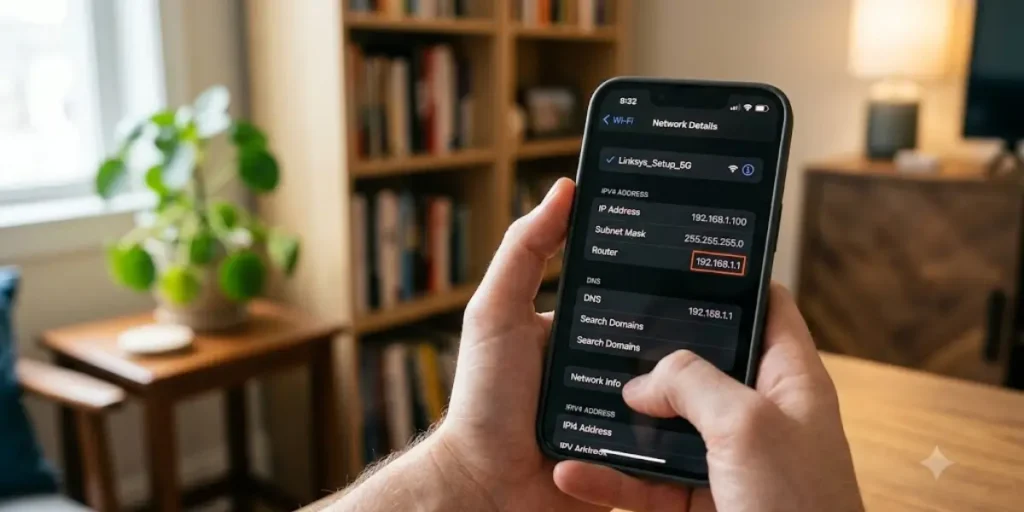
If you use an iPhone or iPad, you can find the router IP in WiFi settings.
- Open Settings.
- Tap WiFi.
- Tap the ⓘ icon next to your connected network.
- Scroll to the IPv4 Address section.
- Find Router.
The address listed next to Router is your Linksys router’s IP address.
Find Your Linksys Router IP Address on Linux
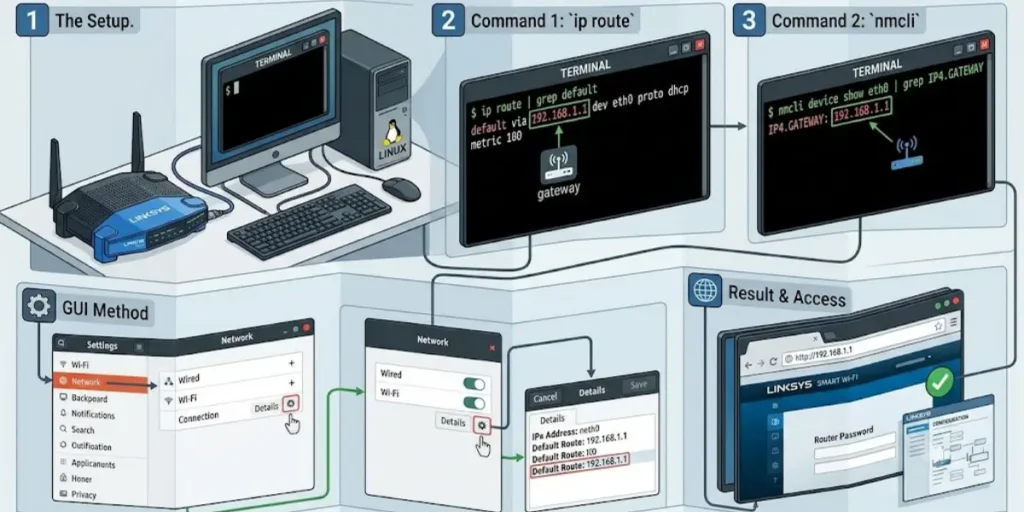
Linux users can quickly check the default gateway using Terminal.
Open Terminal and run:
ip route
or
route -n
Look for the default route.
Example:
default via 192.168.1.1
In this example, 192.168.1.1 is the router’s IP address.
Find Your Linksys Router IP Address on ChromeOS
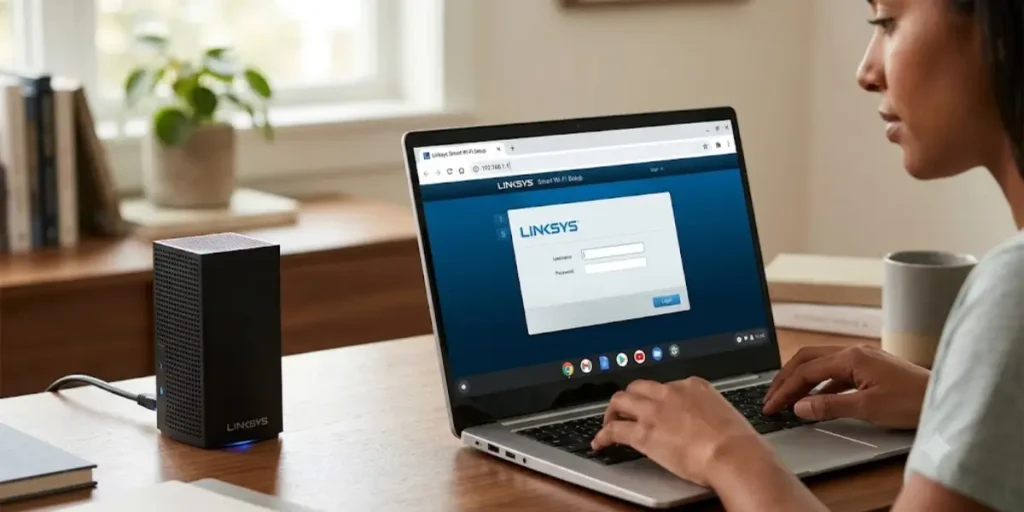
Chromebooks also provide an easy way to check the router IP.
- Click the time in the bottom-right corner.
- Open Settings.
- Select Network.
- Choose your connected WiFi network.
- Open the Network or Advanced section.
- Find Gateway.
The gateway value is your Linksys router’s IP address.
Find the Router IP Using the Linksys App
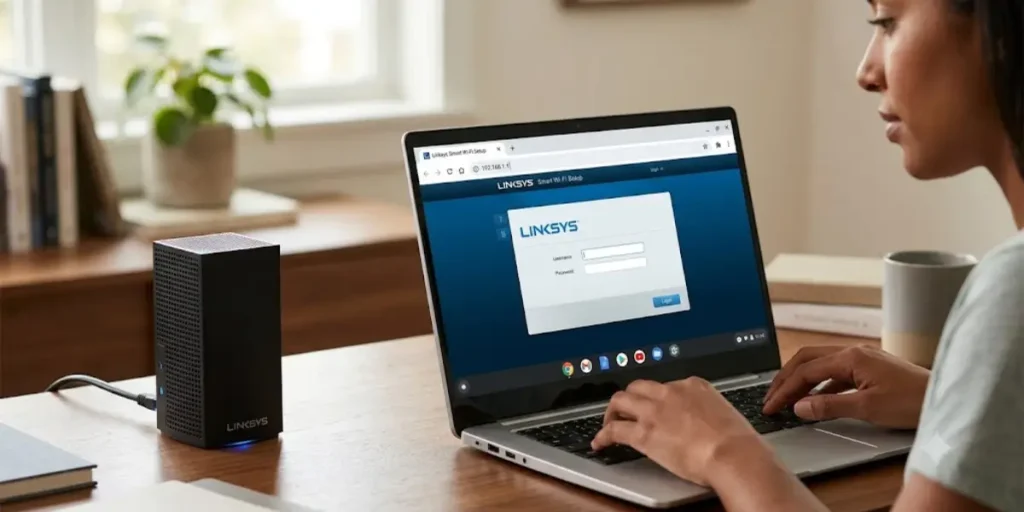
If you manage your network with the Linksys mobile app, you may also be able to view your router information after signing in.
Depending on your router model, the app can show:
- Router status
- Connected devices
- Network information
- WiFi settings
- Firmware updates
This can be a convenient option if you prefer using your phone instead of a web browser.
What If You Can’t Find the Router IP Address?
If you cannot locate the router’s IP address, try these simple checks:
- Make sure your device is connected to the Linksys router.
- Turn WiFi off and back on.
- Restart your router and your device.
- Disconnect from a VPN, if you’re using one.
- Try connecting with an Ethernet cable.
- Check another connected device to see if it shows the router’s IP address.
If the router’s IP address was changed from its default value, checking the Default Gateway on any connected device is usually the fastest way to find the current address.
Once you have the correct IP address, type it into your browser’s address bar to open the Linksys login page and access your router settings.
How to Log In to Your Linksys Router
Once you know your Linksys router IP address, you can sign in to the router’s admin panel. From there, you can manage your WiFi network, change security settings, update the router firmware, and control other network features.
Logging in only takes a few minutes if you have the correct IP address and administrator credentials.
Before You Log In
Make sure the following requirements are met:
- Your computer, phone, or tablet is connected to the Linksys router.
- You know the router’s IP address or can use myrouter.local if your router supports it.
- You have the administrator username and password.
- Use an updated web browser such as Chrome, Edge, Firefox, or Safari.
If you are connected to another WiFi network, you may not be able to access the Linksys login page.
Connect to the Linksys Router
Connect your device using one of these methods:
- WiFi connection (recommended for most users)
- Ethernet cable (best for changing important settings or updating firmware)
A stable connection helps prevent interruptions while making changes.
Open a Web Browser
Launch your preferred web browser.
You can use:
- Google Chrome
- Microsoft Edge
- Mozilla Firefox
- Apple Safari
Type the router’s IP address directly into the address bar.
For most Linksys routers, enter:
192.168.1.1
If your router uses a different local IP address, enter that instead.
Some newer Linksys Smart WiFi routers also support:
myrouter.local
Press Enter after typing the address.
Tip: Enter the address in the browser’s address bar, not in a search engine. Searching for the IP address may not open the router login page.
Enter Your Administrator Credentials
When the Linksys login page appears, enter your administrator credentials.
Depending on your router model, you may be asked for:
- Administrator username
- Administrator password
If you have never changed these details, use the default credentials provided with your router or printed on its label.
If you created a custom password during setup, use that password instead.
Access the Linksys Admin Dashboard
After signing in, you’ll reach the Linksys router dashboard.
From here, you can:
- View connected devices
- Change your WiFi network name (SSID)
- Update your WiFi password
- Manage guest network settings
- Configure parental controls
- Set up port forwarding
- Reserve IP addresses for devices
- Change LAN settings
- Update router firmware
- Restart the router
- Back up or restore router settings
The exact menu layout may differ depending on your Linksys router model and firmware version, but the main features are similar.
Can You Log In Using myrouter.local?
Yes. Many Linksys Smart WiFi routers allow you to access the login page using myrouter.local instead of the IP address.
This method works only when:
- Your device is connected to the Linksys router.
- Your router supports myrouter.local.
- Local network name resolution is working correctly.
If myrouter.local does not open the login page, use the router’s IP address instead.
What If the Linksys Login Page Doesn’t Open?
If the login page does not appear, try these troubleshooting steps.
Check the Router IP Address
The most common problem is entering the wrong IP address.
Verify the Default Gateway on your connected device and make sure you are using the correct address.
Confirm Your Device Is Connected
Check that your device is connected to the Linksys router and not another WiFi network, mobile hotspot, or guest network.
Refresh the Browser
Sometimes the browser stores old information.
Try:
- Refreshing the page
- Opening a private or incognito window
- Clearing your browser cache
- Trying another web browser
Restart the Router
A simple restart often fixes temporary network issues.
- Turn off the router.
- Wait about 30 seconds.
- Turn it back on.
- Wait until all status lights become stable.
- Try logging in again.
Check the Ethernet Cable
If you’re using a wired connection, make sure the Ethernet cable is securely connected to both the computer and the router.
A loose cable can prevent access to the router interface.
Disable a VPN
If you’re connected to a VPN, disconnect it before accessing the router.
Some VPN services change your network routing and may block access to local devices.
Forgot Your Linksys Router Password?
If you can’t remember your administrator password, you have a few options.
- Try the password you created during setup.
- Check whether your browser saved the login credentials.
- Look for the default login details on the router label or in the user guide.
- If you still cannot log in, perform a factory reset and set up the router again.
Keep in mind that a factory reset removes your custom settings, including:
- WiFi name (SSID)
- WiFi password
- Port forwarding rules
- Static IP assignments
- Guest network settings
- Parental controls
Only reset the router if other login methods do not work.
Tips for a Secure Router Login
After successfully signing in, take a few minutes to improve your router’s security.
- Change the default administrator password.
- Create a strong WiFi password.
- Enable the latest wireless security available, such as WPA2 or WPA3.
- Keep your router firmware up to date.
- Review the list of connected devices regularly.
- Remove devices you do not recognize.
These simple steps can help protect your home network from unauthorized access and keep your internet connection more secure.
Access Your Linksys Router Using myrouter.local
Many newer Linksys Smart WiFi routers support myrouter.local as an alternative way to open the router’s login page. Instead of typing the router’s IP address, you can enter myrouter.local into your web browser.
This option can be convenient if you don’t remember your router’s IP address. However, it only works under certain conditions.
What Is myrouter.local?
myrouter.local is a local web address that points to your Linksys router on your home network. When it works correctly, it opens the same administration page you would see by entering your router’s IP address.
After signing in, you can:
- Change your WiFi network name (SSID)
- Update your WiFi password
- View connected devices
- Manage router settings
- Configure security options
- Update the router firmware
- Restart the router if needed
The available options may vary depending on your Linksys router model and firmware version.
How to Use myrouter.local
Follow these steps to access your Linksys router.
- Connect your device to the Linksys router using WiFi or an Ethernet cable.
- Open a web browser.
- Type the following into the address bar:
myrouter.local
- Press Enter.
- Wait for the Linksys login page to appear.
- Enter your administrator username and password.
- Select Sign In or Log In.
If the page opens successfully, you will be taken to the router’s admin dashboard.
When Does myrouter.local Work?
This address usually works when:
- Your device is connected directly to the Linksys router.
- The router supports myrouter.local.
- Your local network is working properly.
- Your browser can resolve local network addresses.
Most newer Linksys Smart WiFi routers support this feature, while some older models may not.
When Should You Use the Router IP Address Instead?
Using the router’s IP address is often the more reliable choice.
Try the IP address if:
- myrouter.local does not load.
- The browser displays an error message.
- The page keeps loading without opening.
- Your router uses an older firmware version.
- The local address cannot be resolved.
For most Linksys routers, the default IP address is:
192.168.1.1
If your router’s LAN IP address has been changed, use the current Default Gateway shown in your device’s network settings.
Why Isn’t myrouter.local Working?
There are several reasons why the page may not open.
Your Device Is Connected to a Different Network
Make sure your phone or computer is connected to the correct Linksys WiFi network.
If you’re using mobile data or another wireless network, the router login page will not open.
The Router Doesn’t Support myrouter.local
Some older Linksys routers only support logging in through their IP address.
If this is the case, enter the router’s IP address in your browser instead.
Browser Cache Problems
Sometimes your browser stores outdated information.
Try these steps:
- Refresh the page.
- Clear the browser cache.
- Open a private or incognito window.
- Use a different browser.
VPN or Security Software
A VPN or firewall may block access to local network addresses.
Temporarily disconnect the VPN and try again.
If you’re using security software, check whether it is preventing access to local devices.
Temporary Router Issue
A temporary software issue may stop the router from responding.
Restart the router by:
- Turning it off.
- Waiting about 30 seconds.
- Turning it back on.
- Waiting until the indicator lights become stable.
Then try opening myrouter.local again.
Should You Use myrouter.local or the Router IP Address?
Both methods take you to the same Linksys admin page.
| Method | Best For |
| myrouter.local | Quick access on supported Linksys Smart WiFi routers |
| 192.168.1.1 or your current router IP | Works on most Linksys routers and is generally more reliable |
If one method doesn’t work, simply try the other.
Tips for a Smooth Login
To avoid common login problems:
- Stay connected to the Linksys router while making changes.
- Type the address directly into the browser’s address bar.
- Use the correct administrator password.
- Keep your router firmware updated.
- Save any changes before closing the browser.
These simple steps help ensure a smooth experience when managing your Linksys router settings.
Key Takeaway
myrouter.local is a convenient way to access many Linksys Smart WiFi routers, but it is not available on every model. If it doesn’t work, use your router’s local IP address, such as 192.168.1.1 or the current Default Gateway shown in your device’s network settings. Both methods provide access to the same router dashboard, where you can manage your home network safely and efficiently.
Default Linksys Login Information
To access your Linksys router, you’ll need the correct administrator login details. These credentials help protect your router settings from unauthorized access.
Many Linksys routers come with default login information when they leave the factory. If the router has never been set up or reset to its factory settings, the default credentials may still work.
If you’ve already changed the administrator password during setup, use your custom login details instead.
Common Default Linksys Login Credentials
The table below shows the most common default login information used by Linksys routers.
| Setting | Default Value |
| Default IP Address | 192.168.1.1 |
| Username | Leave blank or admin (varies by model) |
| Password | admin |
Note: Different Linksys router models and firmware versions may use slightly different default credentials. If the defaults above don’t work, check the label on your router or the documentation that came with it.
Where Can You Find the Default Login Details?
If you’re unsure about the login information, check these places:
- The sticker on the bottom or back of the router.
- The user manual included with the router.
- The quick start guide.
- The setup information provided during installation.
If the router was provided by your Internet Service Provider (ISP), they may have changed the default administrator password.
What If the Default Password Doesn’t Work?
If admin doesn’t work, the password has likely been changed.
Try these options:
- Enter the administrator password you created during the initial setup.
- Check whether your browser has saved the login credentials.
- Ask the person who originally configured the router.
- Review any notes where you may have stored the password.
Avoid repeatedly entering incorrect passwords, as this can make troubleshooting more difficult.
Forgot Your Linksys Administrator Password?
If you’ve forgotten the administrator password and cannot log in, the most reliable solution is to reset the router to its factory settings.
Keep in mind that a factory reset removes all custom settings, including:
- WiFi network name (SSID)
- WiFi password
- Administrator password
- Guest network settings
- Port forwarding rules
- Static IP assignments
- DHCP reservations
- Parental controls
- Firewall and security settings
After the reset, you’ll need to set up the router again.
How to Reset a Linksys Router
If resetting the router becomes necessary, follow these steps:
- Make sure the router is powered on.
- Locate the Reset button on the back or bottom of the router.
- Press and hold the button for about 10 to 15 seconds using a paper clip or similar tool.
- Release the button.
- Wait several minutes while the router restarts.
Once the reset is complete, the router returns to its factory default settings.
You can then log in using the default IP address and default administrator credentials.
Change the Default Administrator Password
After logging in successfully, it’s a good idea to create a new administrator password.
A strong password helps protect your router from unauthorized access.
Choose a password that:
- Is at least 12 characters long.
- Includes uppercase and lowercase letters.
- Contains numbers.
- Includes special characters.
- Is different from your WiFi password.
- Is not easy to guess.
Store the password in a secure password manager or another safe location.
Difference Between the Router Password and the WiFi Password
Many users think these passwords are the same, but they serve different purposes.
| Router Administrator Password | WiFi Password |
| Protects access to the router settings | Connects devices to your wireless network |
| Used only when logging into the router dashboard | Used by phones, computers, TVs, and other devices |
| Can change router configuration | Does not allow access to router settings |
Changing your WiFi password does not change your administrator password, and changing your administrator password does not affect your WiFi password.
Keep Your Login Information Secure
To help protect your home network:
- Change the default administrator password as soon as possible.
- Do not share your administrator credentials with others.
- Use a unique password that you don’t use for other accounts.
- Update your router firmware regularly.
- Review connected devices from time to time.
- Remove devices you don’t recognize.
These simple practices can help keep your Linksys router and home network more secure.
Key Takeaway
Most Linksys routers use 192.168.1.1 as the default IP address, with admin as the default password. Some models may also use a blank username. If the default credentials no longer work, the administrator password has likely been changed. In that case, use your custom password or reset the router to restore the factory defaults if necessary.
How to Change Your Linksys Router IP Address
Most home users never need to change their Linksys router’s IP address. The default address works well for everyday internet use. However, there are situations where changing the router’s LAN IP address can make your network easier to manage or help avoid address conflicts.
Before making any changes, remember that updating the router’s IP address affects how you access the router in the future. Once the new address is saved, you’ll need to use the new IP address instead of the old one to log in.
When Should You Change the Router IP Address?
You may want to change your Linksys router’s local IP address if:
- Another router on your network uses the same IP address.
- You’re setting up multiple routers on the same network.
- You want a different IP range for your home or office.
- A network administrator recommends using a custom LAN address.
- You’re reorganizing your network settings.
If your network is working properly, there is usually no need to change the default IP address.
Before You Make Changes
Before changing the router IP address, take a few minutes to prepare.
- Write down your current router IP address.
- Make sure you know the administrator username and password.
- Connect your device to the router using WiFi or an Ethernet cable.
- Avoid turning off the router while saving the new settings.
- If possible, back up your router configuration.
These simple steps make it easier to recover your settings if something goes wrong.
Steps to Change Your Linksys Router IP Address
Follow these steps to update your router’s LAN IP address.
Sign In to Your Linksys Router
Open your web browser.
Enter your current router IP address, such as:
192.168.1.1
Log in using your administrator credentials.
Open the Local Network Settings
After logging in, go to the section where your router’s local network settings are managed.
Depending on your Linksys model, this may be listed as:
- Local Network
- LAN Settings
- Network Settings
- Router Settings
- Connectivity
The menu names may vary slightly between firmware versions.
Change the Router IP Address
Locate the field for the router’s local IP address.
Replace the current address with your preferred private IP address.
For example:
| Current IP | New IP Example |
| 192.168.1.1 | 192.168.10.1 |
| 192.168.0.1 | 192.168.5.1 |
Choose an address that does not conflict with another router or device on your network.
Save the Changes
Select Save or Apply.
Your Linksys router may restart automatically.
During this process:
- Your internet connection may briefly disconnect.
- Connected devices may lose access until the router finishes restarting.
This is normal.
Log In Using the New IP Address
Once the router has restarted, the old address will no longer work.
Instead, enter the new IP address into your browser.
For example:
192.168.10.1
Use your administrator username and password to sign in again.
What Happens After Changing the Router IP Address?
After changing the LAN IP address:
- You’ll use the new address whenever you access the router.
- Connected devices may receive new local IP addresses from the router’s DHCP server.
- Existing internet access should return automatically after devices reconnect.
- You may need to reconnect WiFi devices if prompted.
Most changes happen automatically without requiring additional setup.
Things to Keep in Mind
When choosing a new router IP address:
- Use a private IPv4 address.
- Avoid using an address already assigned to another device.
- Keep the address easy to remember.
- Stay within the same private network range unless you have a specific reason to change it.
For most home networks, common private ranges include:
- 192.168.x.x
- 10.x.x.x
Common Mistakes to Avoid
Changing the router IP is straightforward, but these mistakes can cause problems.
Choosing an Address Already in Use
If another device uses the same IP address, network conflicts may occur.
Always select a unique address.
Forgetting the New Router Address
After changing the LAN IP, many users continue trying to access the old address.
Write down the new IP address or save it in a secure location.
Closing the Browser Too Soon
Wait until the router finishes saving the new settings.
Closing the browser too early may interrupt the process.
Changing Multiple Settings at Once
If you’re updating several network settings, make one change at a time.
This makes troubleshooting much easier if something doesn’t work as expected.
Do You Need to Change the DHCP Settings?
In most cases, no.
Your Linksys router automatically updates its DHCP service to match the new local network.
However, if you use:
- Static IP addresses
- Network printers
- File servers
- Security cameras
- Smart home devices with fixed IP addresses
You may need to update those devices so they match the new network range.
Can You Change the Router IP Address from a Phone?
Yes.
If your router supports mobile management, you can change the LAN IP address using:
- A mobile web browser
- The Linksys mobile app (on supported models)
The steps are similar to those on a computer, although the menus may look slightly different.
Key Takeaway
Changing your Linksys router IP address is usually only necessary for advanced network setups or to prevent IP address conflicts. For most users, the default address works perfectly. If you do change the LAN IP address, remember to use the new address the next time you log in and ensure any devices with static IP addresses are updated to match your new network settings.
How to Change Your Linksys Router Name (SSID)
Your Linksys router name, also called the SSID (Service Set Identifier), is the name that appears when you search for available WiFi networks on your phone, laptop, tablet, or other wireless devices.
Changing your WiFi name can make your network easier to identify, especially if there are many nearby networks with similar names. It can also help you personalize your home network and avoid confusion when connecting new devices.
For example, a default WiFi name may look like:
- Linksys12345
- Linksys_5GHz
- RouterABC
You can change it to a name that is easier for you to recognize.
Why Change Your Linksys WiFi Name?
There are several reasons users change their router’s SSID:
- To create a unique network name.
- To make their WiFi easier to find.
- To separate personal and guest networks.
- To remove the default router name.
- To organize multiple wireless networks.
Changing the SSID does not improve your internet speed, but it can make managing your wireless network easier.
Before Changing Your Linksys Network Name
Before updating the WiFi name, keep these things in mind:
- All connected devices will disconnect after the change.
- You will need to reconnect phones, computers, TVs, and smart devices.
- Avoid using personal information such as your full name or address.
- Choose a name that is easy to remember.
A simple and unique network name is usually the best choice.
Steps to Change Your Linksys Router Name
Follow these steps to update your WiFi network name.
Log In to Your Linksys Router
Open a web browser on a device connected to your Linksys router.
Enter your router IP address:
192.168.1.1
or use:
myrouter.local
Enter your administrator login details.
Open Wireless Settings
After logging in, look for the wireless settings section.
Depending on your Linksys router model, it may be called:
- WiFi Settings
- Wireless Settings
- Basic Wireless Settings
- Network Name (SSID)
Change the Network Name
Find the field labeled:
- Network Name
- SSID
- Wireless Network Name
Remove the current name and enter your new WiFi name.
Example:
Before:
Linksys-Home123
After:
MyHomeWiFi
Save the Changes
Click:
- Save
- Apply
- OK
Your router may restart the wireless connection.
After the change:
- Your devices will disconnect.
- The old WiFi name will disappear.
- The new SSID will appear in available networks.
Reconnect your devices using the updated WiFi name and password.
How to Choose a Good Linksys WiFi Name
A good SSID should be:
- Easy to remember.
- Simple to type.
- Different from nearby networks.
- Free from personal details.
Good examples:
- HomeNetwork
- BlueHouseWiFi
- FamilyConnect
- SecureHome
Avoid names that include:
- Your full name
- Your address
- Phone number
- Personal information
This helps protect your privacy.
Can You Change the Linksys WiFi Name from Your Phone?
Yes. Many Linksys routers allow SSID changes through:
- A mobile browser
- The Linksys mobile app
Using the app can be easier because you can manage your network without opening a browser.
The available options depend on your router model.
Should You Use the Same Name for 2.4 GHz and 5 GHz Networks?
Many modern Linksys routers support both:
- 2.4 GHz WiFi band
- 5 GHz WiFi band
You can either:
Use the Same SSID
Advantages:
- Easier for users.
- Devices can automatically choose the best connection.
- Simpler network management.
Use Different SSIDs
Example:
HomeWiFi_2.4
HomeWiFi_5G
Advantages:
- Gives you more control.
- Helps identify which band your device is using.
- Useful for troubleshooting connection problems.
Both options can work well depending on your needs.
What Happens After Changing the SSID?
After changing your Linksys router name:
- Connected devices lose the current connection.
- Your old network name disappears.
- Devices must reconnect manually.
- Smart devices may need the new WiFi information entered again.
Devices that may need updating include:
- Smartphones
- Laptops
- Smart TVs
- Security cameras
- Gaming consoles
- Smart speakers
- Printers
Linksys Router Name Change Problems
Sometimes users change the SSID but cannot see the new network.
Try these solutions:
Restart WiFi on Your Device
Turn WiFi off and back on to refresh available networks.
Restart the Router
Restarting can help the router broadcast the new network name correctly.
Check the WiFi Band Settings
If you changed only one wireless band, the other network may still have the old name.
Move Closer to the Router
A weak wireless signal may prevent your device from seeing the updated SSID.
Key Takeaway
Changing your Linksys router name (SSID) is a simple way to personalize your WiFi network and make it easier to identify. You can update the SSID through the Linksys admin page or mobile app. Remember that changing the network name disconnects your devices, so you will need to reconnect them using the new WiFi name and existing password.
Final Thoughts on What Is My IP Address for My Router Linksys
Finding your Linksys router IP address is an important step for managing your home network. Whether you want to change your WiFi password, update your network name, check connected devices, or adjust router settings, the router IP address gives you access to the Linksys administration page.
Most Linksys routers use 192.168.1.1 as the default IP address, but some networks may use a different local address. If the default IP does not open, checking the Default Gateway on your computer or mobile device is the easiest way to find the correct router IP address. You can access Linksys router settings from Windows, Mac, Android, iPhone, Linux, or ChromeOS devices.
Some Linksys Smart WiFi models also support myrouter.local, which allows quick access to the router login page without entering the IP address. Keeping your router secure is equally important, so make sure to change the default administrator password, update firmware regularly, and use a strong WiFi password to protect your home network.
Understanding your Linksys router settings does not require advanced technical skills. With the correct IP address and login information, you can manage your wireless network, fix common connection problems, and keep your internet setup running smoothly.
Frequently Asked Questions About Linksys Router IP Address
Q1. What is the IP address for my Linksys router?
Most Linksys routers use 192.168.1.1 as the default IP address. You can enter this address into a web browser to open the Linksys router login page. If it does not work, check your device’s Default Gateway to find the current router IP address.
Q2. How do I find my Linksys router IP address?
You can find your Linksys router IP address by checking your device’s network settings. On Windows, open Command Prompt and type ipconfig, then look for Default Gateway. On Android, iPhone, Mac, and other devices, check your connected WiFi network details and look for Router or Gateway.
Q3. How do I log in to my Linksys router?
To log in, connect your device to the Linksys network, open a web browser, and enter your router IP address, such as 192.168.1.1. Enter your administrator username and password to access the router settings page.
Q4. What is myrouter.local on Linksys routers?
myrouter.local is a local web address used by many Linksys Smart WiFi routers to access the router login page. If your router supports this feature, you can type myrouter.local into your browser instead of entering the IP address.
Q5. Why is 192.168.1.1 not opening on my Linksys router?
If 192.168.1.1 does not open, check that your device is connected to the Linksys router. Other possible causes include using the wrong IP address, browser problems, VPN interference, or a changed router IP address. Checking your Default Gateway can help you find the correct address.
Q6. Can I find my Linksys router IP address from my phone?
Yes. You can find it from Android or iPhone WiFi settings. Look for Gateway, Router, or Default Gateway in your connected network information. The displayed address is your Linksys router IP address.
Q7. How do I change my Linksys router IP address?
You can change your Linksys router IP address by logging into the router dashboard, opening LAN or network settings, and updating the router’s local IP address. Make sure the new address does not conflict with another device on your network.
Q8. What is the difference between my router IP address and my public IP address?
Your router IP address is used inside your home network to access router settings. Your public IP address is assigned by your ISP and identifies your internet connection on the web. They serve different purposes.
Q9. What is the default username and password for a Linksys router?
The default login details depend on the Linksys model. Many routers use admin as the password, while some models leave the username blank. If the default credentials do not work, use the password created during setup or reset the router if necessary.