
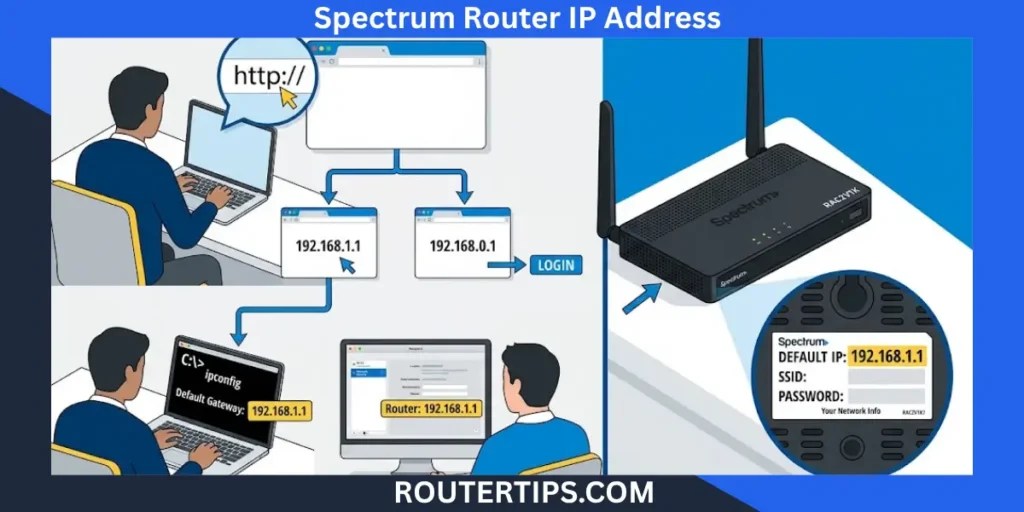
If you are looking for your Spectrum router IP address, you may have seen addresses such as 192.168.1.1 or 192.168.0.1. These are common private router addresses, and some older Spectrum routers can use them.
However, there is an important point to know. There is not one IP address that works for every Spectrum router. Some older Spectrum equipment provides a local router login page, while many newer Spectrum Advanced WiFi routers are managed through the My Spectrum App or Spectrum.net instead of a direct IP login. Spectrum’s own support guidance confirms that some of its supplied routers cannot be managed by entering an IP address into a browser.
If you simply want to find your router’s local IP, the easiest method is to check the Default Gateway on a connected device. This tells you which local address your device uses to communicate with the router.
What Is the Spectrum Router IP Address?
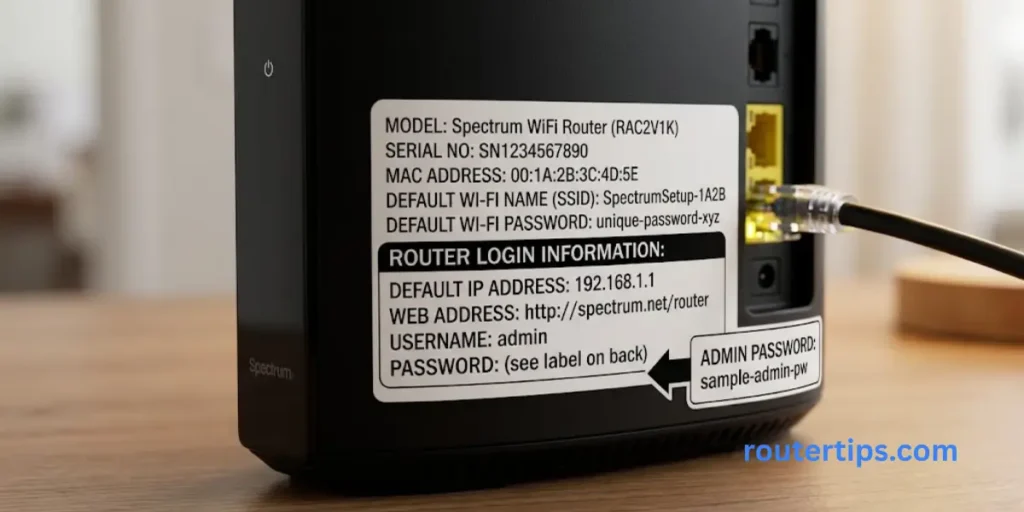
There is no single default IP for every Spectrum router.
Depending on the equipment, you may come across:
- 192.168.1.1
- 192.168.0.1
- Another private gateway address
- No browser-based router login at all if your Spectrum equipment is managed through Advanced WiFi
Older Spectrum equipment can use 192.168.1.1 or 192.168.0.1. For example, a Spectrum employee previously confirmed that the Sagemcom RAC2V1S could be accessed through either address.
Newer Spectrum routers can work differently. Spectrum’s Advanced WiFi documentation says supported WiFi 6 and WiFi 6E equipment is managed through the My Spectrum App.
🌐 Need to identify your router’s gateway address? Check our What Is My Router Gateway IP Reference to find the default gateway and access your router’s settings.
Quick Spectrum Router IP Table
| Spectrum setup | What to use |
| Some older Spectrum routers | 192.168.1.1 |
| Some older Spectrum equipment | 192.168.0.1 |
| Current Advanced WiFi equipment | My Spectrum App or Spectrum.net |
| Your own router | Check its Default Gateway |
So, if you are asking “What is my Spectrum router IP address?”, do not rely on one number alone. Find the gateway used by your specific network.
📶 Want to access your Netis router settings? Check our Netis Router Information to find the login address, default details, and settings for your router.
Does Spectrum Have a Default Router IP Address?
Spectrum equipment has changed over time, so the answer depends on the router you have.
192.168.1.1
192.168.1.1 is a common private IP address used by routers. Some older Spectrum routers can use this address for their local management page. Spectrum’s community support has confirmed this address for certain older equipment.
If you have an older router, you can try entering:
192.168.1.1
in your browser’s address bar.
If a login page appears, your router supports browser-based management at that address.
192.168.0.1
192.168.0.1 is another common private router address.
Some older Spectrum equipment may use it. However, it should not be treated as the universal Spectrum router IP.
If 192.168.0.1 does not work, check your device’s Default Gateway instead of trying random IP addresses.
🌐 Looking for information about the Eero 7 router? Check our Eero 7 Router Overview for useful details about this router.
Why the IP Address Can Be Different
Your router’s local IP can vary because of:
- Router model
- Router firmware
- Network configuration
- Customer-owned equipment
- A changed LAN address
- Multiple routers in the same home
- Mesh WiFi systems
There is also a major difference between older equipment and Spectrum’s newer Advanced WiFi system.
With current Advanced WiFi equipment, Spectrum handles many router settings through its app and online account. A Spectrum employee has confirmed that certain supplied routers cannot be accessed directly through an IP address and should instead be managed through Spectrum.net or the My Spectrum App.
How to Find Your Spectrum Router IP Address
The most reliable way to find your router IP is to check the network settings on a device that is already connected to your Spectrum network.
Look for a field called:
- Default Gateway
- Router
- Gateway
The exact name depends on the device.
The number shown there is normally the local address your device uses to reach the router.
🌐 Need to check the IP address used by your Linksys router? See our What Is My Linksys Router IP Details for helpful information.
Find the Spectrum Router IP on Windows
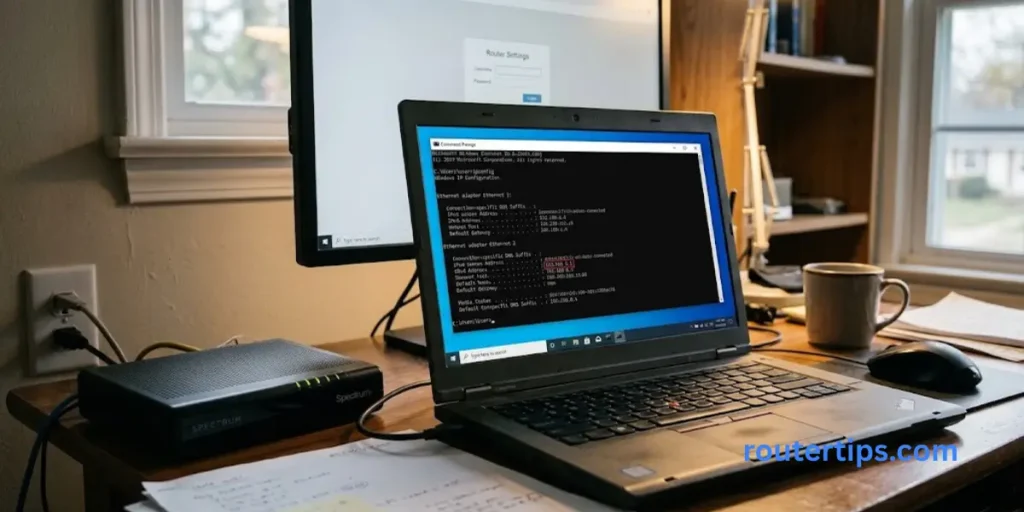
If you use a Windows computer, you can find the gateway in a few steps.
- Press Windows + R.
- Type cmd.
- Press Enter.
- Type ipconfig.
- Press Enter.
- Find the network connection you are using.
- Look for Default Gateway.
You may see something like:
Default Gateway . . . . . : 192.168.1.1
If you see that address, it is the local gateway for your current connection.
You can enter it into your browser if your router provides a local web management page.
🌐 Trying to find the IP address for your Linksys router? Check our What Is My IP Address for My Router Linksys Guide for helpful information.
Find the Spectrum Router IP on Mac
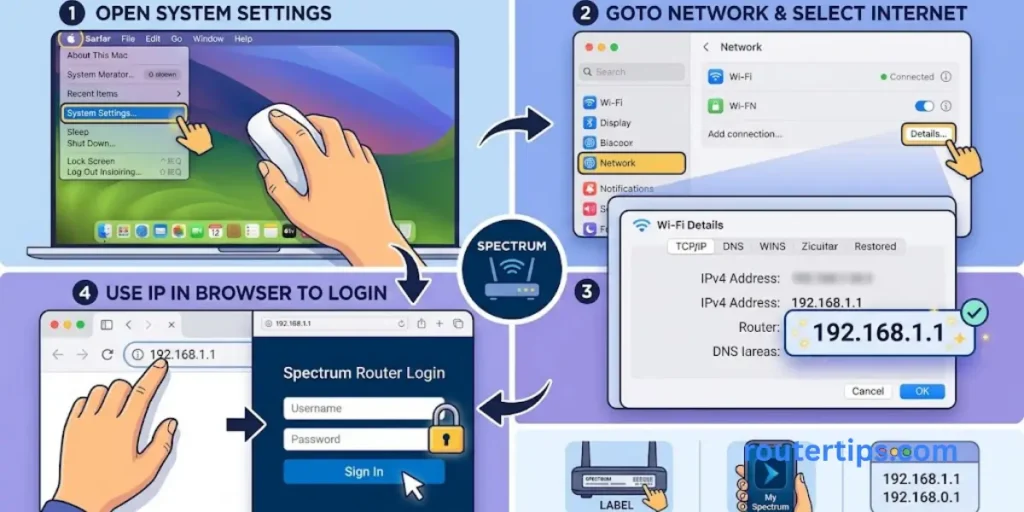
On a Mac:
- Open System Settings.
- Select Network.
- Choose your active WiFi or Ethernet connection.
- Open the connection details.
- Look for Router.
The number beside Router is your local gateway address.
If the address is 192.168.1.1, you can try entering it into your browser.
🌐 Looking for your home router’s IP address? Check our What Is My Home Router IP Address Information for useful details.
Find the Spectrum Router IP on iPhone
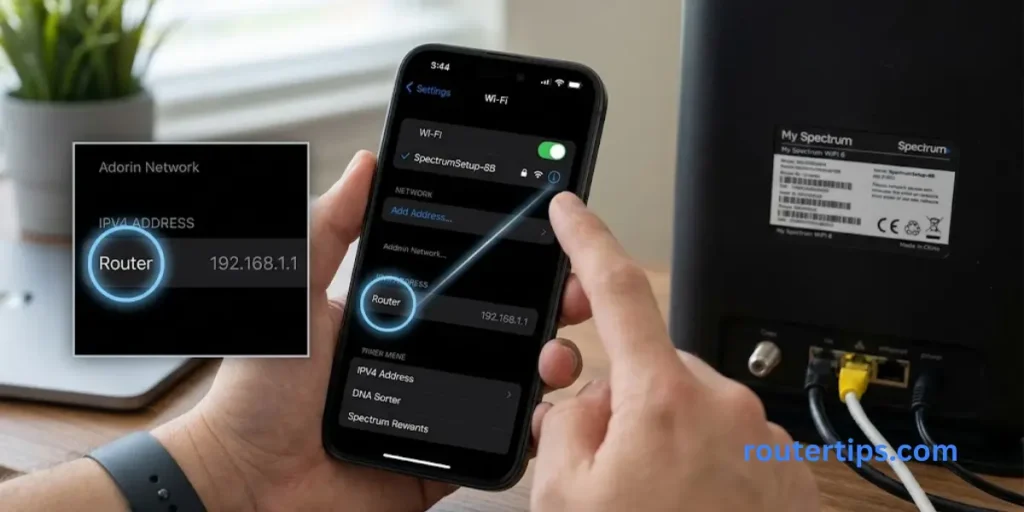
You can check the router address directly from your iPhone.
- Open Settings.
- Tap Wi-Fi.
- Find the WiFi network you are connected to.
- Tap the information button next to the network.
- Look for Router.
The address shown there is the gateway used by your iPhone.
This is more useful than guessing whether your Spectrum router uses 192.168.0.1 or 192.168.1.1.
Find the Spectrum Router IP on Android
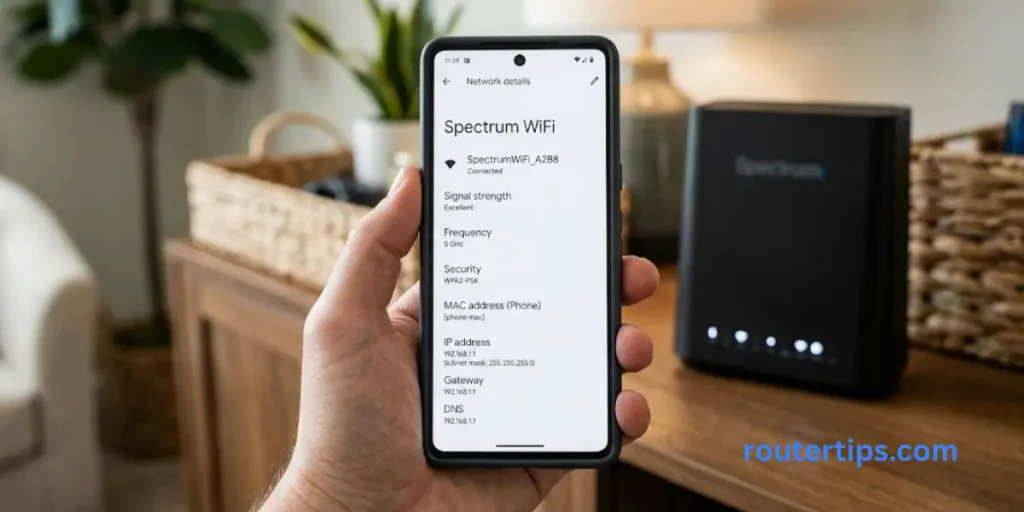
Android menus can look different depending on your phone brand and Android version.
In general:
- Open Settings.
- Tap Wi-Fi or Network & Internet.
- Select the connected WiFi network.
- Open the network details.
- Look for Gateway, Router, or a similar field.
The number shown there is your local router address.
How to Log In to a Spectrum Router
The login method depends on your Spectrum equipment.
This is where many older online guides can cause confusion. They often tell every Spectrum customer to type 192.168.0.1 into a browser. That is not correct for all current Spectrum routers.
If You Have Spectrum Advanced WiFi
If your Spectrum router supports Advanced WiFi, you will normally manage your network through the My Spectrum App or Spectrum.net.
Spectrum’s official WiFi 6 guide says Advanced WiFi is managed with the My Spectrum App. The available features include changing the WiFi name and password, viewing connected devices, pausing devices, troubleshooting equipment, and getting port forwarding support.
A Spectrum employee also confirmed that advanced router settings can be accessed through the app by going to Services, selecting the router under network equipment, and opening Advanced Settings.
If Your Router Uses a Browser Login
Some older Spectrum routers can provide a local web interface.
If yours does:
- Connect your device to the router.
- Open Chrome, Edge, Firefox, or Safari.
- Enter the router’s gateway address.
- Press Enter.
- Enter the requested login details.
If you do not know the gateway, use the Windows, Mac, iPhone, or Android steps above.
Do not assume that 192.168.0.1 or 192.168.1.1 will work just because another Spectrum customer uses that address.
What Is the My Spectrum App Used For?
The My Spectrum App is important if you have Spectrum Advanced WiFi.
Spectrum’s official documentation says the app can be used to manage several parts of your home network.
Depending on your equipment and service, you may be able to:
- Change your WiFi network name
- Change your WiFi password
- View connected devices
- Pause or resume a device
- Troubleshoot your internet service
- Manage Advanced WiFi settings
- Get port forwarding support
- Manage some security features
- View information about your network equipment
Spectrum’s WiFi 6E documentation also lists features such as DNS settings, UPnP controls, device management, troubleshooting, and WiFi security features.
If you have Spectrum-provided Advanced WiFi equipment, using the app can be easier than looking for a router IP that may not provide a login page.
Spectrum Router IP vs Public IP Address
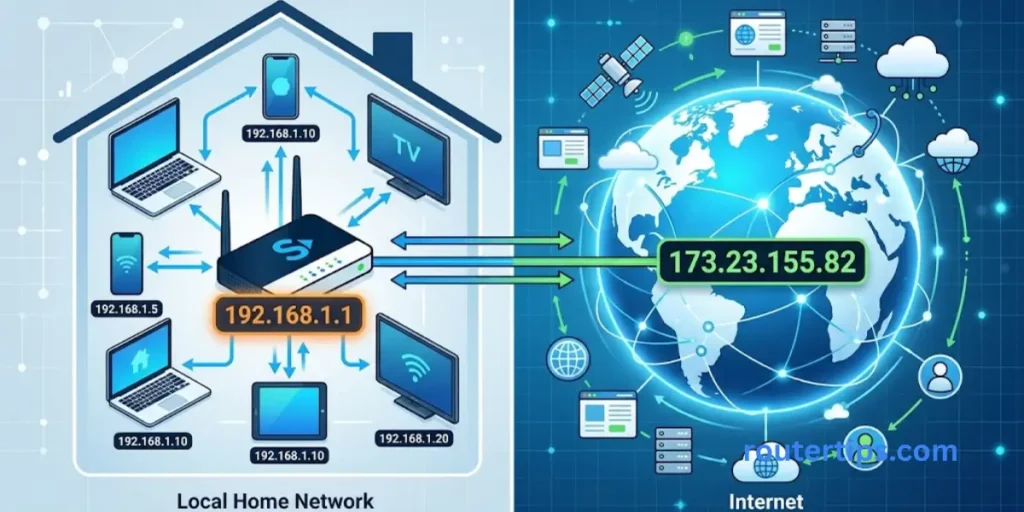
The phrase Spectrum IP address can mean two different things.
Your router IP address is used inside your home network.
Your public IP address is associated with your internet connection and can be seen by services on the internet.
Router IP Address
A router IP might look like:
192.168.1.1
or:
192.168.0.1
These are examples of private addresses.
Your computer, phone, and other devices use the local gateway to communicate with the router.
Public IP Address
Your public IP is different.
It is assigned to your internet connection by your service provider. It does not normally look like your router’s private address.
Spectrum community guidance says residential public IP addresses are automatically assigned and renewed by Spectrum’s system.
Which IP Do I Need?
The answer depends on what you are trying to do.
| What you want to do | What you need |
| Access an older router’s local settings | Router IP / Default Gateway |
| Find your local network gateway | Default Gateway |
| Change Advanced WiFi settings | My Spectrum App or Spectrum.net |
| Find your internet-facing IP | Public IP address |
| Connect to a customer-owned router | That router’s gateway address |
If your goal is to change your Spectrum WiFi name or password, you may not need to know the router IP at all.
Why Is 192.168.1.1 Not Working on My Spectrum Router?
If 192.168.1.1 does not open a router login page, that does not automatically mean your internet connection is broken.
Your Spectrum Router Uses a Different IP
The router may use another local gateway.
Check the Default Gateway on Windows or the Router field on your phone or Mac.
Your Router Uses Spectrum Advanced WiFi
Some Spectrum routers do not provide the traditional local router interface.
A Spectrum employee explained that certain Spectrum-provided routers are managed through Spectrum.net or the My Spectrum App rather than by entering the router IP directly.
If you have Advanced WiFi, open the My Spectrum App and check your router under the Services or network equipment section.
You Are Connected to the Wrong Network
Make sure your device is connected to the Spectrum router you are trying to manage.
This matters if you have:
- A second router
- A WiFi extender
- A mesh system
- A guest network
- Another nearby WiFi network
You Entered the IP Incorrectly
A common mistake is confusing the number 1 with the letter l.
Correct:
192.168.1.1
Incorrect:
192.168.l.l
Also, enter the address directly into the browser’s address bar.
Do not search for it on Google.
You Are Using Your Own Router
If you purchased your own router and connected it to Spectrum service, its local IP is controlled by that router.
For example, a third-party router could use a different gateway from Spectrum equipment.
In that case, check the router manufacturer’s instructions or find the gateway from your connected device.
Why Is 192.168.0.1 Not Working?
The same basic rule applies to 192.168.0.1.
It may work with some older Spectrum equipment, but it is not a universal Spectrum router address.
For example, Spectrum’s community support previously confirmed that a Sagemcom RAC2V1S could use 192.168.1.1 or 192.168.0.1.
But newer Spectrum routers can use a cloud-managed system instead.
One Spectrum employee specifically explained that supplied routers may not be accessible through a direct IP login and should instead be managed through Spectrum.net or the My Spectrum App.
So, if 192.168.0.1 fails:
- Check your device’s gateway.
- Check your router model.
- Open the My Spectrum App if you have Advanced WiFi.
- Check Spectrum.net for available router settings.
What Is My Spectrum Router Username and Password?
There is no single username and password that should be assumed for every Spectrum router.
Older routers with a local web interface may have their own administrator credentials.
Current Spectrum Advanced WiFi equipment is different. Many settings are managed through your Spectrum account and the My Spectrum App rather than a traditional router login screen.
If you are using your own router, its username and password are set by the router manufacturer or by you during setup.
Do not rely on generic combinations such as admin/admin unless the documentation for your exact router says they are correct.
Spectrum Router Login for Older Routers
If you have an older Spectrum router with a local web interface, the process is fairly simple.
First, connect your computer or phone to the router.
Next, find the router’s gateway address. On Windows, use ipconfig and look for Default Gateway.
Enter that address into your browser.
For some older Spectrum equipment, the gateway may be:
192.168.1.1
or:
192.168.0.1
Spectrum support has documented both addresses for certain older equipment.
If the login screen appears, use the credentials provided for that specific router.
If no page appears, do not keep trying random IP addresses. Your equipment may use Spectrum’s app-based management instead.
How to Check Your Spectrum Router Model
Knowing your router model can save you time.
Look for the model information:
- On the back of the router
- On the bottom label
- In the My Spectrum App
- In your Spectrum equipment information
The router model can tell you whether you have older equipment with a local web interface or newer Advanced WiFi equipment.
Spectrum’s own WiFi guides are separated by equipment type, including WiFi 6 and WiFi 6E routers.
If you see a QR code on the router label that points you toward the My Spectrum App, that is another sign that your equipment uses Spectrum’s Advanced WiFi system. Spectrum’s WiFi 6 guide specifically notes the QR code on supported router labels.
What Settings Can I Change on a Spectrum Router?
The settings available to you depend on your router model and Spectrum service.
Change WiFi Name
You can change the name that appears when devices search for your wireless network.
Spectrum says its Advanced WiFi service lets customers personalize their WiFi network name.
Change WiFi Password
You can also change your wireless password through supported Spectrum management tools.
Spectrum support guidance says users can change the WiFi network name and password through the website or My Spectrum App.
View Connected Devices
Advanced WiFi lets you view devices connected to your network.
This can help you identify phones, computers, TVs, game consoles, and other devices using your WiFi.
Pause a Device
If you want to temporarily stop a device from using your WiFi, Advanced WiFi provides device management features for supported equipment.
You can pause or resume WiFi access for a device or group of devices.
Manage Port Forwarding
Port forwarding can be useful for certain applications and online games.
Spectrum’s Advanced WiFi documentation includes port forwarding support among its available features.
Manage Security Settings
Spectrum’s Advanced WiFi service includes network security features. Some supported equipment also provides additional settings through the My Spectrum App.
Final Thoughts About Spectrum Router IP Address
If you are searching for your Spectrum router IP address, there is no need to guess for long. For older Spectrum equipment, 192.168.1.1 and 192.168.0.1 are two addresses worth checking. However, neither address should be treated as a universal Spectrum IP address.
The easiest way to find your actual local router address is to check the Default Gateway on a connected computer or look for the Router or Gateway field in your phone’s WiFi network details. This helps you identify the address currently used by your specific network.
If you have a newer Spectrum Advanced WiFi router, you may not need to use a router IP address at all. Spectrum provides network management through the My Spectrum App and Spectrum.net, including WiFi settings, connected devices, troubleshooting, and other supported features.
This difference is important because an IP address that works for one Spectrum customer may not work for another. Check your router model and current network setup first, then use the management method designed for your specific equipment. This can help you manage your WiFi settings without making unnecessary changes to your network.
FAQs About Spectrum Router IP Address
Q1. What is the IP address of my Spectrum router?
There is no single IP address for every Spectrum router. Some older Spectrum equipment may use 192.168.1.1 or 192.168.0.1. Current Advanced WiFi routers may be managed through the My Spectrum App or Spectrum.net instead. The most reliable way to find your local router address is to check the Default Gateway on a connected device.
Q2. Is Spectrum router IP 192.168.1.1?
It can be. Some older Spectrum routers use 192.168.1.1, but it is not the universal IP address for all Spectrum equipment.
Q3. Is Spectrum router IP 192.168.0.1?
Some older Spectrum equipment can use 192.168.0.1, but you should not assume that every Spectrum router uses it. Check your device’s Default Gateway if you are unsure.
Q4. How do I find my Spectrum router IP?
On Windows, open Command Prompt and run ipconfig, then look for Default Gateway. On iPhone or Mac, check the connected WiFi network details and look for Router. On Android, look for Gateway or Router in the network details.
Q5. How do I log in to my Spectrum router?
It depends on your equipment. Older Spectrum routers may have a local browser login page. Current Spectrum Advanced WiFi equipment is generally managed through the My Spectrum App or Spectrum.net. Spectrum confirms that certain supplied routers cannot be accessed directly by entering their IP address.
Q6. Why can’t I access my Spectrum router?
You may be using the wrong gateway address, connected to a different network, or using Spectrum equipment that is managed through the My Spectrum App rather than a local browser page.
Q7. Can I access my Spectrum router without the app?
It depends on the router. Some older Spectrum equipment can be managed through a local IP address. Many newer Spectrum Advanced WiFi routers use Spectrum’s app and online account for router settings.
Q8. What is the difference between my Spectrum router IP and public IP?
Your router IP is a private address used inside your home network. Your public IP is associated with your internet connection and is used for communication on the wider internet.
Q9. Does Spectrum give every customer the same router IP?
No. Spectrum uses different equipment and management systems. Some older routers may use common private addresses such as 192.168.1.1 or 192.168.0.1, while current Advanced WiFi equipment may use app-based management.