
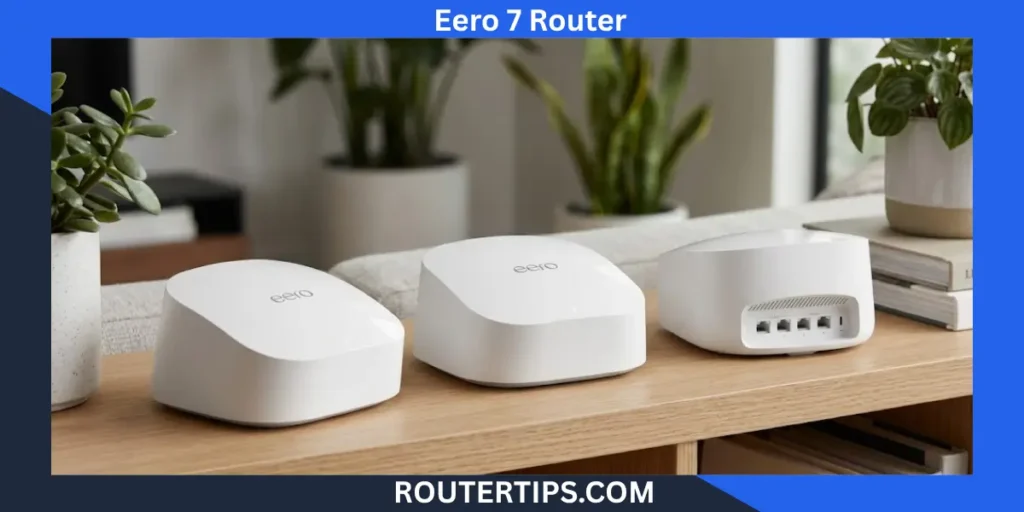
The eero 7 router is a dual-band Wi-Fi 7 mesh router designed for homes with multi-gigabit internet. It supports internet plans up to 2.5 Gbps, has two 2.5 GbE Ethernet ports, and can provide up to 2,000 square feet of coverage per unit. Eero also rates it for more than 120 connected devices.
The eero 7 is aimed at people who want newer Wi-Fi technology without moving to a higher-end tri-band system. It can work as the main router connected to your modem or gateway, or as an extender in an existing eero mesh network.
This guide routertips.com explains the eero 7 specifications, features, setup process, coverage, MLO support, compatibility, pricing, and how it compares with the eero Pro 7.
What Is the Eero 7 Router?
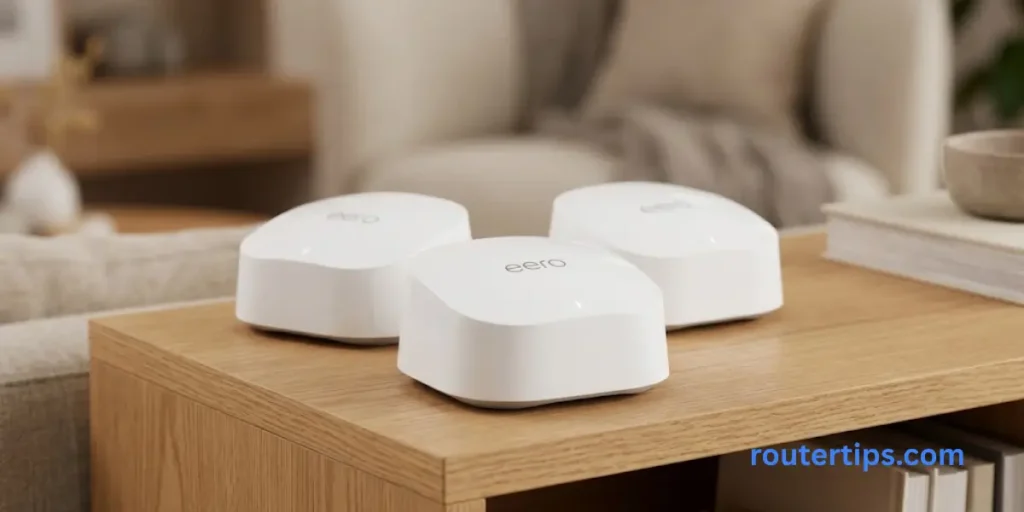
The eero 7 is a Wi-Fi 7 mesh router built for everyday home networking, including streaming, gaming, video calls, smart home devices, and work from home. It uses the 2.4 GHz and 5 GHz wireless bands and has a 2×2 antenna configuration on both bands.
Unlike a modem, the eero 7 manages your local network and provides Wi-Fi access. If your internet service comes through a separate modem, the eero 7 connects to that device through Ethernet.
It can also be used as an extender. That makes it possible to add another eero 7 to an existing eero mesh system when one router does not provide enough coverage. Eero states that the eero 7 is compatible with all generations of eero hardware.
📶 Need to access your EE router settings? Check our EE Router Login Information to reach the login page and manage your router and network settings.
What Makes Eero 7 Different?
The main difference is its support for Wi-Fi 7, also known as 802.11be. The router has a BE5000 rating, two 2.5 GbE ports, and support for Multi-Link Operation, or MLO. Eero says the device can deliver wireless speeds of up to 1.8 Gbps and wired speeds of up to 2.3 Gbps.
The eero 7 is also designed around eero’s mesh software. TrueMesh, TrueRoam, and TrueChannel work together to help devices stay connected to an appropriate access point and wireless channel as network conditions change.
Eero 7 Router Features
Wi-Fi 7 Support
Wi-Fi 7 is the biggest hardware feature of the eero 7. It brings newer wireless capabilities to compatible phones, laptops, tablets, and other devices.
However, buying a Wi-Fi 7 router does not make every device in your home a Wi-Fi 7 device. Older Wi-Fi devices can still connect, but they will use the capabilities supported by their own wireless hardware.
For a home that is gradually adding newer devices, this makes the eero 7 a practical upgrade. You can use your current devices now and take advantage of newer Wi-Fi features as compatible devices are added.
Dual Band 2.4 GHz and 5 GHz Wi-Fi
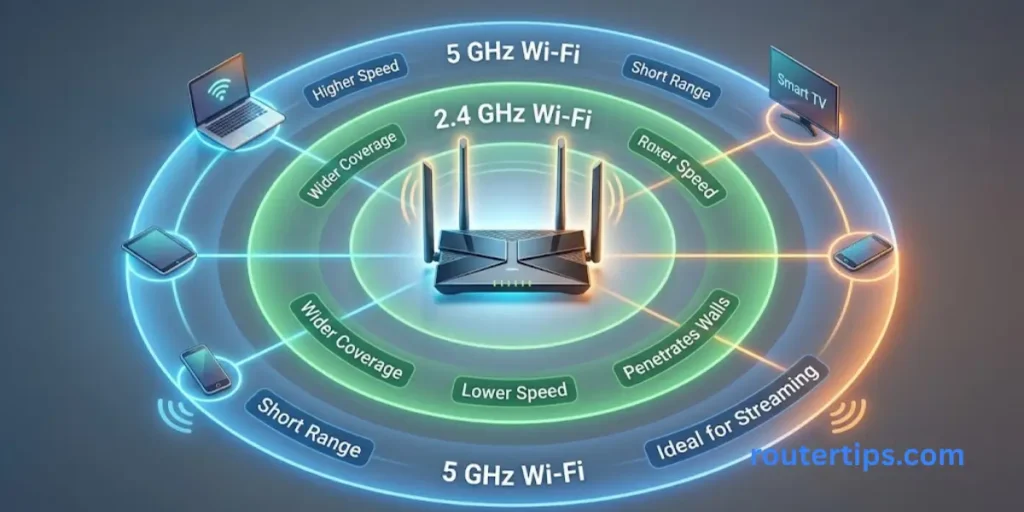
The eero 7 is a dual band router. It uses 2.4 GHz and 5 GHz rather than the 2.4 GHz, 5 GHz, and 6 GHz combination found on the eero Pro 7.
The 2.4 GHz band generally offers better range through obstacles, while 5 GHz can provide higher wireless performance at shorter distances.
One important point is that the eero 7 does not include a 6 GHz radio. If 6 GHz connectivity is a priority, the eero Pro 7 is the more suitable model.
📶 Looking to sign in to your Converge router? See our Converge Router Login Information to reach the login page and manage your router and Wi-Fi settings.
Two 2.5 GbE Ethernet Ports
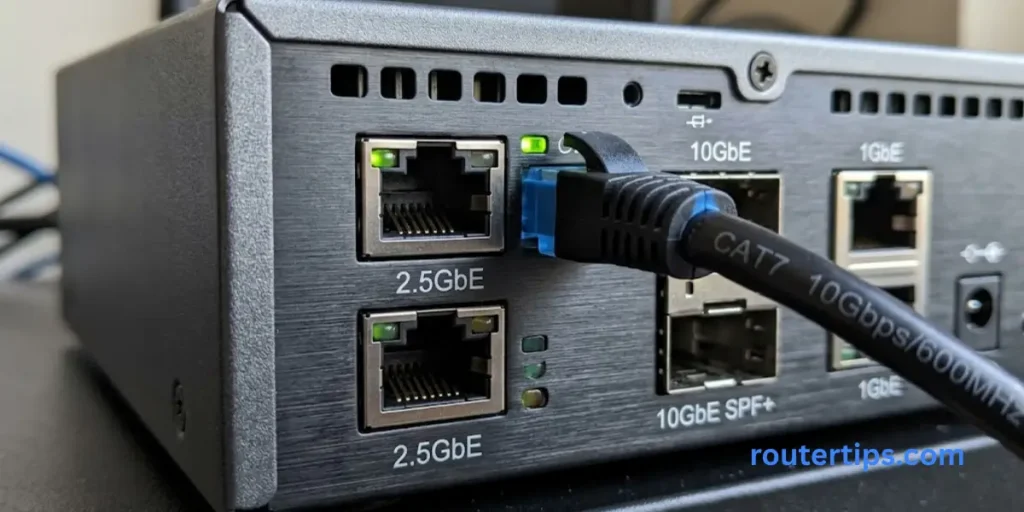
The eero 7 has two auto-sensing 2.5 GbE ports. These ports are useful for multi-gigabit internet connections and wired devices such as desktop computers, gaming systems, switches, and network storage.
Eero lists the router as suitable for internet plans up to 2.5 Gbps. It also states that wired speeds can reach up to 2.3 Gbps under appropriate conditions.
Actual performance will depend on your internet plan, Ethernet equipment, client device, cables, network conditions, and other factors.
Multi Link Operation
Multi-Link Operation (MLO) is one of the Wi-Fi 7 features supported by the eero 7.
Eero says MLO can reduce latency and improve connectivity and speed for compatible Wi-Fi 7 devices compared with standard operation. The benefit depends on both the router and the client device supporting the relevant Wi-Fi 7 features.
This is important because MLO is not simply a setting that makes every device faster. A Wi-Fi 6 phone, for example, cannot suddenly use Wi-Fi 7 MLO just because it is connected to an eero 7.
📶 Need to sign in to your ASUS router? Check our Router Asus Login Details to reach the admin page and manage your router and wireless network settings.
TrueMesh, TrueRoam, and TrueChannel
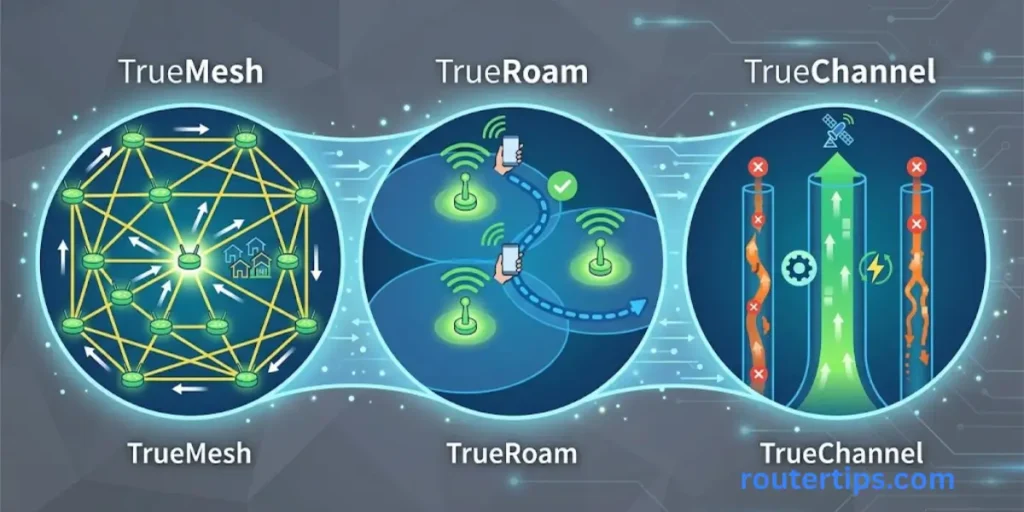
The eero 7 uses eero’s mesh networking software to manage connections across an eero system.
TrueMesh helps route traffic through the mesh network. TrueRoam helps devices move between eero access points, while TrueChannel helps select wireless channels based on network conditions.
This matters most in homes with multiple eero units. Instead of treating every unit as a separate Wi-Fi network, the mesh system is designed to operate as one network.
Smart Home Support
The eero 7 also has smart home features. Eero states that it can work with Alexa, support Matter, act as a Thread border router, and include a Zigbee-compatible smart home hub.
That can make the router useful beyond basic internet access for homes with compatible lights, locks, thermostats, sensors, and other smart devices.
Eero 7 Router Specifications
Here are the main eero 7 specifications from eero’s current product and support information.
| Specification | Eero 7 |
| Wi-Fi standard | Wi-Fi 7 / 802.11be |
| Speed rating | BE5000 |
| Wireless bands | 2.4 GHz and 5 GHz |
| Antenna | 2×2 on 2.4 GHz and 5 GHz |
| Ethernet | Two 2.5 GbE ports |
| Maximum wireless speed | Up to 1.8 Gbps |
| Maximum wired speed | Up to 2.3 Gbps |
| Recommended internet plan | Up to 2.5 Gbps |
| Coverage | Up to 2,000 sq. ft. per unit |
| Connected devices | 120+ |
| Channel widths | 20, 40, 80, 160, and 240 MHz |
| Use | Gateway router or indoor extender |
| Security | WPA2 and WPA3 |
| Smart home | Matter, Thread, Zigbee, Alexa |
These are manufacturer specifications and should not be treated as guaranteed speeds in every home. Wireless performance can change with distance, walls, interference, client hardware, and network traffic.
🔐 Having trouble with your router login credentials? Check our Recovering Router User and Password Details to find practical ways to regain access to your router account and settings.
How Much Coverage Does Eero 7 Provide?
Eero rates one eero 7 unit for up to 2,000 square feet of indoor coverage. It also states that one unit can support more than 120 connected devices.
Coverage is not the same as guaranteed speed across the entire area. A large house with thick walls may need additional mesh units even if its total floor area is close to the advertised coverage.
For a larger home, adding compatible eero devices can extend the mesh network. Placement matters too. A mesh unit should generally be placed where it can maintain a strong connection to the rest of the network rather than at the very edge of an area with weak signal.
How Many Devices Can Eero 7 Support?
Eero states that the eero 7 supports 120+ connected devices.
That makes it suitable for homes with many phones, laptops, televisions, cameras, speakers, smart appliances, game consoles, and other connected products.
Still, the number of devices alone does not determine network performance. Ten devices performing demanding downloads can place more load on a network than dozens of devices that only send small amounts of data.
Eero 7 Router Setup
Setting up an eero 7 is designed to be handled through the eero mobile app. Before starting, you should have your internet service active and have access to the modem or gateway provided by your internet provider.
What You Need to Set Up Eero 7
You will generally need:
- An eero 7 unit
- Its power adapter
- An Ethernet cable
- An active internet connection
- A compatible smartphone
- The eero app
- Your modem or internet gateway, if your service uses one
🌐 Need to find the IP address of your router? Visit our Find Router IP Address Resource to identify the correct gateway and access your router settings.
How to Set Up Eero 7
Place the Eero 7
Put the eero 7 on a flat surface in a suitable location. Avoid placing it inside a cabinet or directly behind large objects that can interfere with wireless coverage.
Connect It to Your Internet Equipment
Use Ethernet to connect the eero 7 to your modem or internet gateway.
If your internet provider supplied a combined modem/router, the correct setup can depend on the gateway’s configuration. In some cases, you may need to use bridge or passthrough mode to avoid having two routers managing the same local network.
Connect the Power
Connect the eero 7 to its power adapter and wait for it to start.
Open the Eero App
Install and open the eero app on your smartphone. Follow the on-screen setup instructions.
Create Your Wi-Fi Network
The app will guide you through creating your network name and password. Once setup is complete, connect your phones, computers, televisions, and other devices to the new network.
Add More Eero Units
If you have a larger home, you can add compatible eero devices to extend coverage. Eero’s product information states that eero 7 can work with all generations of eero hardware.
🛡️ Want to learn about common internet scams? Read our Online Scams Resource to recognize phishing attempts, fake websites, suspicious messages, and other common online risks.
Is the Eero 7 a Modem or Router?
The eero 7 is a router, not a modem.
Its job is to create and manage your home network. It provides Wi-Fi and Ethernet connectivity and routes traffic between your local devices and the internet.
If your internet service requires a separate modem, the eero 7 connects to that modem. Some internet providers use a gateway that combines modem and router functions. In that situation, the gateway configuration may need to be adjusted depending on how you want to operate your eero network.
Does the Eero 7 Replace the Router?
Yes, the eero 7 can replace your existing router in a suitable setup.
Eero identifies the eero 7 as capable of serving as a primary gateway router. It can also function as an indoor extender in an existing eero network.
The eero 7 does not replace the modem function. If your internet connection requires a separate modem, that device remains part of the setup.
Can You Use Eero 7 With Existing Eero Hardware?
Yes. Eero says the eero 7 is compatible with all generations of eero hardware.
This can be useful if you already have an eero system and want to add newer hardware without replacing every unit at once.
There is one important limitation: older eero hardware cannot gain hardware features it does not support. A Wi-Fi 7 device connected to an older Wi-Fi generation eero will not receive every Wi-Fi 7 benefit through that older unit.
Eero 7 as an Extender
The eero 7 can operate as an indoor mesh extender as well as a gateway router.
This gives homeowners two common ways to use it:
- Use one eero 7 as the main router.
- Add another eero 7 or compatible eero device to improve coverage in another part of the home.
The best placement depends on your floor plan. An extender should not be placed so far away that its connection to the main network is already weak.
Eero 7 vs Eero Pro 7
The eero 7 and eero Pro 7 both use Wi-Fi 7, but they are designed for different levels of network demand.
The eero 7 is dual-band, using 2.4 GHz and 5 GHz. The eero Pro 7 is tri-band, adding a 6 GHz band. The Pro 7 also has two 5 GbE ports, compared with the two 2.5 GbE ports on the eero 7.
| Feature | Eero 7 | Eero Pro 7 |
| Wi-Fi | Wi-Fi 7 | Wi-Fi 7 |
| Bands | Dual-band | Tri-band |
| 6 GHz | No | Yes |
| Ethernet | 2 × 2.5 GbE | 2 × 5 GbE |
| Coverage per unit | Up to 2,000 sq. ft. | Up to 2,000 sq. ft. |
| Connected devices | 120+ | 200+ |
| Best fit | Everyday multi-gig home use | Higher-demand networks |
Eero positions the eero 7 for internet plans up to 2.5 Gbps, while the Pro 7 is aimed at plans up to 5 Gbps and households with heavier bandwidth demands.
Is the Eero Pro 7 a Good Wi-Fi Router?
The eero Pro 7 is a stronger choice for users who need tri-band Wi-Fi 7, 6 GHz connectivity, and faster Ethernet.
It makes more sense for larger households, many simultaneous high-bandwidth activities, and users with internet plans above the eero 7’s recommended 2.5 Gbps range.
For a normal home with a plan up to 2.5 Gbps, the eero 7 can be a more practical option. The better choice depends on the internet plan, home size, connected devices, and need for 6 GHz.
Eero 7 Router Price
The current official eero store lists the eero 7 at $169.99 for a 1-pack, $279.99 for a 2-pack, and $349.99 for a 3-pack. Prices can change, so check the manufacturer’s current listing before buying.
A single unit can make sense for a smaller home or apartment. A multi-pack may be more appropriate when the goal is whole-home mesh coverage.
The cost should also be considered alongside your internet plan. Buying a more expensive router does not automatically make a slower internet service faster.
What Comes in the Eero 7 Box?
A single eero 7 package includes the router and the equipment required for basic installation. Eero’s support documentation provides the current package contents and setup information for individually sold units.
Before installation, check the box contents against the current manufacturer’s documentation, especially if you purchase a multi-pack or bundle.
Eero 7 Router Review Pros and Cons
Pros of Eero 7
- Wi-Fi 7 support
- Two 2.5 GbE ports
- Up to 1.8 Gbps wireless speed
- Up to 2.3 Gbps wired network speed
- Up to 2,000 sq. ft. coverage per unit
- Support for 120+ devices
- MLO support
- Compatible with previous eero generations
- Can operate as a router or extender
- Matter, Thread, and Zigbee smart home support
- Three-year warranty according to eero’s current product information
Cons of Eero 7
- It does not have a 6 GHz band.
- It is not designed for internet plans above 2.5 Gbps.
- Wi-Fi 7 benefits depend on compatible client devices.
- Very demanding homes may benefit more from a tri-band model such as the eero Pro 7.
- Actual wireless speeds will vary by environment and device.
Is the Eero 7 a Good Router?
Yes, the eero 7 is a good router for many homes, especially those with internet service up to 2.5 Gbps and an interest in Wi-Fi 7.
Its strongest points are the two 2.5 GbE ports, Wi-Fi 7 support, MLO, mesh compatibility, and 2,000-square-foot coverage rating per unit.
It is not the right choice for everyone. Someone who needs 6 GHz Wi-Fi or a 5 Gbps internet connection should look at a higher-end model such as the eero Pro 7.
For a typical family home, apartment, condo, or townhome with a multi-gigabit connection, however, the eero 7 provides a sensible combination of newer wireless technology and mesh networking.
Eero 7 Router Troubleshooting
Eero 7 Is Not Connecting to the Internet
First, check the Ethernet connection between the eero 7 and your modem or gateway. Confirm that the internet service itself is working. Restarting the modem and eero can also help with temporary connection problems.
Eero 7 Wi-Fi Is Slow
Check the distance between the device and eero 7, nearby wireless interference, and whether the client device supports newer Wi-Fi standards.
Also remember that an eero 7 cannot provide an internet speed higher than the service supplied by your internet provider.
Some Devices Cannot Connect
Older devices may have compatibility issues with certain newer wireless settings. Restarting the client device and checking for software or firmware updates can help.
Eero 7 Has Weak Coverage
Try moving the eero 7 to a more open and central position. If the home is too large for one unit, adding another compatible eero device may provide better coverage.
MLO Is Not Improving Performance
MLO benefits are intended for compatible Wi-Fi 7 devices. If your phone, laptop, or other client uses an older Wi-Fi generation, you should not expect it to receive every MLO benefit.
Final Thoughts on Eero 7 Router
The eero 7 router is a good choice for people who want to move to Wi-Fi 7 without buying a high-end router. It offers fast Wi-Fi, two 2.5 GbE ports, mesh networking, and support for many connected devices. Each unit can cover up to 2,000 square feet, although actual coverage can vary depending on walls, room size, and router placement.
One important thing to keep in mind is that the eero 7 does not include a 6 GHz band. If you want 6 GHz Wi-Fi or have an internet plan faster than 2.5 Gbps, the eero Pro 7 may be a better fit for your needs.
For most homes, the eero 7 can handle everyday activities such as video streaming, online gaming, video calls, web browsing, and smart home devices. You can also expand your network with additional eero devices when you need better coverage in another room or part of your home.
Before buying, consider your internet speed, home size, and the devices you use every day. If your needs match what the eero 7 offers, it can be a simple and practical way to build a reliable home Wi-Fi network.
Frequently Asked Questions About Eero 7 Router
Q1.Is the eero 7 a good router?
Yes. It is a good fit for homes with internet plans up to 2.5 Gbps that want Wi-Fi 7, mesh networking, and 2.5 GbE Ethernet connectivity.
Q2. Is the eero 7 a modem or router?
The eero 7 is a router. It does not normally replace a separate modem used by your internet provider.
Q3. Does the eero 7 replace the router?
Yes. It can work as the primary gateway router. Eero also supports using it as an extender in an existing eero mesh system.
Q4. Is the eero Pro 7 a good Wi-Fi router?
Yes. The Pro 7 is designed for higher-demand networks and adds a 6 GHz band and two 5 GbE ports.
Q5. Does eero 7 support Wi-Fi 7?
Yes. The eero 7 supports Wi-Fi 7 and has a BE5000 rating.
Q6. Does eero 7 have 6 GHz?
No. The eero 7 is dual-band and uses 2.4 GHz and 5 GHz. The eero Pro 7 adds 6 GHz.
Q7. How much area does eero 7 cover?
Eero rates each eero 7 unit for up to 2,000 square feet of indoor coverage. Actual coverage depends on the building and placement.
Q8. Does eero 7 support MLO?
Yes. Multi-Link Operation is supported as part of its Wi-Fi 7 feature set. Eero says MLO can improve connectivity, speed, and latency for compatible Wi-Fi 7 devices.