
Have you ever needed to change your WiFi password? Or fix a network issue? You might have asked, “What is my router IP?”
Your router IP address lets devices on your network talk to your router. You can also access the router’s admin page. You can manage WiFi settings, check connected devices, adjust security options, and more there.
Most people never need to think about their router IP until they need to log in to the router. When that time comes, knowing where to find it can save a lot of frustration.
In this guide, you’ll discover what a router IP address is. You’ll see why it’s important and how to find it on different devices: Windows, Mac, Linux, Android, iPhone, and ChromeOS.
What Is My Router IP Address?
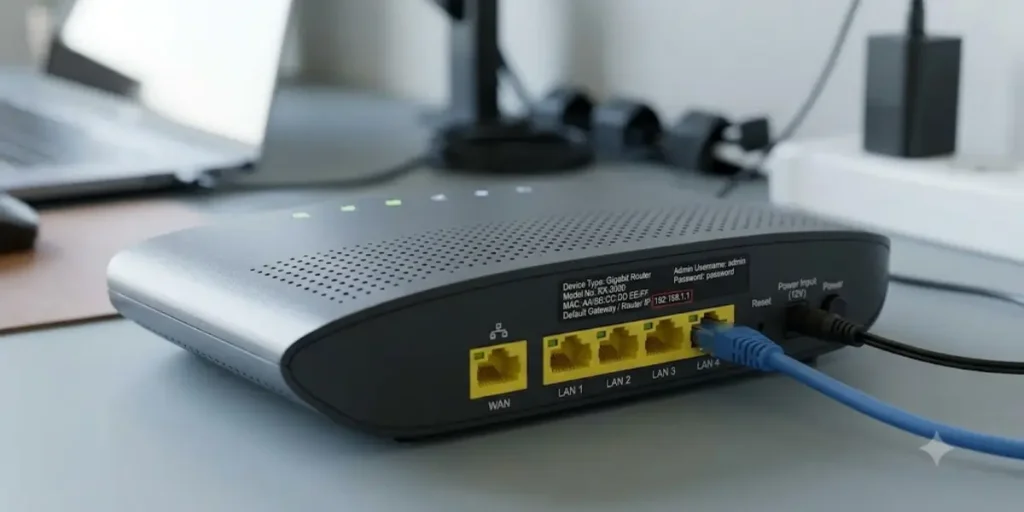
A router IP address is the private IP address assigned to your router within your home or office network.
Think of it as the main entry point for all devices connected to your network. Your phone, laptop, smart TV, and other devices send traffic through the router before reaching the internet.
The router IP is also known as the:
- Default Gateway
- Gateway Address
- Router Login Address
- Router Admin IP
Common router IP addresses include:
- 192.168.1.1
- 192.168.0.1
- 10.0.0.1
- 192.168.100.1
Local networks use these addresses, and the public internet does not see them.
🌐 Having trouble locating your network address? Explore these router IP finding methods to discover the correct address for accessing your router settings.
Why Would I Need to Know My Router IP Address?
There are several reasons why you may need your router’s IP address.
Access Router Settings
The router IP takes you to the router login page where you can manage your network.
Change WiFi Password
If you want a stronger password or need to update it, you’ll need to log in through the router IP.
Update Router Firmware
Firmware updates can improve performance and security.
Manage Connected Devices
You can view devices connected to your network and remove unknown devices.
Configure Network Settings
Advanced users can:
- Change DNS settings.
- Create guest networks.
- Set up parental controls.
Troubleshoot Internet Problems
Many network issues can be solved from the router administration page.
🔐 Having trouble accessing your router settings? Check this router login information to find details about accessing your device and restoring your login access.
How Do I Check My Router IP Address?
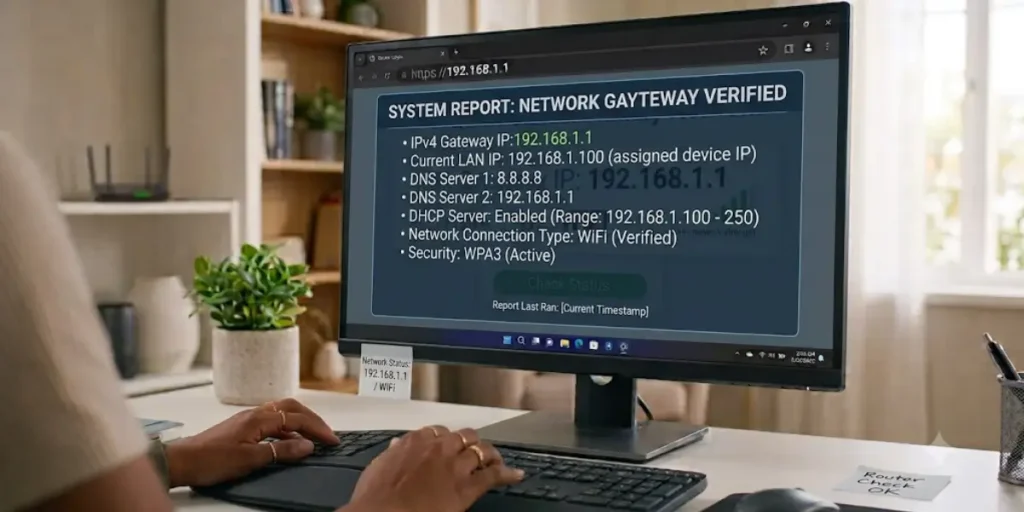
The easiest method depends on the device you’re using.
In most cases, your router IP appears as the Default Gateway in your network settings.
Find Router IP Address
Windows
Windows offers many ways to find your router IP.
Method 1: Command Prompt
- Press Windows + R.
- Type cmd.
- Press Enter.
- Type:
ipconfig
- Press Enter.
- Look for Default Gateway.
Example:
Default Gateway: 192.168.1.1
That number is your router IP address.
Method 2: Network Settings
- Open Control Panel.
- Select Network and Internet.
- Open Network and Sharing Center.
- Click your active connection.
- Select Details.
- Find IPv4 Default Gateway.
⚙️ Need to manage your router features and connections? Explore this network port configuration to understand how to control incoming connections and improve your network setup.
Mac OS
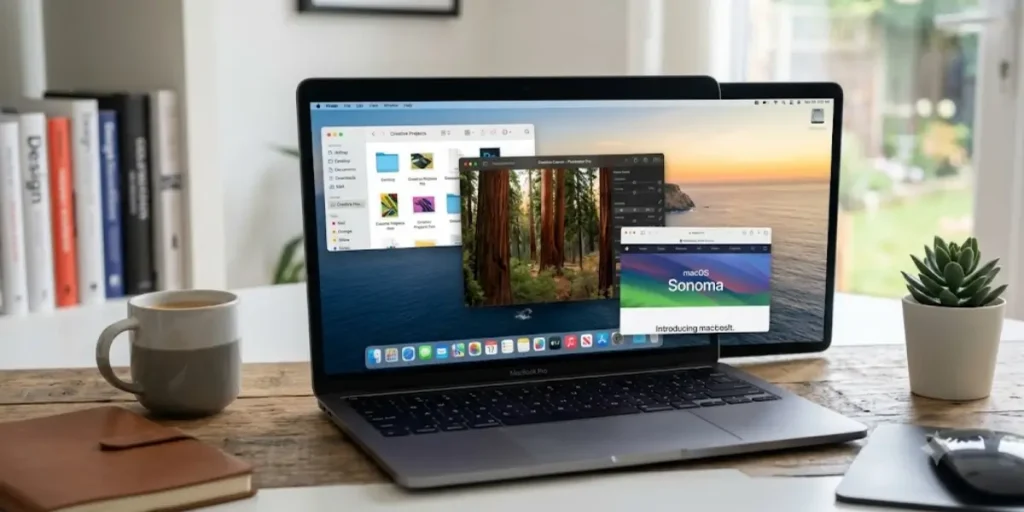
Finding the router IP on a Mac is simple.
- Open System Settings.
- Click Network.
- Select your active WiFi connection.
- Click Details.
- Open TCP/IP.
The Router field shows your router’s IP address.
Linux

Linux users can find the router IP through the terminal.
Open Terminal and enter:
ip route
You may see something like:
default via 192.168.1.1
The address after “default via” is your router IP.
iPhone iOS
To find your router IP on an iPhone:
- Open Settings.
- Tap WiFi.
- Tap the information icon next to your connected network.
- Scroll down to Router.
The displayed number is your router IP address.
Android
Android devices may have slightly different menus depending on the manufacturer.
Generally:
- Open Settings.
- Select Network & Internet.
- Tap WiFi.
- Choose your connected network.
- Open Advanced Settings.
Look for:
- Gateway
- Router
The number shown is your router IP.
Chrome OS

Chromebooks make it easy to view network details.
- Open Settings.
- Click Network.
- Select WiFi.
- Open your active connection.
The Gateway address is your router IP.
How To Find My Router IP Address From Mobile
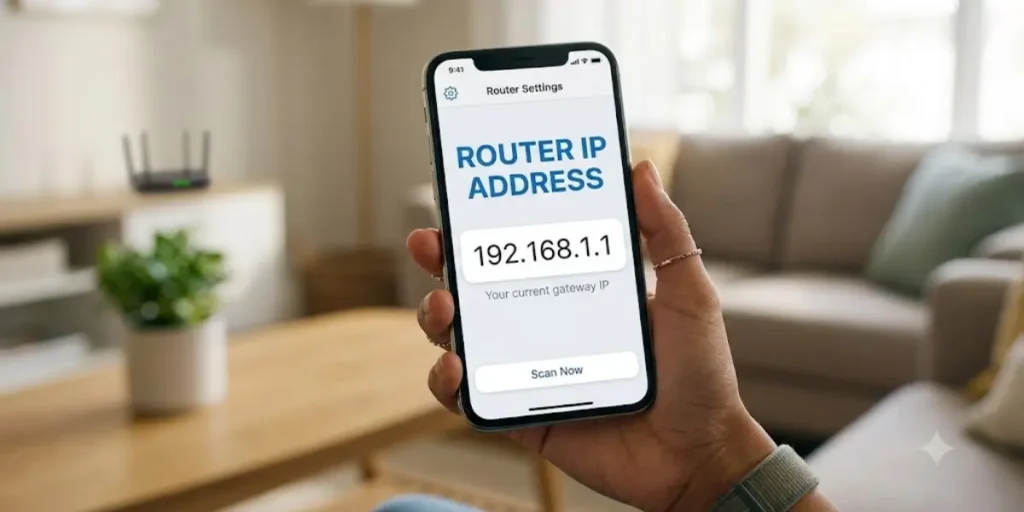
Many people want to find their router IP address on mobile since they don’t use a computer much anymore.
Both Android and iPhone devices show the router IP right in network settings. That’s good news!
Android
Settings → WiFi → Connected Network → Gateway
iPhone
Settings → WiFi → Information Icon → Router
You don’t need to install any third-party applications.
What Is My Router IP Address on My Phone?
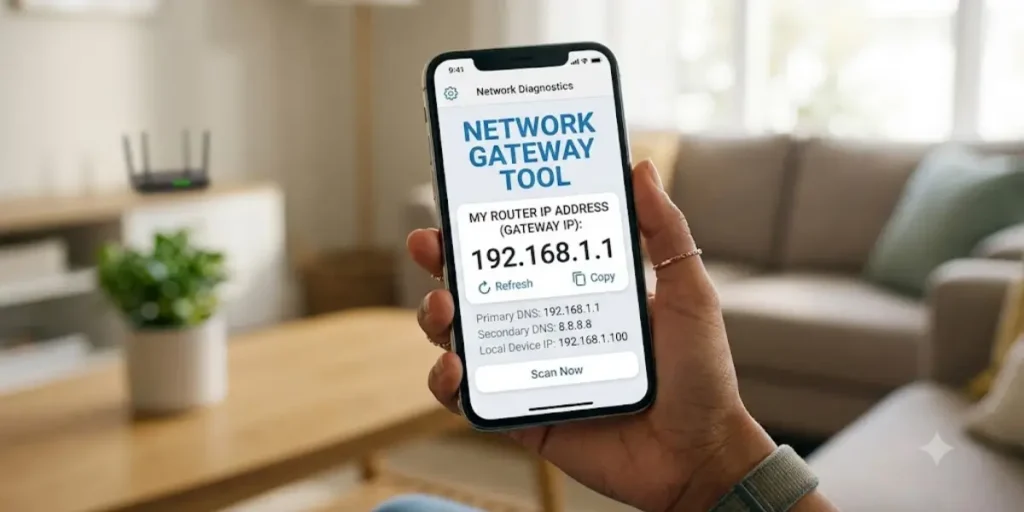
Your phone and router have different IP addresses.
When people ask, “What is my router IP address on my phone?”, they want to find the address of their connected router.
The phone displays the router’s local IP address through WiFi settings.
Common examples include:
- 192.168.1.1
- 192.168.0.1
- 10.0.0.1
What Is My Router IP Address Android?
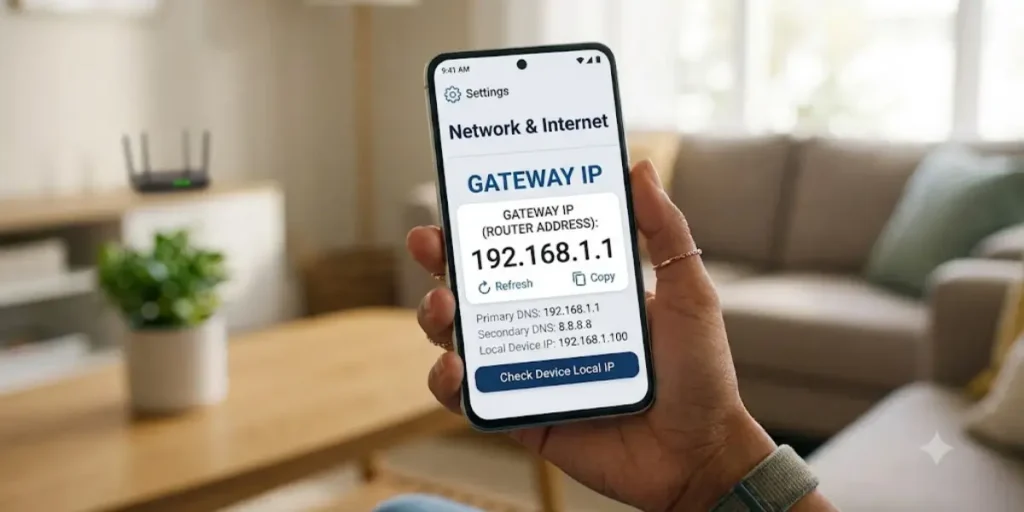
Android users can check their router IP through network settings.
The router IP usually appears under:
- Gateway
- Router
- Network Details
Most Android phones show this information without requiring additional apps.
What Is My Router’s IP Address On IPhone?
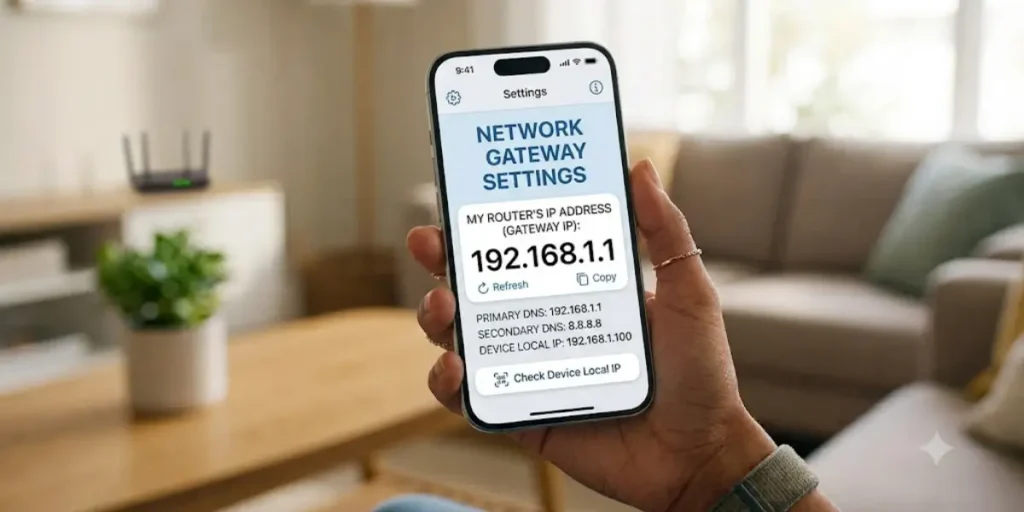
iPhone users can quickly locate the router IP by opening WiFi settings.
After selecting the connected network, the Router section displays the address used by your router on the local network.
This is the address you’ll use to access the router login page.
How To Find My Router IP Address From PC
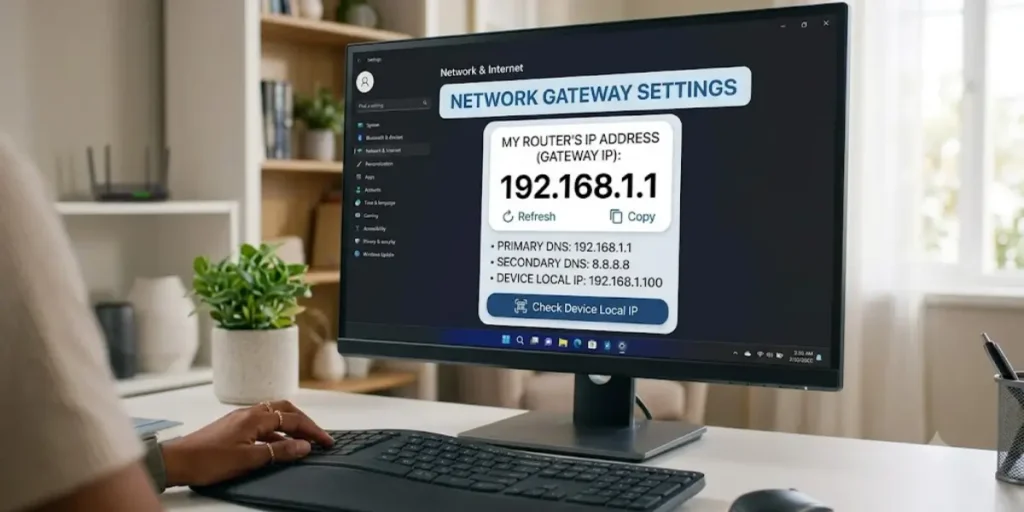
A PC can reveal the router IP in seconds.
Windows
Use:
ipconfig
Then locate the Default Gateway.
Mac
Open Network Settings and check the Router field.
Linux
Use:
ip route
The gateway address displayed is your router IP.
Router IP Address Login
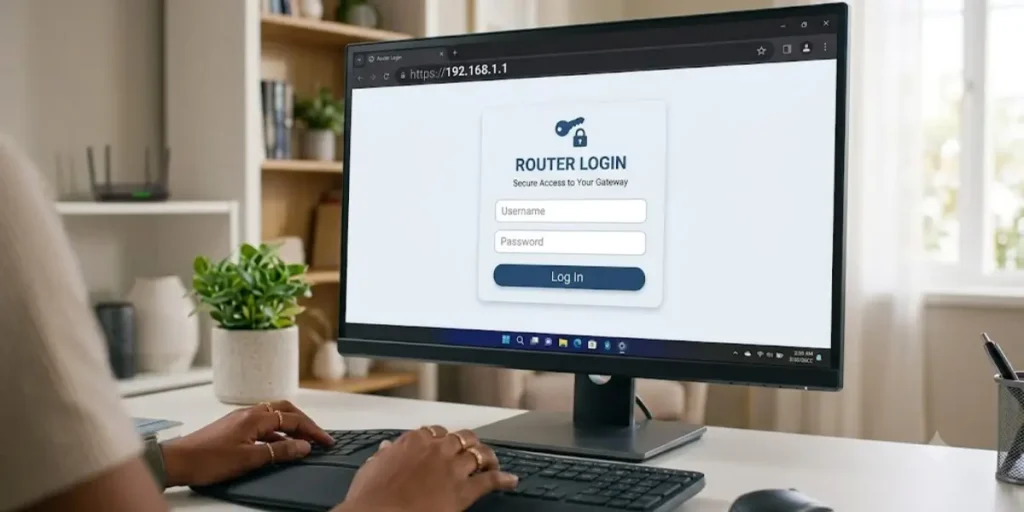
Once you’ve found your router IP, you can access the router administration page.
Follow these steps:
- Open a web browser.
- Enter your router IP in the address bar.
- Press Enter.
- Enter the username and password.
- Access the router dashboard.
From here, you can manage network settings, security options, and connected devices.
Router Username And Password List
Many routers ship with default login credentials.
| Router Brand | Username | Password |
| TP-Link | admin | admin |
| Netgear | admin | password |
| D-Link | admin | admin |
| ASUS | admin | admin |
| Linksys | admin | admin |
If these credentials don’t work, check the router label or user manual.
How Do I Login to My Router?
Step 1
Find your router IP address.
Step 2
Open a web browser.
Step 3
Type the router IP address into the address bar.
Step 4
Enter the router username and password.
Step 5
Open the admin panel and make the changes you need.
What Is My 192.168 IP Address?
The 192.168 range belongs to private IP addresses used inside local networks.
Common examples include:
- 192.168.1.1
- 192.168.0.1
- 192.168.100.1
These addresses are not publicly accessible on the internet.
Routers use them to communicate with devices connected to the network.
How Do I Access My 192.168.1.1 Router Login Page?
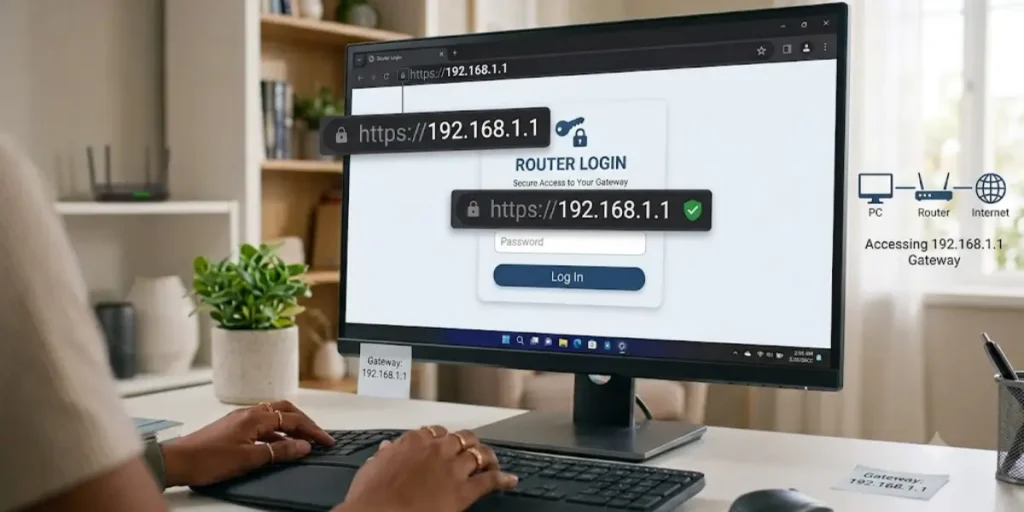
If your router uses 192.168.1.1:
- Connect to the router network.
- Open a browser.
- Enter 192.168.1.1.
- Press Enter.
- Log in using administrator credentials.
You can then manage:
- WiFi name
- WiFi password
- Security settings
- Firmware updates
- Guest networks
Router IPs
Different router brands use different default IP addresses.
| Router IP Address | Common Use |
| 192.168.1.1 | Home routers |
| 192.168.0.1 | Home networks |
| 10.0.0.1 | ISP routers |
| 192.168.100.1 | Cable modems |
| 192.168.8.1 | Mobile routers |
| 192.168.31.1 | Xiaomi routers |
These are among the most common router login addresses worldwide.
What Is My Router IP Password?
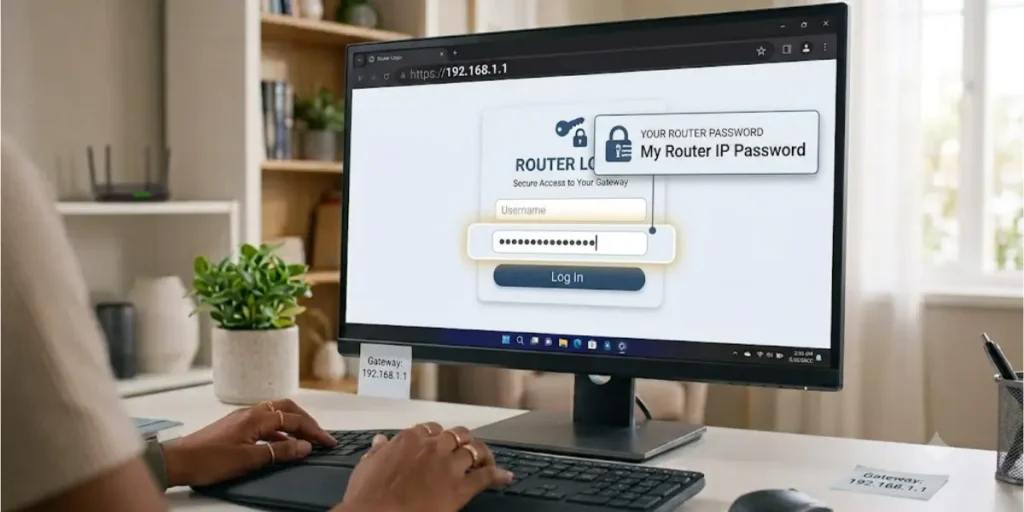
A router IP address itself does not have a password.
Instead, the router login page is protected by administrator credentials.
The password may be:
- Printed on the router label
- Provided by your ISP
- Changed by the network owner
If you’ve forgotten the password, a router reset may be required.
What Is My Router IPv6 Address?
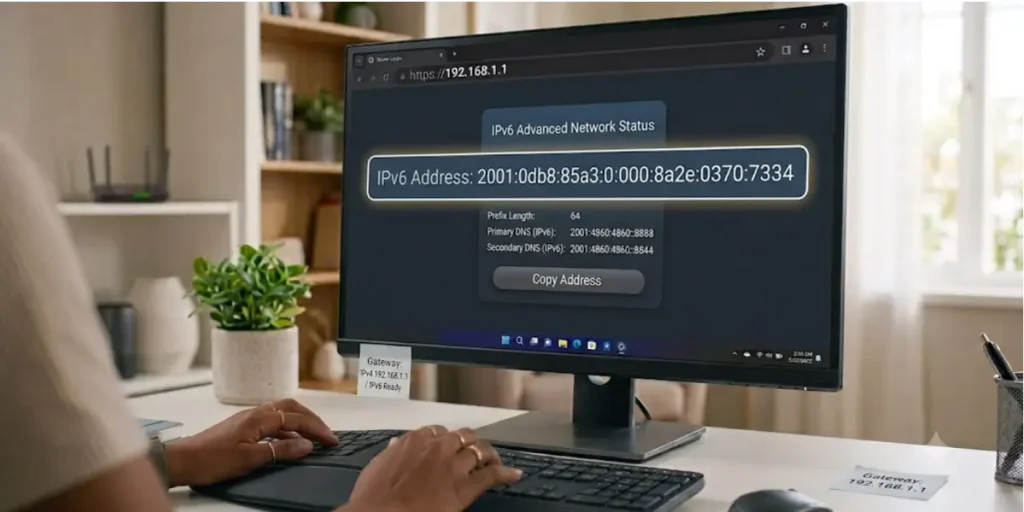
Many modern networks use both IPv4 and IPv6.
IPv6 was introduced because the world needed more IP addresses than IPv4 could provide.
Benefits of IPv6 include:
- Larger address space
- Better routing efficiency
- Improved future compatibility
Your router may display both an IPv4 address and an IPv6 address in its settings.
What Is My Router IP Address WiFi?
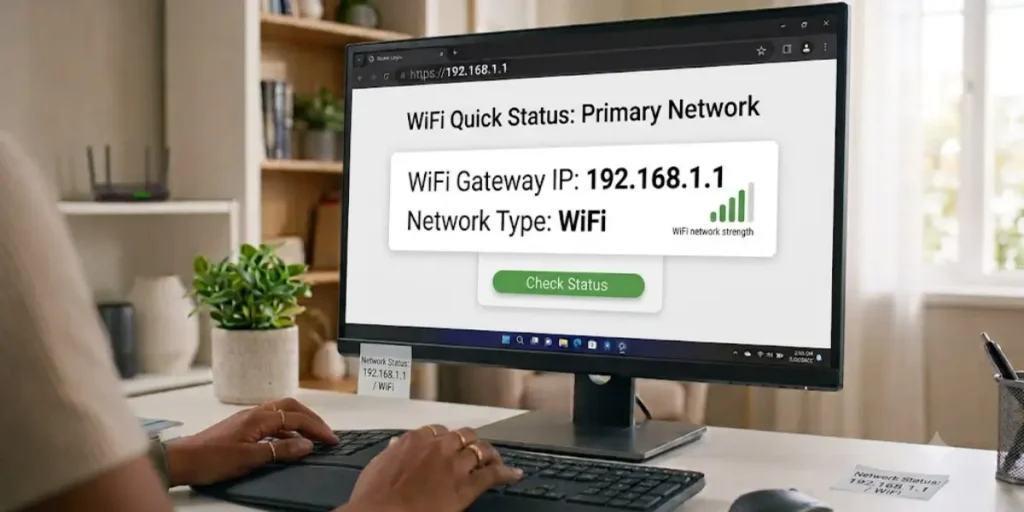
When connected to WiFi, your router IP is usually listed as:
- Gateway
- Router
- Default Gateway
You can find it in your device’s network settings.
The exact location depends on the operating system you’re using.
Final Thoughts About Router IP
Knowing your router IP address gives you direct access to the settings that control your network. From changing WiFi credentials to improving security and fixing connection issues, it helps you manage your internet more effectively.
Once you understand how to find and use your router IP, you gain full control over your network. It ensures better performance, improved security, and a smoother internet experience for all connected devices.
Frequently Asked Questions About Router IP
Q1 How do I check my router IP address?
Open your device’s network settings and look for the Default Gateway or Router address.
Q2 How do I login to my router?
Open a browser, enter the router IP address, and sign in using the administrator username and password.
Q3 What is my router IP address on my phone?
Your phone displays the router IP within the WiFi network details section.
Q4 What is my router IP address Android?
Android devices usually display it under Gateway or Router in network settings.
Q5 What is my router’s IP address iPhone?
Open WiFi settings, tap your connected network, and check the Router field.
Q6 Is my IP address on the back of my router?
Many routers include the default IP address on a sticker attached to the device.
Q7 Does resetting the router change my IP address?
A reset typically restores the factory settings, including the default router IP if it was previously changed.
Q8 Can I find the router IP without connecting to the network?
You may find it on the router label, user manual, or support documentation from the manufacturer.