
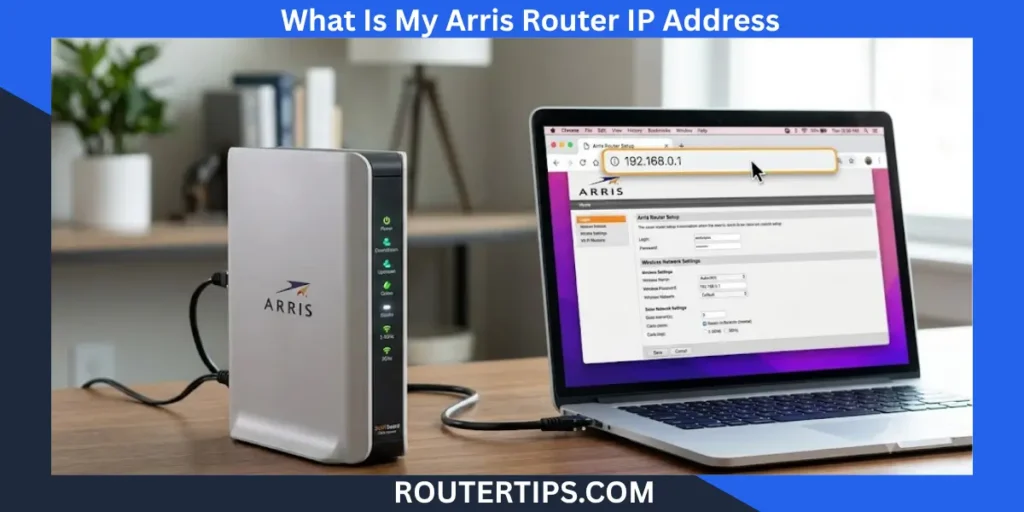
If you use an Arris router or modem, you may need its IP address to access the router settings. The router IP address lets you log in to the admin page, where you can change your WiFi name, update your password, manage connected devices, and adjust network settings.
Most Arris routers use 192.168.0.1 as the default IP address. Some models use 192.168.1.1, especially if they were set up by an internet service provider (ISP) or the default settings have been changed. If you are unsure which IP address your device uses, there are several easy ways to find it.
In this guide, you’ll learn what an Arris router IP address is, how to find it on any device, how to log in to your Arris router, the default username and password, and what to do if you cannot access the login page. You’ll also find simple troubleshooting tips, answers to common questions, and practical security advice to help keep your home network safe.
Whether you have an Arris router, an Arris SURFboard modem, or a modem-router combo, this guide will help you find the information you need.
What Is an Arris Router IP Address?
An Arris router IP address is the local address your router uses on your home network. It works like a doorway to the router’s web interface, where you can manage your internet and WiFi settings.
When you type the router’s IP address into your web browser, the router displays its login page. After signing in with the correct username and password, you can make changes to your network.
Some common tasks include:
- Changing your WiFi network name (SSID)
- Creating a new WiFi password
- Viewing connected devices
- Updating router firmware
- Setting parental controls
- Managing guest WiFi
- Restarting or resetting the router
- Changing security settings
The router IP address is different from your public IP address. Your public IP is assigned by your internet service provider and identifies your network on the internet. The Arris router IP address is a private IPv4 address that only works inside your local network.
🌐 Looking for more router setup help? Visit our Router IP guides and login instructions to access router settings, manage your Wi-Fi, and troubleshoot common network issues.
Private IP Address vs Public IP Address

Many people search for “what is my IP address IPv4 router” or “what is my IP address in WiFi” because they are unsure which address they need.
Here is the difference.
| Private IP Address | Public IP Address |
| Used inside your home network | Used on the internet |
| Opens your router settings | Identifies your internet connection |
| Usually starts with 192.168.x.x | Assigned by your ISP |
| Only devices on your network can use it | Visible to websites and online services |
If your goal is to log in to your Arris router, you need the private router IP address, not your public IP.
⚙️ Want to configure your network with confidence? Explore our Port Forwarding setup guide and configuration tips to learn how to open ports safely for gaming, remote access, security cameras, and other network services.
Why Do You Need Your Arris Router IP Address?
Knowing your Arris router IP address makes it easier to manage your home network. You may need it when:
- Setting up a new router
- Changing your WiFi password
- Renaming your wireless network
- Updating firmware
- Fixing internet connection problems
- Opening ports for gaming or remote access
- Checking connected devices
- Improving your network security
Without the correct router IP address, you cannot reach the Arris login page.
🔐 Need help getting back into your router? Explore our Recovering Router User and Password guide for practical steps to restore access, verify your login details, and securely manage your router settings.
Is an Arris Device a Router or a Modem?
This is a common question because Arris makes several types of networking devices.
Depending on your model, an Arris device may be:
- A cable modem
- A wireless router
- A modem-router combo
- An ISP-provided gateway
If you have an Arris SURFboard device, it may include both modem and router functions in one unit. Some internet providers also supply Arris gateways that combine multiple networking features into a single device.
Because of this, the login steps are usually the same, even if your device is called a modem instead of a router.
🌐 Need help locating your router’s login address? Explore our Find Router IP Address guide and troubleshooting tips for simple steps to identify your router’s IP on Windows, Mac, Android, iPhone, and other devices.
Does Every Arris Router Use the Same IP Address?
No.
While 192.168.0.1 is the most common default IP address for Arris routers, not every model uses it.
The default IP depends on:
- Your Arris model
- Whether your ISP changed the settings
- Whether the router has been configured before
- Whether someone manually changed the local IP address
The easiest way to confirm your router’s IP address is to check the label on the bottom or back of the device or find the Default Gateway on a connected computer.
By understanding what your Arris router IP address does, you’ll be ready to find it and access the router’s settings. In the next section, we’ll look at the default IP addresses used by Arris routers and explain which one your device is most likely to use.
🛡️ Stay one step ahead of cybercriminals with our Online Scams prevention guide and safety tips to recognize common fraud tactics, protect your personal information, and browse the internet more safely.
What Is the Default Arris Router IP Address?
Most Arris routers and modem-router combos use 192.168.0.1 as their default IP address. This private IPv4 address opens the router’s login page, where you can manage your WiFi, security, and network settings.
However, not every Arris device uses the same local IP address. Some models use 192.168.1.1, while others may have a different address assigned by your internet service provider (ISP) or changed during setup.
If 192.168.0.1 does not open the login page, do not assume your router is faulty. First, check the router label or find the default gateway on a connected device to confirm the correct IP address.
Common Default Arris Router IP Addresses
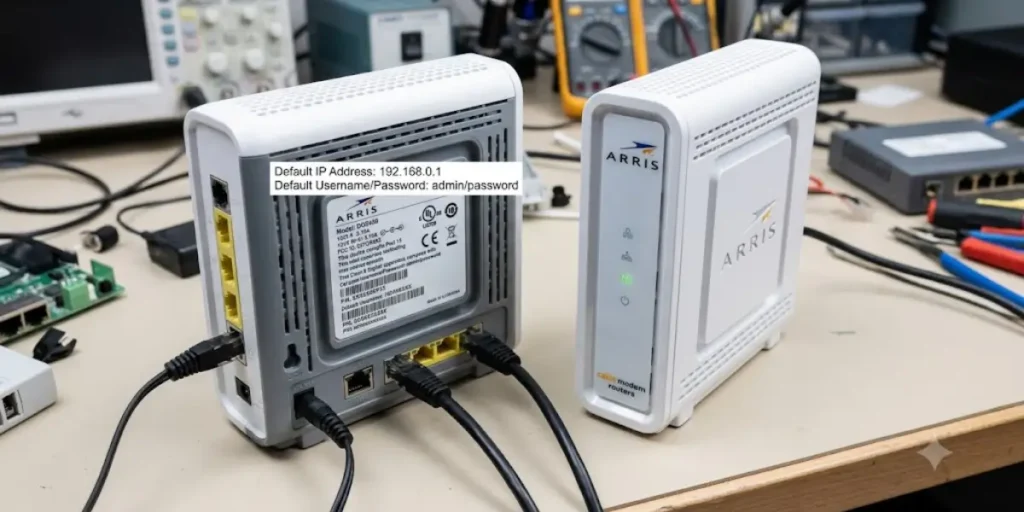
The table below shows the most common local IP addresses used by Arris devices.
| Arris Device | Default IP Address |
| Most Arris Routers | 192.168.0.1 |
| Some Arris Models | 192.168.1.1 |
| ISP-Provided Arris Gateway | Printed on the device label or provided by the ISP |
| Custom Configuration | May be changed by the network administrator |
If your router has been reset to factory settings, it will usually return to its original default IP address.
How to Access the Arris Login Page
Once you know your router’s IP address, logging in is straightforward.
- Connect your device to the Arris network using WiFi or an Ethernet cable.
- Open a web browser such as Chrome, Edge, Firefox, or Safari.
- Type your router’s IP address into the browser’s address bar, such as:
- http://192.168.0.1
- http://192.168.1.1
- Press Enter.
- The Arris login page should appear.
- Enter your administrator username and password.
If the page does not load, verify that you are connected to the correct network and confirm that you entered the IP address correctly.
Why Doesn’t 192.168.0.1 Work?
Many users search for 192.168.0.1 Arris modem login or 192.168.0.1 Arris router login password because the login page does not open.
There are several possible reasons.
Your Router Uses a Different IP Address
Not every Arris router uses 192.168.0.1. Your model may use 192.168.1.1 or another local address.
You’re Not Connected to the Router
Your computer or phone must be connected to the Arris router’s network. If you’re connected to another WiFi network or using mobile data, the router login page will not open.
The IP Address Was Changed
Someone may have changed the router’s local IP address after the initial setup. In this case, you will need to find the current default gateway from a connected device.
The Router Needs a Restart
A temporary software issue can prevent the login page from loading. Restart the router, wait about two minutes, and try again.
Browser or Network Issues
Sometimes the problem is caused by your browser rather than the router. Try these simple fixes:
- Refresh the page.
- Clear your browser cache.
- Try another web browser.
- Use another device connected to the same network.
Does Every ISP Use the Same Arris Settings?
No. If your Arris router or gateway was provided by your internet service provider, the default settings may be different.
Some ISPs customize:
- The default login username
- The administrator password
- The router IP address
- Available settings in the web interface
- Firmware updates
In these cases, the correct login information is often printed on the router label or included in the paperwork provided by your ISP.
Where Can You Find the Correct Default IP Address?
If you are unsure which address your Arris device uses, check these locations:
- The sticker on the bottom or back of the router.
- The user manual that came with the device.
- The Default Gateway listed in your computer’s network settings.
- Your ISP’s installation guide if the router was supplied by them.
Using the correct IP address is the first step to accessing your router’s settings. If you still do not know your Arris router IP address, the next section explains how to find it on Windows, macOS, AHow Do I Find My Arris Router IP Address?
If you don’t know your Arris router’s IP address, don’t worry. You can find it in a few minutes using your computer, smartphone, or the router itself.
The easiest method is to check the Default Gateway on a device that is already connected to your Arris network. The default gateway is your router’s local IP address.
Whether you’re using Windows, macOS, Android, or an iPhone, the steps below will help you find the correct IP address.
Find Your Arris Router IP Address on Windows
If you use a Windows PC, you can find the router IP address through Command Prompt.
Using Command Prompt
- Connect your computer to the Arris WiFi network or an Ethernet cable.
- Press Windows + R.
- Type cmd and press Enter.
- In the Command Prompt window, type:
ipconfig
- Press Enter.
- Look for Default Gateway under your active network connection.
The number shown next to Default Gateway is your Arris router IP address.
For many Arris routers, it will look similar to:
- 192.168.0.1
- 192.168.1.1
Using Windows Settings
You can also find the router IP without using Command Prompt.
- Open Settings.
- Select Network & Internet.
- Choose your active WiFi or Ethernet connection.
- Scroll to the network details.
- Find Default Gateway.
This is the IP address you need to log in to your Arris router.
Find Your Arris Router IP Address on macOS
Mac users can find the router IP address from the network settings.
- Open System Settings.
- Select Wi-Fi.
- Click the connected network.
- Open Details.
- Select TCP/IP.
You’ll see a field called Router.
The number shown there is your Arris router IP address.
Find Your Arris Router IP Address on Android
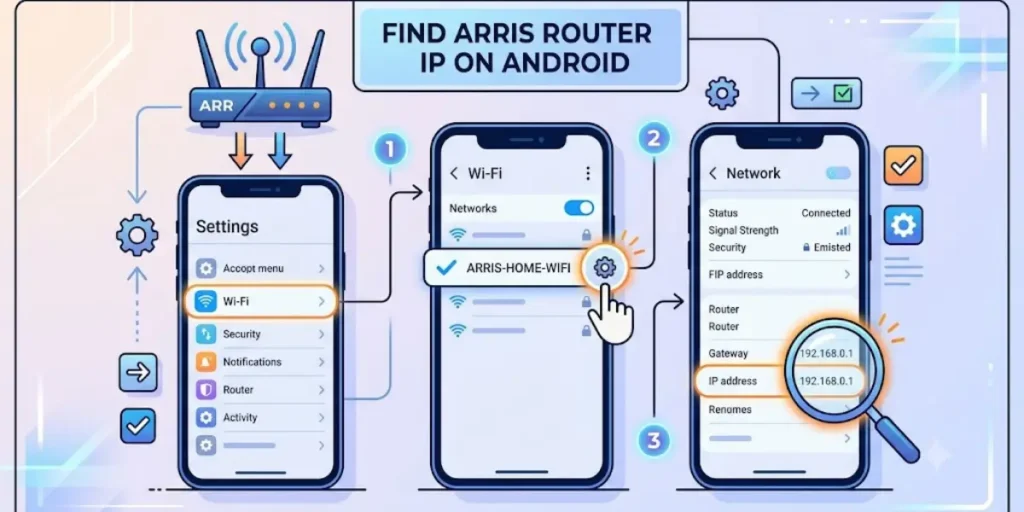
Android phones also display the router IP address.
The exact steps may vary slightly depending on your phone manufacturer.
Generally, you can:
- Open Settings.
- Tap WiFi.
- Select your connected network.
- Tap Network Details or Advanced.
- Look for Gateway or Router.
The value shown is your Arris router IP address.
Find Your Arris Router IP Address on iPhone or iPad
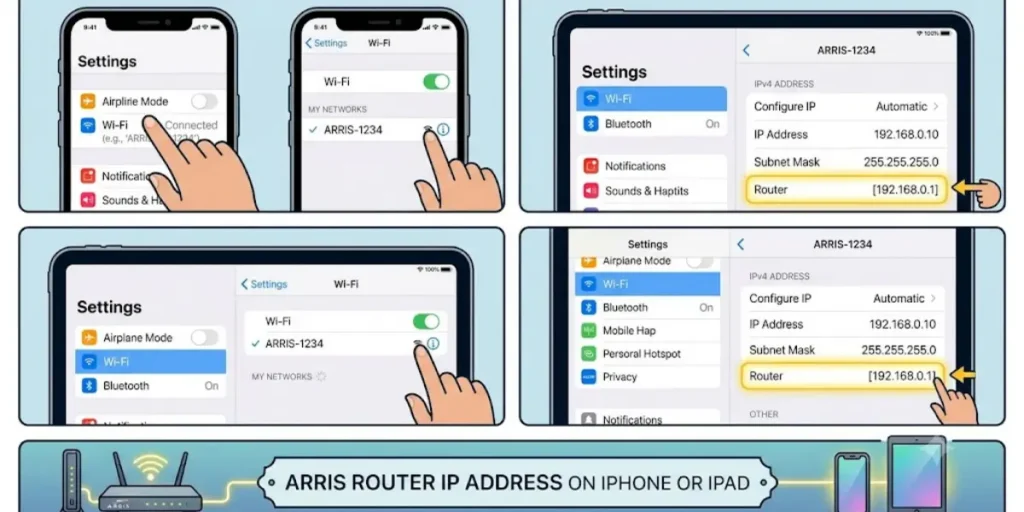
If you’re using an iPhone or iPad, follow these steps.
- Open Settings.
- Tap WiFi.
- Tap the ⓘ icon next to your connected network.
- Scroll down to Router.
The IP address listed here is your Arris router’s local IP address.
Check the Label on Your Arris Router
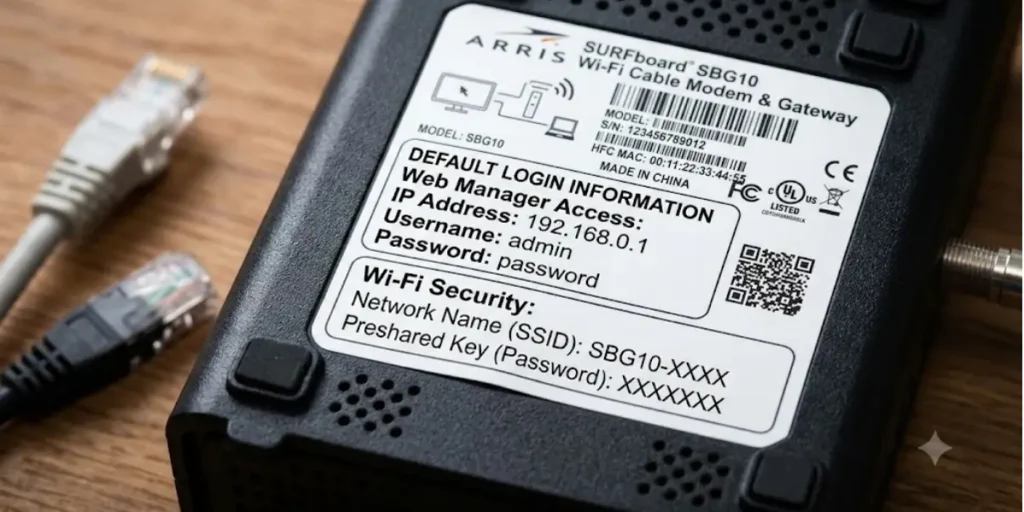
Many Arris routers have a sticker on the back or bottom of the device.
The label often includes important information such as:
- Default IP address
- Default username
- Default password
- WiFi network name (SSID)
- Default WiFi password
- Model number
- Serial number
If your router still has its original settings, the label may be the fastest way to find the correct login information.
Use the Arris Router App
Some Arris devices support the SURFboard Central app or an app provided by your internet service provider.
Depending on your model, the app may let you:
- View your router information
- Check connected devices
- Manage WiFi settings
- Restart the router
- Update firmware
- Find network details
Not every Arris router supports a mobile app, so check your model before downloading one.
What If You Still Can’t Find the Router IP Address?
If none of the methods above work, try these simple checks.
Restart Your Router
Restarting the router refreshes the network and may solve temporary connection problems.
Wait about two minutes after restarting before checking again.
Make Sure You’re Connected
Verify that your device is connected to your Arris router and not:
- Mobile data
- A guest WiFi network
- Another wireless router
- A mobile hotspot
You can only access the router if your device is on the same local network.
Check if the IP Address Was Changed
If someone previously changed the router settings, the default IP may no longer be 192.168.0.1 or 192.168.1.1.
In this case, checking the Default Gateway on a connected device is the most reliable way to find the current router IP.
Quick Summary
Here are the easiest ways to find your Arris router IP address.
| Device | Where to Find the Router IP |
| Windows | Command Prompt (ipconfig) or Network Settings |
| macOS | System Settings → Wi-Fi → TCP/IP |
| Android | WiFi Settings → Connected Network → Gateway |
| iPhone | Settings → WiFi → Router |
| Arris Router | Sticker on the back or bottom |
| Supported Models | SURFboard Central or ISP app |
Once you’ve found your Arris router IP address, you’re ready to sign in to the router’s web interface. In the next section, we’ll walk through the complete Arris router login process, including how to access the login page and enter the correct username and password.
ndroid, iPhone, and other devices in just a few minutes.
How to Log In to an Arris Router
After finding your Arris router IP address, the next step is to log in to the router’s web interface. This is where you can manage your WiFi network, change passwords, update firmware, view connected devices, and adjust other network settings.
The login process is simple and usually takes only a few minutes.
Connect to Your Arris Network
Before opening the login page, make sure your device is connected to the Arris router.
You can connect by:
- WiFi
- Ethernet cable
A wired connection is often more stable, especially if you plan to change network settings or update the router’s firmware.
If your device is connected to another WiFi network or using mobile data, you won’t be able to access the Arris login page.
Open Your Web Browser
Launch any modern web browser, such as:
- Google Chrome
- Microsoft Edge
- Mozilla Firefox
- Safari
In the browser’s address bar, type your router’s IP address.
For most Arris routers, this is:
- http://192.168.0.1
Some models may use:
- http://192.168.1.1
Press Enter after typing the address.
If the IP address is correct, the Arris login page will appear.
Tip: Enter the IP address directly into the address bar, not into a search engine. Searching instead of typing the address may take you to unrelated websites.
Enter the Arris Username and Password
When the login page opens, you’ll be asked to enter the administrator username and password.
Depending on your Arris model, the default credentials may be:
| Username | Password |
| admin | password |
| admin | admin |
| Printed on the router label | Printed on the router label |
If your internet service provider supplied the router, the default login details may be different from retail Arris devices.
If you’ve already changed the administrator password, use the password you created during setup.
Access the Router Dashboard
After entering the correct login credentials, you’ll be taken to the Arris router dashboard.
From here, you can manage many parts of your home network, including:
- Change your WiFi network name (SSID)
- Create a stronger WiFi password
- Change the administrator password
- View connected devices
- Restart the router
- Update firmware
- Enable guest WiFi
- Configure parental controls
- Adjust firewall settings
- Set up port forwarding when needed
Take your time when changing settings. If you’re unsure about an option, it’s best to leave it unchanged or refer to your router’s user guide.
What If the Arris Login Page Doesn’t Open?
Sometimes the login page won’t load, even when you enter the correct IP address.
Try these troubleshooting steps before assuming there’s a problem with your router.
Check the IP Address
Make sure you’re using the correct router IP address.
Many Arris routers use:
- 192.168.0.1
Others use:
- 192.168.1.1
If neither works, check the Default Gateway on your connected device.
Confirm You’re Connected to the Router
Verify that your computer or phone is connected to your Arris network.
If you’re connected to:
- Mobile data
- Another WiFi network
- A guest network
- A different router
the login page won’t be accessible.
Restart the Router
A quick restart often fixes temporary software or network issues.
- Turn the router off.
- Wait about 30 seconds.
- Turn it back on.
- Wait until all indicator lights become stable.
- Try logging in again.
Try Another Browser
If the page still doesn’t load, the issue may be related to your browser.
Try:
- Clearing your browser cache.
- Opening the page in a private or incognito window.
- Using another browser.
- Trying a different device connected to the same network.
Disable VPN or Proxy Services
If you’re using a VPN or proxy service, temporarily disable it before trying to access the router.
These services can sometimes interfere with access to local network addresses.
Tips for a Secure Login
After logging in for the first time, it’s a good idea to improve your router’s security.
Here are a few simple steps:
- Change the default administrator password.
- Create a strong WiFi password with a mix of letters, numbers, and symbols.
- Update your router’s firmware when updates are available.
- Disable remote management unless you need it.
- Keep your login credentials in a secure place.
Making these small changes helps protect your home network from unauthorized access.
Common Login Mistakes to Avoid
Many login problems are caused by simple mistakes.
Avoid these common errors:
- Typing the IP address into a search engine instead of the browser’s address bar.
- Entering the wrong username or password.
- Using an old password after it has been changed.
- Connecting to the wrong WiFi network.
- Forgetting to restart the router after making changes.
Checking these basics can save time and help you access the router more quickly.
Now that you know how to log in to your Arris router, the next step is understanding the default Arris username and password, how to find them, and what to do if you’ve forgotten your login credentials. This will help you access the router even if the default details no longer work.
Default Arris Username and Password
To log in to your Arris router, you need both the correct username and password. These are the administrator credentials that protect your router’s settings. They are different from your WiFi password, which is used to connect phones, computers, and other devices to your wireless network.
Many people search for terms like “what is my Arris router IP address and password,” “Arris router password,” or “how do I find my Arris router username and password” because they are unsure which credentials to use. The good news is that most Arris routers follow a few common defaults.
Common Default Arris Login Credentials
The table below lists the default login credentials used by many Arris routers and modem-router combos.
| Username | Password | Notes |
| admin | password | Most common default login |
| admin | admin | Used on some older models |
| Printed on the router label | Printed on the router label | Common on newer devices |
| Set by your ISP | Set by your ISP | Applies to many ISP-provided gateways |
If the default credentials do not work, someone may have changed them during the router’s setup.
Where Can You Find the Default Username and Password?
If you’re not sure what your Arris login details are, check these places before resetting the router.
Check the Router Label
The easiest place to look is the sticker on the bottom or back of the router.
It may include:
- Default username
- Default administrator password
- WiFi network name (SSID)
- Default WiFi password
- Router model number
- Serial number
Many newer Arris devices print the login information directly on the label.
Check the User Manual
If you still have the user guide that came with your Arris router, it may list the default login credentials and setup instructions.
If you no longer have the printed manual, you can usually find the model number on the router label for future reference.
Ask Your Internet Service Provider
If your Arris router was supplied by your ISP, the default login information may be different from retail Arris devices.
Some providers customize:
- Administrator username
- Administrator password
- Router settings
- Login page
If the information isn’t printed on the device, your ISP can often provide the correct login details.
What’s the Difference Between the Admin Password and the WiFi Password?
This is one of the most common points of confusion.
The administrator password allows you to access the router settings.
The WiFi password allows devices to connect to your wireless network.
They serve different purposes.
| Admin Password | WiFi Password |
| Used to sign in to the router dashboard | Used to join the wireless network |
| Protects router settings | Protects your WiFi connection |
| Entered on the login page | Entered when connecting a device |
| Can be different from the WiFi password | Can be changed without affecting the admin login |
Changing your WiFi password does not automatically change your router’s administrator password.
What If the Default Username and Password Don’t Work?
If you’ve tried the default credentials and still can’t log in, there are several possible reasons.
The Login Details Were Changed
The previous owner or another member of your household may have changed the administrator password.
If you don’t know the updated password, you’ll need to recover it or reset the router.
The Router Was Configured by Your ISP
Some internet providers replace the factory login credentials with their own.
Check the router label or contact your ISP for assistance.
You’re Using the Wrong Login Page
Before entering your username and password, make sure you’re visiting the correct router IP address.
Most Arris routers use:
- 192.168.0.1
Some models use:
- 192.168.1.1
If you’re on the wrong IP address, the login page may not accept your credentials.
Check for Typing Errors
Login credentials are entered exactly as stored.
Double-check for:
- Extra spaces
- Incorrect capitalization
- Keyboard language changes
- Mistyped characters
A small typing mistake can prevent you from signing in.
How Do I Find My Arris Router Username and Password?
If you’ve forgotten your login details, try these options before performing a factory reset.
- Check the sticker on the router.
- Look in the router’s user manual.
- Review any notes from when the router was first set up.
- Ask the person who configured the router.
- Contact your ISP if they provided the device.
If none of these methods work, a factory reset may be the only way to restore the default administrator credentials.
Keep in mind that resetting the router removes your custom settings, including your WiFi name, WiFi password, and any network changes you’ve made.
Best Practices for Protecting Your Router Login
Once you’ve successfully signed in, take a few minutes to improve your router’s security.
Here are a few simple recommendations:
- Change the default administrator password.
- Use a unique password that is different from your WiFi password.
- Store your login credentials in a secure password manager or another safe location.
- Avoid sharing your administrator password with others.
- Update your router’s firmware whenever new updates are available.
These small steps can help protect your router from unauthorized access and keep your home network more secure.
Final Thoughts on What Is My Arris Router IP Address
Finding your Arris router IP address is the first step to managing your home network. In most cases, the default IP address is 192.168.0.1, while some Arris router models use 192.168.1.1. If you are not sure which IP address your router uses, check the router label or look for the Default Gateway on a connected device to find the correct address quickly.
After accessing the Arris router login page, you can change your WiFi name, update your WiFi password, manage connected devices, and adjust important network settings. If the default username and password do not work, check whether your internet service provider (ISP) has changed the login credentials before performing a factory reset.
To keep your network secure, replace the default administrator password with a strong, unique password, keep your router firmware updated, and store your login details in a safe place. These simple steps help protect your home WiFi and make it easier to manage your Arris router whenever you need to update your network settings.
Frequently Asked Questions About What Is My Arris Router IP Address
Q1. How do I log into my Arris modem?
To log in to your Arris modem or modem-router combo, connect your device to the Arris network using WiFi or an Ethernet cable. Open a web browser and enter your router’s IP address, which is usually 192.168.0.1 or 192.168.1.1. When the login page appears, enter the administrator username and password. If the default credentials don’t work, check the label on the device or contact your ISP if they provided the modem.
Q2. What’s the Default Arris Router Password?
Many Arris routers use password as the default administrator password, while some older models use admin. Newer routers often have unique login credentials printed on a sticker attached to the device. If you’ve changed the administrator password before, you’ll need to use the updated password instead of the factory default.
Q3. Is Arris My Router or Modem?
Arris manufactures several types of networking devices, including cable modems, wireless routers, and modem-router combos (also called gateways). The exact type depends on your model. Many internet service providers supply Arris gateway devices that combine both modem and router functions into one unit.
Q4.How Do I Figure Out What My Router IP Address Is?
The easiest way is to check the Default Gateway on a device connected to your network. On Windows, run the ipconfig command in Command Prompt and look for the Default Gateway. On macOS, Android, and iPhone, you can find the router IP address in the network settings. Many Arris devices also print the default IP address on the label attached to the router.
Q6. What Is the IP Address of My Arris Modem?
Most Arris routers and modem-router combos use 192.168.0.1 as the default local IP address. Some models use 192.168.1.1, while ISP-provided devices may use a different address. Checking the router label or your device’s Default Gateway is the most reliable way to confirm the correct IP address.
Q7. How Do I Find My Arris Router Username and Password?
First, check the sticker on the back or bottom of your Arris device. Many models list the default administrator username and password there. If the router was supplied by your ISP, the login credentials may be different from the factory defaults. If you’ve changed the password and forgotten it, you may need to reset the router to restore the original login details.
Q8. Can I Change My Arris Router IP Address?
Yes. Most Arris routers allow you to change the local IP address from the router’s web interface. However, changing the router IP may affect connected devices and custom network settings. Unless you have a specific reason, it’s usually best to keep the default IP address.
Q9. Why Doesn’t 192.168.0.1 Open?
If 192.168.0.1 doesn’t open the login page, you may be using the wrong IP address, your device may not be connected to the Arris network, or the router’s local IP address may have been changed. Restart the router, verify your network connection, and check the Default Gateway on a connected device to find the correct address.