
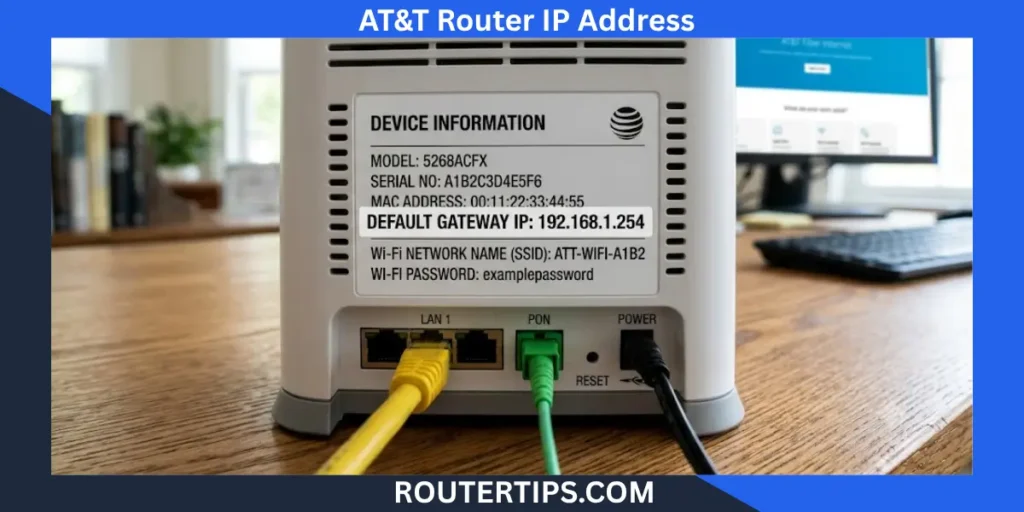
If you need to change your WiFi password, update your network name, manage connected devices, or fix connection problems, the first thing you need is your AT&T router IP address. This private IP address opens your router’s settings page, where you can manage your home network.
Most AT&T internet gateways use 192.168.1.254 as the default router IP address. You can enter this address into your web browser to access the router login page. After signing in with your Device Access Code, you can adjust WiFi settings, check your internet connection, enable parental controls, configure port forwarding, and manage other network features.
If you are asking, “What is my AT&T router IP address?”, the answer is usually 192.168.1.254. However, some settings may have been changed, or you may be using your own router instead of the AT&T gateway. In those cases, there are several easy ways to find the correct address.
This guide explains how to:
- Find your AT&T router IP address
- Log in to your AT&T router
- Locate your AT&T router password
- Access AT&T router settings
- Fix common router login problems
- Keep your home network secure
Whether you have AT&T Fiber or AT&T Internet Air, these steps work for most AT&T gateways and are simple enough for beginners.
What Is the Default AT&T Router IP Address?
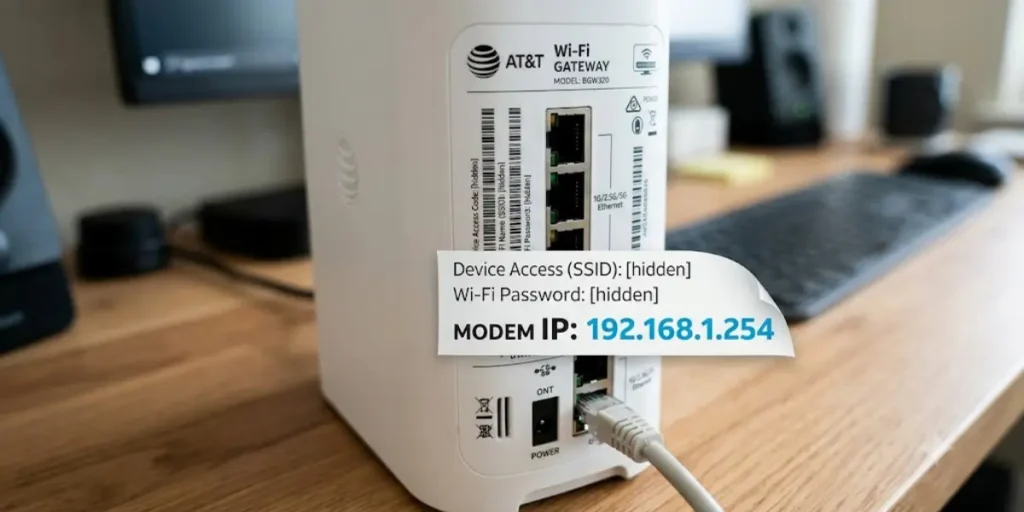
The default AT&T router IP address is the local address your gateway uses to communicate with devices on your home network. It is different from your public IP address, which your internet service provider assigns for internet access.
For most AT&T gateways, the default IP address is:
192.168.1.254
This address opens the gateway configuration page where you can manage your network settings.
Some users search for:
- what is my att router ip address
- 192 168 l 254 at&t router
- at&t ip address
- my at&t router login
These terms all refer to the same goal: accessing the router’s administration page.
📶 Need help accessing your ARRIS router? Visit our What Is My Arris Router IP Address guide and login instructions to find the correct default IP address, access the admin panel, and troubleshoot common login issues.
Common Default AT&T Router IP Addresses
| Router Type | Default IP Address |
| Most AT&T Gateways | 192.168.1.254 |
| Custom Router Behind AT&T Gateway | May vary |
| Third-Party Router | Depends on the manufacturer |
If 192.168.1.254 does not open the login page, your router’s local IP address may have been changed. You can quickly find the current address using your computer or phone, which we will explain later in this guide.
What Does a Router IP Address Look Like?
A router IP address is a series of four numbers separated by periods.
Examples include:
- 192.168.1.254
- 192.168.1.1
- 192.168.0.1
- 10.0.0.1
These are called private IPv4 addresses. They work only inside your home or office network and cannot be accessed directly from the internet.
Many people also search for what is my IP address 192.168 because they see an address beginning with 192.168 when checking their network settings. This is normal for home routers.
🌐 Need help managing your home network? Explore our Router IP guides and setup instructions to access router settings, change Wi‑Fi passwords, configure network options, and troubleshoot common connection issues.
Router IP Address vs Public IP Address

It is easy to confuse these two addresses, but they serve different purposes.
| Router IP Address | Public IP Address |
| Used inside your home network | Used on the internet |
| Assigned by your router | Assigned by AT&T |
| Opens the router settings page | Identifies your internet connection |
| Usually starts with 192.168.x.x | Can be almost any valid IPv4 address |
Knowing the difference helps when troubleshooting internet problems or setting up services like remote access or port forwarding.
Common AT&T Router Default Login Information
Before signing in to your gateway, it helps to know the default login details.
Unlike many router brands that use a standard username and password, AT&T gateways often rely on a unique Device Access Code printed on the gateway label.
Here are the default login details for most AT&T routers.
| Setting | Default Value |
| Default Router IP | 192.168.1.254 |
| Login Address | http://192.168.1.254 |
| Username | Usually not required |
| Password | Device Access Code printed on the router |
Many users search for:
- what is my att router ip address and password
- what is my att router ip address router password
The answer is that the password is usually the Device Access Code found on the sticker attached to the side or bottom of the AT&T gateway.
⚙️ Need help opening ports for gaming, remote desktop, or security cameras? Read our Port Forwarding setup guide and networking tips to configure your router safely and improve connectivity for supported applications.
Where Is the Device Access Code?
Look for a label on your gateway.
It may include information such as:
- Device Access Code
- WiFi Network Name (SSID)
- WiFi Password
- Serial Number
- MAC Address
The Device Access Code is different from your WiFi password.
Your WiFi password connects devices to your wireless network.
The Device Access Code allows you to change router settings.
If you changed the access code previously and cannot remember it, you may need to reset the gateway to restore the default settings.
Common AT&T Gateway Models
Many AT&T customers use one of these gateways:
- BGW320
- BGW210
- Pace 5268AC
- NVG599
- NVG589
- Arris BGW210
Although the hardware looks different, most use the same login process and the same default IP address.
🔐 Forgot your router credentials? Explore our Recovering Router User and Password guide with recovery steps to restore access to your router, verify default login details, and securely manage your network settings.
How to Find Your AT&T Router IP Address
If 192.168.1.254 does not work, you can easily find your router’s current IP address using any device connected to your network.
Below are the easiest methods.
Check the Router Label
The quickest method is to check the information label on the bottom or side of your AT&T gateway.
Many gateways display:
- Default Gateway
- Login Address
- Device Access Code
- WiFi Network Name
- Default WiFi Password
If the login address is listed, simply type it into your browser.
🌐 Want a faster way to locate your router’s login address? Check out our Find Router IP Address guide and setup instructions for simple steps to identify the correct IP address on Windows, Mac, Android, iPhone, and other devices.
Find the Router IP Address on Windows
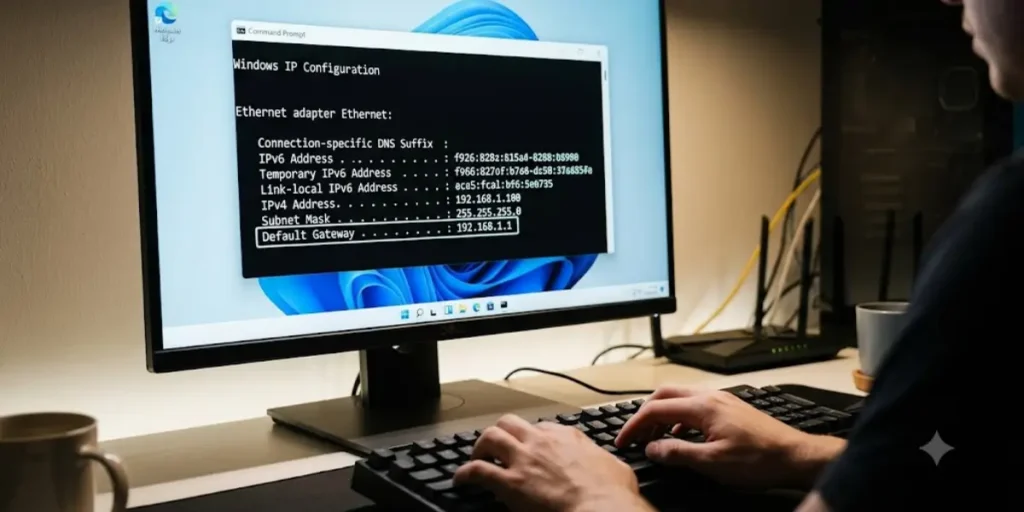
Windows can show your router’s local IP address in just a few steps.
- Press Windows + R.
- Type cmd and press Enter.
- Type:
ipconfig
- Press Enter.
- Find the line labeled Default Gateway.
The number shown is your AT&T router IP address.
This is one of the fastest ways to answer the question, “How do I find my router IP address?”
🛡️ Stay informed and protect yourself online with our Online Scams awareness guide and prevention tips to recognize phishing attempts, fake websites, fraudulent messages, and other common internet scams before they cause harm.
Find the Router IP Address on macOS
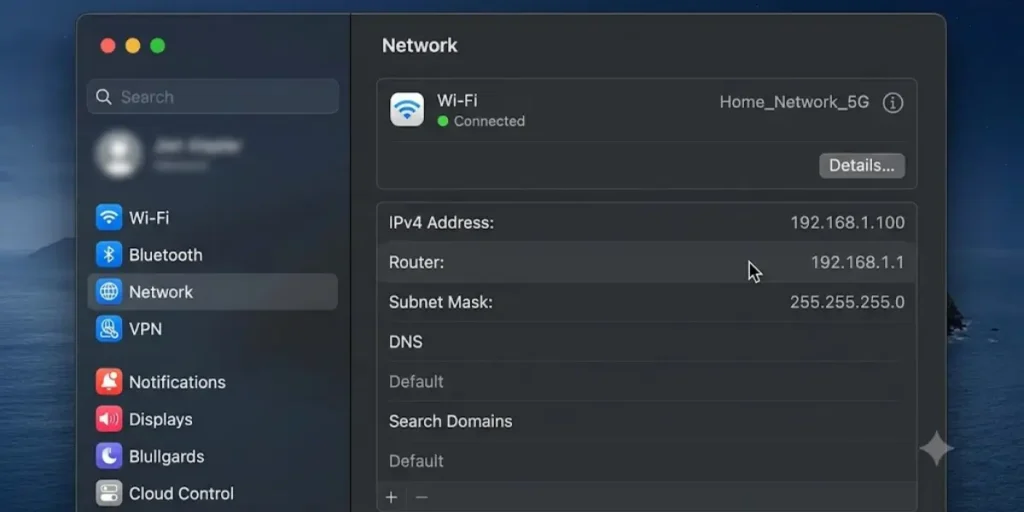
Mac users can locate the router address through Network settings.
- Open System Settings.
- Select Network.
- Choose your WiFi or Ethernet connection.
- Open TCP/IP.
- Look for Router.
The address shown is your gateway IP.
Find the Router IP Address on Android
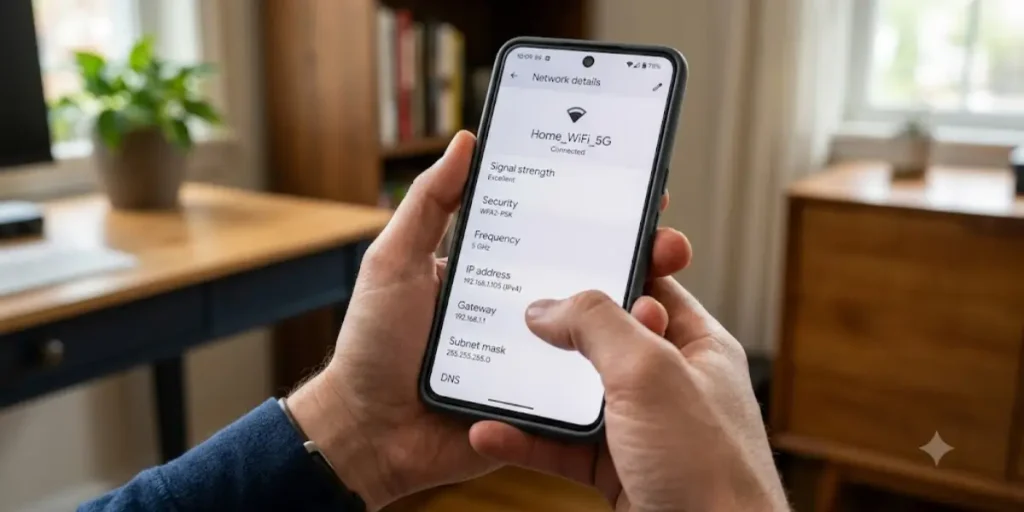
Android devices also display the gateway address.
- Open Settings.
- Tap WiFi.
- Select your connected network.
- Open the network details.
- Look for Gateway or Router.
This number is your local router IP.
Find the Router IP Address on iPhone
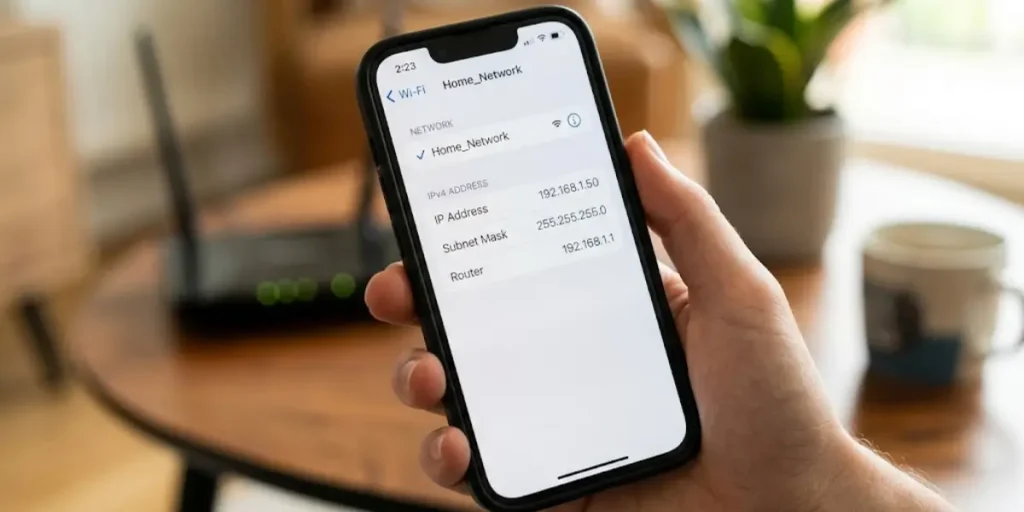
On an iPhone or iPad:
- Open Settings.
- Tap WiFi.
- Tap the information icon beside your connected network.
- Scroll to Router.
The listed address is your router IP.
This is one of the easiest ways to answer searches such as:
- what is my ip address in wifi
- how to see router ip address
- what is my ip address ipv4 router
How to Log In to Your AT&T Router
Once you know your AT&T router IP address, you can sign in to the gateway and manage your home network. The login process takes only a few minutes if you have the correct IP address and the Device Access Code.
Most AT&T gateways use 192.168.1.254 as the default login address.
Connect to Your AT&T Network
Before logging in, make sure your device is connected to your AT&T gateway.
You can connect using:
- WiFi
- Ethernet cable
Connecting directly to your own network helps ensure the login page loads correctly.
Open a Web Browser
Open any modern web browser, including:
- Google Chrome
- Microsoft Edge
- Mozilla Firefox
- Safari
Type the following into the address bar:
http://192.168.1.254
Press Enter.
If your router uses a different local IP address, enter that address instead.
Open the Gateway Login Page
The AT&T Gateway Configuration page should appear.
If it does not, check that:
- Your device is connected to the AT&T gateway.
- The IP address is correct.
- You typed the address into the browser’s address bar, not the search box.
Enter the Device Access Code
Most AT&T gateways do not require a username.
Instead, they ask for the Device Access Code, which is printed on the gateway label.
Enter the code exactly as shown.
The code is case-sensitive on some models, so type it carefully.
Access Your Router Settings
After signing in, you can manage many network features, including:
- WiFi network name (SSID)
- WiFi password
- Connected devices
- Guest WiFi
- Firewall settings
- Port forwarding
- IP Passthrough
- Parental controls
- DNS settings
- Software updates
If you searched for my AT&T router login or how to access AT&T router settings, these are the steps you need to follow.
How Do I Access My AT&T Router Admin?
Many users ask, “How do I access my AT&T router admin?”
The process is simple:
- Connect your device to the AT&T gateway.
- Open a web browser.
- Go to http://192.168.1.254.
- Enter the Device Access Code printed on the router.
- Select the settings you want to manage.
After logging in, you’ll have access to the router’s administration panel, where you can change wireless settings, review connected devices, improve network security, and customize other options.
If the login page does not load, verify that your device is connected to the gateway and that you’re using the correct local IP address.
How to Change Your AT&T WiFi Name and Password
Changing your WiFi name and password is a good way to improve security, especially if you’re still using the default wireless credentials.
Follow these steps:
- Log in to your AT&T gateway.
- Open the Home Network or WiFi section.
- Select Wireless Settings.
- Enter a new WiFi network name (SSID).
- Create a strong WiFi password.
- Save your changes.
Your gateway may restart the wireless network for a few moments.
After the update, reconnect all of your devices using the new WiFi password.
Tips for Creating a Strong WiFi Password
Choose a password that:
- Has at least 12 characters
- Uses uppercase and lowercase letters
- Includes numbers
- Includes special characters when supported
- Is not easy to guess
Avoid using personal information such as birthdays, names, or phone numbers.
How to Secure Your AT&T Router
Your router is the main connection between your home network and the internet. Keeping it secure helps protect your personal information and connected devices.
Here are several ways to improve your network security.
Change the Device Access Code
If your gateway allows it, replace the default Device Access Code with a strong, unique password.
This helps prevent unauthorized access to your router settings.
Use WPA3 or WPA2 Encryption
Most newer AT&T gateways support WPA3 security.
If WPA3 is unavailable, use WPA2.
Avoid older security options such as WEP because they no longer provide strong protection.
Keep Your Gateway Updated
Firmware updates often include:
- Security improvements
- Bug fixes
- Better network performance
- Stability updates
Many AT&T gateways install updates automatically, but it’s still a good idea to check occasionally.
Disable WPS if You Don’t Use It
WiFi Protected Setup (WPS) makes connecting devices easier, but many users choose to disable it for added security.
If you never use WPS, turning it off can reduce unnecessary risk.
Enable a Guest Network
If visitors need internet access, create a separate Guest WiFi network.
This keeps guest devices separate from your personal computers, smart TVs, cameras, and other connected devices.
Review Connected Devices
Check your list of connected devices from time to time.
If you notice an unfamiliar device, remove it from the network and change your WiFi password.
AT&T Router Settings You Can Change
The AT&T router interface gives you access to many network settings that can improve performance, security, and device management.
Here are some of the most commonly used settings.
| Setting | Purpose |
| WiFi Name (SSID) | Rename your wireless network |
| WiFi Password | Update wireless security |
| Guest Network | Create separate access for visitors |
| Connected Devices | View devices using your network |
| Firewall | Improve network protection |
| Port Forwarding | Allow specific applications or services |
| DNS Settings | Change DNS servers if needed |
| DHCP Settings | Manage IP address assignments |
| IP Passthrough | Use your own router with the AT&T gateway |
| Software Updates | Keep the gateway current |
Most home users only need to adjust WiFi settings, while advanced users may configure features such as Port Forwarding or IP Passthrough for gaming, servers, or business applications.
What Is the Gateway Address for AT&T?
Many people ask, “What is the gateway address for AT&T?” The gateway address is the local IP address you use to access your AT&T router’s settings. It acts as the main connection point between your home devices and the internet.
For most AT&T gateways, the default gateway address is:
192.168.1.254
You can type this address into your web browser to open the router’s login page. After entering the Device Access Code, you can manage your WiFi, view connected devices, update security settings, and configure other network options.
If 192.168.1.254 does not work, your gateway may be using a different local IP address. You can find the current address by checking your device’s Default Gateway in the network settings.
Remember that the gateway address is different from your public IP address. The gateway address works only within your home network.
Can You Log Into an AT&T Router Remotely?
Another common question is, “How do I log into an AT&T router remotely?”
By default, AT&T gateways are designed to be managed from inside your home network. This helps keep your router secure.
If you need remote access, you have a few options depending on your setup.
Use the AT&T Smart Home Manager
AT&T offers the Smart Home Manager app, which lets you manage many router features from your phone or tablet after signing in with your AT&T account.
Depending on your gateway model, you may be able to:
- View connected devices
- Restart your gateway
- Change your WiFi name
- Update your WiFi password
- Pause internet access for selected devices
- Check your network status
This is the safest way to manage your home network when you are away.
Use IP Passthrough with Your Own Router
Some advanced users connect their own router behind the AT&T gateway using IP Passthrough.
This setup gives your personal router a public IP address and allows it to handle advanced networking features. It is commonly used for:
- Home offices
- Business networks
- VPN servers
- Advanced firewall management
- Custom networking equipment
If you choose this option, follow the setup instructions carefully to avoid connection issues.
Should You Enable Remote Management?
Remote management allows access to your router from outside your home network.
While convenient, it can increase security risks if not configured properly.
If you do not need remote access, it is generally best to leave remote management disabled.
AT&T Router IP Address vs Public IP Address

Many users confuse their router IP address with their public IP address. Although both are important, they serve different purposes.
| AT&T Router IP Address | Public IP Address |
| Used inside your home network | Used on the internet |
| Opens the router settings page | Identifies your internet connection |
| Usually 192.168.1.254 | Assigned by AT&T |
| Private IPv4 address | Public IPv4 address |
| Shared by devices on your network | Visible to websites you visit |
Your router IP address lets you manage your gateway.
Your public IP address identifies your internet connection when you browse websites or use online services.
Some people search for AT&T IP address lookup because they want to know their public IP. Others are looking for the router login address. Knowing the difference helps you choose the correct address for your task.
What Is My AT&T Router IP Address and Password?
If you’re trying to log in, you’ll need both the router IP address and the correct login credentials.
For most AT&T gateways:
| Setting | Default Value |
| Router IP Address | 192.168.1.254 |
| Username | Usually not required |
| Password | Device Access Code on the router label |
Many users search for:
- what is my att router ip address and password
- what is my att router ip address router password
In most cases, the answer is simple:
- The router IP address is 192.168.1.254.
- The login password is the Device Access Code printed on your gateway.
Do not confuse the Device Access Code with your WiFi password.
The WiFi password connects your devices to the wireless network.
The Device Access Code allows you to access the router’s settings.
If you changed the Device Access Code and no longer remember it, a factory reset may be necessary to restore the default credentials.
Does Spectrum Use the Same Router IP Address?
Some users wonder if the same router IP address works with Spectrum internet.
The answer is not always.
Although many routers use private IP addresses, the default login address depends on the router manufacturer rather than the internet provider.
Here’s a quick comparison:
| Internet Provider | Common Router IP Address |
| AT&T | 192.168.1.254 |
| Spectrum | Often 192.168.1.1 or 192.168.0.1 |
| Third-Party Routers | Varies by brand |
If you switched from Spectrum to AT&T or use your own router, the login address may be different.
Always check your router label or use the Default Gateway method to confirm the correct IP address.
Troubleshooting AT&T Router Login Problems
If you cannot access your AT&T router, don’t worry. Most login problems can be solved with a few simple checks.
192.168.1.254 Doesn’t Open
If the login page does not load:
- Confirm you are connected to the AT&T gateway.
- Restart your router.
- Try another web browser.
- Check the Default Gateway on your device.
- Disable any VPN temporarily.
- Make sure you entered the IP address correctly.
Forgot the Device Access Code
If you cannot remember the Device Access Code:
- Check the label on your gateway.
- Review any notes where you may have saved it.
- If it was changed and cannot be recovered, reset the gateway to factory settings.
Remember that a factory reset removes your custom settings, including your WiFi name and password.
Clear Browser Cache
Sometimes an old browser cache can prevent the login page from loading correctly.
If you’re using:
Google Chrome
- Clear browsing data.
- Reload the login page.
Safari
- Clear website history and cached data.
- Try opening the page again.
Firefox
- Clear the browser cache.
- Refresh the page.
If the issue continues, try another browser.
Restart Your Gateway
A simple restart often fixes temporary connection issues.
- Turn off the gateway.
- Wait about 30 seconds.
- Turn it back on.
- Wait until all status lights become stable.
- Try logging in again.
Reset the AT&T Router
Use a factory reset only if other solutions do not work.
To reset the gateway:
- Locate the Reset button.
- Press and hold it for about 10–15 seconds.
- Wait for the gateway to restart.
- Log in using the default Device Access Code.
After the reset, you will need to configure your WiFi settings again.
Final Thoughts on What Is My AT&T Router IP Address
Finding your AT&T router IP address is the first step to managing your home network. For most AT&T gateways, the default login address is 192.168.1.254, allowing you to access the router settings, change your WiFi password, manage connected devices, and improve your network security.
If the default address does not work, check the Default Gateway on a connected Windows PC, Mac, Android phone, or iPhone to find the correct router IP address. You can then sign in to the AT&T gateway using the Device Access Code printed on the label attached to the device.
Keeping your gateway secure is just as important as finding its IP address. Use a strong WiFi password, review connected devices regularly, install firmware updates whenever they are available, and enable modern wireless security such as WPA3 or WPA2. Whether you need to change WiFi settings, configure advanced features, or troubleshoot a login issue, knowing your AT&T router IP address gives you the confidence to manage your home network effectively.
Frequently Asked Questions What Is My AT&T Router IP Address
Q1. What is my AT&T router IP address?
Most AT&T gateways use 192.168.1.254 as the default router IP address. Open a web browser, type http://192.168.1.254 into the address bar, and enter the Device Access Code to access your router settings. If the page does not load, check your device’s Default Gateway to confirm the current router IP.
Q2. How do I access my AT&T router admin?
Connect your device to the AT&T gateway using WiFi or an Ethernet cable. Open a web browser and go to http://192.168.1.254. Enter the Device Access Code printed on the router label to sign in. Once logged in, you can manage WiFi settings, connected devices, security options, and other network features.
Q3. What is the gateway address for AT&T?
For most AT&T internet gateways, the default gateway address is 192.168.1.254. This private IP address allows you to access the router’s administration page and configure your home network.
Q4. How do I log into my AT&T router?
To log in:
Connect to your AT&T network.
Open a web browser.
Enter http://192.168.1.254.
Type the Device Access Code when prompted.
Select Sign In to access the router settings.
Q5. Where can I find my AT&T router password?
Your AT&T gateway usually has two different passwords:
WiFi Password: Used to connect your devices to the wireless network.
Device Access Code: Used to log in to the router settings.
Both are typically printed on a label attached to the side or bottom of the gateway.
Q6. Can I change my AT&T router IP address?
Yes. Some AT&T gateway models allow you to change the local IP address through the router settings. However, most home users should keep the default value unless they have a specific networking reason to change it.