
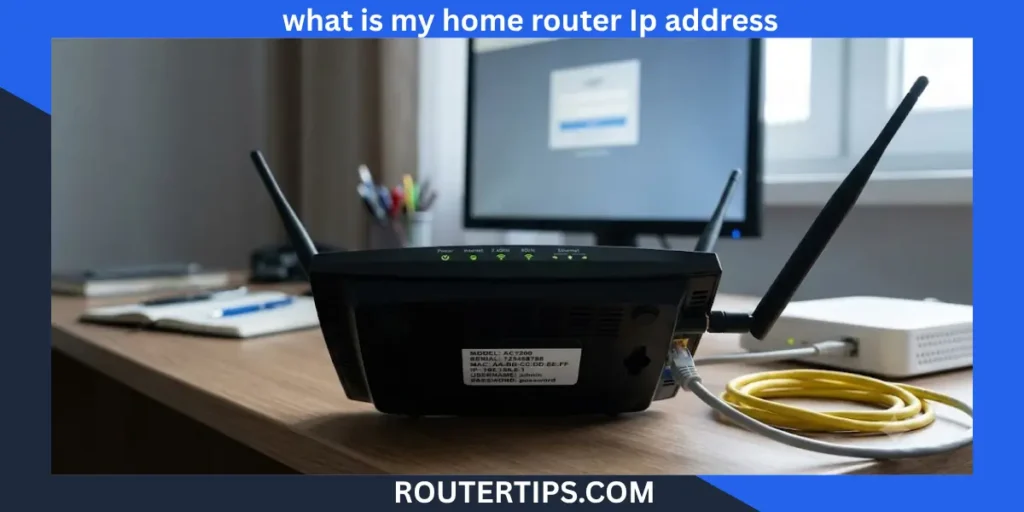
If you need to change your WiFi password, update your router settings, or fix a network problem, one of the first things you need is your router’s IP address. Many people search for “what is my home router IP address” because they are unsure where to find it or what it actually means.
A home router IP address is the local address that lets you access your router’s settings through a web browser. It is also called the default gateway, and it connects the devices on your home network to your router. Most home routers use private IPv4 addresses such as 192.168.1.1, 192.168.0.1, or 10.0.0.1.
In this guide, you’ll learn what a home router IP address is, why it matters, how to find it on different devices, how to log in to your router, and how to solve common problems. Whether you use Windows, Mac, Android, iPhone, Linux, or ChromeOS, the steps are simple and easy to follow.
What Is a Home Router IP Address?
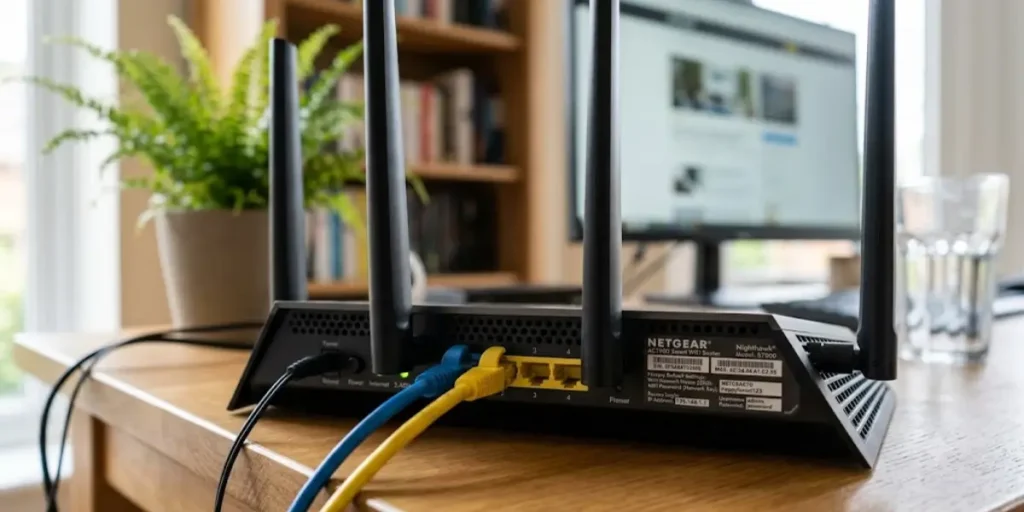
A home router IP address is a private Internet Protocol (IP) address assigned to your router. It acts as the main connection point for all the devices on your home network, including computers, smartphones, tablets, smart TVs, gaming consoles, and printers.
When you type your router’s IP address into a web browser, it opens the router’s login page. From there, you can manage settings such as:
- WiFi name (SSID)
- WiFi password
- Guest network
- Security settings
- Parental controls
- Port forwarding
- Firmware updates
- Connected devices
Think of your router’s IP address as the front door to your home network. It gives you access to the router’s control panel, where you can manage how your network works.
🌍 Want to check the public IP assigned to your network? Explore our What Is My External IP Address for My Router Overview to understand your public IP, remote access, port forwarding, and internet connectivity.
Private IP Address vs Public IP Address
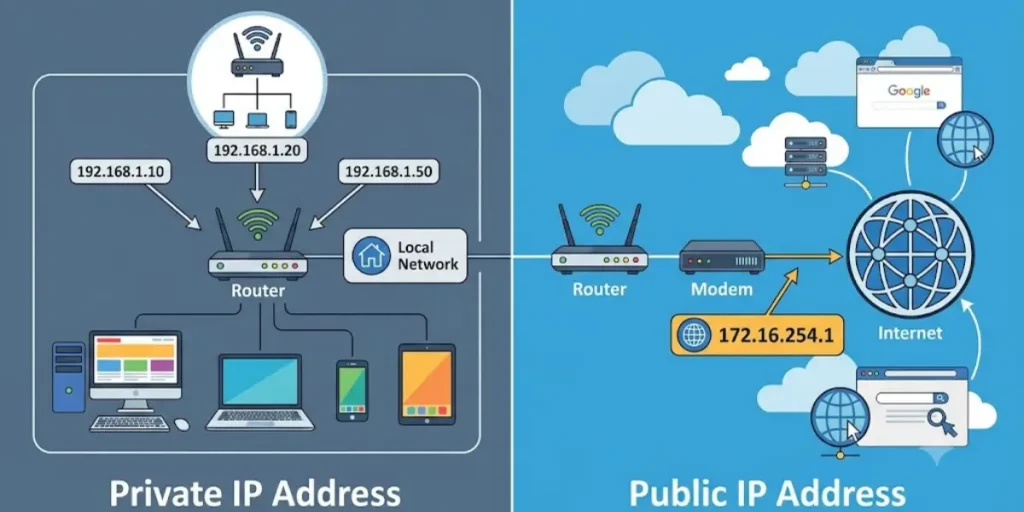
Your router uses two different types of IP addresses.
| Private IP Address | Public IP Address |
| Used inside your home network | Assigned by your Internet Service Provider (ISP) |
| Lets you access your router | Connects your network to the internet |
| Usually starts with 192.168.x.x or 10.x.x.x | Visible to websites and online services |
| Not accessible from the internet by default | Can change over time unless you have a static IP |
When people ask, “what is my home router IP address,” they are usually referring to the private IP address, not the public one.
Why Every Router Has an IP Address
Every router needs an IP address so devices can communicate with it. Without this address, your phone, laptop, or desktop computer would not know where to send requests for internet access or network settings.
The router also uses this address to:
- Manage traffic between devices
- Assign local IP addresses using DHCP
- Connect your home network to the internet
- Handle DNS requests
- Support wired and wireless devices
Whether you use a TP-Link, Netgear, ASUS, Linksys, D-Link, Cisco, Arris, Huawei, or another brand, your router includes a default IP address that allows you to access its settings.
Common Default Router IP Addresses
Most home routers use one of these private IP addresses:
| Router IP Address | Common Use |
| 192.168.1.1 | Many TP-Link, Linksys, ASUS, and Netgear routers |
| 192.168.0.1 | D-Link, Netgear, and several other brands |
| 10.0.0.1 | Comcast Xfinity and some business routers |
| 192.168.100.1 | Some Arris cable modems and routers |
| 192.168.8.1 | Many Huawei routers |
Your router may use a different address depending on the manufacturer or your network settings.
📶 Looking for the correct login address for your Comcast router? Explore our What Is My Comcast Router IP Address Tutorial to find the default gateway, sign in to your router, and manage your Wi-Fi and network settings.
Router IP Address vs Device IP Address
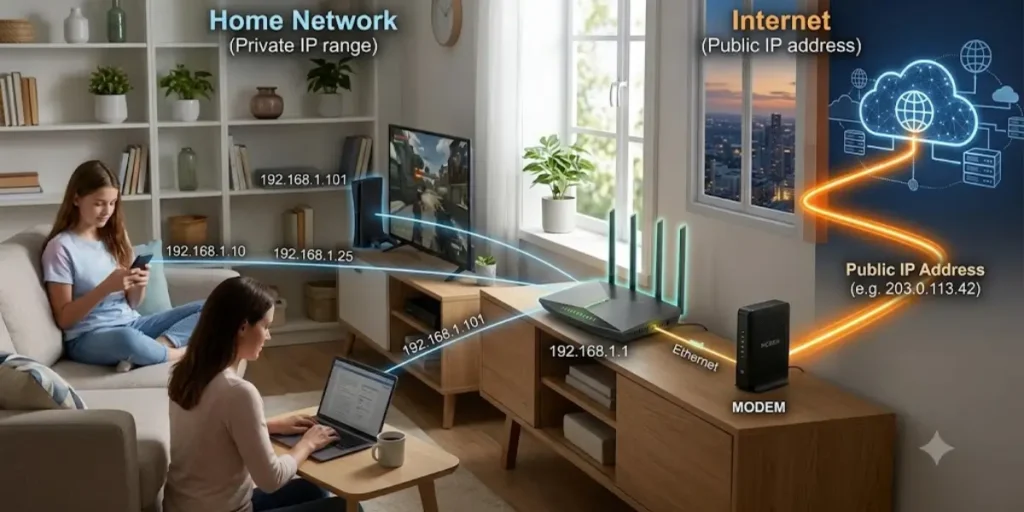
People often confuse their router’s IP address with the IP address assigned to their phone or computer.
For example:
- Your router may use 192.168.1.1
- Your laptop may use 192.168.1.15
- Your smartphone may use 192.168.1.22
The router acts as the gateway, while each connected device receives its own unique local IP address.
Is My IP Address the Same as My Router?
No. In most cases, your device’s IP address is different from your router’s IP address.
For example:
- Router IP: 192.168.1.1
- Computer IP: 192.168.1.10
- Phone IP: 192.168.1.12
All of these devices communicate through the router, but each one has its own local address on the network.
What Is My IP Address 192.168?
If you see an address beginning with 192.168, it is usually a private IPv4 address. These addresses are reserved for local networks and are not directly accessible from the internet.
Some common examples include:
- 192.168.1.1
- 192.168.0.1
- 192.168.1.254
- 192.168.100.1
These addresses are commonly used for router login and network management.
📶 Need the correct login address for your AT&T router? Visit our What Is My AT&T Router IP Address Tutorial to find the default gateway, access the admin panel, and manage your Wi-Fi and network settings with ease.
What Is My IPv4 Router Address?
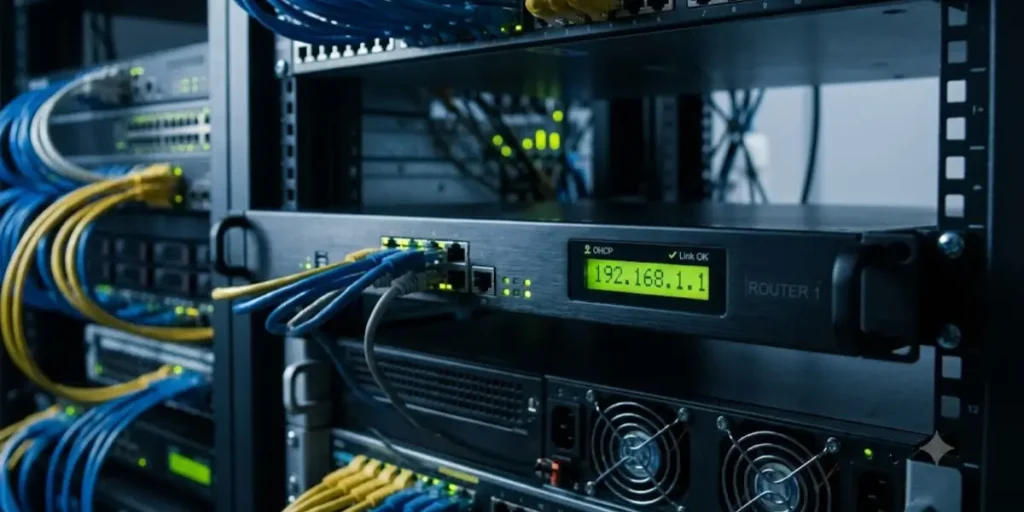
An IPv4 router address is simply your router’s local IPv4 address. It identifies your router on your home network and allows connected devices to communicate with it.
Although IPv6 is becoming more common, most home router login pages still use IPv4 addresses because they are simple and widely supported.
What Does a Router IP Address Look Like?
A router IP address is usually a series of four numbers separated by periods. Each number ranges from 0 to 255.
Examples include:
- 192.168.1.1
- 192.168.0.1
- 10.0.0.1
- 192.168.100.1
These are private IPv4 addresses used only within your home or office network.
Some newer networks also support IPv6, which uses a much longer format made up of letters and numbers separated by colons. However, for router login and most home networking tasks, you’ll typically use the IPv4 address.
How Is a Router IP Address Assigned?
Most routers come with a default IP address set by the manufacturer. During setup, you can usually keep this default or change it if needed.
Your router also runs a service called DHCP (Dynamic Host Configuration Protocol). DHCP automatically assigns local IP addresses to devices that connect to your network, making it easy to manage phones, computers, and other smart devices without manual configuration.
⚙️ Ready to configure your router for better connectivity? Explore our Port Forwarding Tutorial to learn how to open ports securely for gaming, remote access, security cameras, and other network services.
Where Can You Find the Router IP Address?
Depending on your router model, you may find the default IP address:
- On a label on the back or bottom of the router
- In the router’s user manual
- On the manufacturer’s support website
- In your computer’s network settings
- In your phone’s WiFi connection details
🔐 Forgot your router login details? Explore our Recovering Router User and Password Solutions for practical methods to restore access, reset administrator credentials, and securely manage your router settings.
Why Do You Need to Know Your Router IP Address?
Your router’s IP address is more than just a number. It is the address you use to access your router’s settings and manage your home network. If you have ever needed to change your WiFi password or fix a connection problem, you have probably needed your router’s IP address.
Here are some common reasons why knowing your router IP address is useful.
Log In to Your Router
The most common reason is to access the router’s admin panel. By entering your router’s IP address into a web browser, you can sign in and manage your network settings.
Change Your WiFi Name or Password
If you want to rename your wireless network or create a stronger WiFi password, you’ll need to log in to your router using its IP address.
View Connected Devices
Most routers let you see every device connected to your network. This helps you identify unknown devices and remove unauthorized users if needed.
Update Router Firmware
Router manufacturers release firmware updates to improve performance, fix bugs, and address security issues. These updates are installed through the router’s settings page.
Set Up Port Forwarding
Some online games, security cameras, and remote desktop applications require port forwarding. You can configure these settings after logging in to your router.
Improve Network Security
You can strengthen your home network by changing the default administrator password, enabling WPA2 or WPA3 encryption, and reviewing your router’s security settings.
Troubleshoot Internet Problems
If your internet connection is slow or keeps disconnecting, your router’s settings can help you diagnose the issue. You can check connection status, restart the router, or review network logs.
How to Find Your Home Router IP Address
Finding your home router IP address is simple. The exact steps depend on the device you are using, but the information is usually available in your network settings.
Below are the easiest methods for Windows, Mac, Linux, Android, iPhone, and ChromeOS.
How to Find Your Router IP Address on Windows 11 and Windows 10
Windows offers several ways to find your router’s IP address. The quickest method is through Command Prompt.
Using Command Prompt
- Press Windows + R on your keyboard.
- Type cmd and press Enter.
- In the Command Prompt window, type:
ipconfig
- Press Enter.
- Look for Default Gateway under your active network connection.
The number shown next to Default Gateway is your router’s IP address.
Example:
Default Gateway . . . . . . : 192.168.1.1
Using Windows Settings
- Open Settings.
- Select Network & Internet.
- Choose WiFi or Ethernet, depending on your connection.
- Click your active network.
- Scroll to the network details.
- Find Default Gateway.
This is your home router’s IP address.
🌐 Need to identify your router’s default gateway? Explore our Find Router IP Address Tutorial for quick methods to locate your router’s login IP and access the admin settings on any device.
How to Find Your Router IP Address on Mac
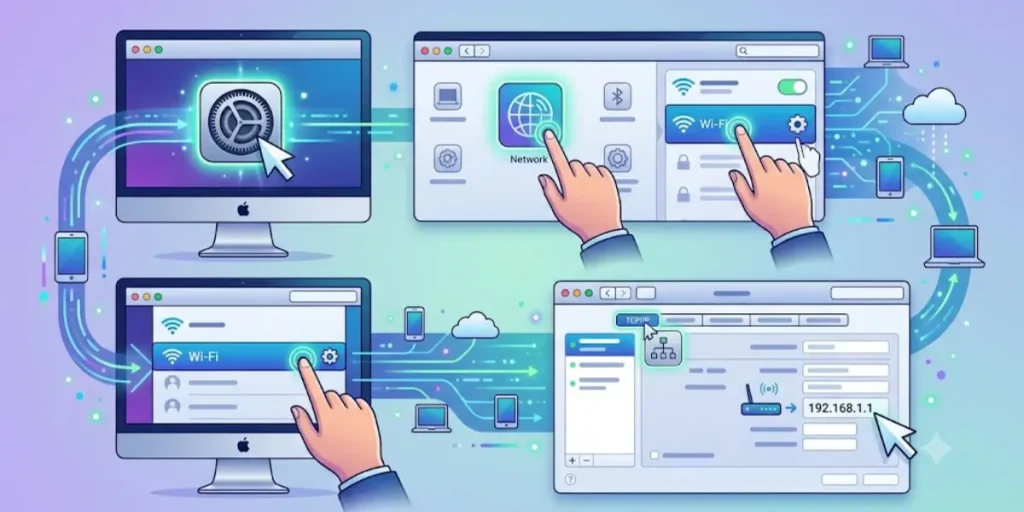
Mac users can locate the router IP through System Settings.
- Open System Settings.
- Select Network.
- Choose your connected WiFi or Ethernet network.
- Click Details.
- Open the TCP/IP section.
The Router field displays your router’s IP address.
For example:
Router: 192.168.1.1
How to Find Your Router IP Address on Mac Using Terminal
If you prefer using Terminal, this method is quick.
- Open Terminal.
- Type the following command:
netstat -nr | grep default
- Press Enter.
The address shown next to default is your router’s IP address.
How to Find Your Router IP Address on Linux
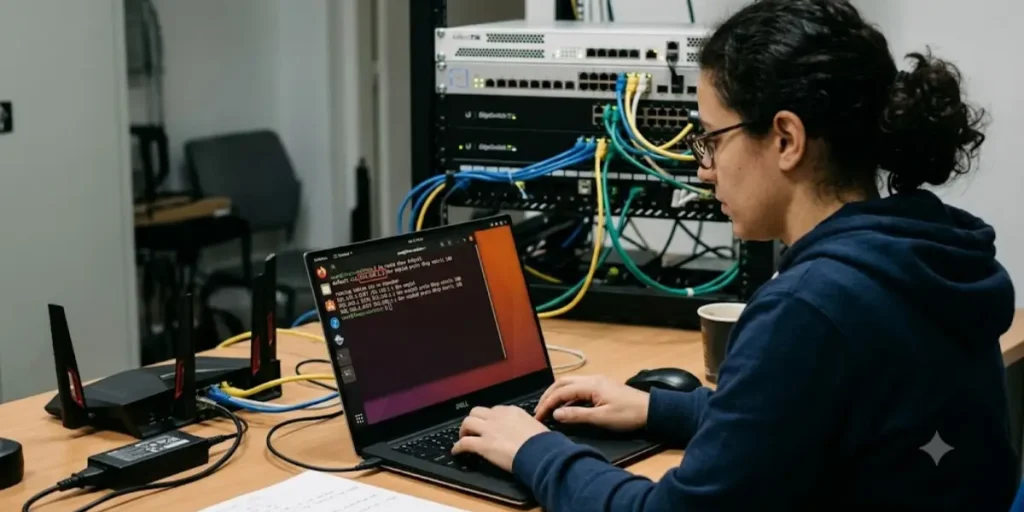
Linux users can find the router IP using Terminal.
- Open Terminal.
- Type:
ip route
- Press Enter.
You’ll see output similar to this:
default via 192.168.1.1
The number after default via is your router’s IP address.
Some Linux distributions also support:
route -n
Both commands provide the default gateway information.
How to Find Your Router IP Address on Android
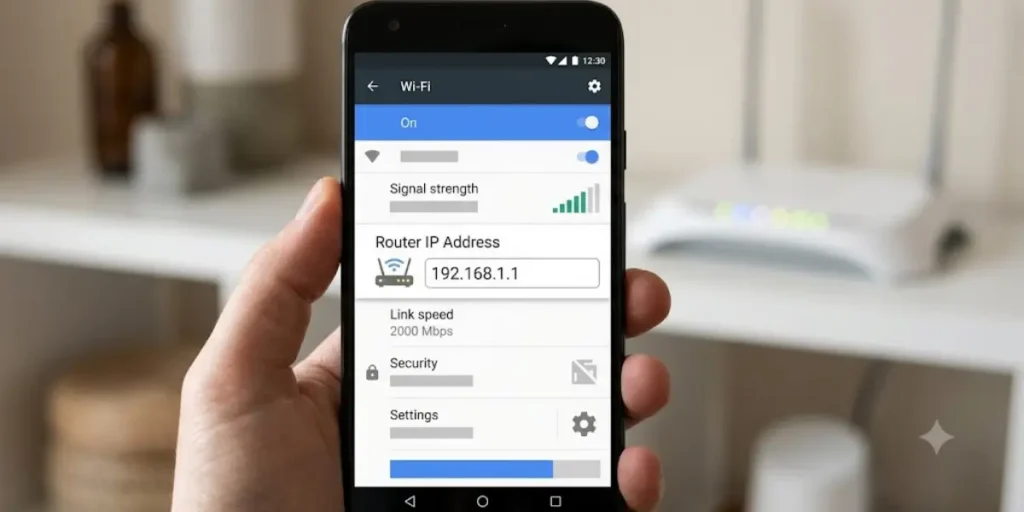
Android phones make it easy to view the router IP through WiFi settings.
- Open Settings.
- Tap Network & Internet or Connections.
- Select WiFi.
- Tap the connected WiFi network.
- Open Network Details or Advanced.
Look for one of these fields:
- Gateway
- Router
- Default Gateway
The value shown is your router’s IP address.
For example:
Gateway: 192.168.0.1
The exact menu names may vary depending on your Android version and device manufacturer.
How to Find Your Router IP Address on iPhone and iPad
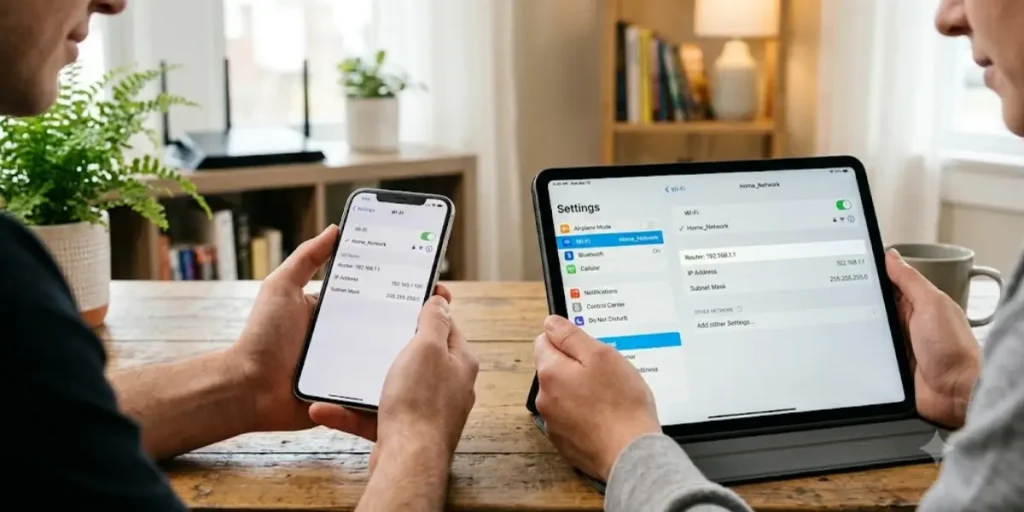
On iPhone and iPad, your router’s IP address appears in the WiFi settings.
- Open Settings.
- Tap WiFi.
- Tap the ⓘ icon next to your connected network.
- Scroll to the IPv4 Address section.
You’ll see a field labeled Router.
Example:
Router: 192.168.1.1
This is the address you use to log in to your router.
How to Find Your Router IP Address on ChromeOS
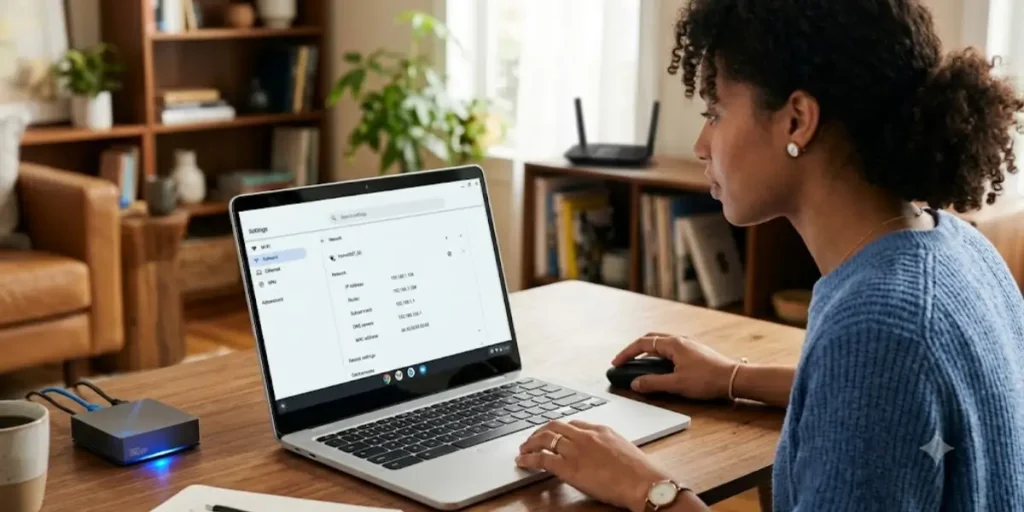
Chromebooks also provide easy access to network details.
- Click the time in the bottom-right corner.
- Open Settings.
- Select Network.
- Click your connected WiFi network.
- Open the Network or TCP/IP section.
The Gateway or Router address is your router’s IP.
How to Find Your Router IP Address from Your Mobile
If you’re using a smartphone, you don’t need a computer to find your router’s IP address.
On Android
- Open WiFi settings.
- Select your connected network.
- View Gateway or Router.
On iPhone
- Open WiFi settings.
- Tap the information icon beside your network.
- Find the Router field.
Both methods take less than a minute and work without installing any additional apps.
How to Know What My Router IP Address Is
If you’re still unsure about your router’s IP address, try these quick methods:
- Check the sticker on the bottom or back of your router.
- Look in the router’s user manual.
- Use your computer’s Default Gateway information.
- Check your phone’s WiFi network details.
- Visit your router manufacturer’s support page for the default login address.
If the default address has been changed, your device’s network settings will always show the current router IP.
Router IP Address Login
Once you know your home router IP address, the next step is logging in to your router. The router’s admin panel lets you manage your home network, update settings, and improve security.
Most routers can be accessed from any device connected to the same WiFi or Ethernet network.
How to Log In to Your Router
Follow these simple steps:
- Connect your device to your home network.
- Open a web browser such as Chrome, Edge, Firefox, or Safari.
- Type your router’s IP address into the address bar.
Examples:
- http://192.168.1.1
- http://192.168.0.1
- http://10.0.0.1
- Press Enter.
- Enter your router’s administrator username and password.
- Click Log In or Sign In.
If the login details are correct, the router’s dashboard will open.
From there, you can:
- Change your WiFi name (SSID)
- Update your WiFi password
- View connected devices
- Restart your router
- Configure parental controls
- Set up port forwarding
- Update router firmware
- Change DNS settings
- Manage guest WiFi
Router Username and Password List
Many routers come with default administrator credentials. For security, it’s a good idea to change them after your first login.
Here are some common defaults used by popular router brands.
| Router Brand | Default Username | Default Password | Default IP Address |
| TP-Link | admin | admin | 192.168.0.1 or 192.168.1.1 |
| Netgear | admin | password | 192.168.1.1 |
| ASUS | admin | admin | 192.168.1.1 |
| Linksys | admin | admin | 192.168.1.1 |
| D-Link | admin | admin or blank | 192.168.0.1 |
| Cisco | admin | admin | 192.168.1.1 |
| Arris | admin | password | 192.168.100.1 |
| Belkin | admin | admin or blank | 192.168.2.1 |
| Huawei | admin | admin | 192.168.8.1 |
Note: Internet service providers and router manufacturers often change the default login details. If the credentials above do not work, check the label on your router or the user guide that came with your device.
Common Default Router IP Addresses
Although every router has an IP address, most home routers use one of a few common private IPv4 addresses.
| Router IP Address | Commonly Used By |
| 192.168.1.1 | TP-Link, ASUS, Linksys, Netgear, Cisco |
| 192.168.0.1 | D-Link, TP-Link, Netgear |
| 10.0.0.1 | Xfinity, Comcast, business routers |
| 192.168.100.1 | Arris cable modems and routers |
| 192.168.8.1 | Huawei routers |
| 192.168.2.1 | Some Belkin routers |
If one address doesn’t work, don’t guess repeatedly. Instead, check the Default Gateway on your device to find the correct router IP.
Is 192.168.1.1 My Router?
Sometimes, yes.
192.168.1.1 is one of the most common default router IP addresses in the world. Many router manufacturers use it as the default gateway.
However, not every router uses this address.
Your router could instead use:
- 192.168.0.1
- 10.0.0.1
- 192.168.100.1
- 192.168.8.1
- Another private IP address chosen by your network administrator
The easiest way to confirm your router’s IP is to check your device’s network settings instead of assuming it’s 192.168.1.1.
How Do I Access My Home WiFi Router?
Accessing your router only takes a few minutes.
Connect to Your Network
Make sure your computer or phone is connected to the same WiFi network as your router.
Open a Web Browser
Use any modern browser, including:
- Google Chrome
- Microsoft Edge
- Mozilla Firefox
- Safari
Enter the Router IP Address
Type your router’s IP into the browser’s address bar.
Example:
http://192.168.1.1
Press Enter.
Sign In
Enter your administrator username and password.
If you’ve never changed these details, use the default credentials printed on the router label or provided in the manual.
Manage Your Router
After signing in, you’ll have access to features such as:
- Wireless settings
- Security options
- Connected devices
- Firmware updates
- Guest WiFi
- DHCP settings
- DNS settings
- Port forwarding
- Network diagnostics
Take care when changing settings. If you’re unsure what an option does, leave it unchanged or consult your router’s documentation.
What If You Forgot Your Router Username or Password?
Forgetting your router login details is common, especially if you changed them during setup.
Here are a few ways to regain access.
Check the Router Label
Many routers include the default username and password on a sticker attached to the back or bottom of the device.
Look in the User Manual
The manual often lists the default login information along with setup instructions.
Check the Manufacturer’s Website
Most router manufacturers provide the default login credentials for their products on their support pages.
Reset the Router
If you can’t remember the administrator password and none of the default credentials work, you can reset the router.
To reset:
- Keep the router powered on.
- Press and hold the Reset button for about 10 to 15 seconds.
- Wait for the router to restart.
- Log in using the factory default username and password.
Important: Resetting your router erases custom settings, including:
- WiFi network name
- WiFi password
- Port forwarding rules
- Guest network settings
- Custom DNS settings
- Administrator password
You’ll need to set these up again after the reset.
Tips for a Safe Router Login
Whenever you access your router, follow these simple security practices:
- Change the default administrator password.
- Use a strong password with letters, numbers, and symbols.
- Keep your router firmware up to date.
- Turn off remote management unless you need it.
- Review connected devices regularly.
- Remove unknown devices from your network.
- Enable WPA2 or WPA3 wireless security if supported.
These steps help protect your home network from unauthorized access and keep your WiFi more secure.
Router IP Address vs Public IP Address
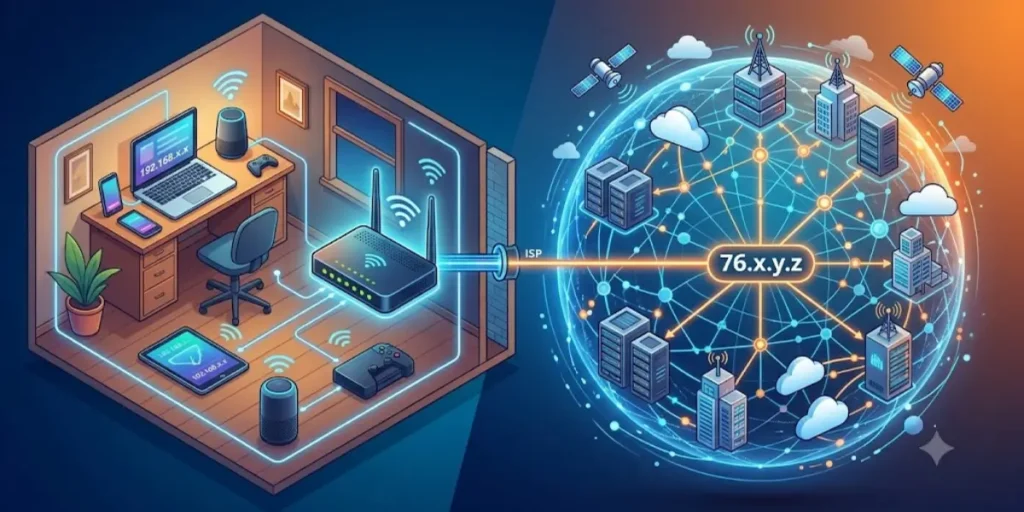
Many people think their router IP address and public IP address are the same. They are not. Each serves a different purpose and works in a different part of your network.
Your router IP address is used inside your home network, while your public IP address is used to connect your network to the internet.
The table below highlights the main differences.
| Feature | Router IP Address | Public IP Address |
| Also called | Private IP address or Default Gateway | Public IP address or WAN IP |
| Assigned by | Router manufacturer or network settings | Internet Service Provider (ISP) |
| Used for | Managing your home network | Connecting your home to the internet |
| Visible online | No | Yes |
| Typical examples | 192.168.1.1, 192.168.0.1, 10.0.0.1 | Varies based on your ISP |
| Can you use it to log in to the router? | Yes | No |
Knowing the difference can help you troubleshoot network issues and understand which IP address you need for a specific task.
How to Change Your Router IP Address
Most people never need to change their router’s IP address. The default address works well for home networks.
However, there are situations where changing it may help.
You May Want to Change It If:
- Two routers on the same network use the same IP address.
- You’re setting up a more advanced home network.
- You want a different private IP range.
- A network administrator recommends changing it.
Steps to Change the Router IP Address
- Log in to your router’s admin panel.
- Open LAN, Network, or Local Network settings.
- Find the Router IP Address or LAN IP Address option.
- Enter the new private IP address.
- Save the changes.
- Allow the router to restart if prompted.
For example, you could change:
- 192.168.1.1 to 192.168.2.1
or
- 192.168.0.1 to 192.168.10.1
After the change, you’ll need to use the new IP address the next time you log in to your router.
Tip: Avoid using an IP address that is already assigned to another device on your network.
Common Problems When Finding Your Router IP Address
Sometimes, you may have trouble locating or accessing your router’s IP address. Here are some common issues and how to fix them.
The Router Login Page Won’t Open
If the login page doesn’t load:
- Make sure you’re connected to your home network.
- Double-check that you entered the correct router IP address.
- Try a different web browser.
- Restart your router and computer.
- Clear your browser cache if necessary.
You Can’t Find the Default Gateway
If the Default Gateway field is blank:
- Disconnect and reconnect to your WiFi.
- Restart your device.
- Make sure your network adapter is enabled.
- Renew your IP address through your operating system.
The Username or Password Is Incorrect
If your login credentials are rejected:
- Check the router label for the default username and password.
- Make sure Caps Lock is off.
- Try the credentials provided by the manufacturer.
- Reset the router if you’ve forgotten the administrator password.
Someone Changed the Router IP Address
If the default IP doesn’t work, the router’s address may have been changed.
Use your computer’s Default Gateway or your phone’s Gateway setting to find the current router IP.
Internet Service Provider Gateway
Some internet providers supply modem-router combinations that use different default IP addresses.
If you’re unsure which address to use, refer to the documentation provided by your ISP or check the gateway information in your device’s network settings.
Tips to Keep Your Router Secure
Your router is the main gateway to your home network. Keeping it secure helps protect your devices and personal information.
Here are some simple ways to improve your router’s security.
Change the Default Administrator Password
Many routers come with a standard username and password. Replace the default administrator password with a strong, unique one as soon as you set up the router.
Create a Strong WiFi Password
Use a password that includes:
- Uppercase and lowercase letters
- Numbers
- Special characters
Avoid using names, birthdays, or other easy-to-guess information.
Keep Router Firmware Updated
Router manufacturers regularly release firmware updates that improve performance and fix security issues.
Check for updates every few months through your router’s admin panel.
Use WPA2 or WPA3 Encryption
Choose WPA2 or WPA3 as your wireless security mode if your router supports it.
Avoid older security standards like WEP, which are no longer considered secure.
Turn Off Remote Management
Unless you specifically need to access your router from outside your home network, keep remote management disabled.
This reduces the risk of unauthorized access.
Review Connected Devices
Periodically check the list of devices connected to your WiFi.
If you notice an unfamiliar device:
- Disconnect it.
- Change your WiFi password.
- Restart your router if needed.
Restart Your Router Occasionally
Restarting your router from time to time can help refresh network connections and improve overall performance.
Final Thoughts on What Is My Home Router IP Address
Your home router IP address is an important part of managing your home network. It allows you to access router settings, change your WiFi password, update network information, check connected devices, and fix common internet connection problems.
Finding your router IP address may seem difficult at first, but it is usually a simple process. Whether you use Windows, Mac, Linux, Android, iPhone, or ChromeOS, you can find it through your device’s network settings. Most routers use common IP addresses such as 192.168.1.1, 192.168.0.1, or 10.0.0.1.
Knowing your router IP address gives you better control over your internet connection. It helps you manage your WiFi network, improve security, and make important changes when needed. You can create a stronger WiFi password, remove unknown devices, and adjust router settings to improve network performance.
If you forget your router login details or cannot access the router login page, check the router label, user manual, or network settings to find the correct information. Keeping your router software updated, using a strong administrator password, and reviewing your network settings regularly can help maintain a safe, stable, and reliable internet connection for all your connected devices.
Frequently Asked Questions What Is My Home Router IP Address
Q1. How do I figure out what my router IP address is?
You can find your router’s IP address by checking the Default Gateway on a Windows PC, the Router field in your Mac or iPhone network settings, the Gateway information on Android, or by looking at your router’s label. Most home routers use addresses such as 192.168.1.1 or 192.168.0.1.
Q2. How do I access my home WiFi router?
Connect to your home network, open a web browser, enter your router’s IP address, and sign in using the administrator username and password. Once logged in, you can manage your WiFi settings and other network features.
Q3. Is my IP address the same as my router?
No. Your device has its own local IP address, while your router has a separate private IP address that acts as the default gateway for your home network.
Q4. Is 192.168.1.1 my router?
It may be. Many routers use 192.168.1.1 as their default IP address, but others use 192.168.0.1, 10.0.0.1, 192.168.100.1, or another private IP address. Check your device’s network settings to confirm the correct address.
Q5. Can I change my router IP address?
Yes. Most routers allow you to change the LAN IP address through the admin panel. If you do, remember to use the new IP address the next time you log in.
Q6. Does restarting my router change its IP address?
Restarting your router usually does not change its private IP address. However, your public IP address may change if your Internet Service Provider assigns dynamic IP addresses.
Q7. What happens if I enter the wrong router IP address?
If you enter the wrong IP address, the router login page will not open. Verify your router’s correct IP address using your device’s network settings and try again.