
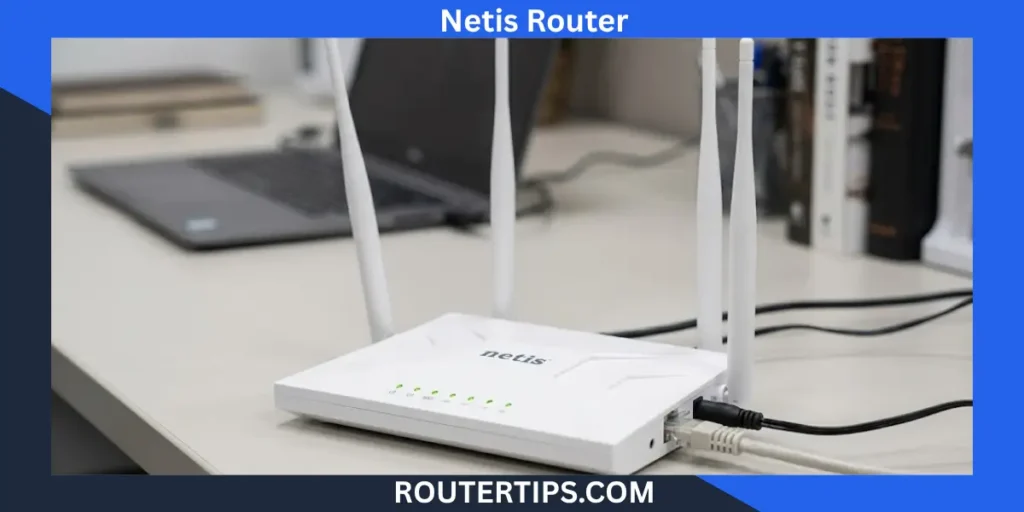
A Netis router lets you manage your home or office network through a web-based settings page. You can use it to change your WiFi name and password, set up an internet connection, manage wireless settings, and adjust other network options.
For many Netis wireless routers, the default router IP is 192.168.1.1. You can enter this address in a web browser while connected to the router to open the Netis login or web management page. Netis also explains that 192.168.1.1 is a local address built into the router, not a website on the public internet.
The exact login screen and credentials can vary between Netis models and firmware versions. That is important when a common username or password does not work.
Netis Default IP Address
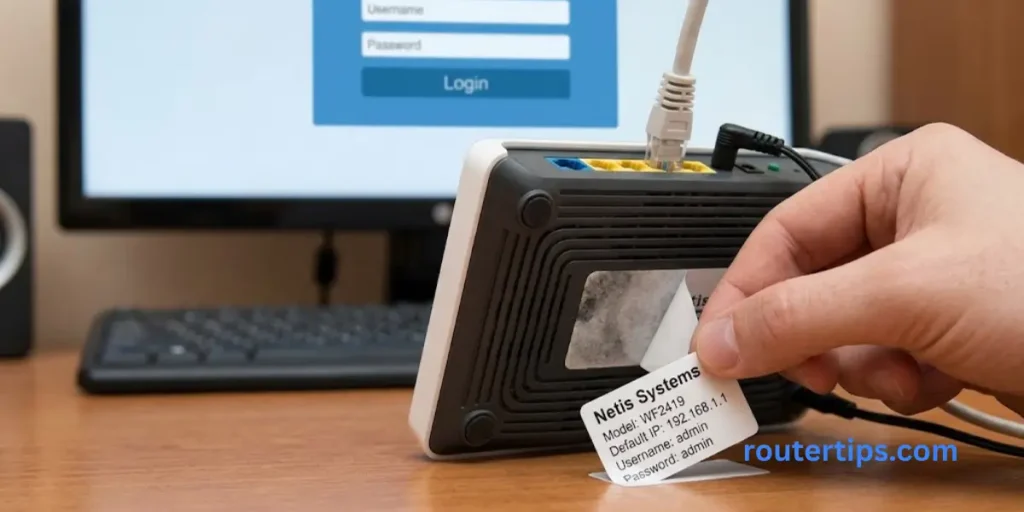
The commonly used Netis default IP address is 192.168.1.1.
This is the local address used by many Netis wireless routers to provide access to their web management interface. After connecting your computer or phone to the router, enter the address in the browser’s address bar.
For example:
192.168.1.1
Do not type it into a Google search box. Enter it directly into the browser’s address bar.
Netis documentation identifies 192.168.1.1 as the default LAN IP for its wireless routers.
📶 Want to learn more about the eero 7 router? Check our Eero 7 Router Overview to review its Wi-Fi 7 features, ports, coverage, and network capabilities.
Is 192.168.1.1 an IP Address?
Yes. 192.168.1.1 is an IP address, specifically a private IPv4 address commonly used by routers on local networks.
It is not your public IP address. Instead, the router uses this local address to communicate with devices connected to your home network and to provide access to its configuration page.
For example, your network might look like this:
- Router: 192.168.1.1
- Computer: 192.168.1.10
- Phone: 192.168.1.11
- Smart TV: 192.168.1.12
The exact device addresses can be different, but they may be within the same local network.
Netis specifically notes that 192.168.1.1 is not an internet website. The management page is stored within the router itself.
Netis Default Username and Password
Netis login credentials are not identical across every model and firmware version. This is why it is better to check the label, manual, or model-specific support page before assuming that one password will work.
Some older Netis router documentation uses guest as the default username and password, while Netis support documentation for wireless routers lists password as the default wireless password. These are not necessarily the same thing as the administrator password on every Netis device.
| Setting | Common Netis Value |
| Default IP | 192.168.1.1 |
| Default SSID on some models | netis |
| Default wireless password on some models | password |
| Admin username/password | Depends on model and firmware |
The most important distinction is between your WiFi password and your router login password.
Your WiFi password connects a device to the wireless network. The router login credentials give you access to the router’s settings.
If your Netis router has already been configured, the default credentials may also have been changed.
📶 Need help accessing your EE router? Check our EE Router Login Information to reach the login page and manage your router and network settings.
Netis Router Login
Logging into a Netis router is usually straightforward if your device is connected to the router.
How to Login to a Netis Router
Follow these steps:
- Connect your computer or phone to the Netis router.
- Open Chrome, Edge, Firefox, Safari, or another web browser.
- Click the browser’s address bar.
- Enter 192.168.1.1.
- Press Enter.
- Wait for the Netis web management page to load.
- Enter the required username and password.
- Select the login option.
Netis’s own instructions use 192.168.1.1 as the default address for accessing the router’s web management page. After a successful login, you can access the router’s configuration options.
Once logged in, you may see options for wireless settings, internet connection, LAN settings, bandwidth control, system tools, and other features. The exact menu depends on the Netis model and firmware.
What to Do If 192.168.1.1 Does Not Open
If the Netis login page does not appear, do not immediately reset the router.
First, check the connection between your device and the router.
Try these steps:
- Make sure you are connected to the Netis network.
- If possible, connect a computer with an Ethernet cable.
- Check that the router is powered on.
- Confirm that the cable is connected to the correct LAN port.
- Make sure you entered 192.168.1.1 correctly.
- Try another web browser.
- Restart the router and try again.
- Check your device’s default gateway.
The reason may be that the router’s LAN address was changed previously. Netis also recommends checking the physical connection and the computer’s IP address when the web management page cannot be accessed.
📶 Want to sign in to your Converge router? Check our Converge Router Login Details to reach the login page and manage your router and Wi-Fi settings.
How to Change Your Netis WiFi Password
Changing the WiFi password is one of the most common reasons people log in to a Netis router.
First, access the router at 192.168.1.1 and sign in.
The exact menu names can vary, but the general process is:
- Open the Netis router login page.
- Sign in to the router.
- Open Wireless or Wireless Settings.
- Find the wireless network name or SSID.
- Locate the wireless security or password field.
- Enter your new WiFi password.
- Save or apply the settings.
- Reconnect your devices using the new password.
Netis documentation confirms that the wireless password can be viewed and changed through the router’s web management page.
Your router may disconnect your phone or computer after the change. This is normal because the old wireless password is no longer valid.
Tips for Creating a Strong WiFi Password
Choose a password that is difficult for other people to guess.
A good WiFi password should:
- Be reasonably long.
- Use a mix of letters and numbers.
- Avoid your name or address.
- Avoid simple sequences such as 12345678.
- Avoid using the same password for important online accounts.
You should also avoid sharing your WiFi password with people who do not need ongoing access to your network.
📶 Need to sign in to your ASUS router? Check our Router Asus Login Details to access the admin page and manage your router and wireless settings.
How to Change the Netis Router Login Password
Your router login password and WiFi password serve different purposes.
The WiFi password allows devices to join your wireless network. The router administrator password protects access to the router’s settings.
If your Netis firmware provides an administrator password option, look under the system, administration, or advanced settings area after logging in.
The exact location can differ by model.
Changing the administrator password is a useful security step, especially if your router still uses an easily guessed factory credential.
After changing it, save the new password somewhere secure. You will need it the next time you open the Netis management page.
How to Reset a Netis Router Password
If you cannot remember the administrator password, you may need to reset the router to its factory settings.
Before doing this, understand what a factory reset does. It removes customized settings and returns the router to its factory configuration.
That can include:
- WiFi name
- WiFi password
- Internet settings
- LAN settings
- Custom security settings
- Other router preferences
Reset Netis Router to Factory Defaults
The reset process can vary by model, so check the instructions for your exact Netis router.
Netis support documentation describes pressing the Default button on the rear panel for about 8 to 10 seconds and then releasing it for applicable routers.
A general process is:
- Keep the Netis router powered on.
- Locate the Default or Reset button.
- Press and hold it according to the instructions for your model.
- Release the button.
- Wait for the router to restart.
- Connect your device to the router again.
- Open 192.168.1.1.
- Use the applicable factory login details.
- Configure your internet and WiFi settings again.
Do not reset the router just because the WiFi password was forgotten if you still have access to the router’s settings. A reset is more disruptive and may require you to enter your internet connection details again.
📶 Want to access your Huawei router settings? Check our Huawei Router Login Details to reach the login page and manage your router and Wi-Fi settings.
Netis Router Setup
After a factory reset or when setting up a new Netis router, you need to configure the internet connection and wireless network.
Netis’s setup instructions include common connection types such as DHCP, Static IP, and PPPoE.
Configure Internet Connection
The correct option depends on your internet provider.
DHCP:
The router automatically receives network information from the ISP.
Static IP:
Your ISP gives you specific information such as an IP address, subnet mask, gateway, and DNS servers.
PPPoE:
Your ISP provides a username and password that the router uses to establish the internet connection.
Do not choose PPPoE simply because you see the option in the router menu. Use the connection type provided by your ISP.
Configure WiFi
After the internet connection is working, configure your wireless network.
You can normally set:
- SSID
- Wireless password
- Security settings
- Wireless mode
- Channel
- Other wireless options supported by your model
Netis’s setup guide also lists the SSID and wireless password as part of the initial router configuration.
Choose a clear network name and a strong password. Then connect your phones, computers, TVs, and other wireless devices to the new network.
Netis Router Troubleshooting
A Netis router can have several different problems, and the correct solution depends on what is failing.
Cannot Login to Netis Router
If your device is connected but the login page does not open, check the router’s LAN connection first.
For a wired connection, make sure the Ethernet cable is properly connected. The router’s LAN status light can also help confirm whether the connection is active.
Netis recommends checking the physical connection, router IP, and computer IP configuration when users cannot access the web management page.
192.168.1.1 Not Working
If 192.168.1.1 does not work, the router may be using another local IP address.
This can happen if someone previously changed the router’s LAN settings.
You can check your device’s network information and look for the Default Gateway. On many networks, that gateway address is the router’s local management address.
Netis also notes that if the router’s IP address was changed and the new address is unknown, resetting the router can restore its factory configuration.
Netis Login Password Not Working
If the login password is rejected:
- Check the router model.
- Check the label or documentation.
- Make sure you are using the router administrator credentials rather than the WiFi password.
- Check whether someone previously changed the login password.
- Consider a factory reset if the password cannot be recovered.
Avoid repeatedly guessing passwords if you are not sure which credentials your model uses.
Netis Router Connected but No Internet
A device can successfully connect to the Netis WiFi network while the router itself has no internet connection.
In that case, check:
- WAN cable
- Modem or ISP connection
- Internet connection type
- PPPoE username and password
- WAN configuration
- ISP service status
Netis recommends testing whether a wired connection also drops and checking the ISP connection when troubleshooting internet problems.
If you have a separate modem and router, restarting both devices can also help. Power off the modem and router, wait briefly, then start the modem first and the router afterward.
Netis WiFi Keeps Disconnecting
- Wireless drops can come from interference, signal strength, router settings, or an internet connection problem.
- First determine whether the problem affects only WiFi or the whole connection.
- If wired devices remain stable while wireless devices disconnect, focus on the wireless configuration.
- Netis’s troubleshooting guidance includes checking the wireless channel and suggests channels 1, 6, or 11 for applicable 2.4 GHz configurations.
- You should also place the router in an open location rather than behind furniture or inside a closed cabinet.
📶 Looking to sign in to your Tenda router? Check our Tenda Router Login Details to access the login page and adjust your router and Wi-Fi settings.
Netis Router Login vs. Netis.cc
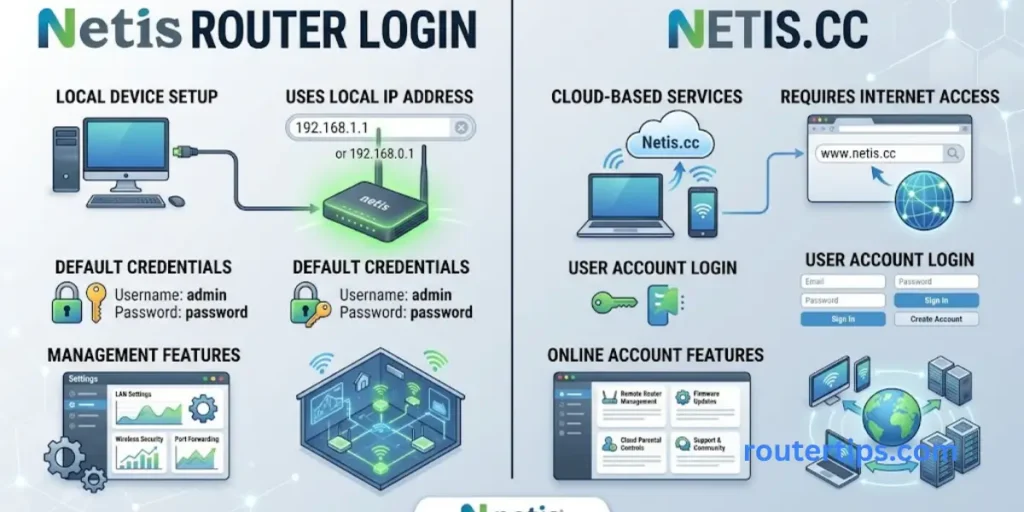
- Some users search for netis.cc login when trying to access a Netis router.
- However, you should not assume that netis.cc is the universal management address for every Netis router.
- Netis’s own support instructions repeatedly identify 192.168.1.1 as the default address for its wireless router web management page.
- The exact address and management method can vary by model and firmware, so the router label and model-specific documentation should take priority.
- If your router documentation specifically tells you to use another local address, follow those instructions.
Final Thoughts About Netis Router Login
A Netis router is usually simple to manage when you have the correct IP address and login details. For many Netis routers, 192.168.1.1 is the address you can use to open the router settings page.
Once you log in, you can change your WiFi name, WiFi password, internet settings, and other network options. Remember that your WiFi password and router login password are two different things. If one does not work, check your router model and its manual for the correct login details.
If 192.168.1.1 does not open, first make sure your phone or computer is connected to the Netis router. You can also check your device’s Default Gateway, as the router’s IP address may have been changed.
If you have forgotten the router login password, a factory reset may help. However, use it only when necessary because a reset removes your saved settings. You will then need to set up your WiFi and internet connection again.
After you regain access, change any easy-to-guess default passwords and choose a strong WiFi password. It is also a good idea to keep the router’s firmware updated for your exact Netis model and hardware version. With the correct login details and a few basic settings, you can manage your Netis router and keep your home network working smoothly.
Netis Router Login FAQs
Q1. What is the username and password of Netis routers?
There is no single username and password that applies to every Netis router.
Some older Netis documentation uses guest / guest for web management, while Netis documentation for wireless routers lists password as a default wireless password. Always check your specific model before assuming these credentials apply.
Q2. What is the default password of a Netis router?
The answer depends on what password you mean.
For some Netis wireless routers, the documented default wireless password is password. The administrator login credentials can be different and may vary by model or firmware.
Q3. What is the default IP of a Netis router?
The common default IP address for Netis wireless routers is 192.168.1.1. It is used to access the router’s local web management page.
Q4. How do I log in to a Netis router?
Connect your device to the Netis router, open a web browser, enter 192.168.1.1, and press Enter. Then enter the credentials required by your router.
If the page does not open, check your connection and the router’s current gateway address.
Q5. How do I troubleshoot a Netis router?
Start with the simplest checks. Confirm that the router is powered on, check the cables, verify your device’s network connection, and make sure you are using the correct router IP.
If 192.168.1.1 does not work, check whether the LAN IP was changed. Netis recommends checking the router and computer IP configuration before using a factory reset.
Q6. How do I reset my Netis router login password?
If you cannot recover the administrator password, a factory reset may be necessary.
For applicable Netis models, the manufacturer says to press the rear Default button for around 8 to 10 seconds. A reset removes your custom configuration, so you will need to set up the router again afterward.